HTML Email to Figma
Documentation
A simple guide to the plugin: how to bring an email in, what you get in Figma, and how free emails and Pro work.
Getting started
HTML Email to Figma runs inside Figma. It needs no account with us and no setup.
- Find HTML Email to Figma in the Figma Community and run it from Plugins in any Figma file. It is coming soon; the release notes will show when it is out.
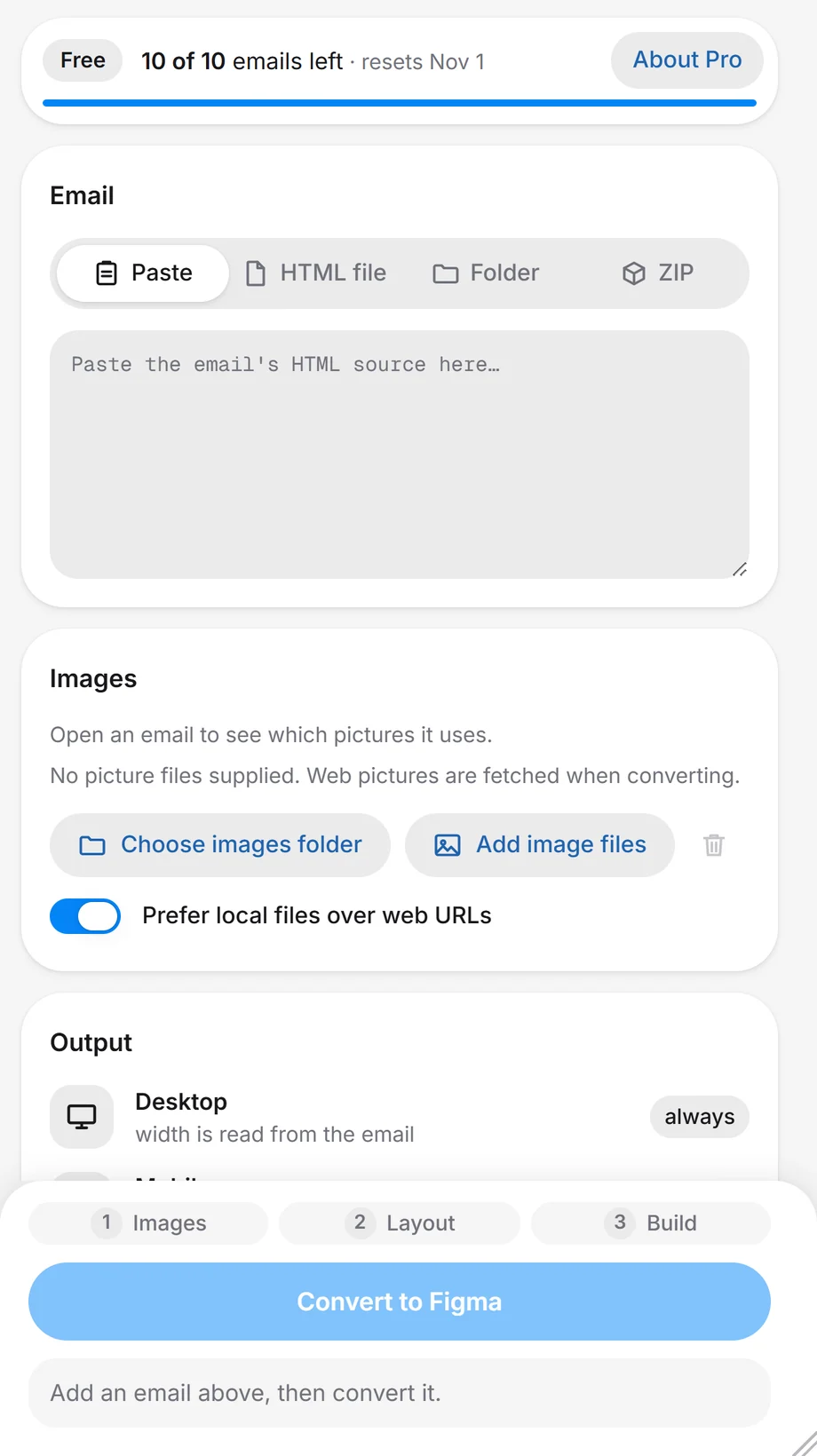
- Add your email: paste its HTML, or choose an HTML file, a folder or a ZIP.
- Look at the Images card. It tells you which pictures were found, which come from the web and which are missing.
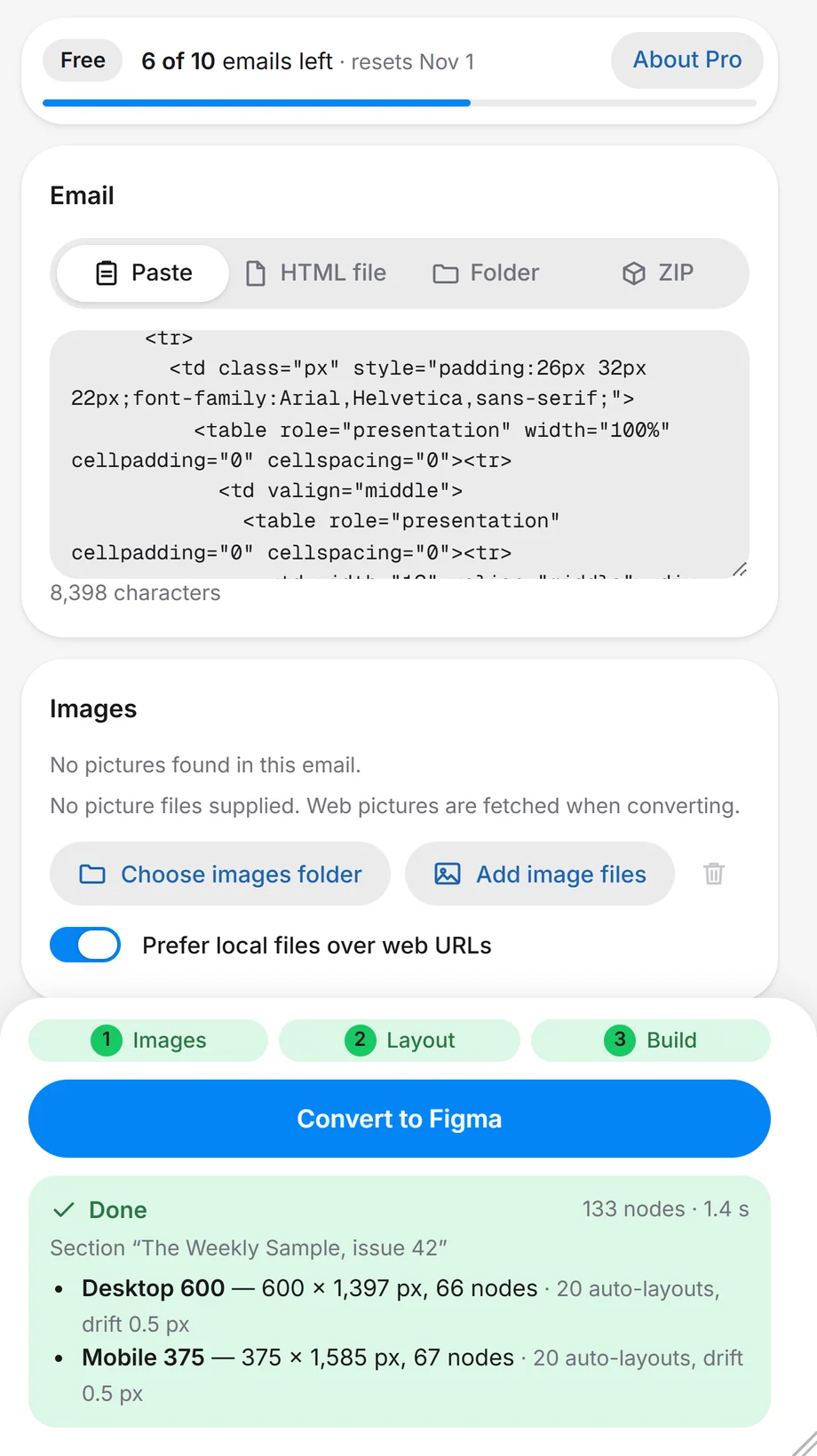
- Press Convert to Figma. One Section appears on your current page, with a Desktop frame and, if the email has mobile styles, a Mobile frame.
Tip: A folder or a ZIP is the easiest way in. It keeps the HTML and its pictures together, so the pictures match without any extra step.
Bring an email in
There are four ways. Pick the one that matches what you have.
| Way | What to do | Good for |
|---|---|---|
| Paste | Paste the email’s HTML source into the box. | A quick try, or when you already have the code open. |
| HTML file | Choose an HTML file, or drop it on the plugin. Select its pictures together with it to include them. | An email saved from your email tool. |
| Folder | Choose the email’s folder, or drop it. The HTML and its images folder are read together. | An email exported with its images folder. |
| ZIP | Choose a ZIP file, or drop it. It can hold the HTML and an images folder. | An export you received as one file. |
If a folder or a ZIP holds more than one email, a picker lets you choose which one to convert.
Most email tools can export a campaign as HTML. Look for Export, Download HTML or View source in yours. You need the HTML itself: a screenshot or a PDF will not work.
Pictures
The Images card shows how many pictures the email uses and where each one comes from.
- From a folder or ZIP: pictures are matched to the email by their path.
- Add image files or Choose images folder: use these when you pasted the HTML but still have the pictures.
- Prefer local files over web URLs is on by default. If a picture is both supplied and on the web, your file is used.
- From the web: pictures that live online are downloaded when you convert. Only public https addresses are loaded, never an address on your own computer or network.
- Matched, from the web, missing: three small counts tell you at a glance if anything is wrong before you convert. Open Details to see every picture.
- Pick file: for any single picture, you can choose the file by hand. Reset undoes it.
If a picture cannot be loaded, it stays as a grey placeholder and the Images card gives a plain reason, for example “the server refused the request (403)” or “the picture is no longer there (404)”. The rest of the email is still converted.
What you get
One Section on your current page, named after the email. Inside it are one or two frames.
- Desktop: always made. Its width is read from the email, often 600 px.
- Mobile: optional. It is built from the email’s own
@media (max-width)rules. If the email has none, only the Desktop frame is made, and the Output card says so. - Mobile width: choose 320, 360, 375 (the default), 390 or 414 px, or type any width from 240 to 1024. If the email’s mobile rules only apply at 480 px and below, choose 480 or less.
- Auto layout, live text and links: rows and columns use auto layout, text is editable, and a link in the email is a link on its text.
- Left out: hidden text, preheaders and tracking pixels.
When a run is done, the plugin shows, for each frame, its size, how many nodes (layers) it has, how many containers use auto layout, and the largest gap in pixels between the browser’s layout and the one it built, called “drift”. In two of our demo emails, the drift was 0.5 px.
How layers are named
Layers are named by what they are, not by the HTML tag they came from. These are the names you will meet.
| Layer name | What it is |
|---|---|
| Banner | A block with a background picture, often the top of the email. |
| Card | A painted block with rounded corners or a border, such as a button or a tile. |
| Section | A block with its own background colour. (This is a normal frame, not a Figma Section.) |
| Row and Column | Items side by side, or stacked. |
| Header and Footer | Named from the email’s own header and footer elements, when it uses them. |
| Group | A plain container that keeps a few items together. |
| Divider | A thin line. |
| Block | A painted shape with nothing inside, such as a colour bar. |
| Spacer | An exact gap that a plain spacing value could not make. Easy to find by its name. |
| Align | A small helper frame that places one item, for example a centred button in a left-aligned column. |
| Layers | Items that overlap, such as text on top of a picture. They keep their exact place. |
| Icon | A small inline SVG icon from the email, kept as a vector. |
| Image: alt text | A picture, named from its alt text. |
| Text: first words | A text layer, named from its first words. |
Fewer layers
Most of an email’s code is wrapping: tables inside tables inside tables. Turning every one of them into a layer would bury the design.
- A wrapper that paints nothing and adds nothing does not become a layer.
- A box that paints something (a colour, a border, rounded corners, a shadow, a picture) becomes a frame.
- Text and links that sit together in a line become one text layer, with the styles kept inside it.
- Where a gap needs to be exact, you will see a layer named Spacer. They are counted below, so nothing is hidden.
We counted four made-up demo emails. “Every node” means one layer for every tag and every piece of text.
| Demo email | Tags | Text pieces | Every node | Layers built | Fewer |
|---|---|---|---|---|---|
| Weekly newsletter | 81 | 29 | 110 | 66 | 40% |
| Product launch | 162 | 44 | 206 | 127 | 38% |
| Receipt | 114 | 37 | 151 | 94 | 38% |
| Travel guide | 141 | 39 | 180 | 94 | 48% |
How we counted: tags and text pieces in the body of each email, in a browser, with scripts off (line breaks, styles and scripts are not counted). Layers are those of the Desktop frame, from our own test build running in a browser. Inside Figma the numbers may differ a little.
Free emails and Pro
The plan strip at the top of the plugin shows how many free emails you have left and when they come back.
| What | How it works |
|---|---|
| Free emails | 10 every calendar month (UTC). |
| What counts as one | One press of Convert that starts. The Desktop and Mobile frames made from the same email together use one. |
| A failed run | The email is given back automatically, once, and the plugin says “No free email was used”. After a month has turned, nothing is given back. |
| When they come back | On the 1st at 00:00 UTC. Unused emails do not roll over. |
| When you run out | Convert does not start. The plugin shows when your emails come back. |
| Pro | Unlimited emails (fair use applies), $20 a month. Coming soon. It will be bought inside the plugin and paid through Figma. |
| If our service is unreachable | The plugin keeps working. It counts your emails on your computer and sends the counts later. |
Good to know: If you close the plugin while a conversion is running, the email is not given back. See pricing for the plans side by side.
Tips for a good result
- Use a folder or a ZIP so every picture matches on the first try.
- Read the Output card. It tells you whether the email has mobile rules and at which width they apply.
- Install the email’s fonts in Figma first, if you have them. A web font that is not installed is replaced with a close one.
- Convert the sent version of the HTML, with its real content, so the layout is the one your readers saw.
- Tricks that need JavaScript or a mouse hover are not applied. The email is laid out once, in its normal state.
Limits
Real emails are far below all of these. Most are under 1 MB.
| What | Limit |
|---|---|
| The HTML of one email | 30 MB |
| One picture | 25 MB |
| All pictures of one conversion together | 200 MB |
| Different web pictures in one conversion | 300 |
| HTML elements in one email | 30,000 |
| Layers in one design | 20,000 |
| Files in an imported folder | 6,000 |
| Entries in an imported ZIP | 20,000 |
| One ZIP entry, after it is unpacked | 200 MB |
When a limit is reached, the plugin says so in plain words. A picture over its limit becomes a grey placeholder. An email whose HTML is over the size limit is refused before it uses a free email, and a run that fails later gives the email back.
If something goes wrong
| What you see | What to do |
|---|---|
| A grey picture | Read the reason on the Images card. If the picture is on your computer, add it with a folder, a ZIP or Add image files. |
| A font looks different | The email uses a web font that is not in Figma. Install it, or accept the close font the plugin chose. |
| No Mobile frame | The email has no mobile rules, or Also create a Mobile frame is off in the Output card. |
| “Mobile skipped” | The plugin tells you why. Often the email’s mobile rules do not make it narrower at the width you chose, so a Mobile frame would be cut off. Try another width, for example the one the Output card suggests. |
| No free emails left | Wait for the date shown in the plan strip, or read about Pro. |
| “The credits service cannot be reached” | Nothing is wrong with your email. The plugin keeps working and counts on your computer. |
| A message about size or limits | See the Limits above. Remove very large pictures, or split a huge email. |
More answers are on the Help & Support page.
Privacy and permissions
HTML Email to Figma runs on your computer. Your email’s HTML is never sent to us.
| Access | Why |
|---|---|
| Payments | So the plugin can ask Figma whether you have paid for Pro. We never see your payment details. |
| Network | To download the pictures, fonts and styles an email links to (public https addresses only), and to reach our credits service. |
- No account with us, no ads and no tracking.
- Our credits service only receives a random install ID, the plugin version, a random conversion ID and the month.
Read the full details in the privacy policy.
About the pictures on this site
The plugin windows you see here come from our own test build of the plugin, run in a normal browser. The Desktop and Mobile frames are drawn from the layout the plugin builds, with the same numbers it reports. All emails are made up. Pro is not on sale yet, so the plan strip reads “About Pro”. Our test build showed “Upgrade” there, so that one button was swapped in from another capture of the same plugin.
Not tested in Figma yet: the last checks of the plugin inside Figma itself come before release. This page will say when they are done, and the pictures may change after that.