
Chrome extension · Free

Your calm moodboard
on every new tab.

VibeBoard turns your new tab into a quiet board for notes, pictures, tasks and reminders. Everything stays on your own device, so it is private from the start.

Free. No account. No ads and no tracking.

New Tab
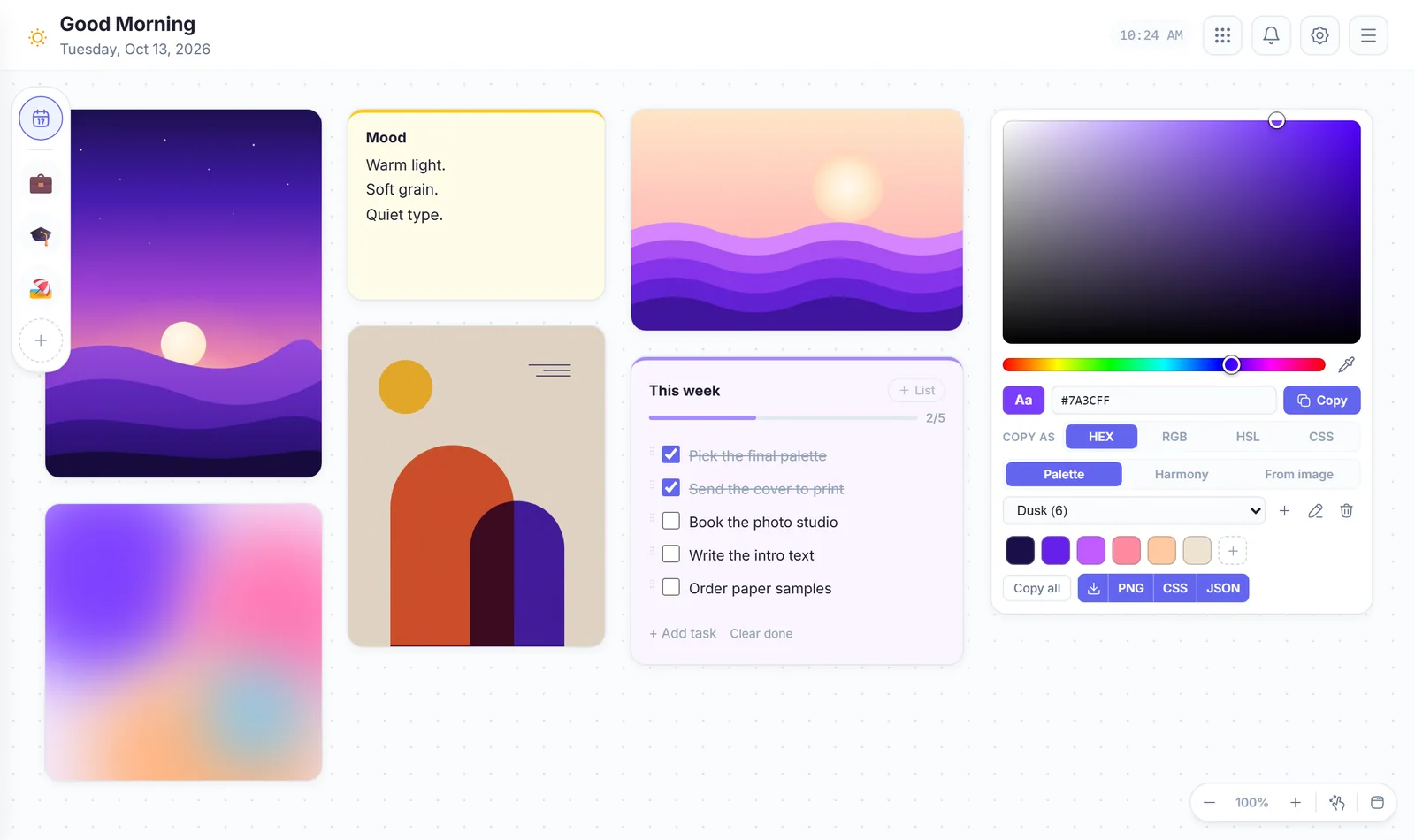
A VibeBoard board on a Chrome new tab, with pictures, a sticky note, a task list and a color picker, and a row of spaces at the left edge
38widgets on one board
3permissions asked
0websites read without your yes
0accounts needed

What you get

Everything for your day,
on one board.

Open a new tab and your board is there. Add only what you need, and put it anywhere you like.

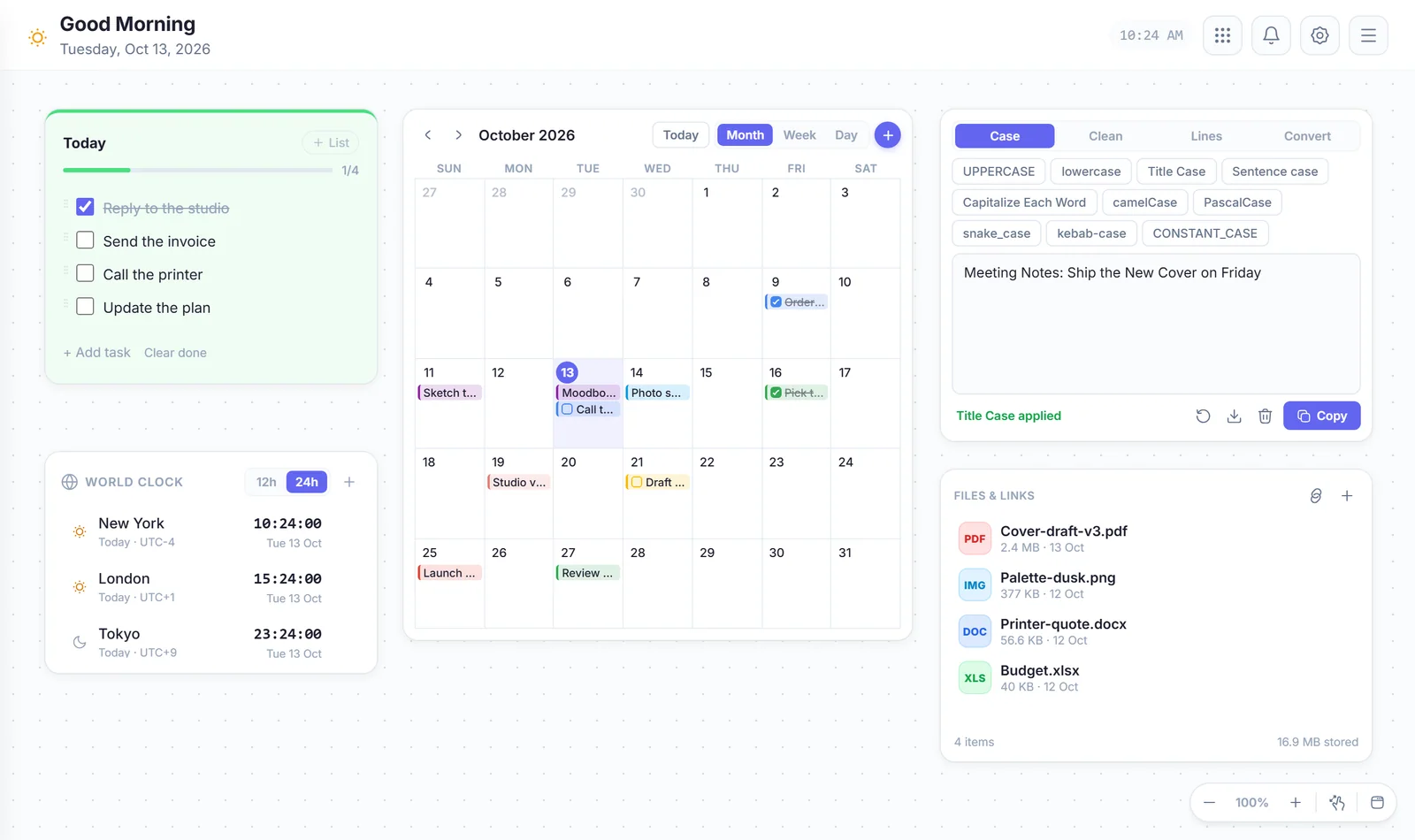
The Work board: a task list, a world clock, a month calendar, text tools and a file shelf

01 · Daily board

A fresh board for
every single day.

Each day starts with its own board. Drag, resize and zoom as you like. Pin a widget and it comes back every day. Older boards stay in your history.

  • Drag, resize and zoom
  • Pinned widgets come back each day
  • Older boards stay in your history
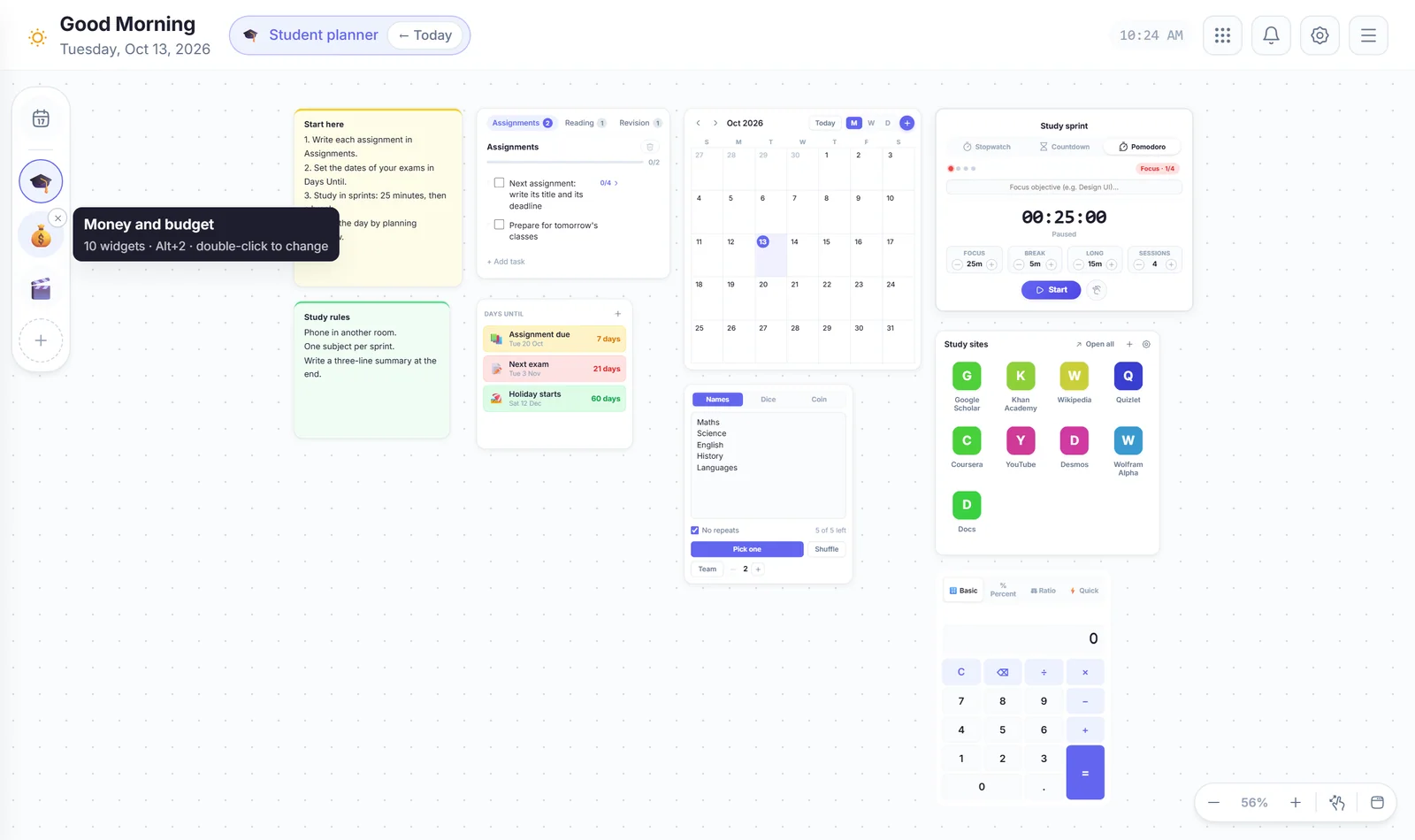
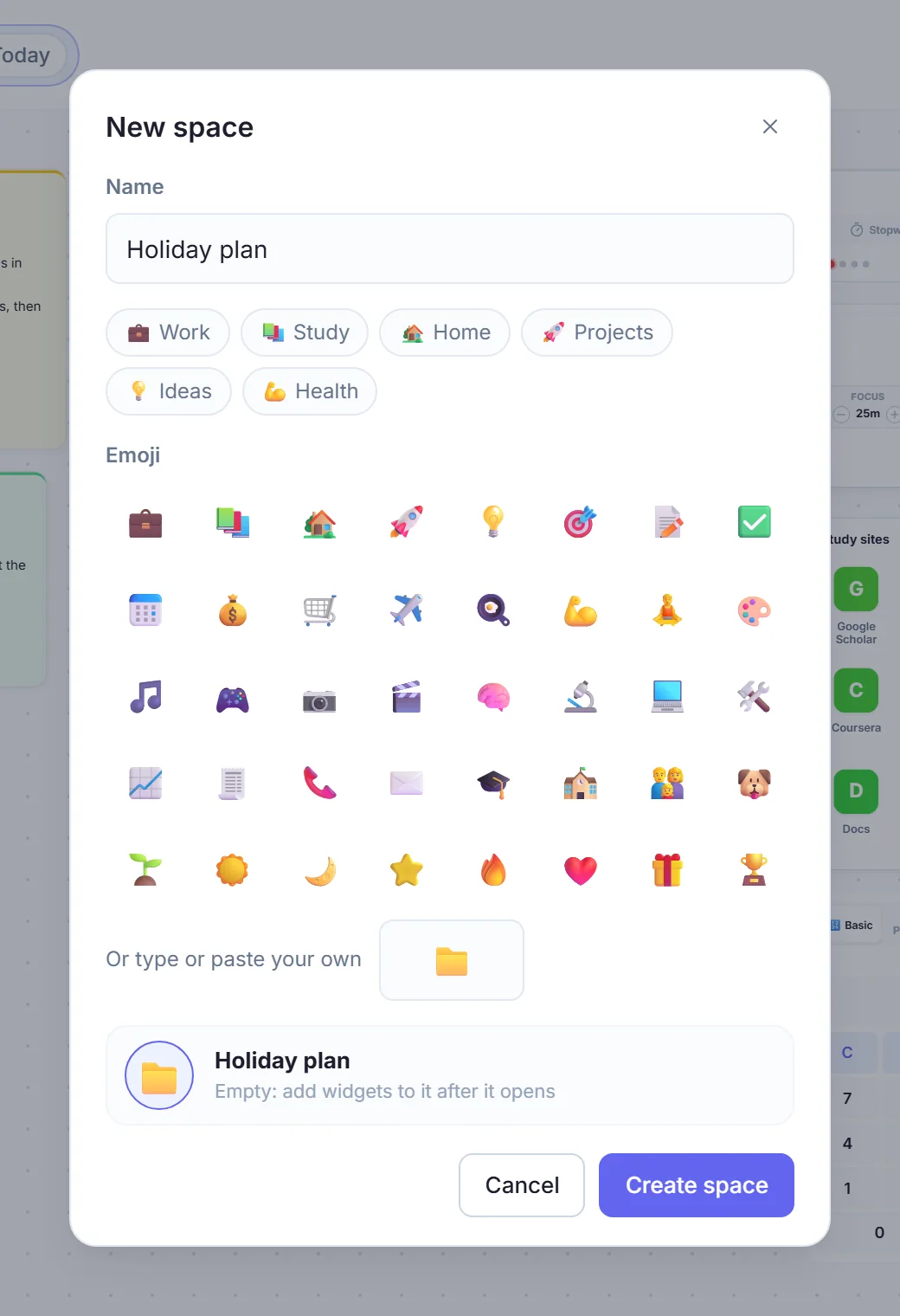
A board with the row of spaces at the left edge. The name of the space you point at shows next to a small cross that removes it The New space window, with a name, a choice of emojis and a button that creates the space

02 · Spaces

Keep each part of life
in its own space.

A space is a board of its own, with a name and an emoji you choose. Keep work, study, home and money apart, and switch with one click in the row at the left edge. Any widget can go into a space.

  • Point at a space to see its name and a cross to remove it
  • Removing a space asks twice, so a slip loses nothing
  • Search can look only in the space you are in
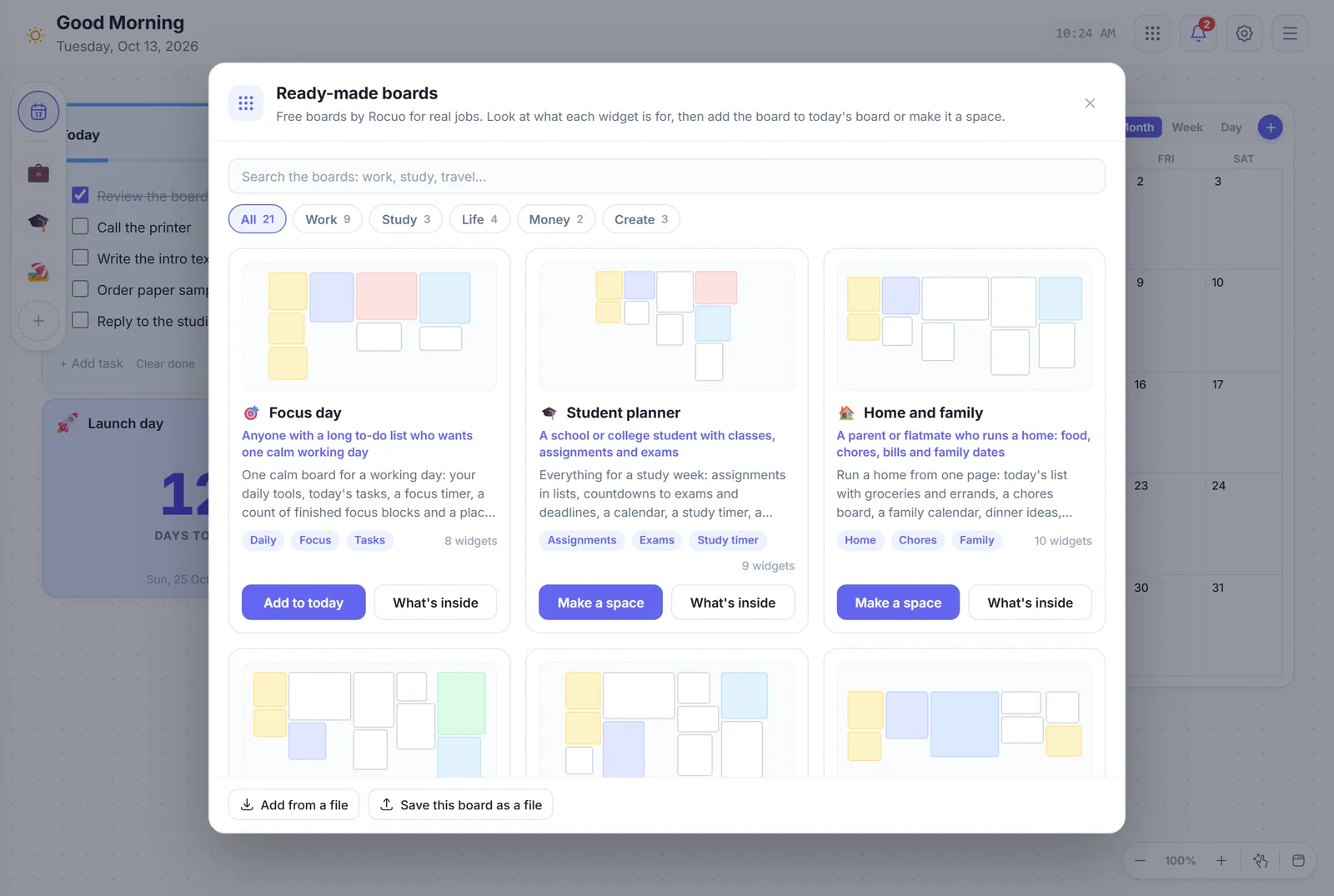
The Ready-made boards window, with a search box, five shelves and the cards of the Focus day, Student planner and Home and family boards

03 · Ready-made boards

Start from a board
that fits your day.

Pick a board for work, study, home, money or creating. Each one has a short note, and every widget says what it is for. Add it to today’s board, or make it a space.

  • 21 free boards on five shelves
  • The same boards are on this website, to download
  • Save your own board as a file and share it

See all 21 boards

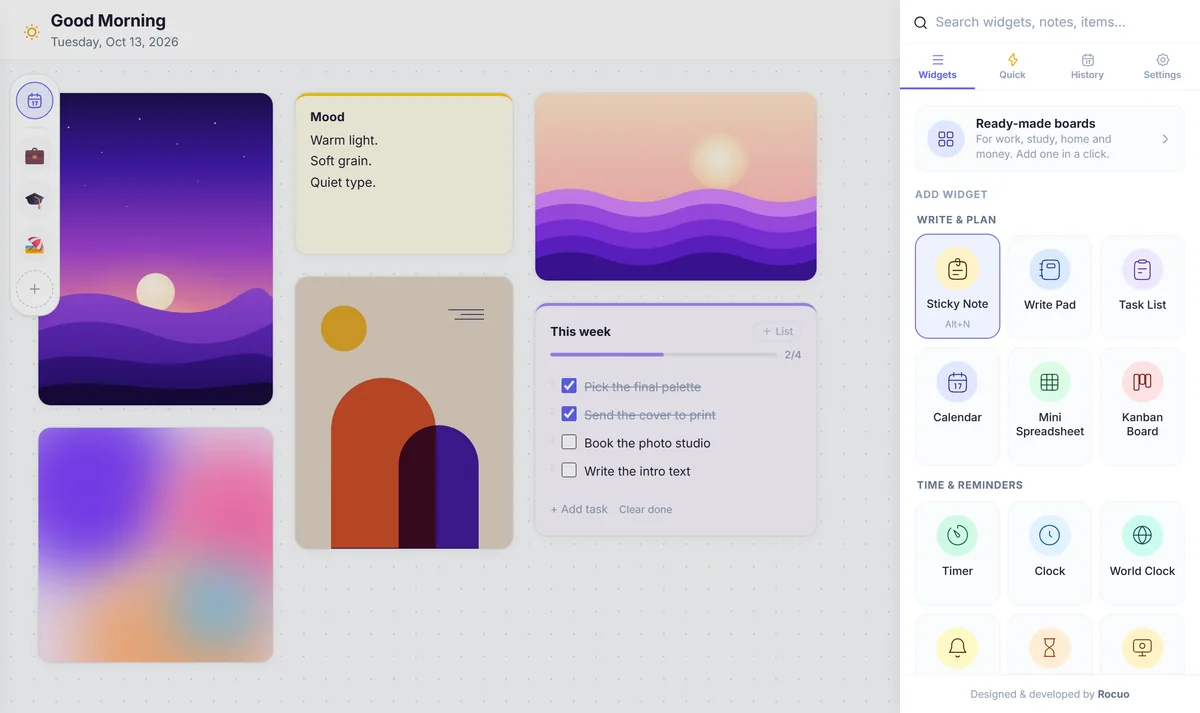
A board with the Add widget panel open on the right, with the Ready-made boards card and the widget groups, each widget on a round tile

04 · 38 widgets

Add only what
you need.

Notes, tasks, a calendar, clocks, a news reader, link groups, Google Docs, calculators, a password vault, a sticker maker and more. Add a widget with one click, or with a shortcut such as Alt+N for a note.

  • Press Ctrl+B to open the side panel
  • Tiles show their shortcut, where there is one
  • Five groups: write, time, tools, media, and news, links and Google
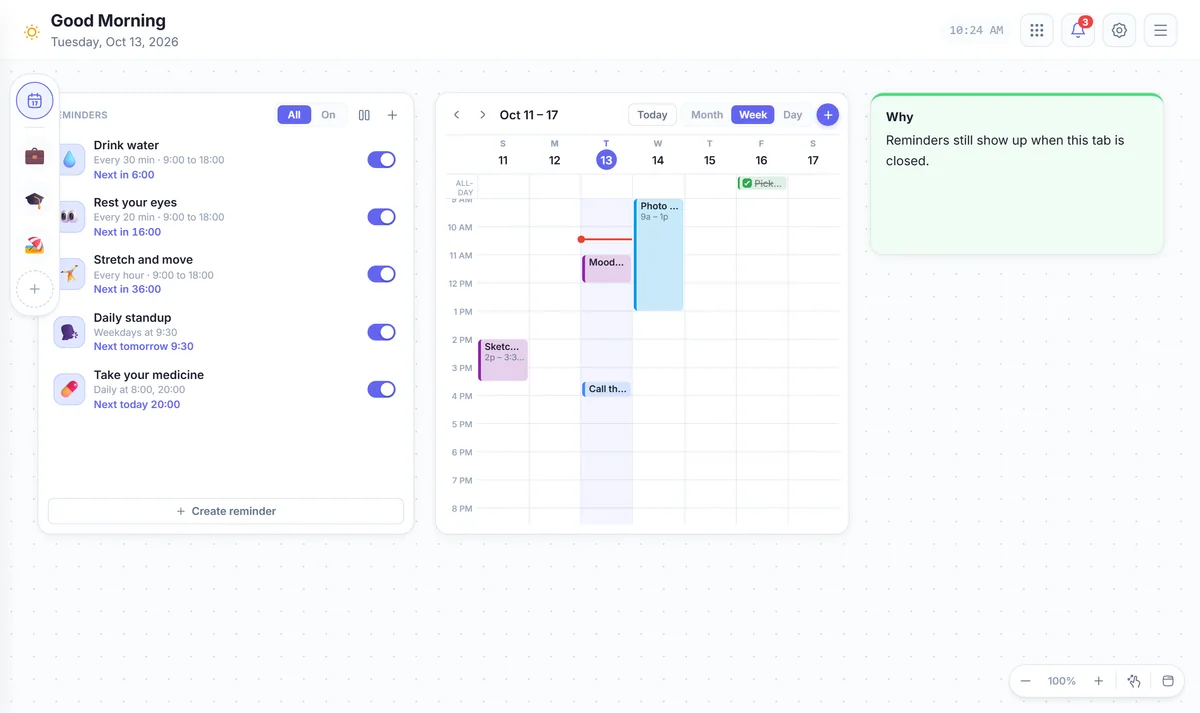
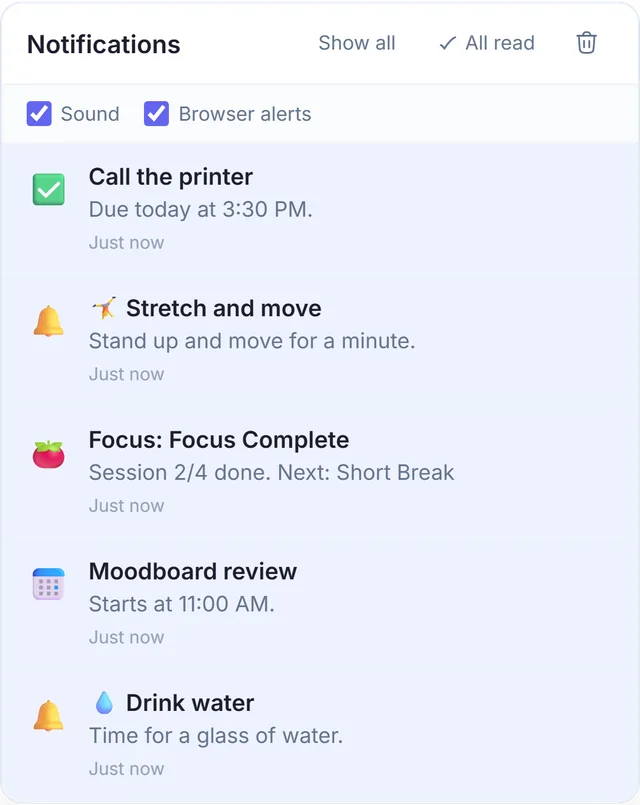
A list of repeating reminders with a Create reminder button, next to a week calendar The notification list: a task that is due, a stretch reminder, a finished Pomodoro session, a calendar event and a drink water reminder

05 · Reminders

Reminders that work
in the background.

Repeat every few minutes or hours, or pick daily and weekly times. Snooze or finish a reminder right from its notification. Chrome needs to be running.

  • Snooze or mark done from the notification
  • Works with the board closed
  • You choose how long an alert stays
  • A test button checks that alerts show up
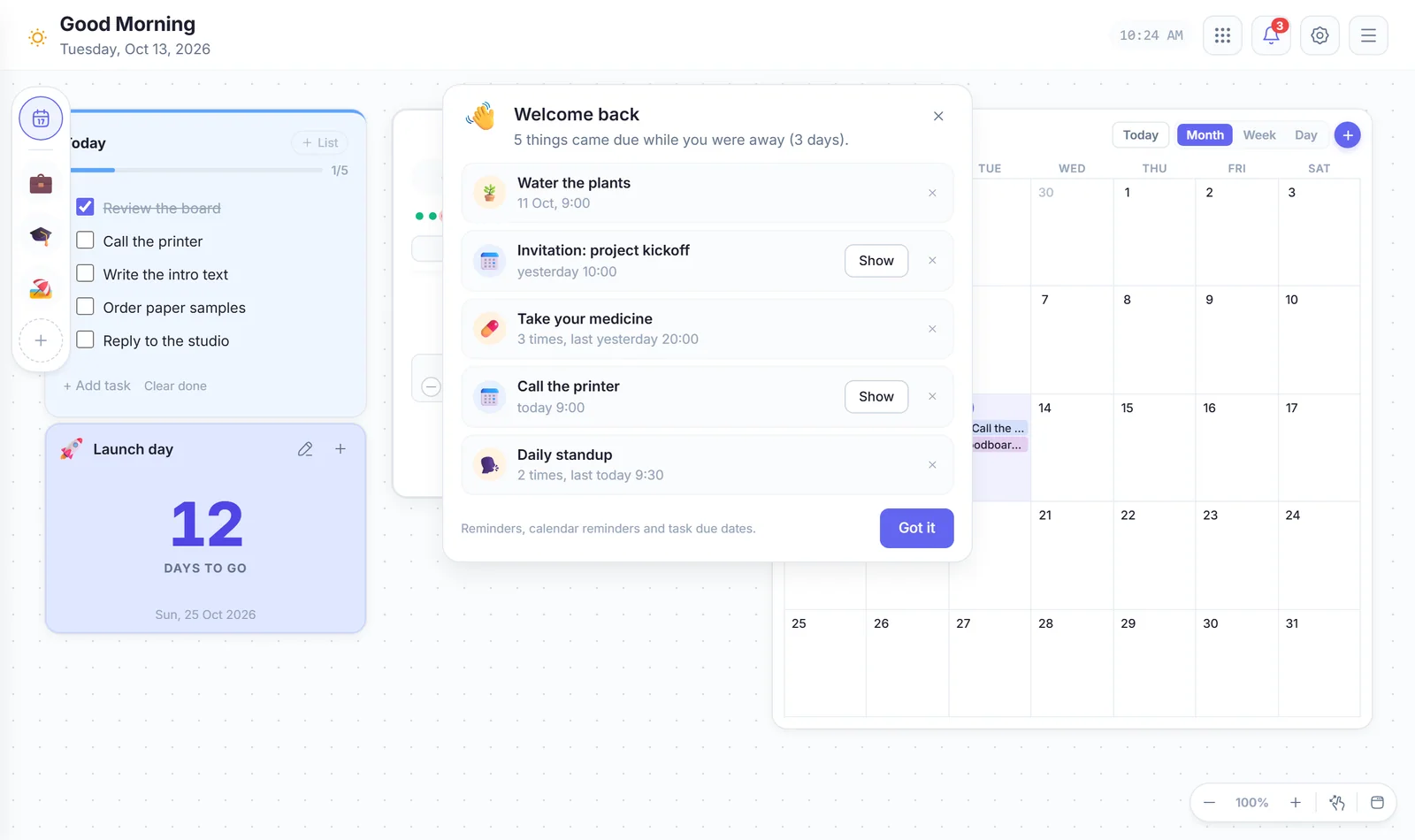
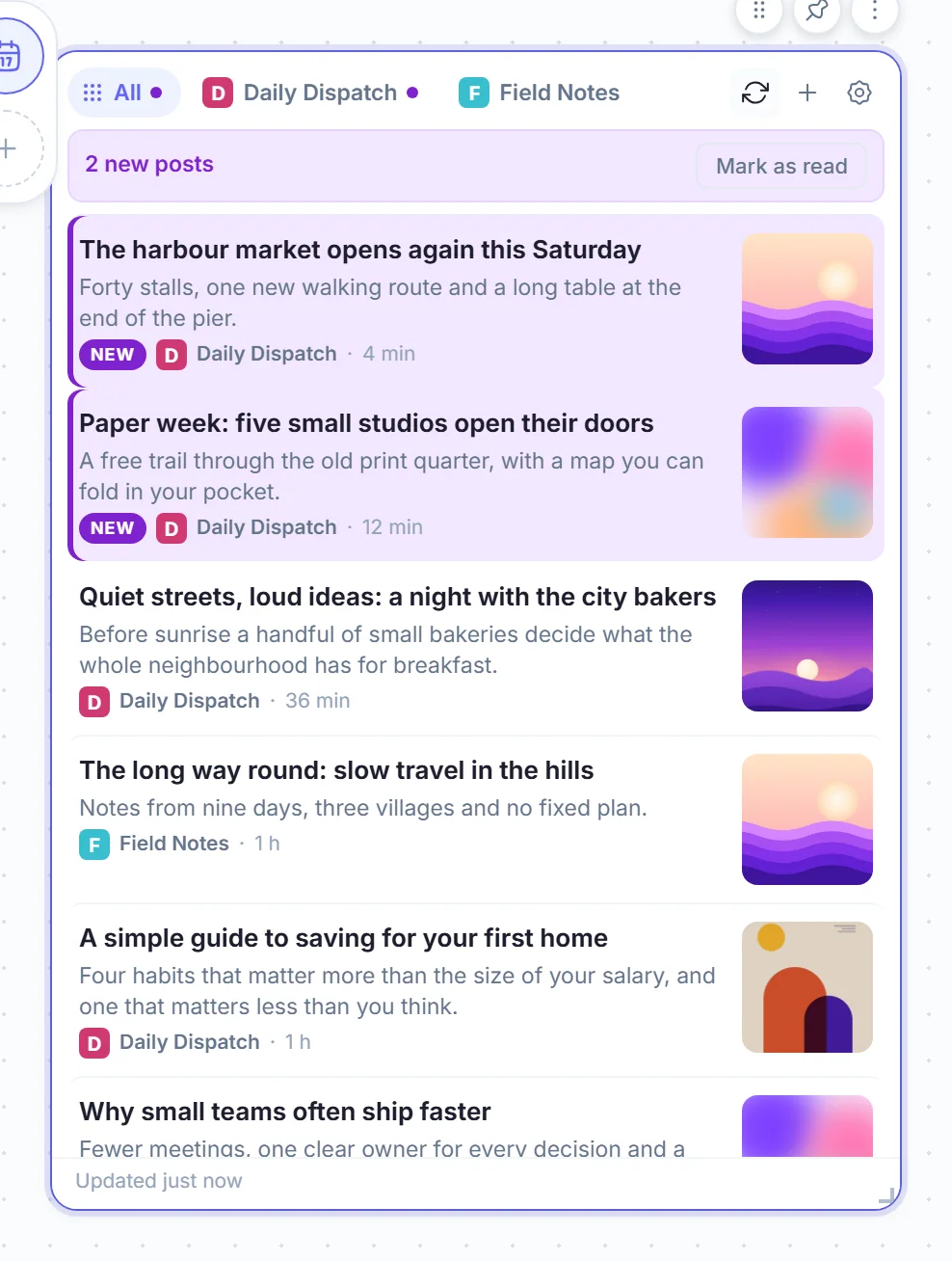
The Welcome back window, listing five things that came due while you were away: a plant reminder, an invitation, a medicine reminder, a call and a daily stand-up A News widget that says 2 new posts, with the new posts marked in light purple

06 · Welcome back and News

Miss nothing while
you are away.

Come back after a few minutes, or after days, and one list shows the reminders and due dates that passed while you were gone. A News widget can look for new posts as often as every 15 seconds, mark them in light purple and tell you.

  • The list reaches back up to 14 days
  • Choose how often a News widget looks
  • Switch the new-post notice on for each widget

Ideas to start with

One board, four ways
to use it.

These boards are made with the real widgets. Copy an idea, add one of the 21 ready-made boards, or start with an empty page.

New Tab
The Work board: a task list, a world clock, a month calendar, text tools and a file shelf

The Work board

A task list, a month calendar, a world clock, text tools and a shelf for files. Plan the day and keep what you need close.

New Tab
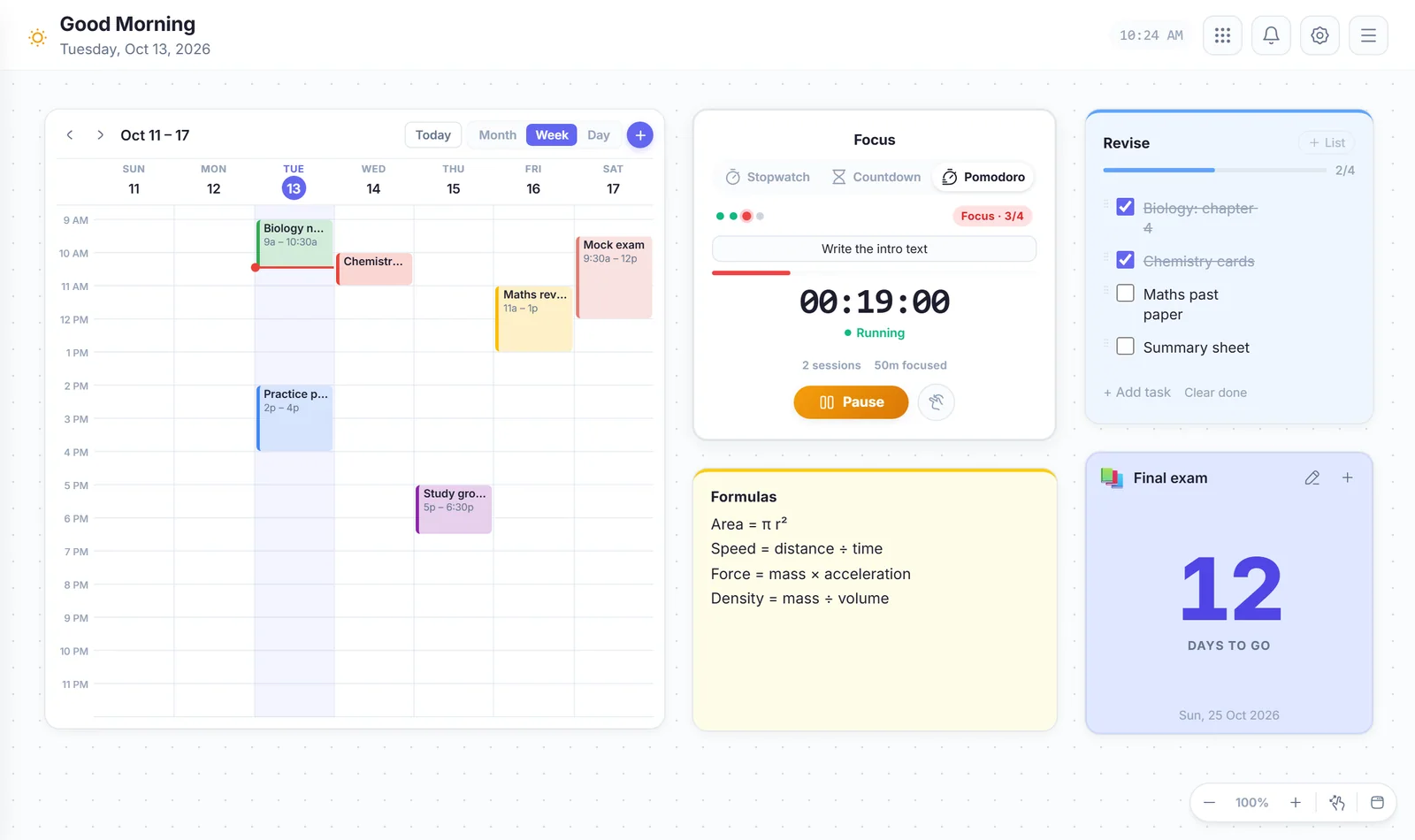
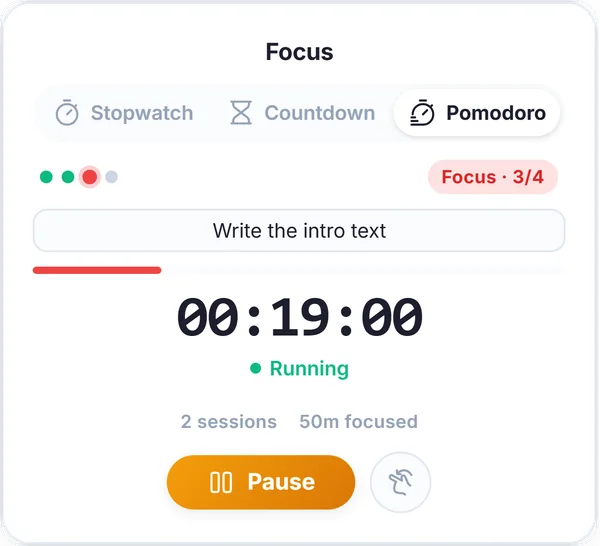
The Study board: a week calendar, a Pomodoro timer, a revision checklist, a formula note and an exam countdown

The Study board

A week calendar, a Pomodoro timer, a revision list, a note with formulas and a countdown to the exam.

New Tab
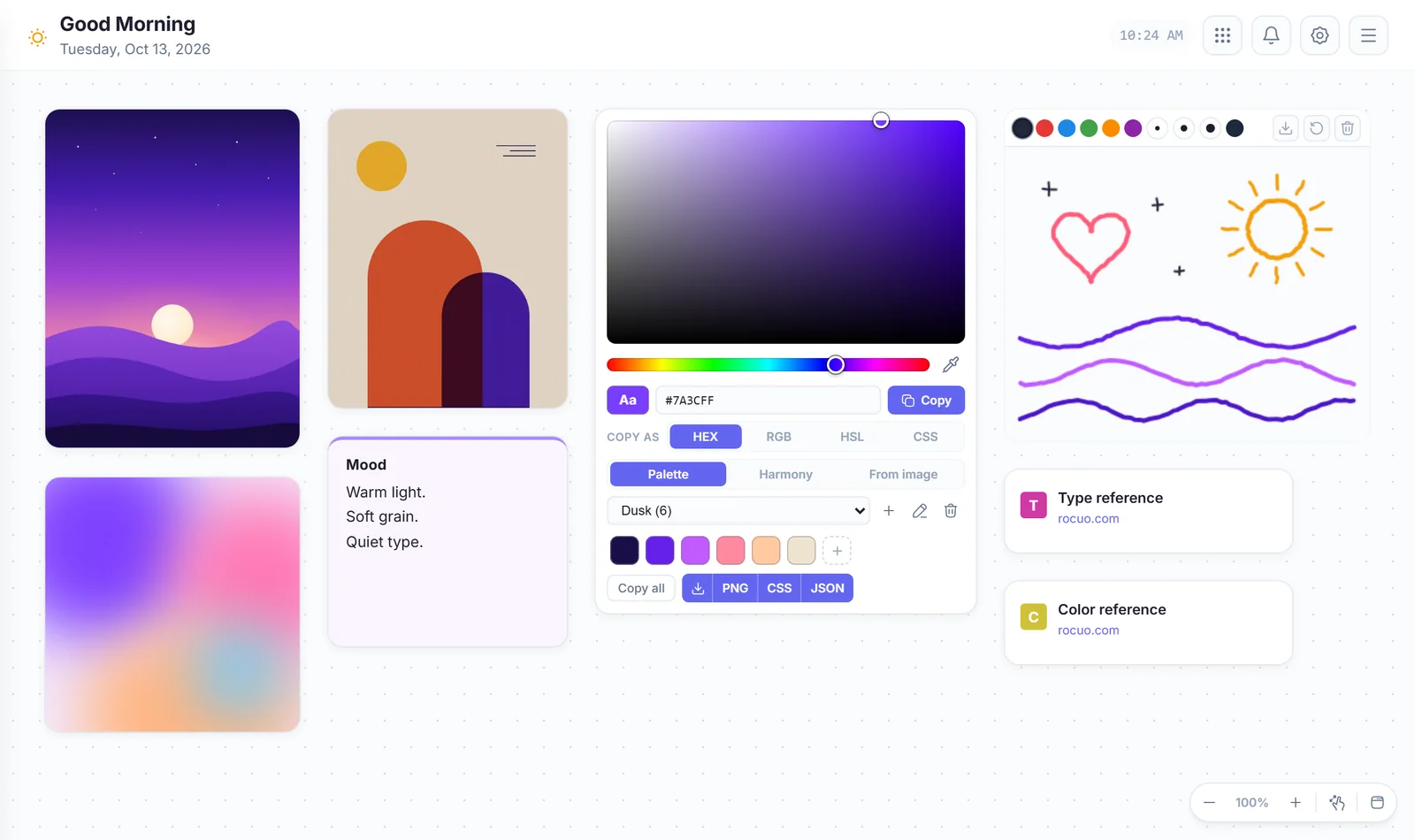
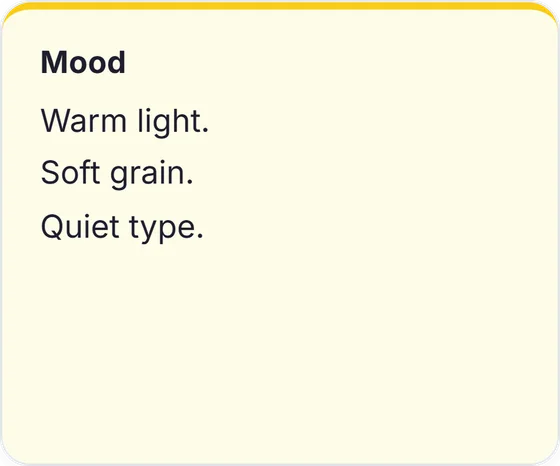
The Creator board: pictures, a color picker with palettes, a drawing pad, a mood note and links to references

The Creator board

Pictures for mood, a color picker with palettes, a drawing pad and links to your references.

New Tab
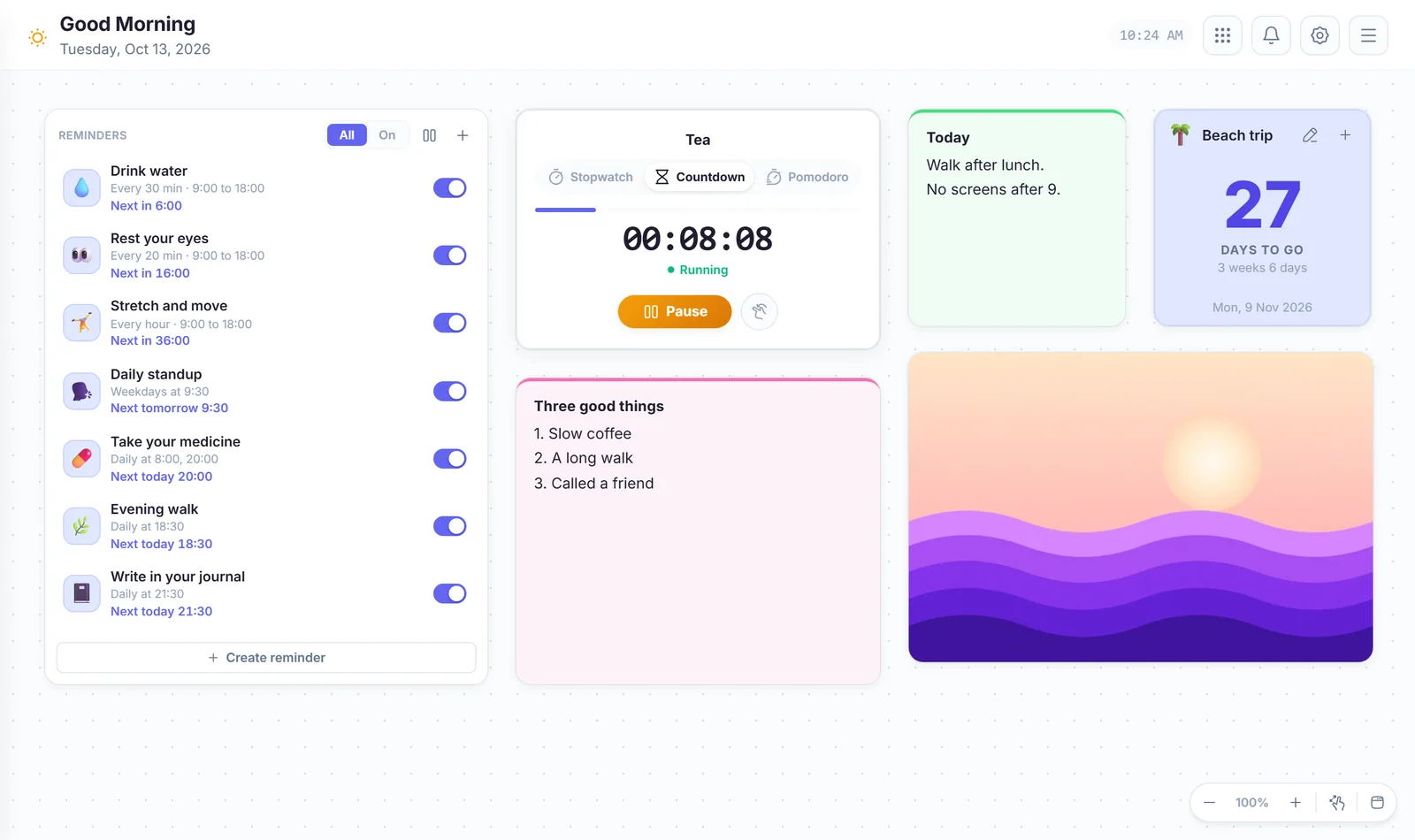
The Wellness board: repeating reminders, a tea timer, a gratitude note, a trip countdown and a calm picture

The Wellness board

Reminders to drink water and stretch, a tea timer, a note of good things and a countdown to your next trip.

See all 21 ready-made boards

Widgets

Thirty-eight small tools,
one calm board.

Everything runs inside the extension. There is nothing else to sign in to or install.

  • The Sticky Note widget

    Sticky Note

    Quick notes in five colors.

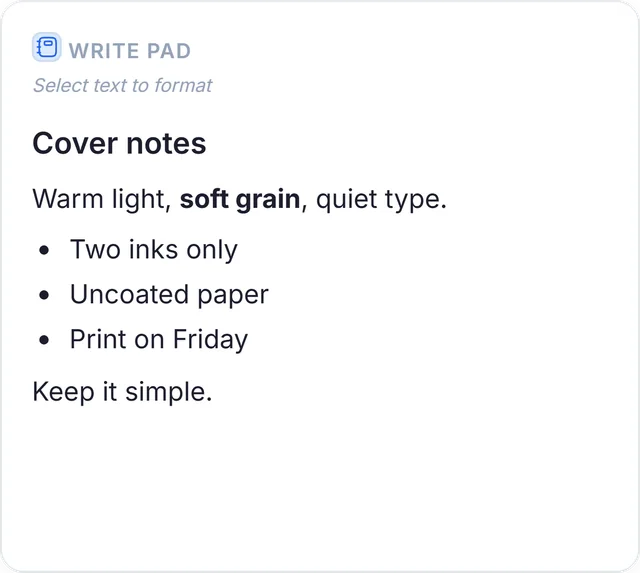
  • The Write Pad widget

    Write Pad

    Longer text with simple formatting.

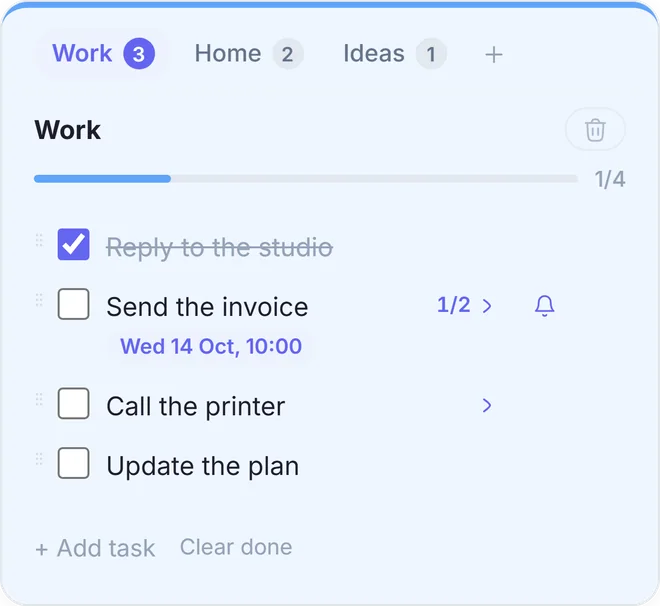
  • The Tasks widget with three lists as tabs, a progress bar, a task with steps, a due date and a reminder, and a grip on every task

    Tasks

    Checklists in tabs, with steps, due dates and reminders.

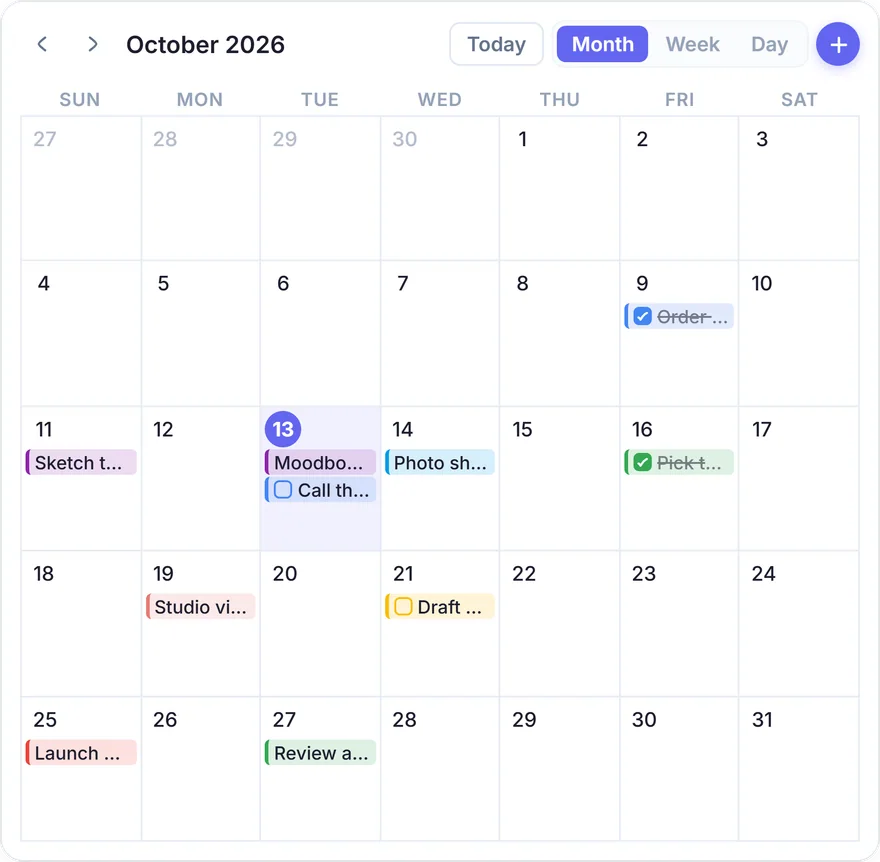
  • The Calendar widget

    Calendar

    Day, week and month views with tasks and reminders.

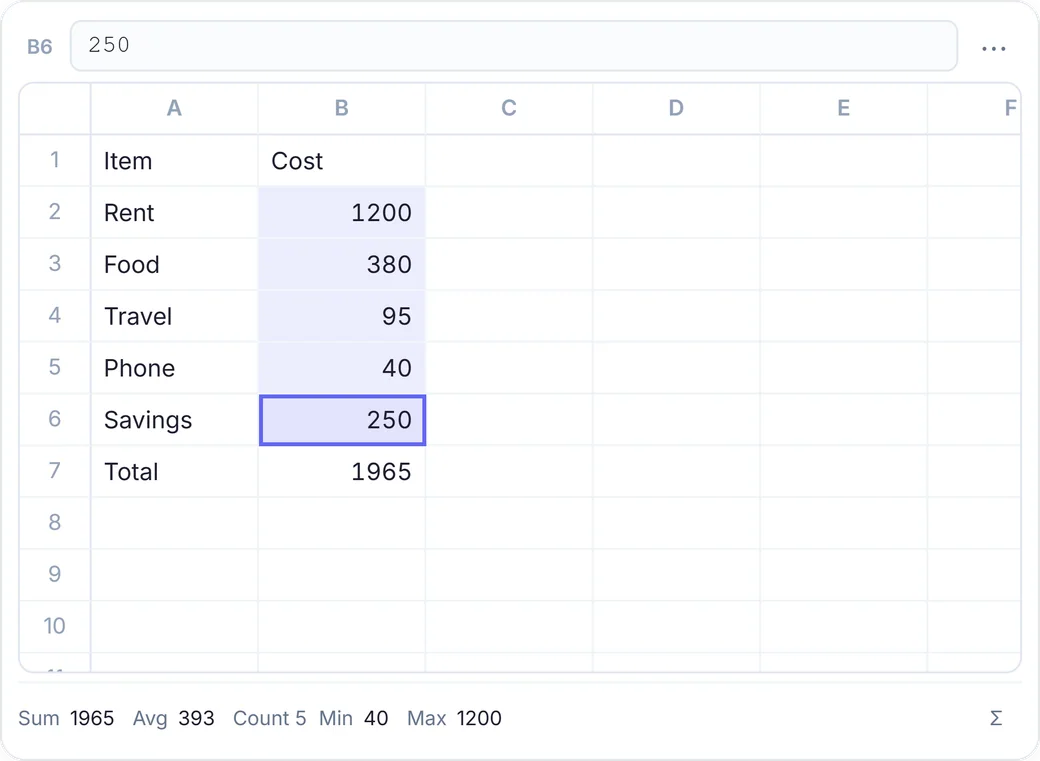
  • The Mini Spreadsheet widget with a small table of costs and a footer that shows the sum and average

    Mini Spreadsheet

    A small grid with formulas, sums and averages.

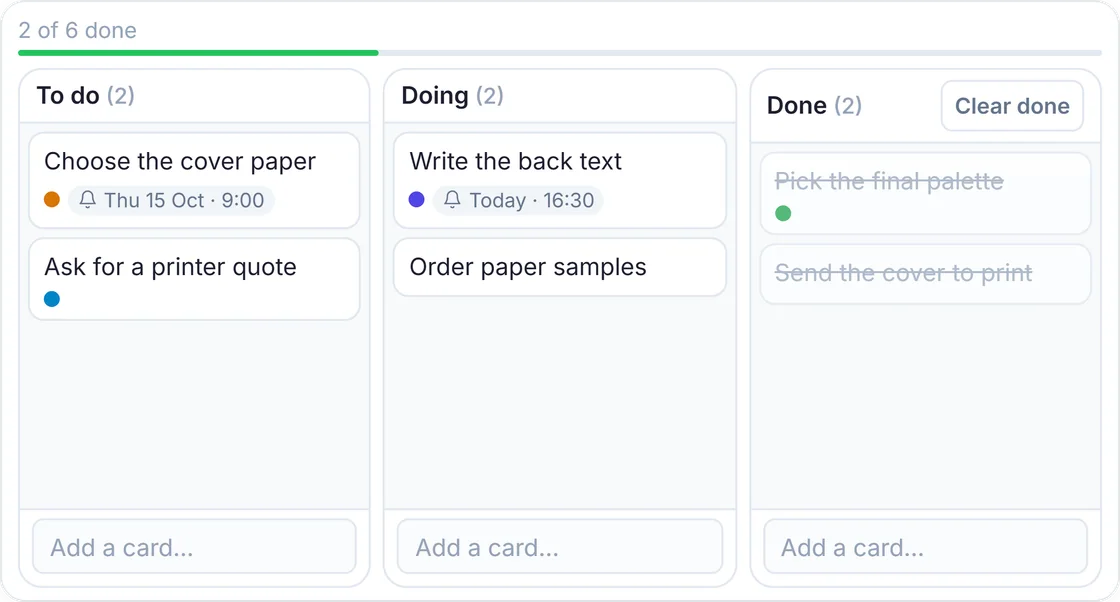
  • The Kanban widget with the columns To do, Doing and Done, and cards with colors and a reminder at a set day and time

    Kanban

    To do, Doing and Done columns, with due dates and reminders.

  • The Timer widget

    Timer

    Stopwatch, countdown and Pomodoro.

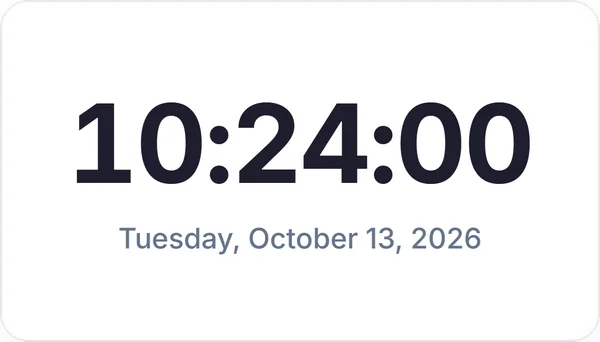
  • The Clock widget with a digital face: the time with seconds, and the date under it

    Clock

    A digital or analog clock, a stopwatch and a countdown.

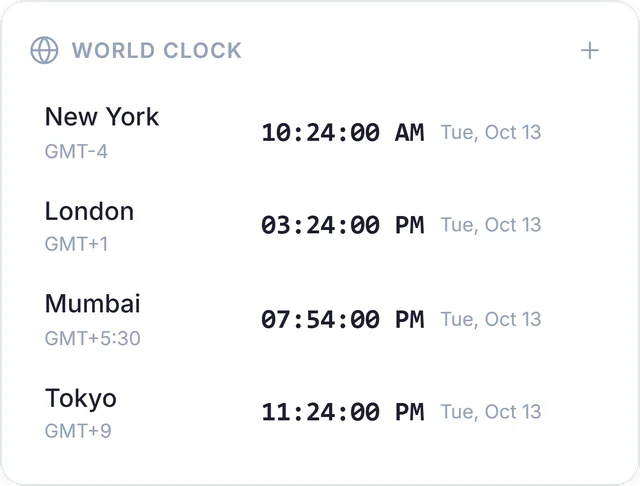
  • The World Clock widget

    World Clock

    Keep the time in several cities.

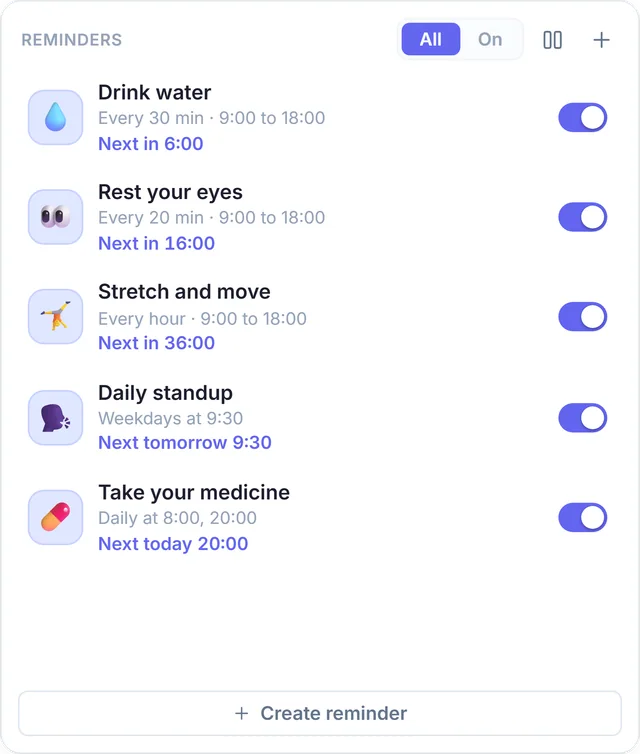
  • The Reminders widget with a list of repeating reminders and a Create reminder button at the bottom

    Reminders

    Repeating reminders, even with the board closed.

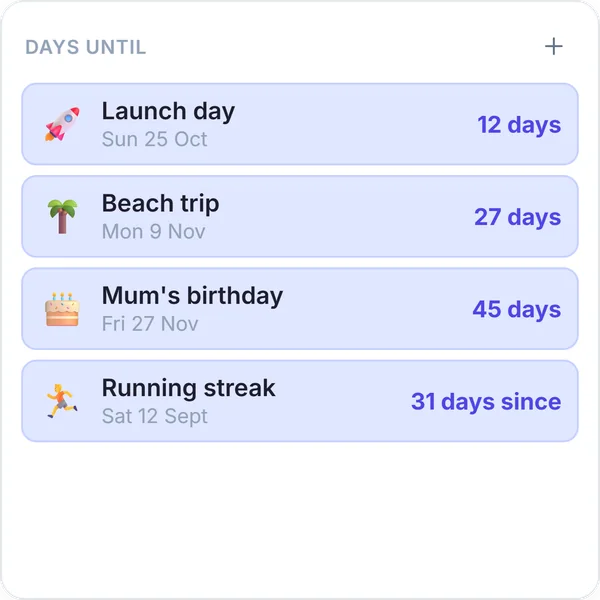
  • The Days Until widget

    Days Until

    Count the days to an event, or since one.

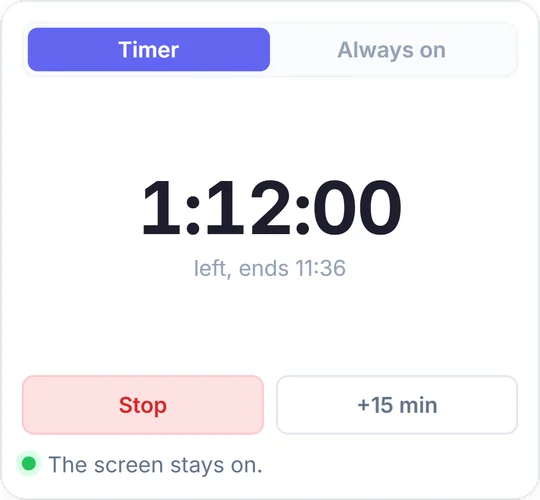
  • The Keep Awake widget with a countdown and the note that the screen stays on

    Keep Awake

    Keep the screen on for a set time.

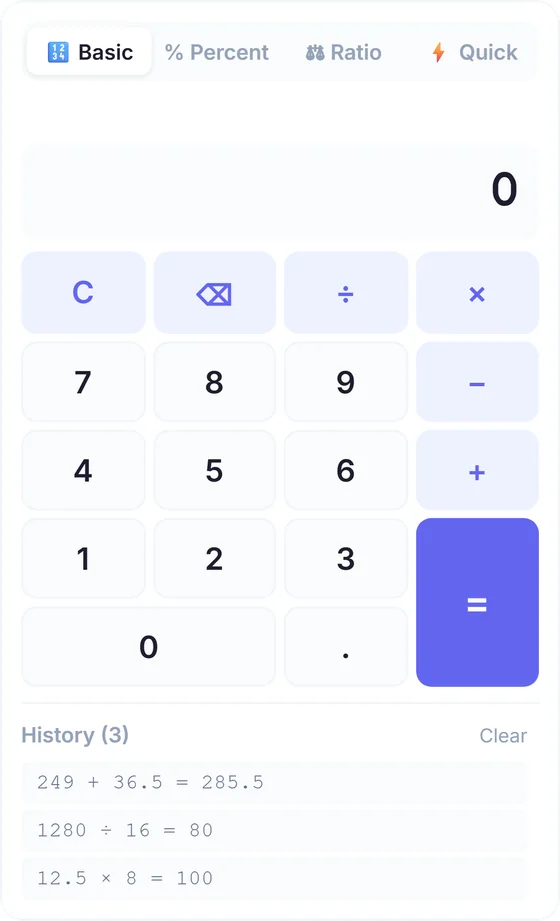
  • The Calculator widget

    Calculator

    Basic, percentage and ratio modes.

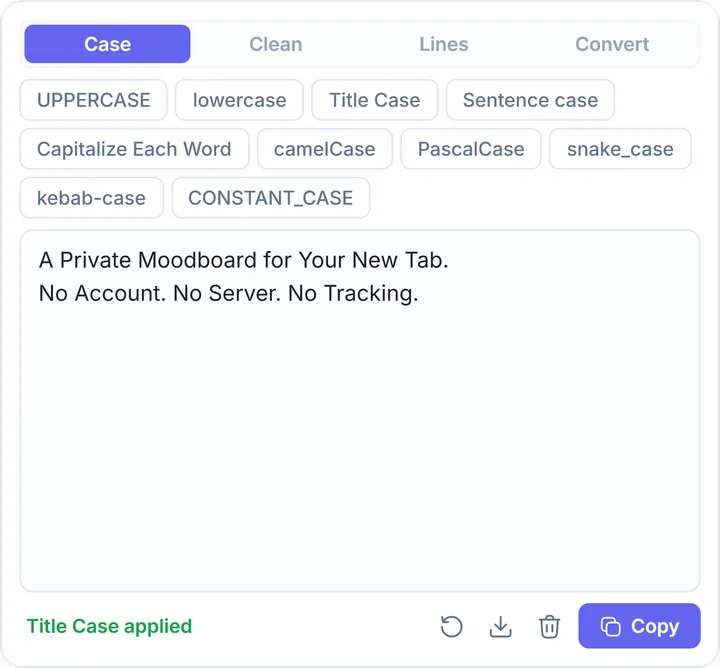
  • The Text Tools widget

    Text Tools

    Change case, clean up text and count words.

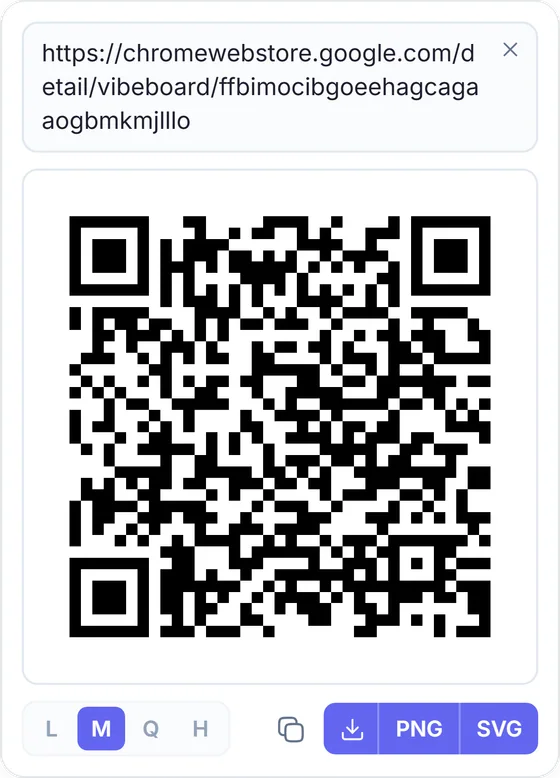
  • The QR Code widget

    QR Code

    Make a QR code and save it as PNG or SVG.

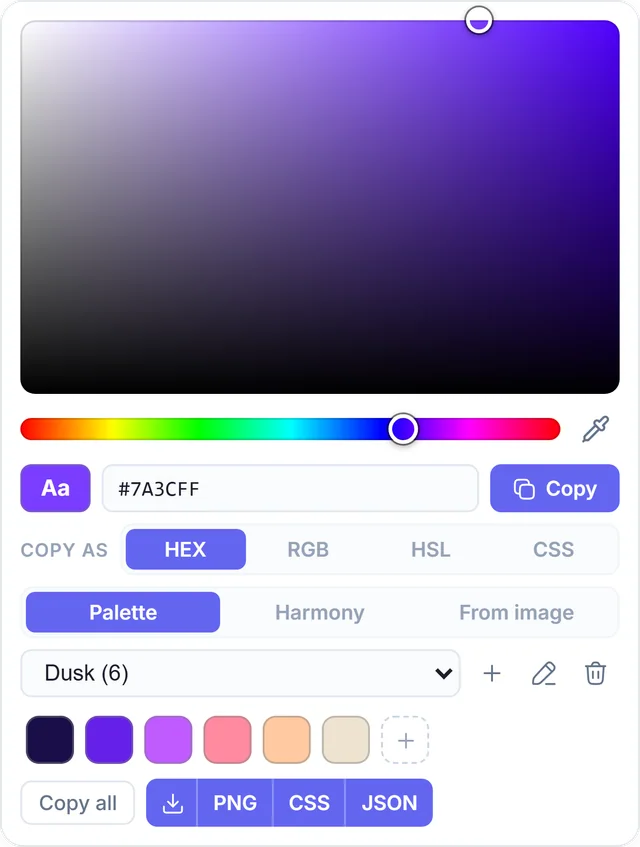
  • The Colors widget

    Colors

    Pick colors, build palettes and copy HEX or RGB.

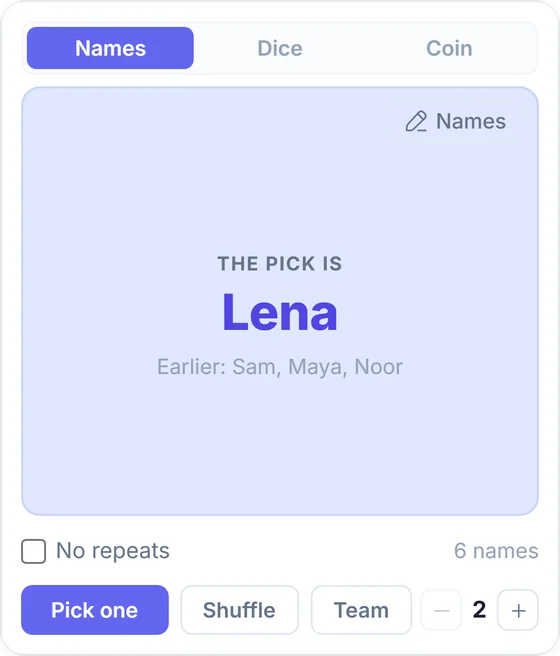
  • The Random Picker widget

    Random Picker

    Pick a name, make teams, roll dice or flip a coin.

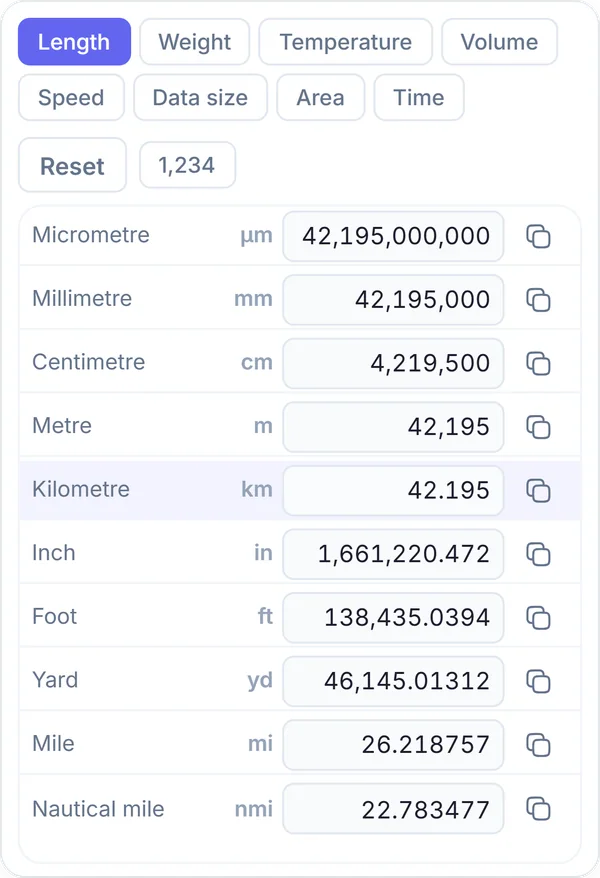
  • The Unit Converter widget showing one length in many units at once

    Unit Converter

    Length, weight, temperature, volume, speed, data size, area and time.

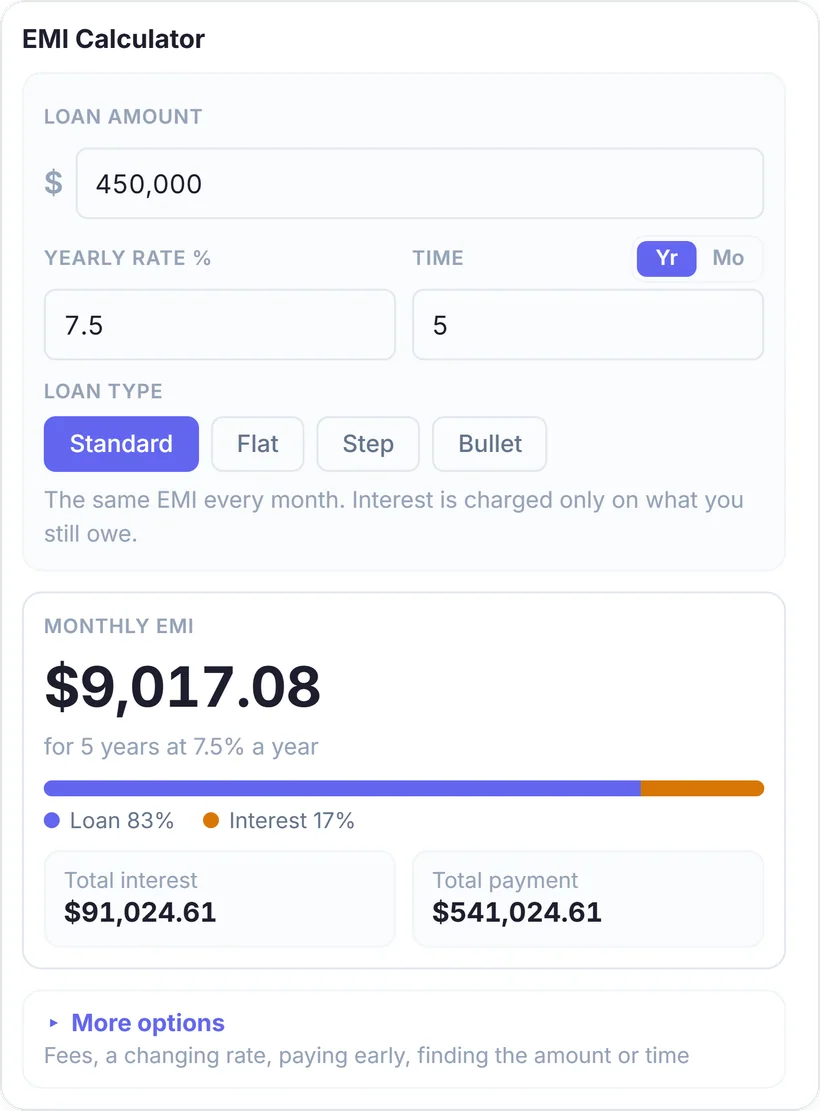
  • The EMI Calculator widget with a loan amount, yearly rate and time, the monthly payment, the total interest and the total payment

    EMI Calculator

    Loan payments, total interest and a schedule of every month.

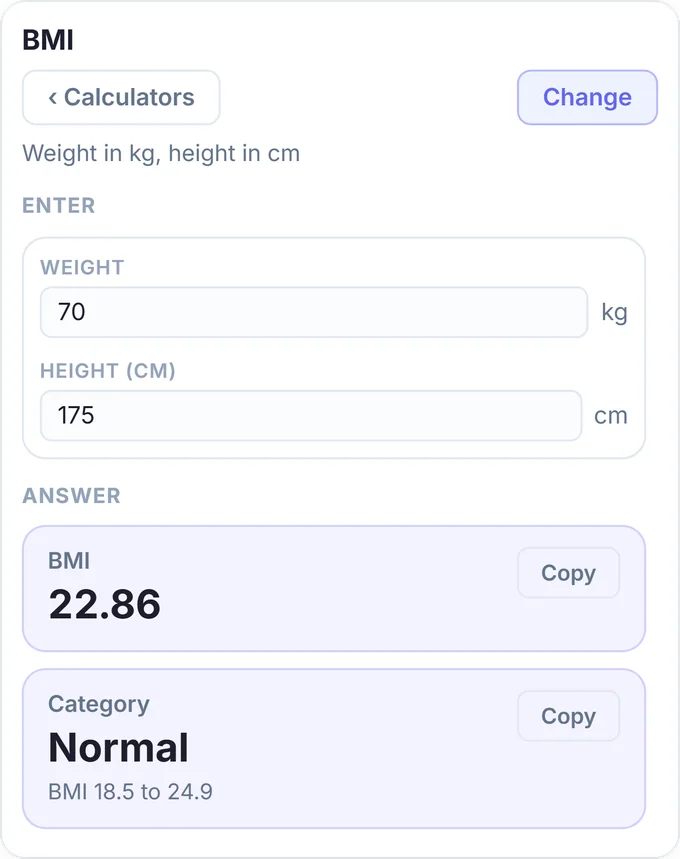
  • The Logic Calculator widget with the ready-made BMI calculator: weight and height in, the BMI and its category out

    Logic Calculator

    Build your own calculator, or start from 15 ready-made ones.

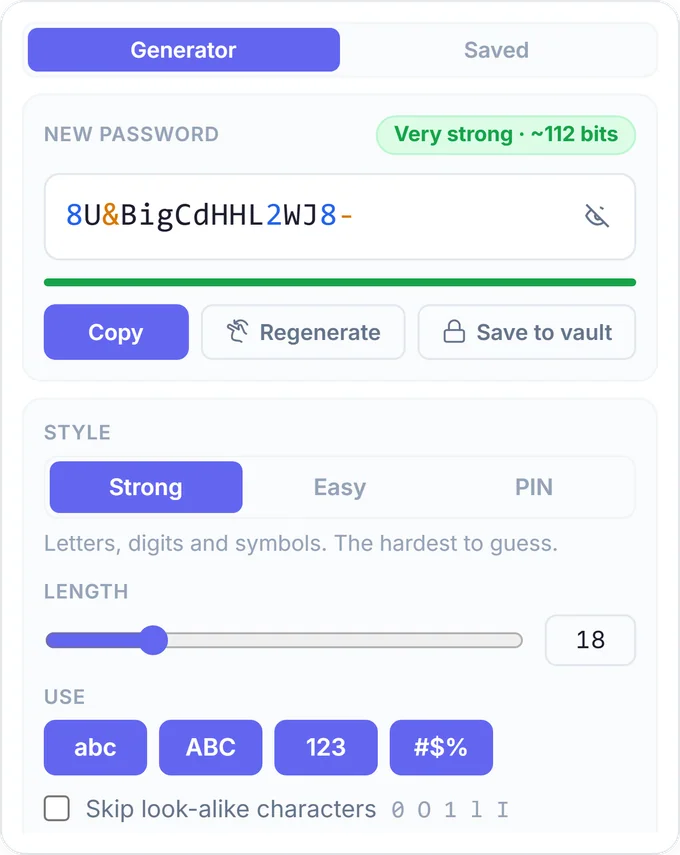
  • The Password widget on its Generator tab: a new password with its strength, the style, the length and the kinds of characters

    Password

    Make strong passwords and keep your logins in an encrypted vault.

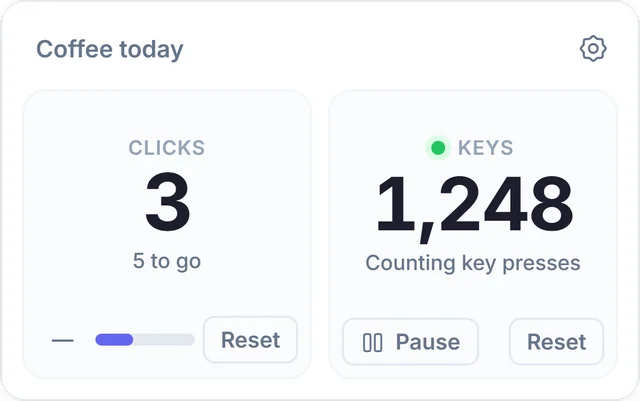
  • The Counter widget with a Clicks tile and a Keys tile

    Counter

    Count clicks and key presses, with an optional goal.

  • The Image widget

    Image

    Pin a picture and keep its shape.

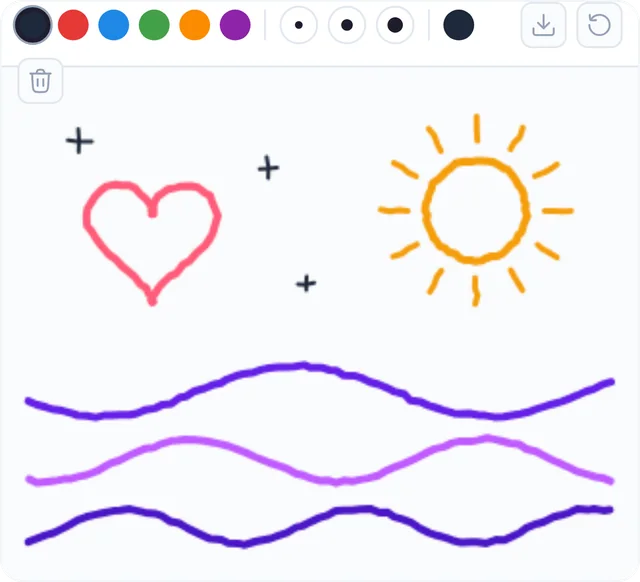
  • The Drawing widget

    Drawing

    Sketch freely and export as PNG.

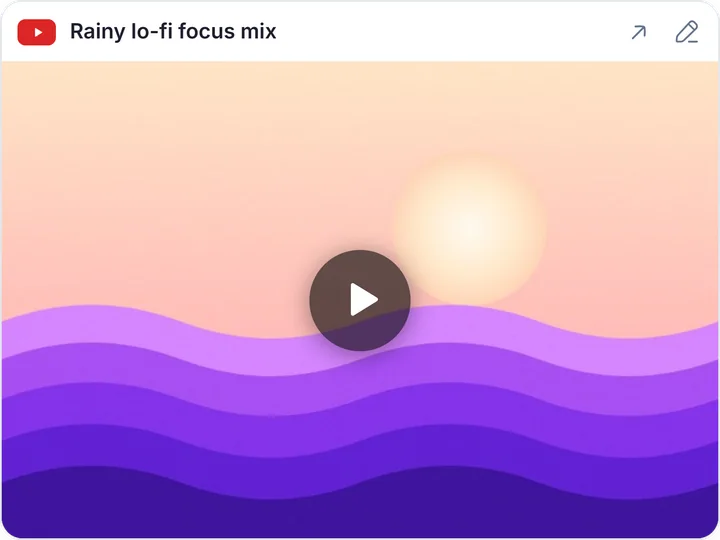
  • The Media widget

    Media

    Play a YouTube video on your board.

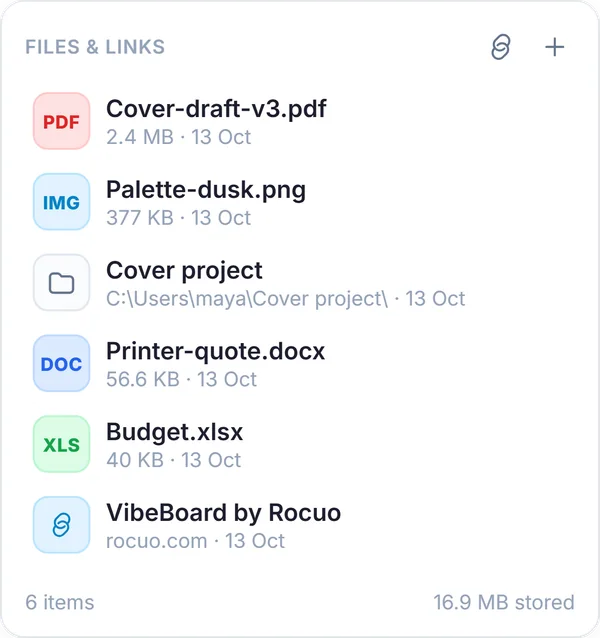
  • The Files widget with files, a shortcut to a folder and a link to a web page

    Files

    Keep files, and links to files or folders, on a shelf.

  • The Link widget

    Link

    Save a link with its website icon.

  • The Magnet widget

    Magnet

    A small shortcut tile for a favorite site.

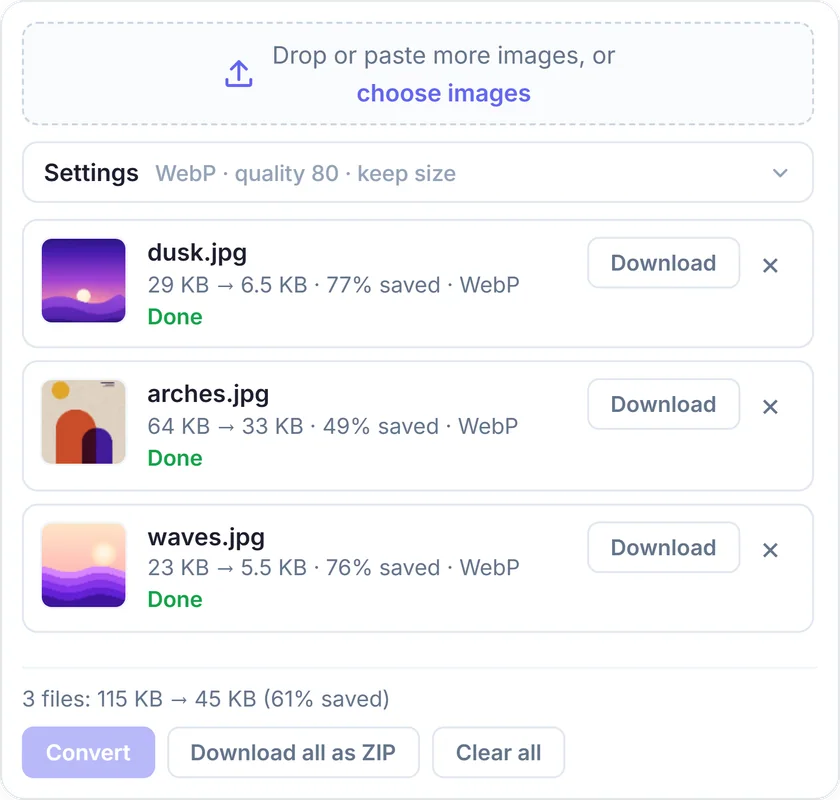
  • The Image Converter widget with three converted pictures and the size each one saved

    Image Converter

    Convert, resize and compress pictures on your device.

  • The Sticker Maker widget showing a finished sticker with a party popper and the word Yay!

    Sticker Maker

    Make a sticker from text, emoji and pictures, with a border.

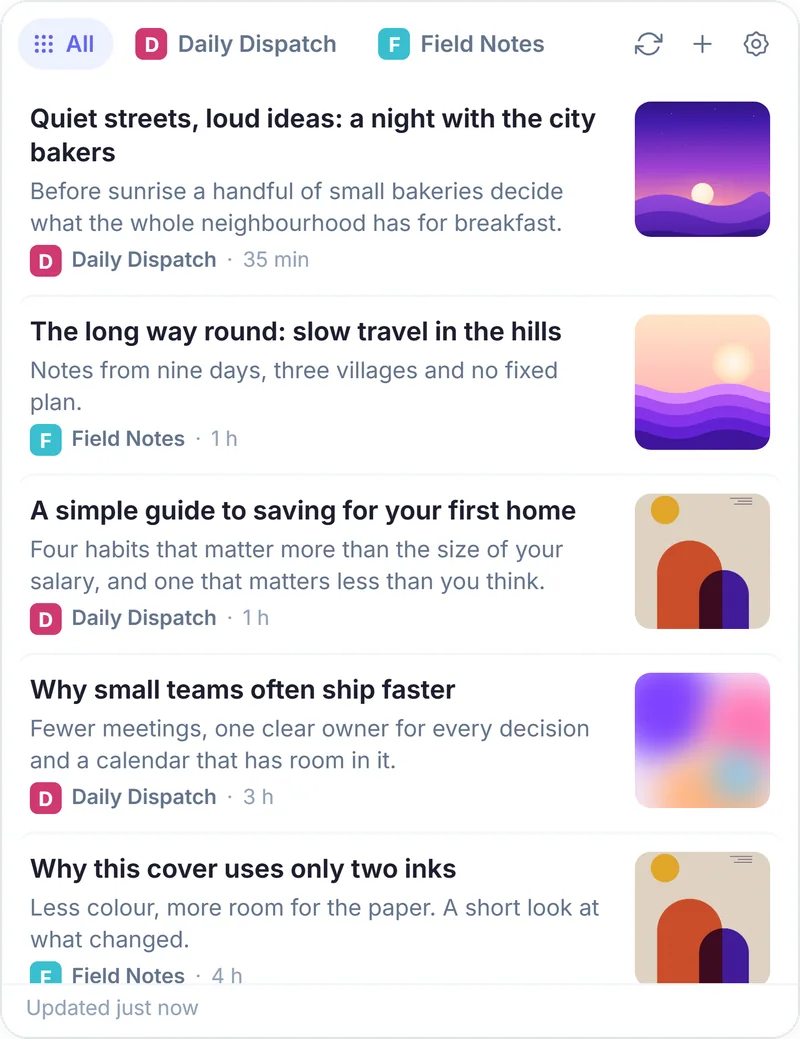
  • The News widget with a list of headlines from two channels, each with a small picture and a few lines of text

    News & RSS

    Headlines from 82 free channels, or your own feed.

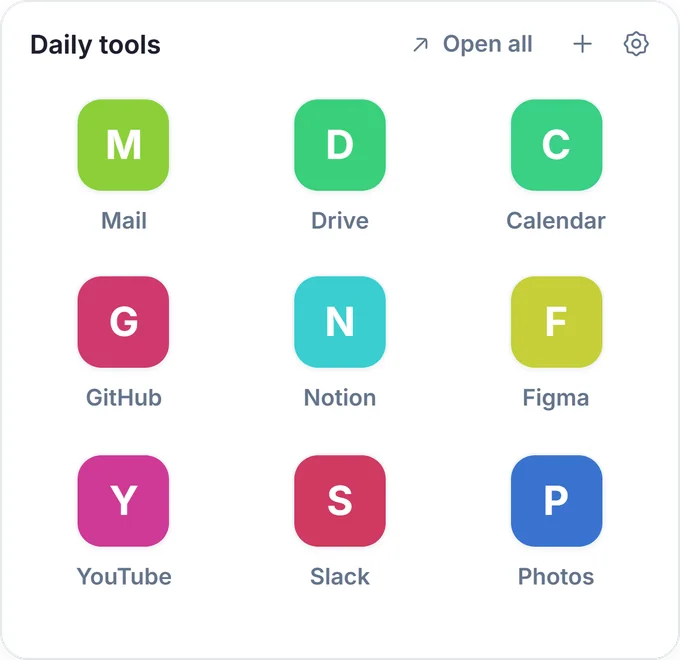
  • The Link Group widget named Daily tools: nine website tiles and an Open all button

    Link Group

    Your favorite websites as tiles, with an Open all button.

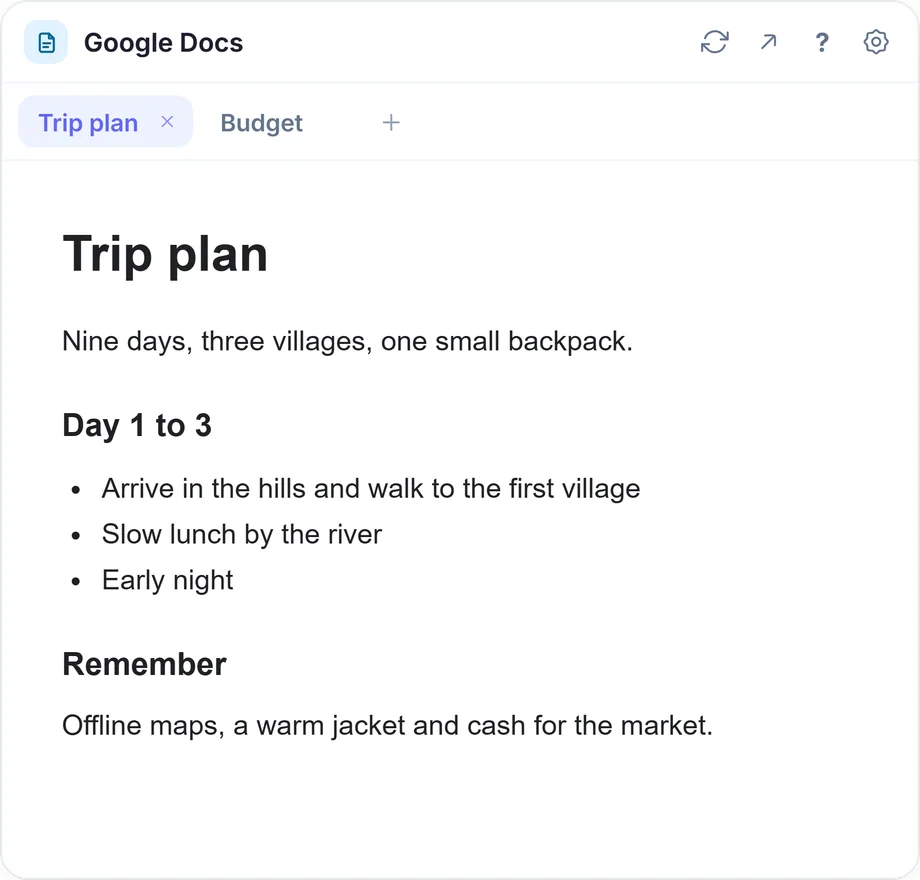
  • The Google Docs widget with two tabs, Trip plan and Budget, and the first document open

    Google Docs

    Show a Google Doc on your board, a tab for each one.

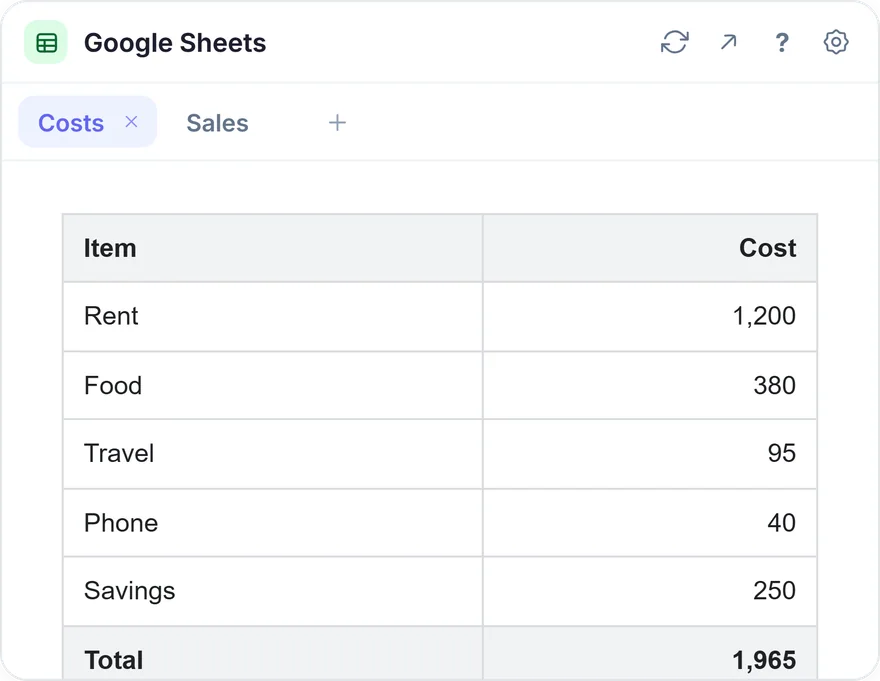
  • The Google Sheets widget with two tabs, Costs and Sales, and a small table of costs

    Google Sheets

    Show a Google Sheet on your board, a tab for each one.

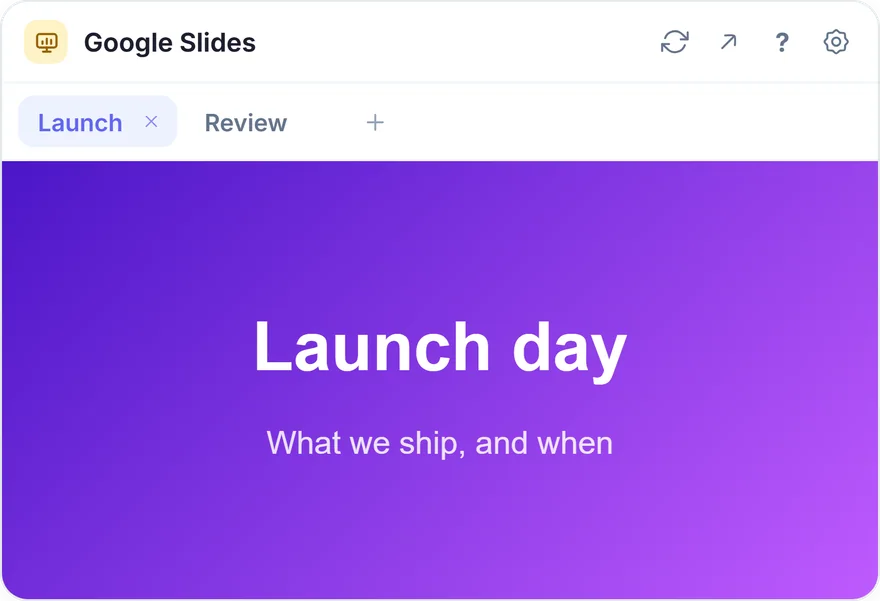
  • The Google Slides widget with two tabs, Launch and Review, and the first slide

    Google Slides

    Show a Google Slides deck on your board.

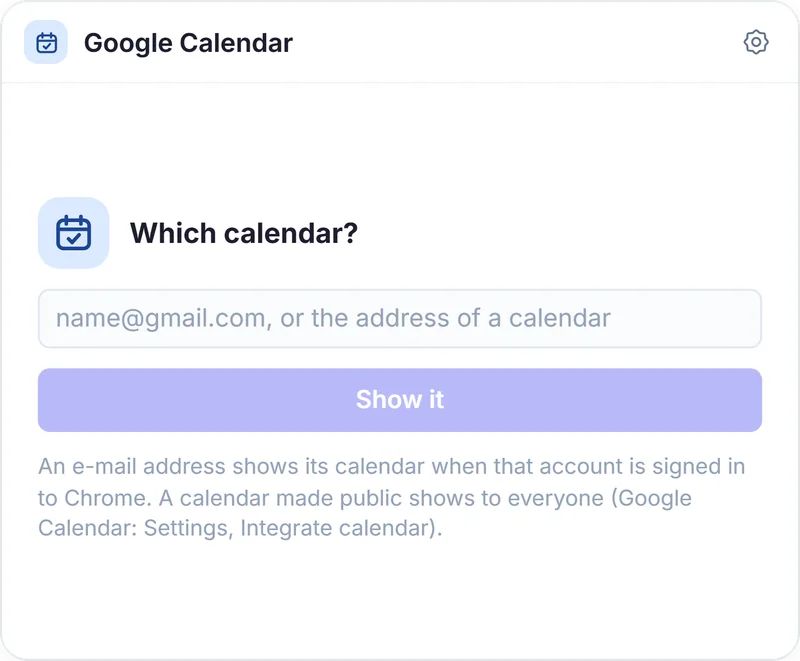
  • The Google Calendar widget asking which calendar to show, with a box for an e-mail address or a calendar address

    Google Calendar

    Show your Google Calendar next to your tasks.

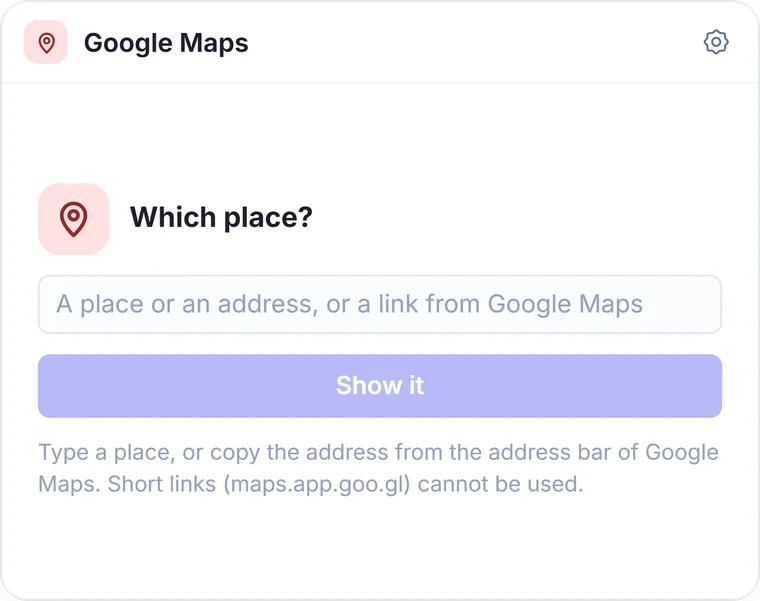
  • The Google Maps widget asking which place to show, with a box for a place, an address or a link

    Google Maps

    Show a place on Google Maps.

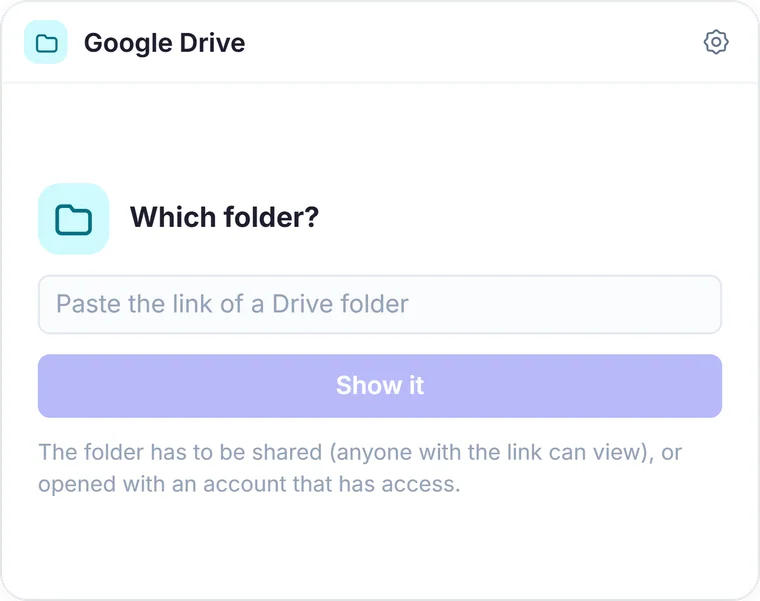
  • The Google Drive widget asking which folder to show, with a box for the link of a folder

    Google Drive

    Show a shared Drive folder on your board.

Two helpers sit next to the board. Quick Items saves text you reuse: press Alt+\ to search and copy it. Quick Access is a panel of shortcuts to your favorite websites, with an Open all button.

See how each widget works

Private by design

Yours alone, and easy
to take along.

Your data stays in your browser. Export a backup whenever you want. It holds your boards, spaces, notes, calendar events, reminders and quick items in one file.

Import that file in another browser and carry on where you stopped. There is no account, no server of ours, no ads and no tracking.

Read the privacy policy

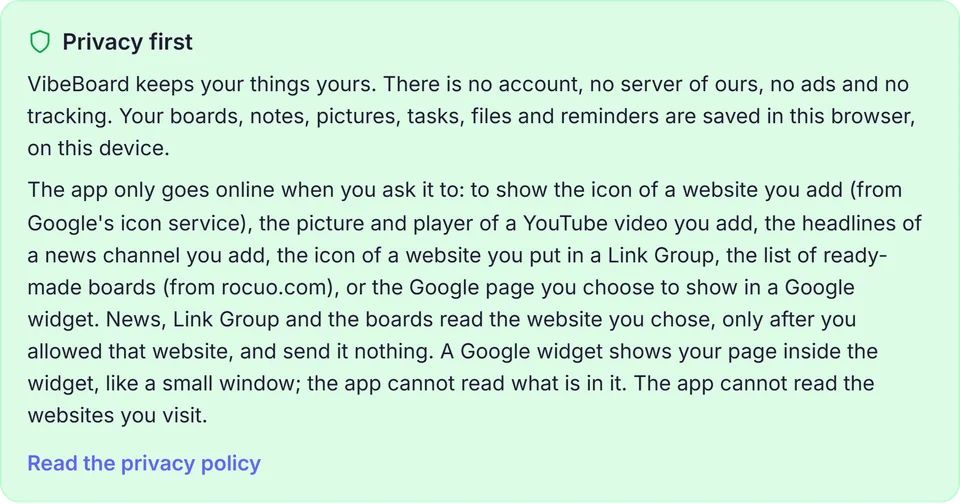
The Privacy first notice from VibeBoard. It says there is no account, no server of ours, no ads and no tracking, and that your boards, notes, pictures, tasks, files and reminders are saved in this browser, on this device.
Account
Not needed
Our servers
None
Website access
Only if you ask
Ads and tracking
None

Permissions

Three permissions when you install,
and a website only if you ask.

Chrome asks you before you add any extension. Here is what VibeBoard asks for, and why.

Storage Asked
Keeps your settings and reminders on your device.
Alarms Asked
Wakes the extension at the time of each reminder, and closes an alert after the time you chose.
Notifications Asked
Shows your reminders, and a new post of a News widget if you switch that on, as system notifications.
No website access at install Not asked
It cannot read or change the pages you visit.
One website at a time On request
Chrome asks you first when you add a news channel or a website to a Link Group, or open the ready-made boards. You can take each one back in Settings.
No tabs or history Not asked
It never sees your open tabs or your browsing history.
Internet only when you ask On request
Website icons, YouTube, news and Google pages load only for the links, videos, channels and pages you add.

How it works

Up and running
in a minute.

No sign-up and no setup. Three small steps, and your board is ready for the day.

  1. VibeBoard Free · By Rocuo Add to Chrome
    1

    Add it to Chrome

    Open the Chrome Web Store page and press Add to Chrome. It is free and needs no account.

  2. The top bar of a VibeBoard board, with a greeting and the date
    Alt+NNew note Ctrl+BSide panel
    2

    Open a new tab

    Your board is right there. Press Alt+N for a note or Alt+C for a task list. Press Ctrl+B for the side panel with every widget.

  3. The Reminders widget with five repeating reminders, a switch for each one and a Create reminder button
    3

    Make it yours

    Move things around, pick a board color and set a reminder. The board turns dark when your computer does. Export a backup whenever you like.

Questions

Questions people ask,
answered simply.

Short answers to the things we hear most. If yours is not here, the support page can help.

Is VibeBoard free?

Yes. VibeBoard is free, with no ads and no purchases.

Do I need an account?

No. There is no sign-in. Open a new tab and start.

Where is my data kept?

In your browser, on your own device. Rocuo has no server for VibeBoard, so your notes, pictures and tasks never reach us. Removing the extension or clearing its data deletes everything, so export a backup first if you want to keep it.

Can VibeBoard see the websites I visit?

No. It runs nothing on web pages, and it cannot see your open tabs, your browsing history or what you type on other sites. It asks for no website access when you install it. It reads a website only when you ask, for example when you add a news channel or a website to a Link Group, and only after Chrome asks you and you say yes.
Why does Chrome ask about a website?

VibeBoard asks Chrome before it reads a website, one website at a time. It happens when you add a news channel, add a website to a Link Group, or open the ready-made boards. You can say no, and VibeBoard still works. Every website you allowed is listed in Settings, under Website access, where you can take it back.
Does VibeBoard have a dark mode?

Yes. It follows your computer. When your computer or Chrome is set to dark, the board is dark, and when it is set to light, the board is light. There is no switch in VibeBoard.

Does it work offline?

Yes. Your boards open without internet. Only website icons, YouTube videos, news and Google pages need a connection.
Do reminders work when the board is closed?

Yes, as long as Chrome is running. Reminders appear as system notifications with Snooze and Done buttons. If your computer is in Do Not Disturb or Focus Assist, it may hide them. Use the Test notification button in the Reminders widget to check.

Can I choose how long a notification stays?

Yes. Open Settings, then Notifications, and pick 5 seconds, 10 seconds, 30 seconds, 1 minute, 5 minutes or until you close it. It starts at 30 seconds. Your computer can still hide an alert sooner: macOS decides the time itself.

What if I miss a reminder while I am away?

When you come back after 5 minutes or more, one list inside VibeBoard shows the reminders, calendar reminders and task due dates that came due while you were away, up to 14 days back. You can change the time or switch the list off in Settings.

What are spaces?

A space is a board of its own, with a name and an emoji you choose, for example one for work and one for home. The row at the left edge of the board lists your spaces, and you switch with a click. Any widget can go into a space. Removing a space asks you twice.

Are there ready-made boards?

Yes. There are 21 free boards for work, study, home, money and creating. Open the Widgets tab and choose Ready-made boards, or download a board file from the boards page of this website and add it with Add from a file.

Can VibeBoard tell me about a new post of a news channel?

Yes. In a News widget, choose how often it looks, from every 15 seconds to every 3 hours, and switch on the new-post notice. New posts are marked in light purple. VibeBoard looks while a VibeBoard tab with that widget is open.

Does it replace my new tab page?

Yes, that is its job. If you prefer, you can open the board in its own window and send new tabs to another page in Settings.

Which version of Chrome do I need?

Chrome 111 or newer.

How do I move my boards to another computer?

Open Settings, go to Data & Backup, and export a backup file. Then import that file in VibeBoard on the other browser. Need help? Visit the support page.

Is the Password widget safe to use?

Your saved logins are encrypted on your device with a 6-digit PIN or a password you choose, and they never leave it. It is a simple vault, not a full password manager: it does not sync between computers, and if you forget the PIN or password the logins cannot be recovered. Download a backup from Vault settings now and then. A PIN has only a million possibilities, so use a password for the logins that matter.

Make your new tab
calm and private.

Free, with no account, and nothing leaves your device. Add VibeBoard to Chrome in a few seconds.

Free · No account · No ads