

A friend’s page
See a summary, your balances, month-by-month totals and everything you shared. Filter by group or month. Send a reminder, or share a summary.

A simple guide to every screen of the app. See how to sign in, add expenses, split them five ways, use a group fund and settle up.
Cute Split helps you split trips and bills with friends. You sign in with your mobile number, and there is no password.
Install Cute Split from Google Play. It needs Android 7.0 or newer.
Coming soon to Google Play
Sign in with your number. Type your 10-digit Indian mobile number and tap Continue. A 6-digit code arrives on WhatsApp or by text message. Type it in. If it does not come, tap Send it by text message instead. On many phones, Android can fill in the code for you after you allow it.
Choose your name. Type the name your friends will see in groups. You can change it later in Settings. Then you are on the home screen.
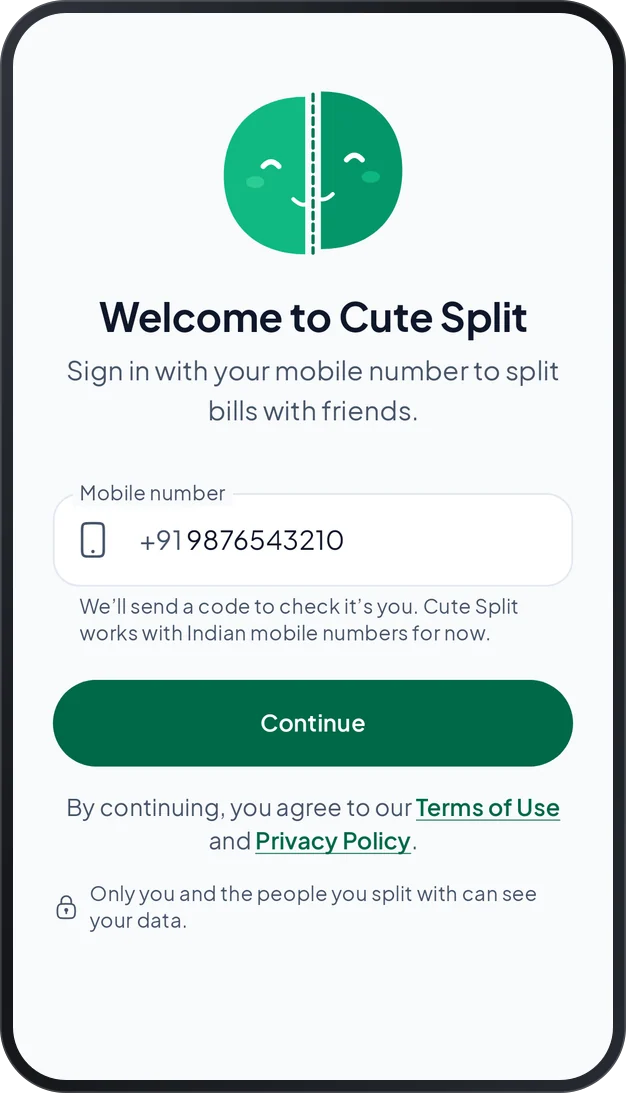
Good to know: Cute Split is for people aged 18 and over. Your data is kept in your account, so nothing is lost if you change phone.
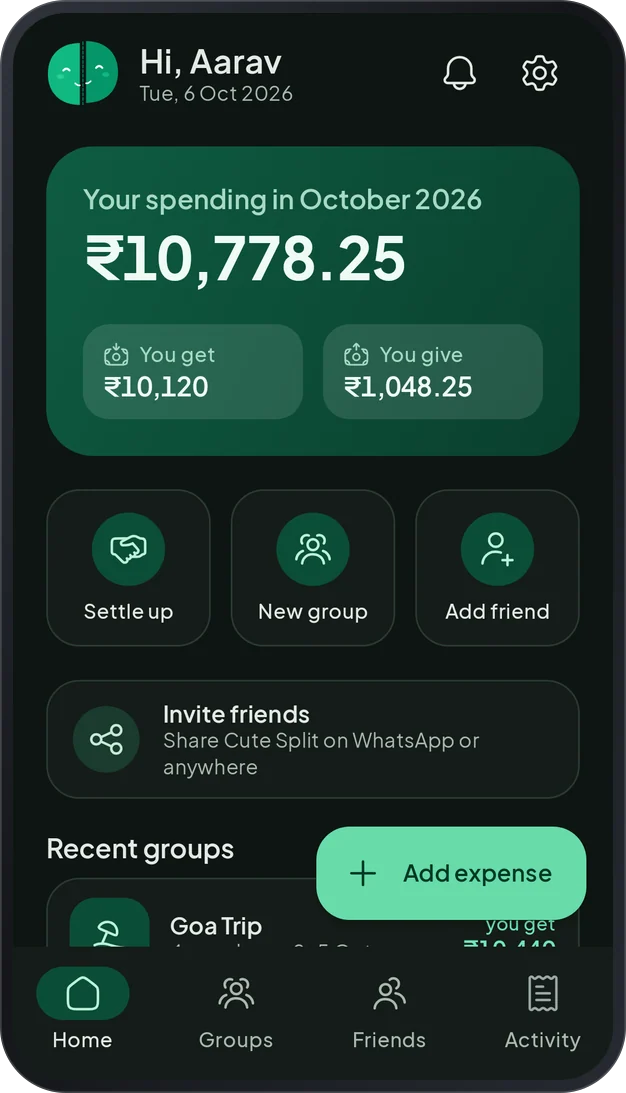
Home shows your month at a glance, and it is one tap from everything you do most.
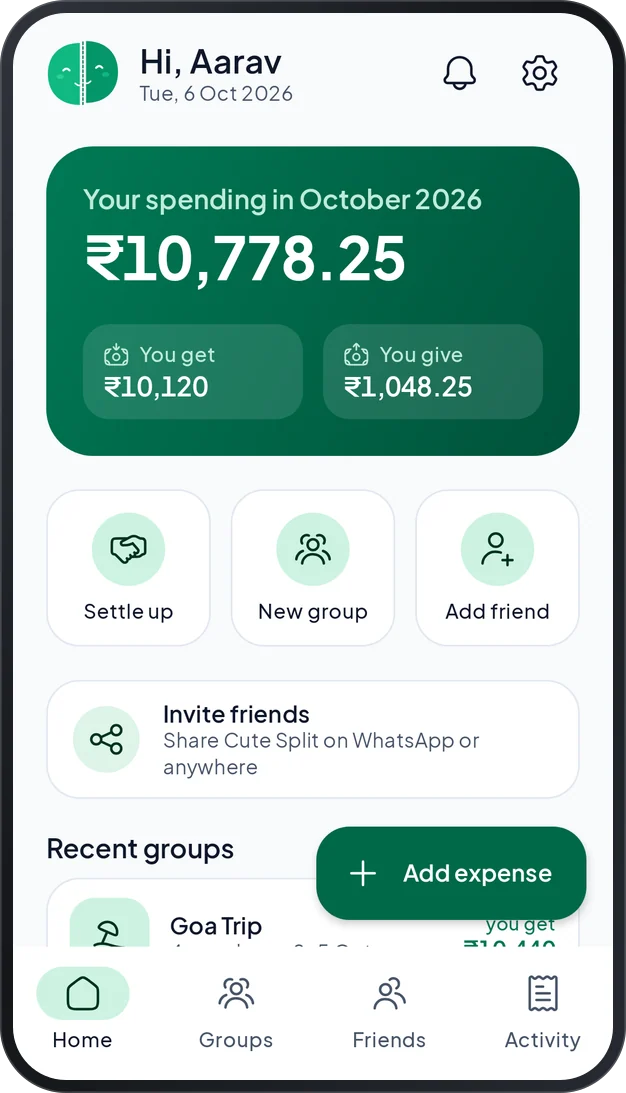
Invitations: when someone adds you, a card with Accept and Decline shows at the top of Home. You see nothing of theirs until you accept.
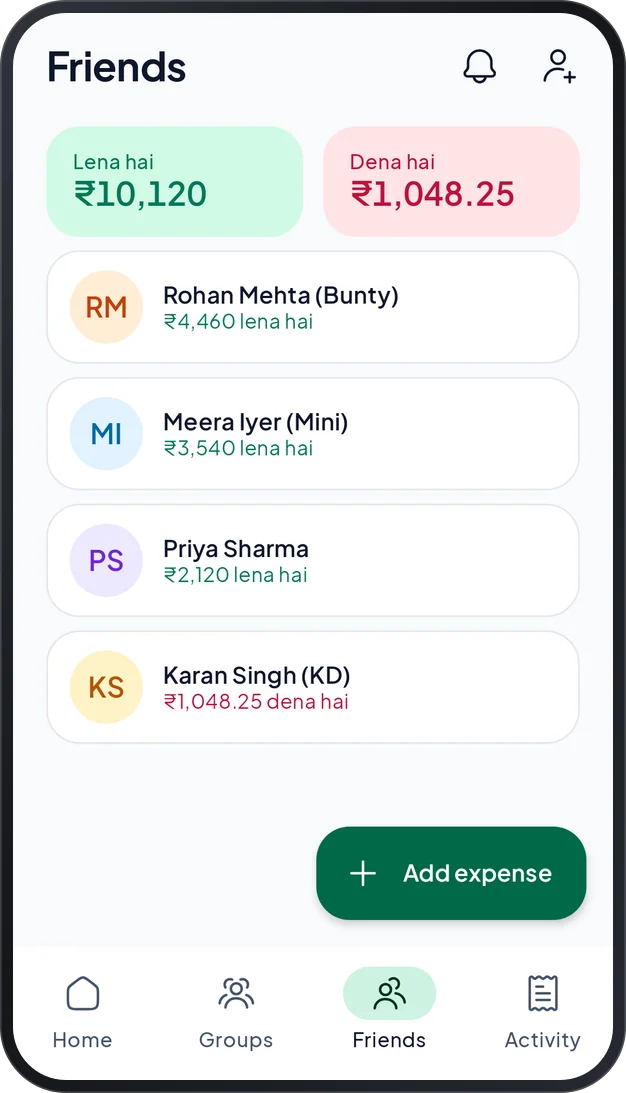
Friends are the people you share costs with. The Friends tab shows your balance with each of them.
Tap Add friend, on Home or in the Friends tab.
Type a name. A nickname and a phone number are optional. You can also tap Choose from contacts to pick one person in your phone’s own contact list.
With a number, your friend sees what you share as soon as they join Cute Split and accept. Until then you see Waiting to accept, and you can already add expenses with them.
Tip: a phone number cannot be changed later. To use a different one, add the person again.
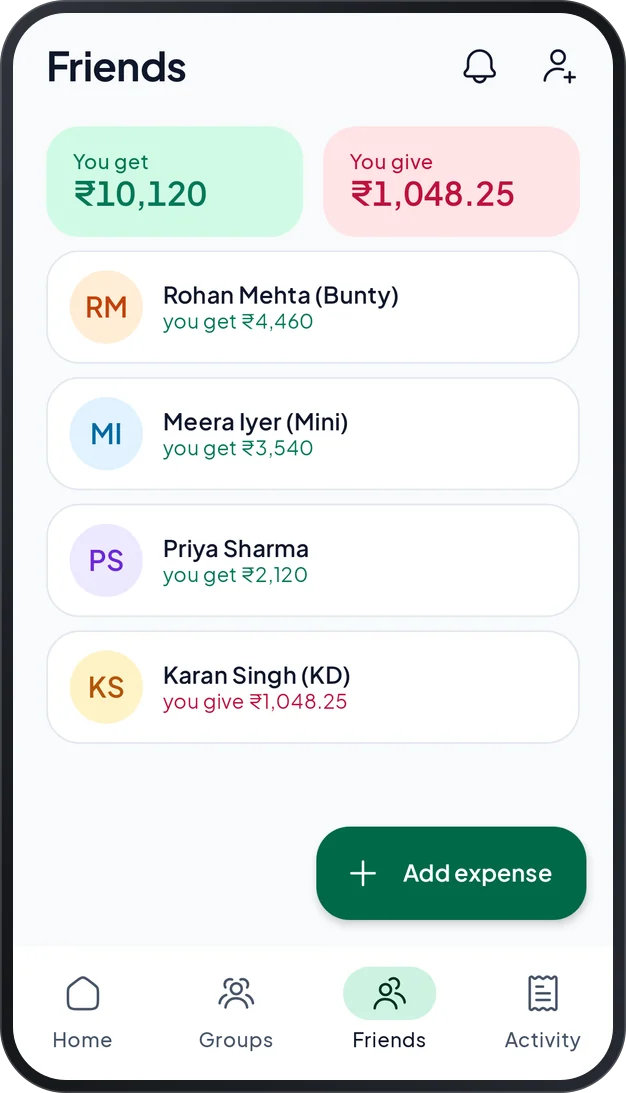
See a summary, your balances, month-by-month totals and everything you shared. Filter by group or month. Send a reminder, or share a summary.
Pin a friend to the top, or hide them from lists. A hidden friend is not offered for new expenses, but balances still count. You can delete a friend only when no expense or payment includes them.
Blocked people cannot add you to groups or expenses, and you can unblock them in Settings. You can also report a person, a group or an expense. We read every report, and the person is not told who sent it.
A group keeps the costs of a trip, your flat or an event in one place, so you can see every balance.
Tap New group.
Give it a name, for example Goa trip. Choose a type: Trip, Home, Couple, Event or Other. Add the dates if you like.
Choose who is in the group. Pick at least one friend, or add a new one. Then tap Create group.
A group has three tabs: Expenses, Balances and Members. Search by name, person, amount or date, and show only the days you choose.
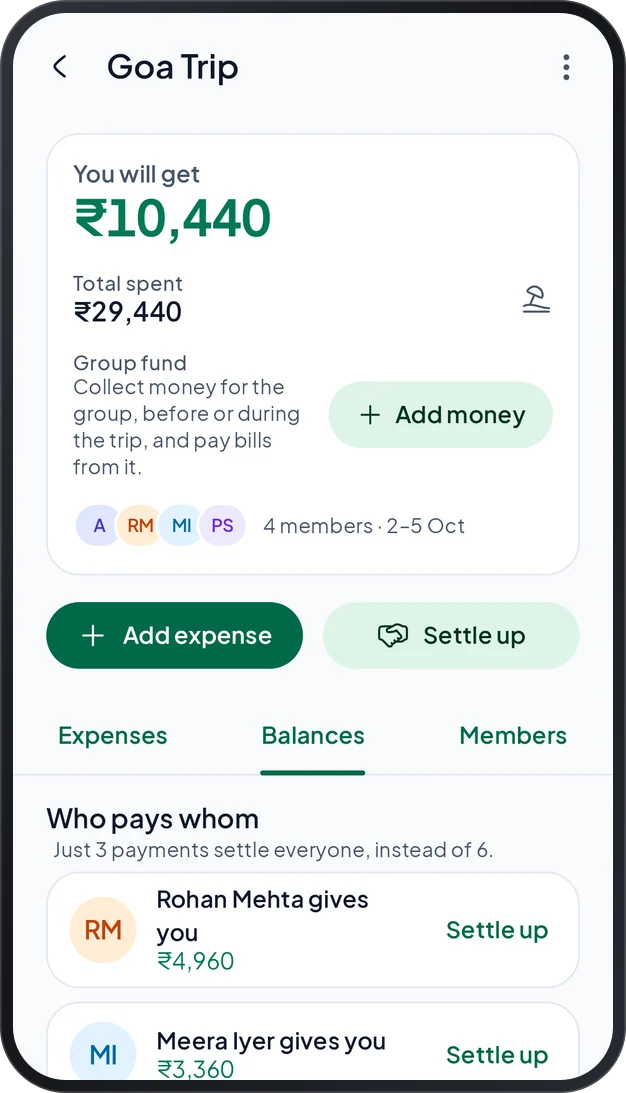
Cute Split does not make everybody pay everybody. It finds the smallest number of payments that settle the group, and tells you how many you save, for example “Just 3 payments settle everyone, instead of 6.” Each line has a Settle up button.
Tap Add expense. Every new expense starts as Personal, and you switch it to Friends or a Group when others share the cost.
Who is it for? Personal is just for you. Friends splits it with friends, without a group. Group splits it with the people in a group.
Fill in the basics: the amount, what it was for, the category and the date. The category is picked for you while you type, from English, Hinglish or Hindi words, and you can change it.
Who paid? One person, or several (see below).
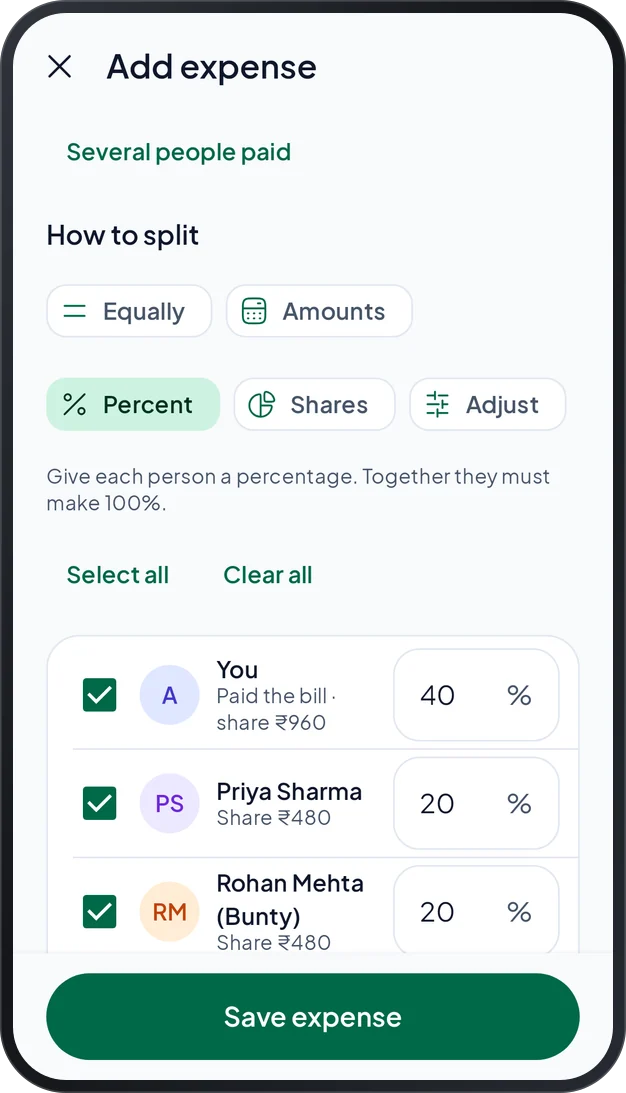
How to split: choose one of the five ways in the table and the people who share it. The form shows what is still missing, and tells you when everything adds up.
Tap Save expense. Balances update straight away.
| Way | What you do | Good for |
|---|---|---|
| Equally | Everyone you select pays the same amount. | A shared taxi, or a meal where everyone had about the same. |
| Amounts | Type each person’s exact share. | A bill where everyone ordered something different. |
| Percent | Give each person a percentage. Together they must make 100%. | Costs shared in a fixed proportion, such as 60 and 40. |
| Shares | Give each person a number of shares. More shares means a bigger part. | Rooms of different sizes, or a couple that counts as two. |
| Adjust | Split equally, then add or take off an extra amount for specific people. | A shared meal where one person also had an extra dish. |
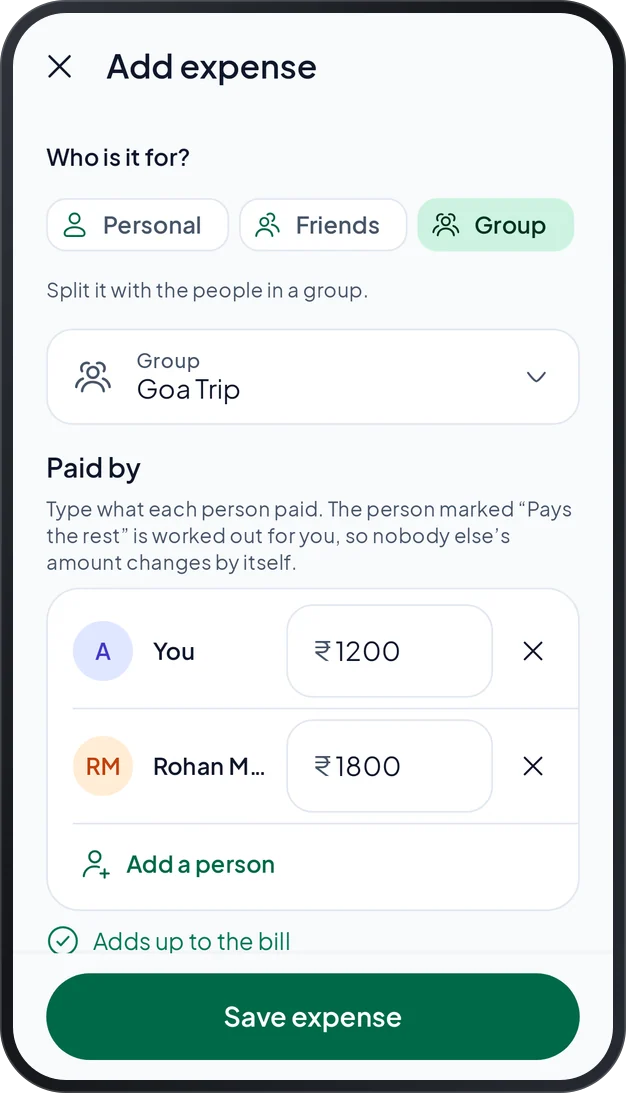
Tap Several people paid and type what each person put in. The person marked Pays the rest is worked out for you, so nobody else’s amount changes by itself. A check tells you when what was paid matches the bill, or by how much it does not.
Tap an expense to see who paid and each person’s share. You can edit or delete it, and Undo brings it back. An expense that belongs to a group stays in that group. To move it, delete it and add a new one. In a locked group, expenses cannot be added, changed or deleted.
Open an expense and choose Share this expense to let chosen people look at it. They cannot change it, and their own balances are not affected.
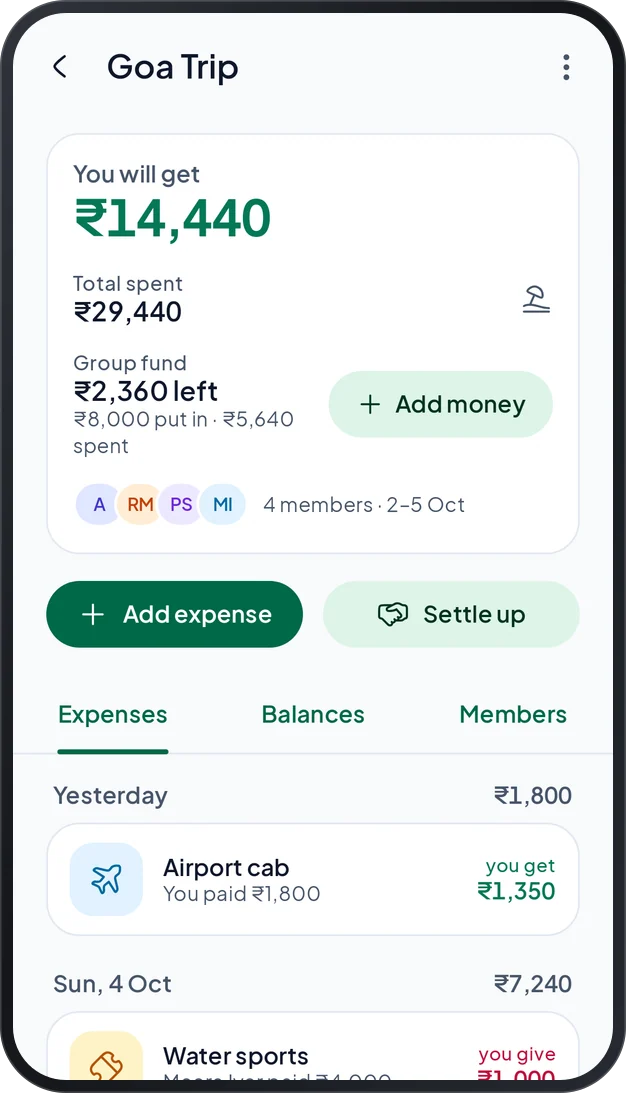
A group can collect money before or during a trip, pay bills from it, and give back what is left.
Open the group and tap Add money on the group fund card.
Choose who gave the money. All group members – equal share fills everybody in with one tap, or you pick people and type what each one gave. You can add more any time: before the trip, in the middle, or every day.
When you add a bill, turn on Pay from group fund. Everybody’s share is taken from the money they put in. If the fund is short, it goes below zero, and members settle the rest.
At the end, tap Record pay-back to give back what is left.
The group always shows what the fund holds, what was put in and what was spent. The fund is not spending: money put in and paid back is never counted as an expense. A locked group cannot take money into the fund.
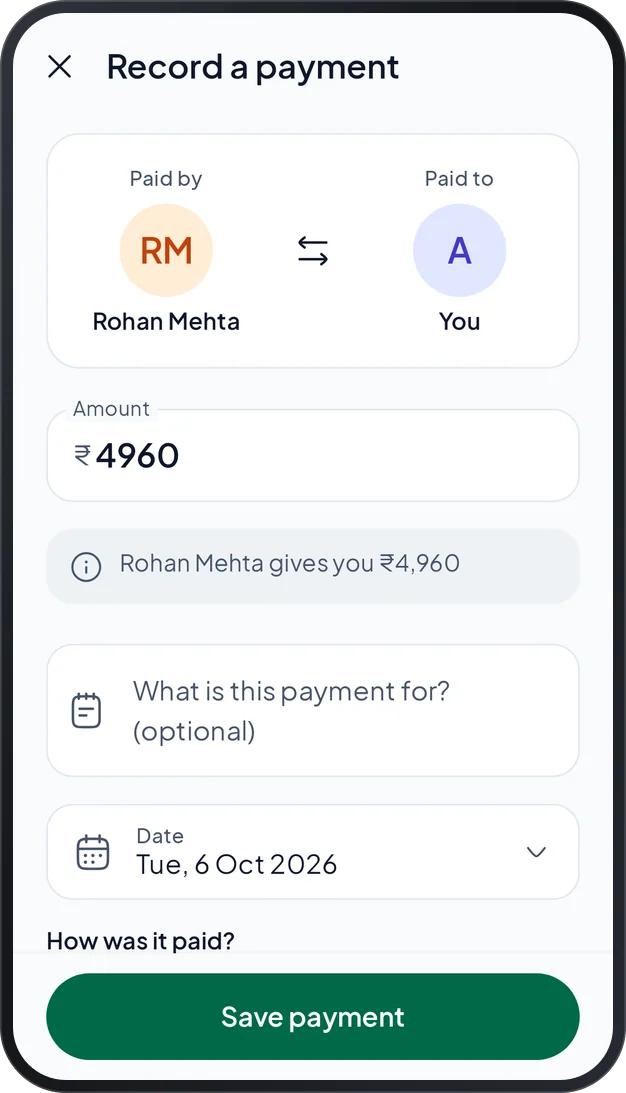
When you pay a friend, or a friend pays you, record it. Cute Split only keeps the record. The money itself moves outside the app, with cash, UPI or your bank.
Tap Settle up, on Home, in a group’s Balances tab or on a friend’s page, and choose a balance. Or choose Record a different payment.
Check who paid and who received the money. Tap the arrows to swap them. Type the amount and pick the date.
Choose how it was paid: Cash, UPI, Bank transfer or Other. Add a note if you like.
Tap Save payment. The balance updates at once. If you delete the payment later, the balance goes back to what it was.
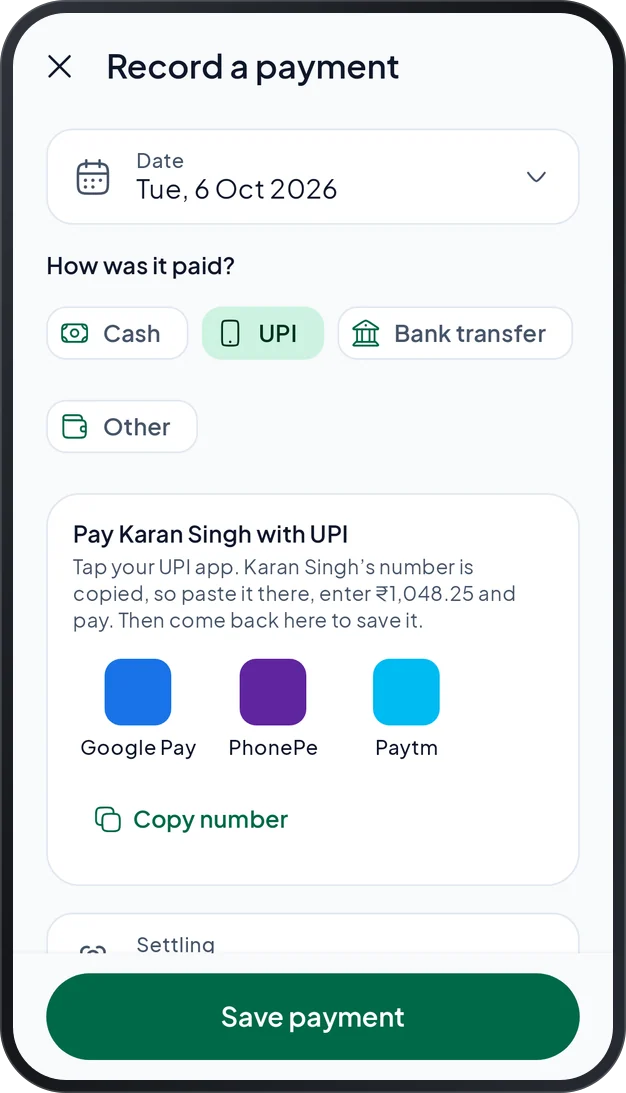
When you record a payment in rupees, Cute Split can help you pay.
Choose UPI. Cute Split lists the UPI apps on your phone, such as Google Pay, PhonePe or Paytm.
Tap one. Your friend’s number is copied, and the app opens.
Paste the number, enter the amount and pay with your own UPI PIN.
Come back to Cute Split. It asks Did you pay? Tap Yes, save it.
Remember: Cute Split never starts or holds a payment, and it never sees your PIN. If a friend shares their UPI ID, you can copy it too. Share yours in Settings, under My UPI ID.
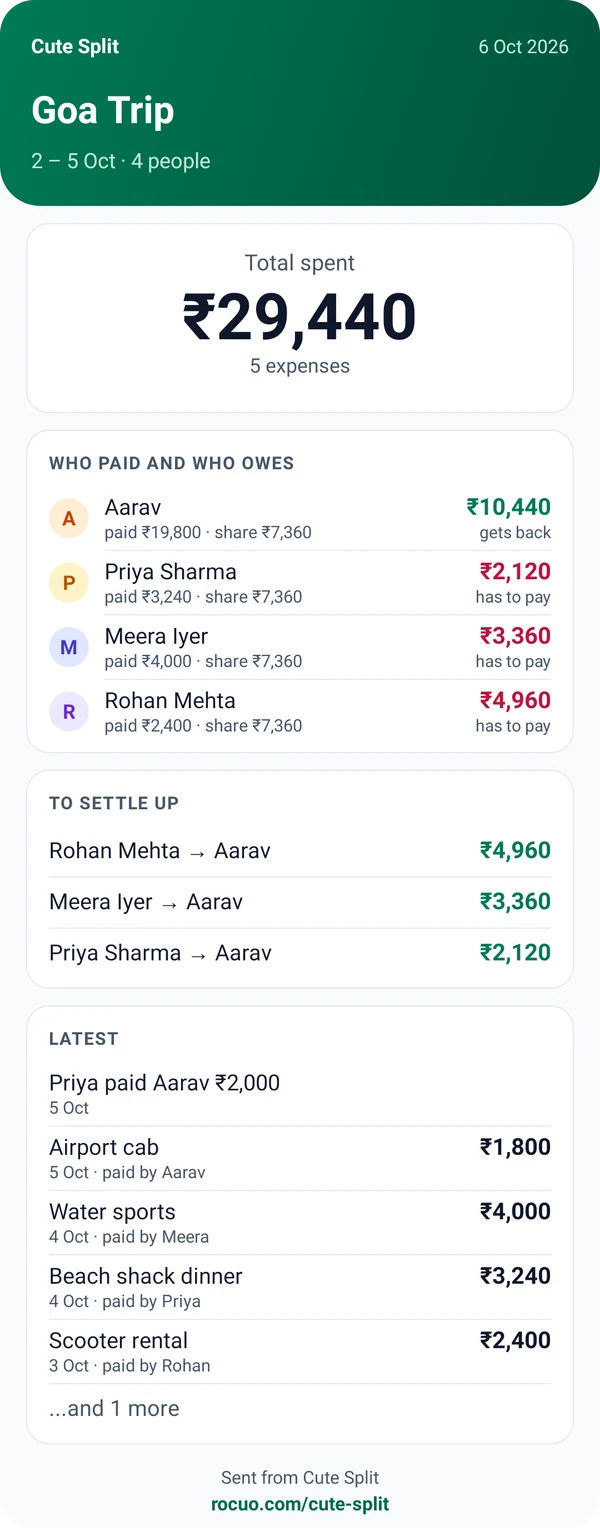
Send a friend, or everyone in a group, how things stand and who has to pay whom. Nobody needs the app to read it.
Open a friend or a group and tap Share summary, or Share on WhatsApp.
Choose what to send: a Message or a Picture. Choose the language: English, Hinglish or Hindi. Turn on List the latest expenses if you want them in it.
Tap Send on WhatsApp. It opens your chat, and you only press send. Or tap Share to use any other app, or Copy text.
The invitation on the Home screen works the same way: Invite friends shares a short message and the link to the app.
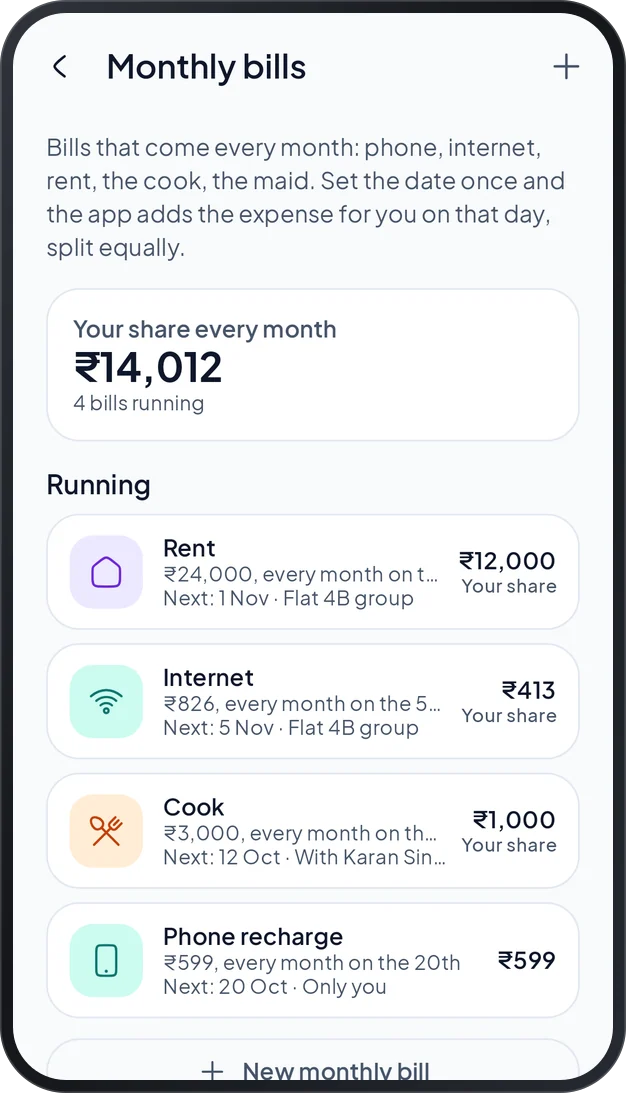
Rent, internet, the cook: set the date once, and the app adds the expense for you every month, split equally.
Open Monthly bills from Settings, or from the card on Home.
Start with a common bill (Phone recharge, Internet, Rent, Electricity, Water, Gas cylinder, Cook, Maid, OTT / streaming, Gym, EMI or School fees), or make your own.
Choose the amount, the date every month, an icon and a category. Choose who shares it: just you, friends or a group. Then say who pays it.
In a month with fewer days, the bill is added on the last day. You can pause a bill: nothing is added while it is paused, and the months that went by are skipped when you switch it on again. When a bill has been added, you get a notification.
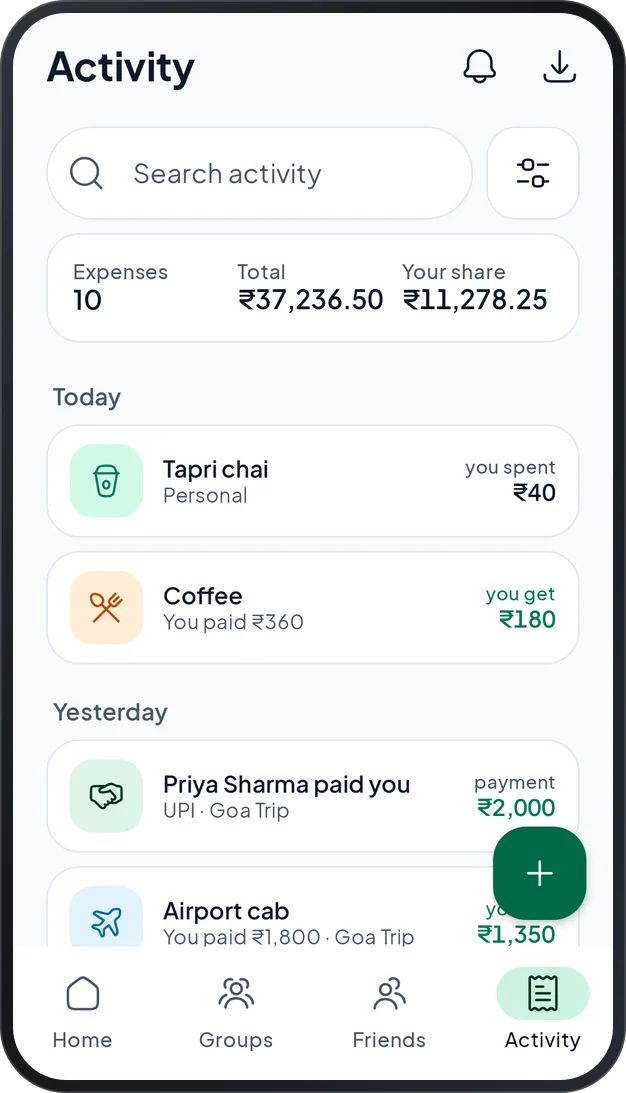
Every expense and payment you record shows up in the Activity tab, newest first.
Tap the gear on the home screen to open Settings.
Add an expense in a few seconds, without opening the app first.
Your data is kept in your account. Only you and the people you split with can see it.
Settings has Sign out. Your account is removed from this phone, but your data stays in your account and comes back when you sign in again. If some changes have not been sent yet, the app tells you first.
Settings has Delete my account. It permanently deletes your account, your friend list, your personal expenses and your own categories, and signs you out everywhere. What you share with other people stays for them, with your name shown as “Deleted user”. It cannot be undone.
No app on your phone? Use the delete account page.
There are no ads and no analytics, and Cute Split never uploads your contact list. Read the privacy policy and the terms of use in plain words.