
Chrome extension · Free

Browse any web folder
like a file manager.

Remote Files Browser turns a plain web folder list into a clean file manager. See folders and files with clear icons, then download one file, a few files or a whole folder.

Coming soon to Chrome Read the guide

Free. No account. No ads and no tracking.

Remote Files
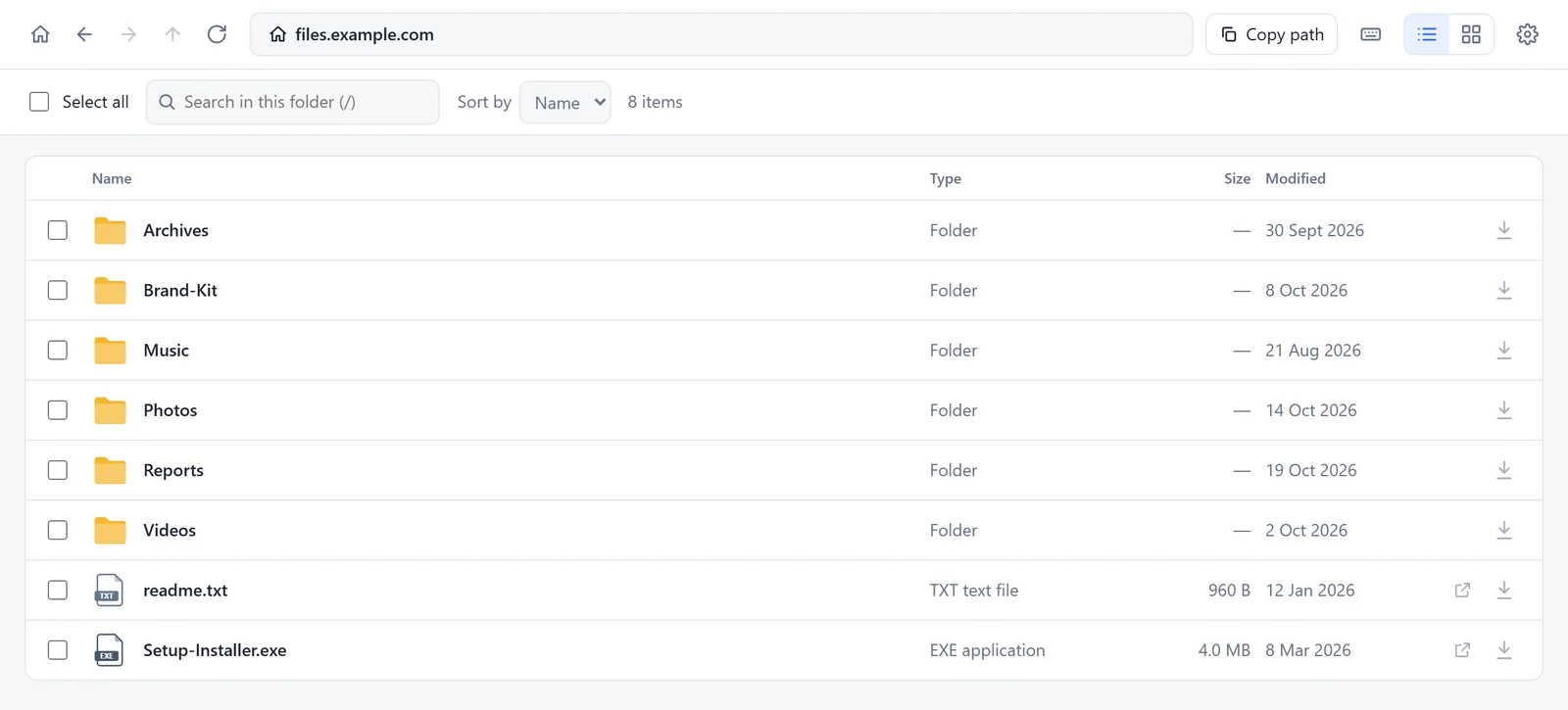
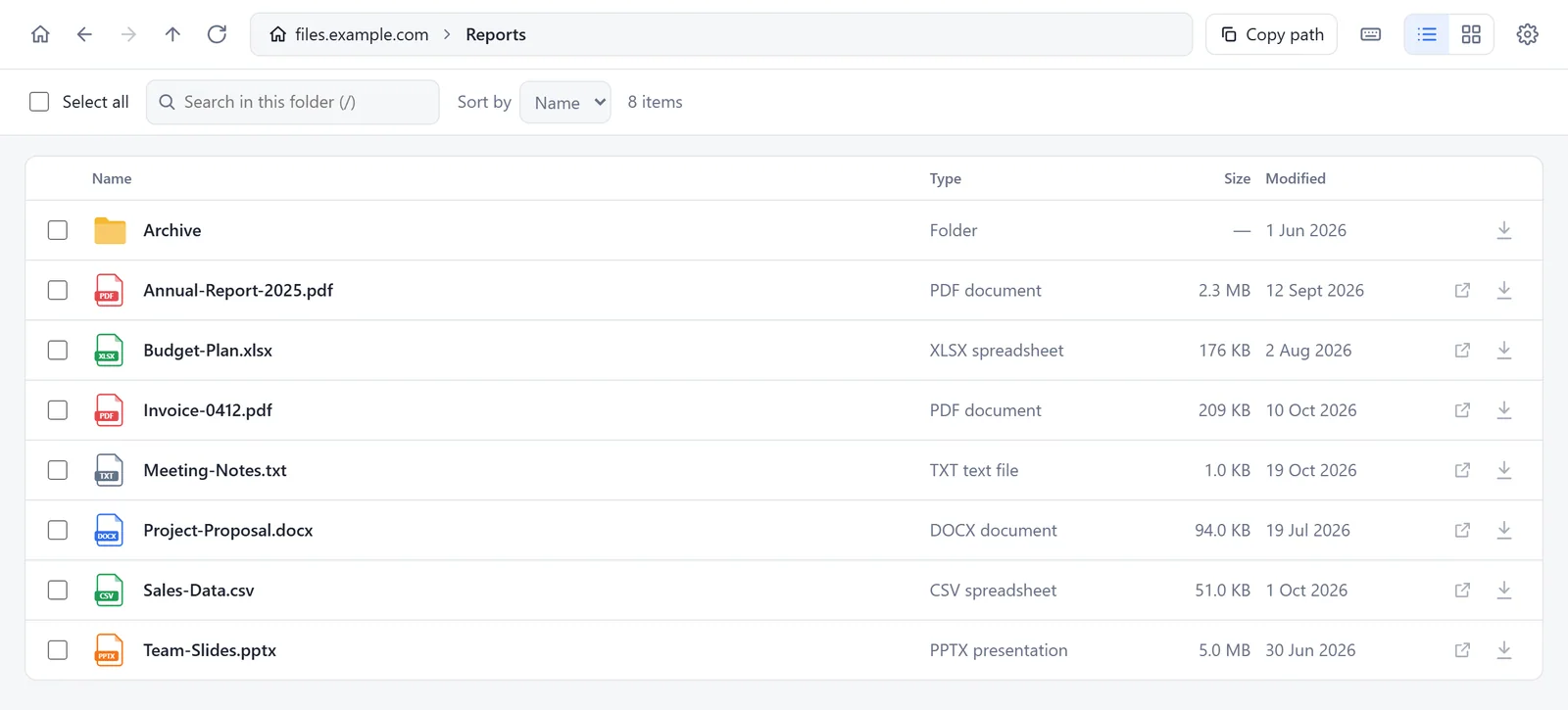
Remote Files Browser showing a web folder as a list: folders first, then files, each with its type, size and date
2views: list and grid
3permissions asked
0servers of ours
0accounts needed

What you get

A real file manager,
for a web folder.

Open a folder address and it looks like the folders on your own computer. Browse, search and save what you need.

A folder of documents as a list, with the type, size and date of each file

01 · Browse

Folders and files,
clearly shown.

Every file has an icon that shows its type, such as PDF, ZIP or JPG. Folders come first. See the size and the date, search the folder and sort the list.

  • A list with name, type, size and date
  • Search this folder and sort the list
  • Click any folder in the path bar to jump back
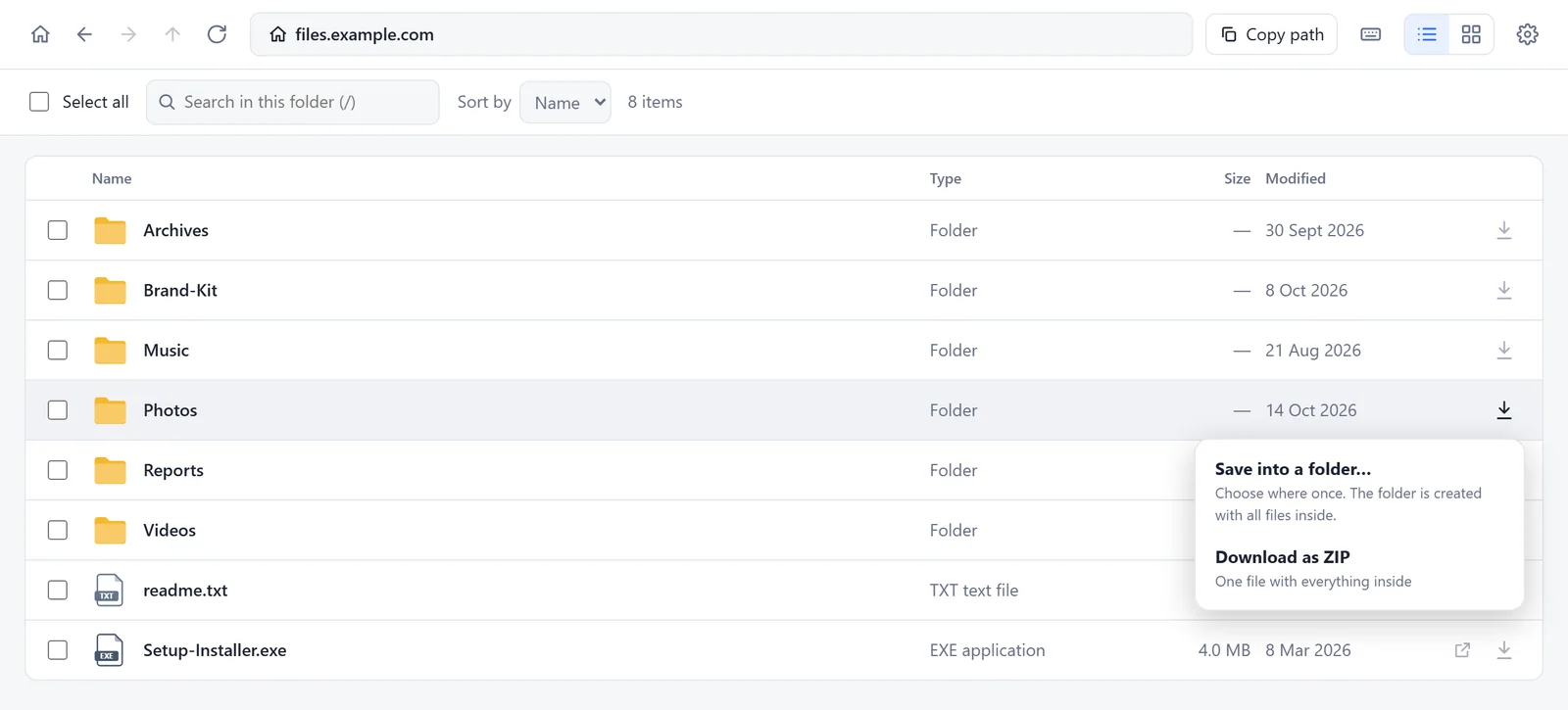
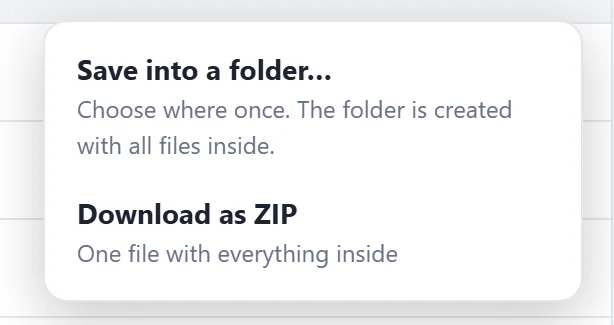
The save menu of a folder, with two choices: Save into a folder, and Download as ZIP

02 · Download

Save a whole folder
in one click.

Press the download icon on a folder. Choose a place once, and the folder is created there with every file inside. Or save everything as one ZIP file.

  • Nothing is overwritten. An old name becomes Photos (2)
  • See the progress, and cancel any time
  • Select several items and download them together
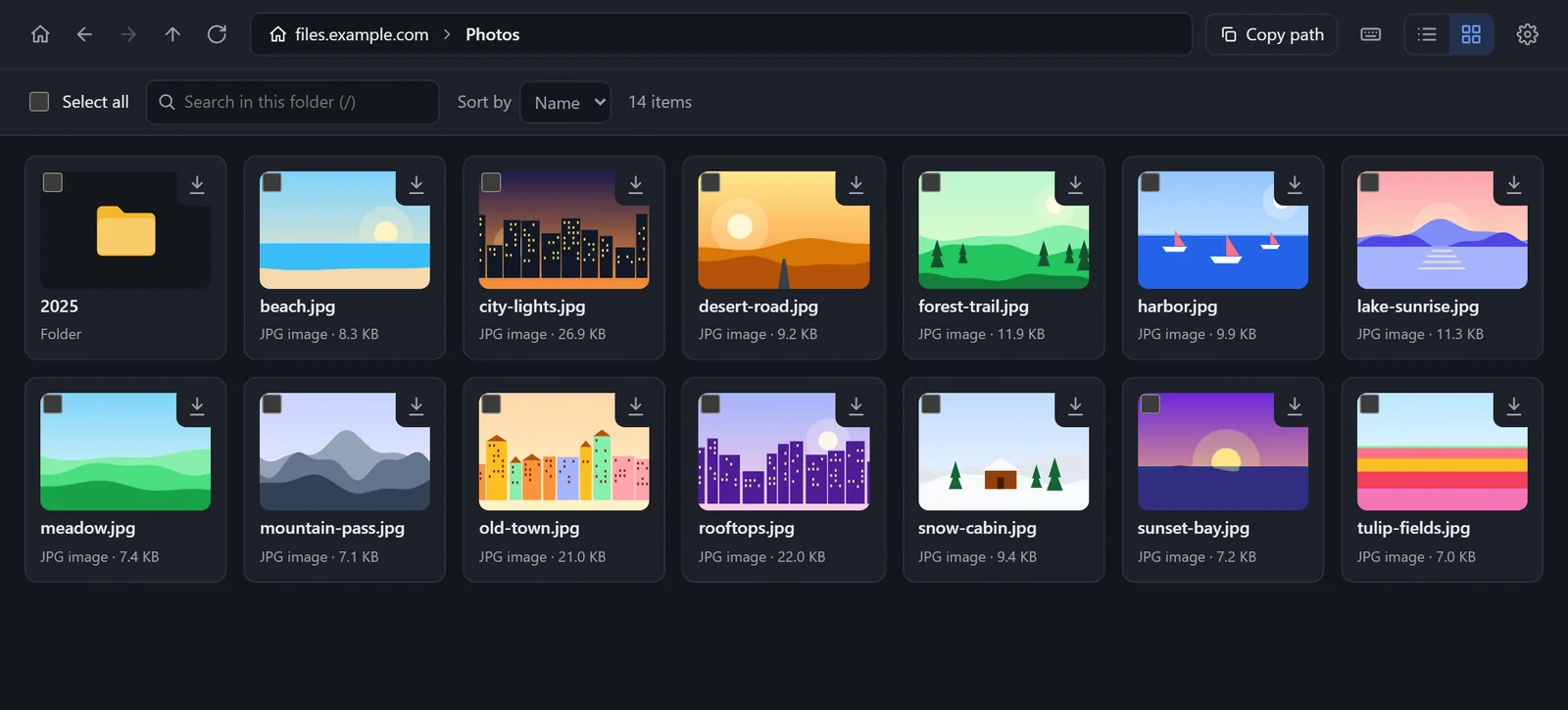
A folder of pictures as a grid of previews, in dark mode

03 · Views

A list or a grid,
light or dark.

Switch between list and grid with one button. In the grid, pictures show a small preview. Choose light, dark, or the same as your computer.

  • Previews for JPG, PNG, GIF, WebP, SVG, BMP and AVIF
  • Your choice is remembered
  • Works on small windows too
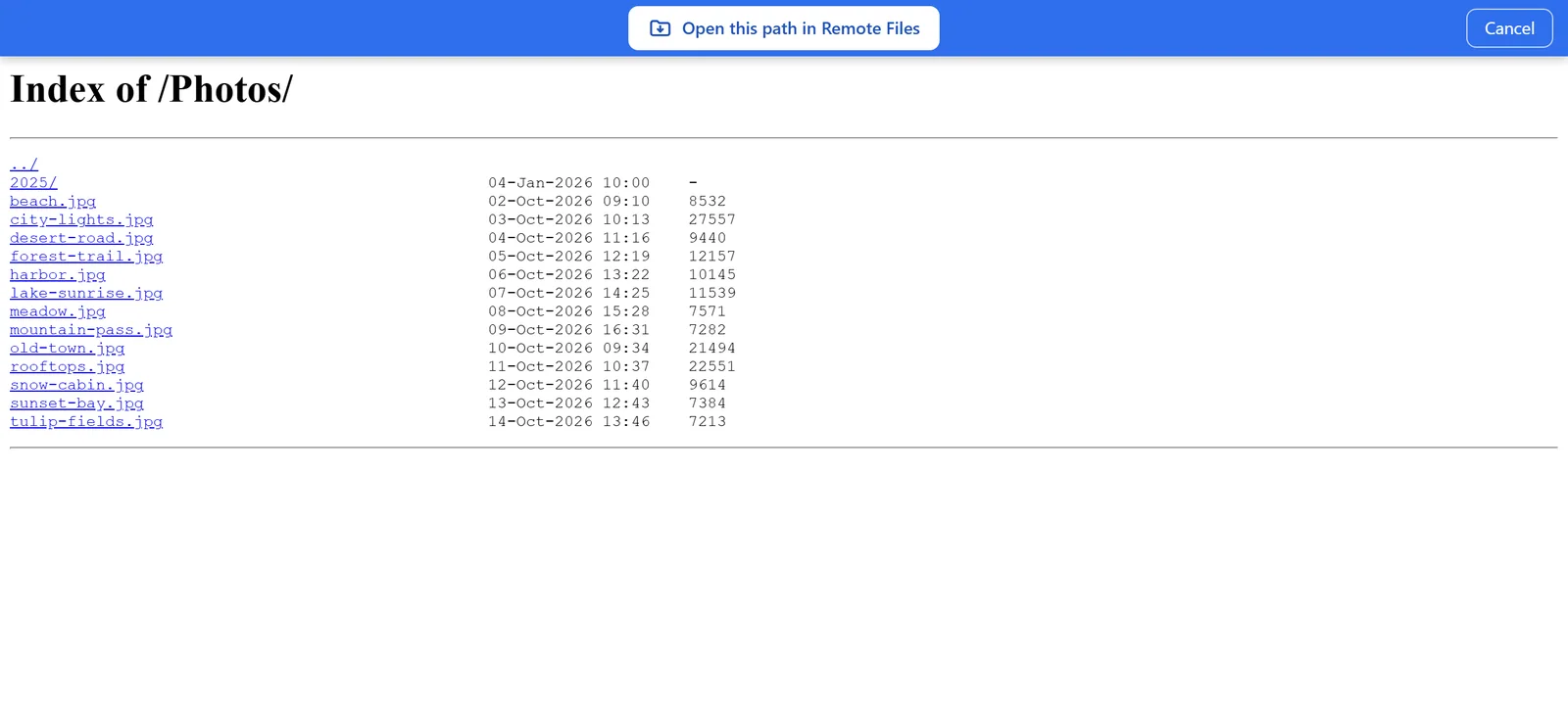
A web folder page in Chrome with a blue bar at the top that says Open this path in Remote Files

04 · Page bar

Start from the page
you are on.

On a web page that is a folder list, a blue bar can offer to open that folder in Remote Files Browser. You choose where the bar appears, or turn it off.

  • Only on your saved connections, unless you choose otherwise
  • Cancel hides the bar until the page loads again
  • The page is only checked on your computer

What it opens

Works with the folder lists
servers already make.

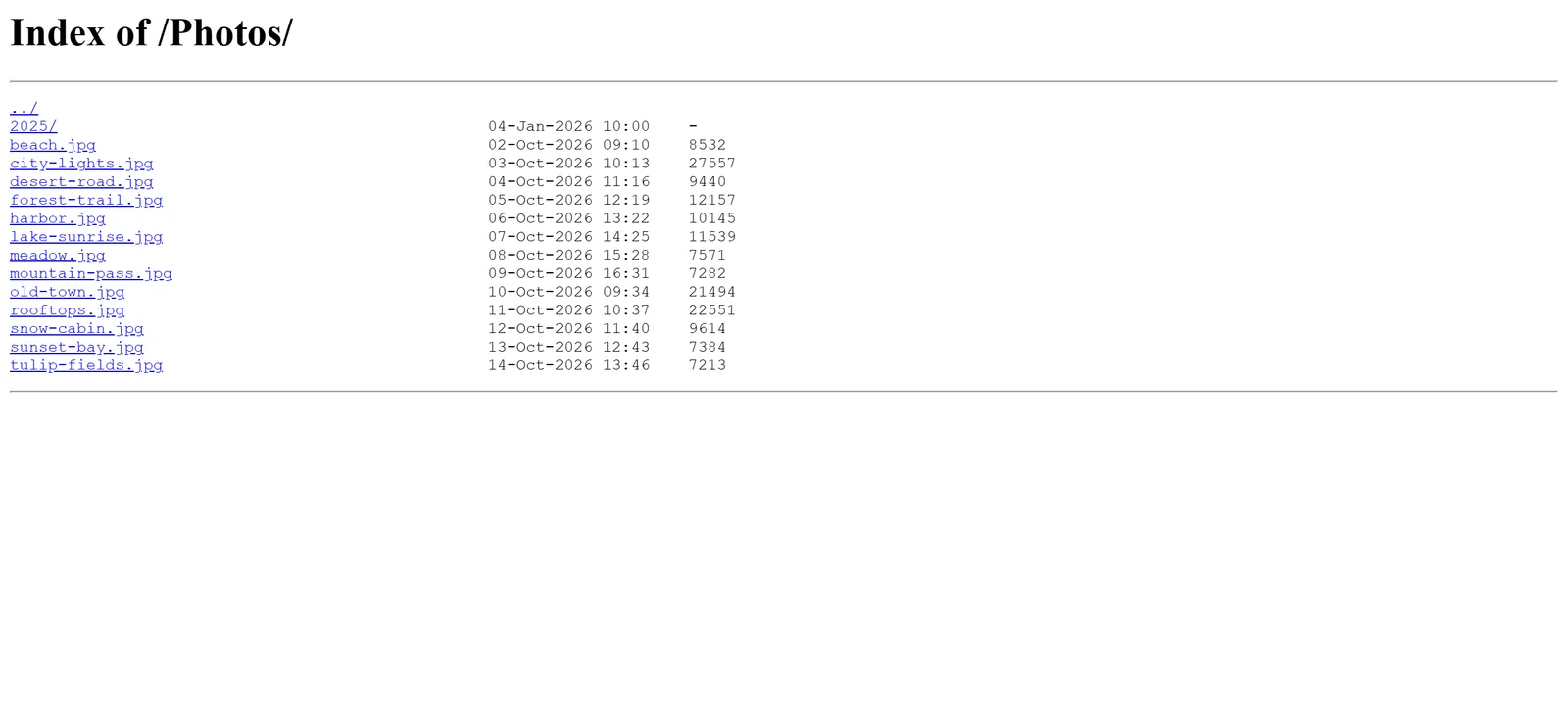
Remote Files Browser reads the standard folder lists, often titled Index of. Apache, nginx, lighttpd and Python's http.server are supported, and so are similar servers and WebDAV.

A folder that has its own index.html is still listed. The extension reads that page as plain text and never runs it.

How folders with an index.html work

A plain Index of page of a web server in Chrome, with a long list of file names
Folder lists
Apache, nginx, lighttpd, Python and similar servers.
WebDAV
Used when the server offers it.
A folder with index.html
Still listed. The page is read as text, never run.
Sites with a login
Work if you are already signed in, in the same Chrome profile.

Private by design

Everything happens on
your own computer.

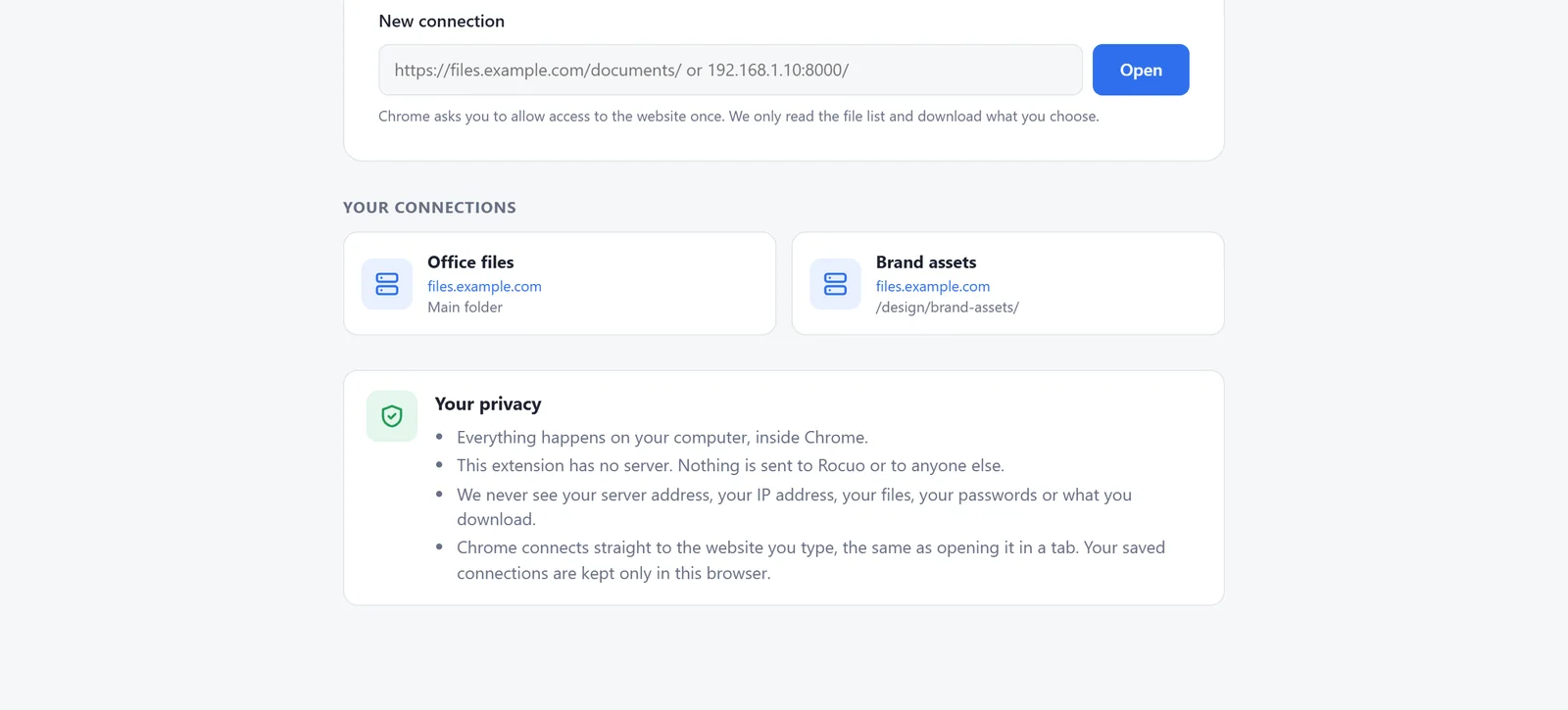
Remote Files Browser has no server of its own, so nothing is sent to Rocuo or to anyone else. Chrome connects straight to the website you type, the same as opening it in a tab.

Your saved connections stay in this browser. There is no account, no server of ours, no ads and no tracking.

Read the privacy policy

The Your privacy note of Remote Files Browser. It says everything happens on your computer and nothing is sent to Rocuo or anyone else.
Account
Not needed
Our servers
None
Ads and tracking
None
Pages and scripts of a server
Never shown or run

Permissions

Only three permissions asked,
one website at a time.

Chrome asks you before you add any extension. Here is what Remote Files Browser asks for, and why.

Downloads Asked
Saves the files and ZIP files you choose.
Storage Asked
Remembers your saved connections, your view and your settings on this device.
Scripting Asked
Adds the optional blue bar, only on the websites you chose in Settings.
Website access On request
Chrome asks for one website at a time, after you press Open. It is used only to read the file list and to download the files you select.
Tabs and history Not asked
The extension does not ask to see your open tabs or your browsing history.

How it works

Open a folder
in three steps.

No sign-up and no setup. Add it, paste a folder address, and save what you need.

  1. Remote Files Browser Free · By Rocuo Add to Chrome
    1

    Add it to Chrome

    Open the Chrome Web Store page and press Add to Chrome. It is free and needs no account.

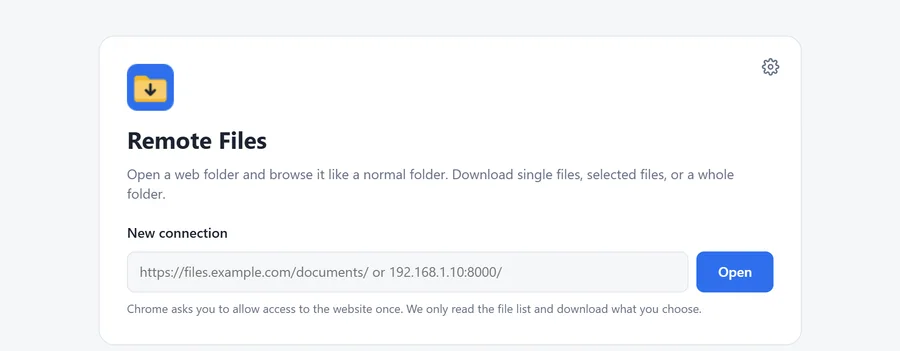
  2. The home page of Remote Files Browser with a box for a new connection and an Open button
    2

    Paste a folder address

    Click the extension icon, paste the address of a web folder and press Open. Chrome asks once if the extension may use that website.

  3. The save menu with Save into a folder and Download as ZIP
    3

    Save what you need

    Press the download icon on a file or a folder. Save a folder to a place you choose, or as one ZIP file.

Questions

Questions people ask,
answered simply.

Short answers to the things we expect to hear most. If yours is not here, the support page can help.

Is Remote Files Browser free?

Yes. It is free, with no ads and no purchases.

Do I need an account?

No. There is no sign-in. Click the extension icon, paste a folder address and press Open.

Which web pages does it open?

The plain folder lists that web servers show, often titled Index of. Apache, nginx, lighttpd and Python's http.server are supported, and so are similar servers. A folder that has its own index.html is still listed.

Can it see the websites I visit?

Not unless you allow it. Chrome asks you to allow one website at a time, and only after you type its address and press Open. The extension does not ask to see your open tabs or your browsing history. The optional blue bar checks pages only on the websites you choose in Settings. It does this on your computer and sends nothing anywhere.

Where are my saved connections kept?

In your browser, on your own device. Rocuo has no server for this extension, so your addresses never reach us. Removing the extension, or choosing Remove all saved connections in Settings, deletes them.

How do I save a whole folder?

Press the download icon on the folder and choose Save into a folder, or Download as ZIP. With Save into a folder you choose a place once, and the folder is created there with every file inside. If the name is taken, you get a new one such as Photos (2), and nothing is overwritten.

Is there a limit?

One download can hold up to 5000 files and 20 folder levels. A ZIP file is built in your browser's memory, so for folders of several gigabytes choose Save into a folder.

Does it work with sites that need a login?

Only if you are already signed in to that site in the same Chrome profile. The extension has no sign-in of its own and never asks for a password.

Which version of Chrome do I need?

Chrome 110 or newer.

Browse web folders
the easy way.

Free, with no account, and nothing leaves your computer. Open a web folder the way you open a folder on your own computer.

Coming soon to Chrome

Free · No account · No ads