

Fast and steady
Three files are downloaded at a time. Chrome never asks where to save each file: you choose once.
A simple guide to every part of the extension. See how to open a folder, switch views, download files and folders, and use the keyboard.
Remote Files Browser opens a web folder list, the plain page that is often titled Index of, as a clean file manager. There is no account to make and nothing to set up.
Add Remote Files Browser to Chrome. It is free and needs no account. It needs Chrome 110 or newer.
Coming soon to Chrome
Open the extension. Click its icon in the Chrome toolbar. A tab opens with the home page.
Paste a folder address. Paste the address of a web folder into New connection and press Open. If you leave out https://, it is added for you. An IP number, localhost or an address with a port, such as 192.168.1.10:8000/files, uses plain http://.
Allow the website. Chrome asks once if Remote Files Browser may use that website. Choose Allow. The extension uses it only to read the file list and to download what you select.
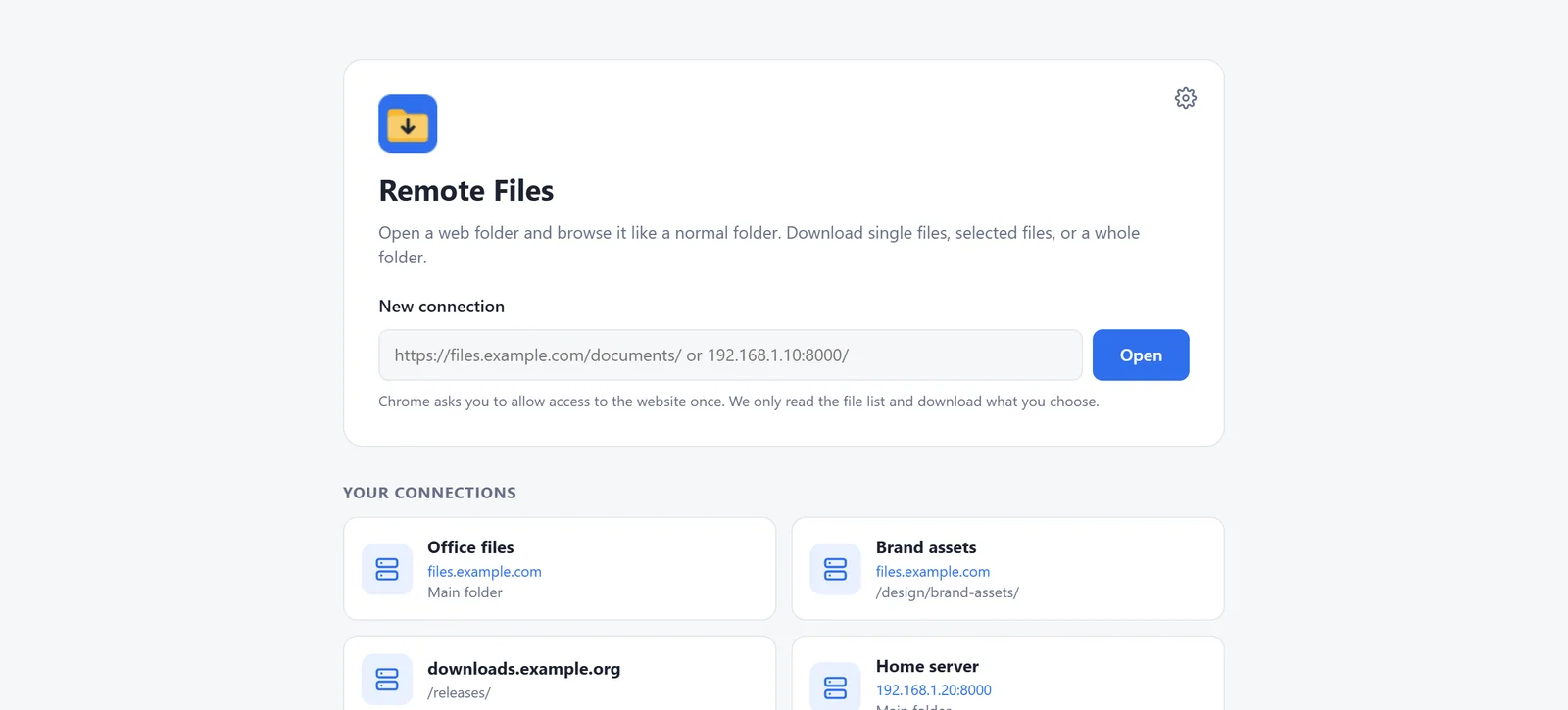
Good to know: a wrong or empty address shows a clear message, and nothing is opened. Chrome connects straight to the website you typed, the same as opening it in a tab.
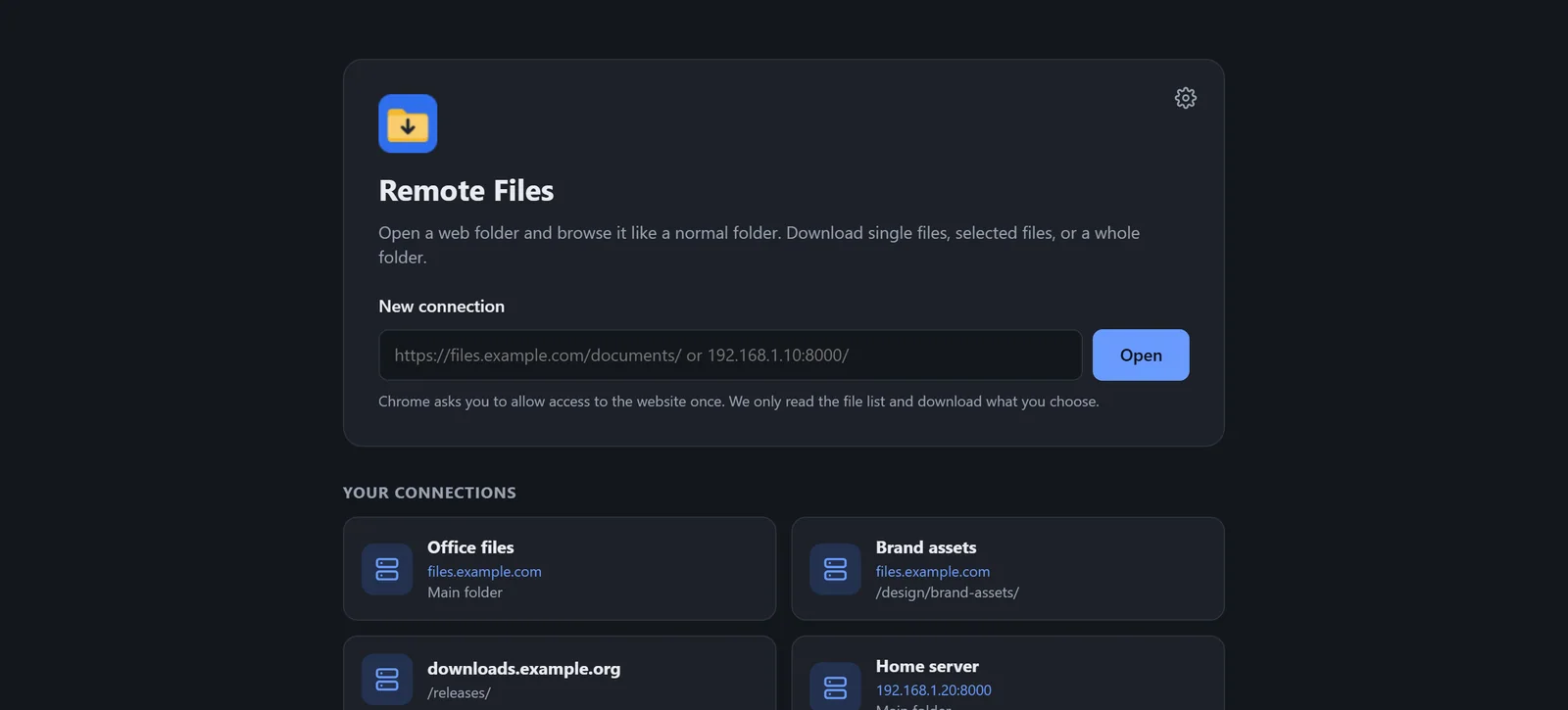
Every address you open is saved on the home page as a connection, so you can come back with one click.
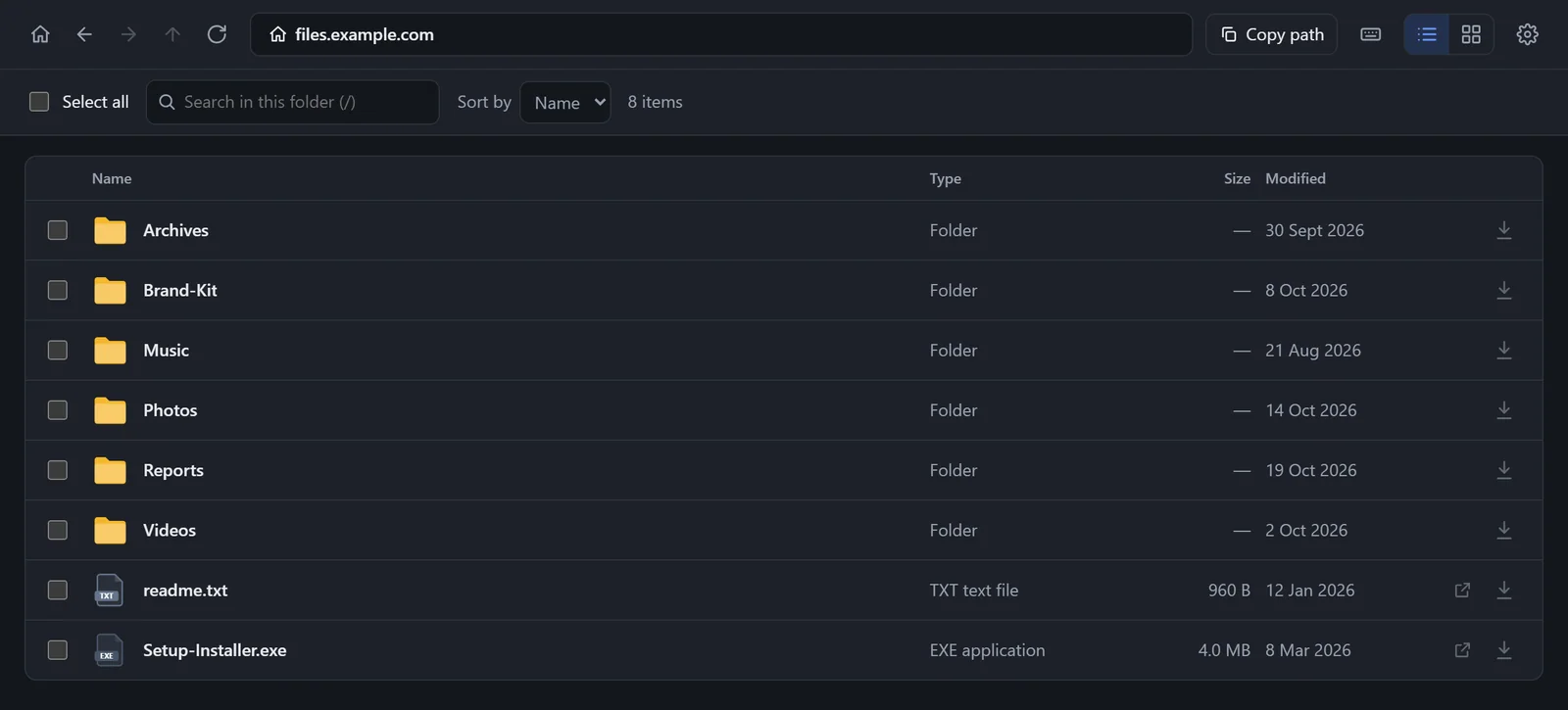
Open a folder and it looks like the folders on your computer: folders first, then files, each with an icon that shows its type.
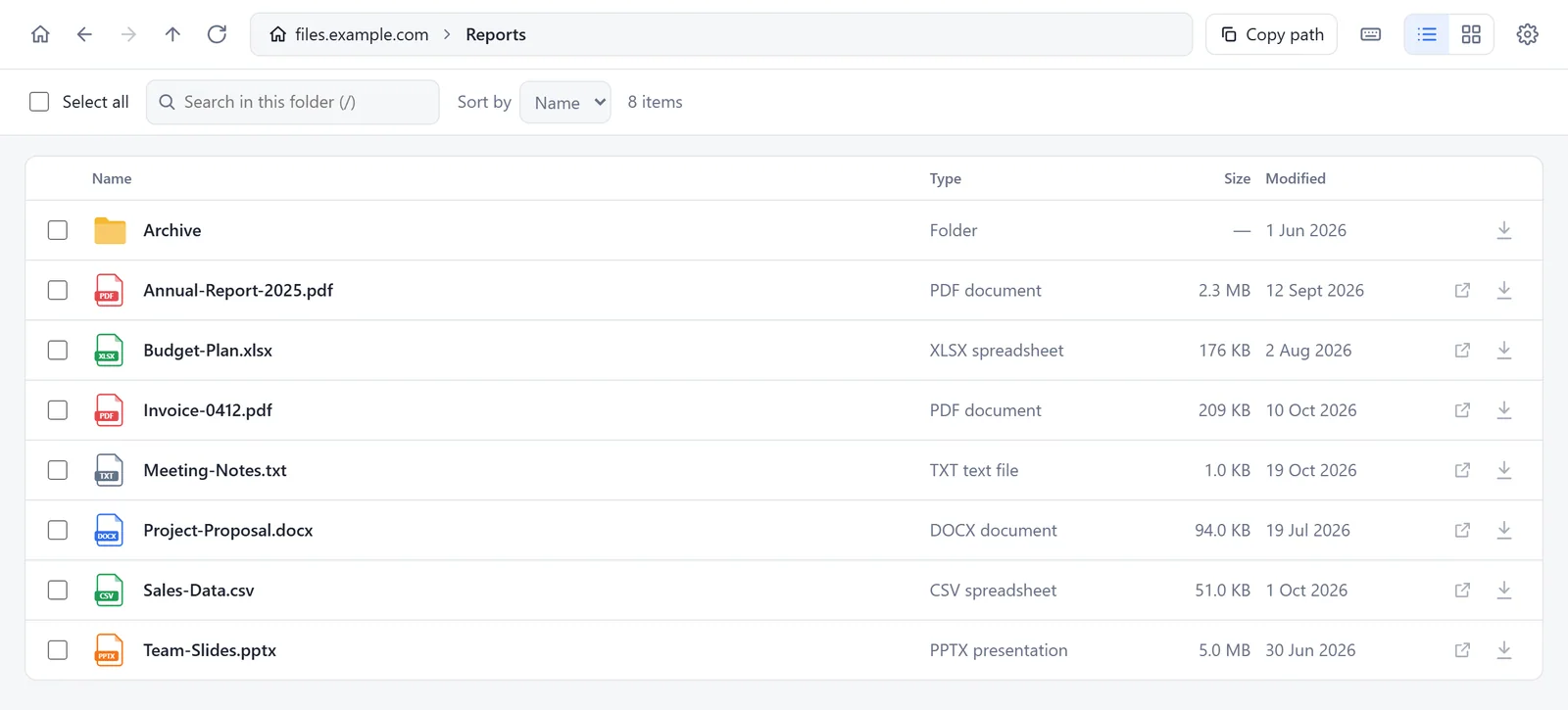
The list shows name, type, size and the date changed. The grid shows cards, and picture files show a small preview (JPG, PNG, GIF, WebP, SVG, BMP and AVIF). Switch with the two buttons at the top right. Your choice is remembered. If a picture cannot load, its icon is shown instead.
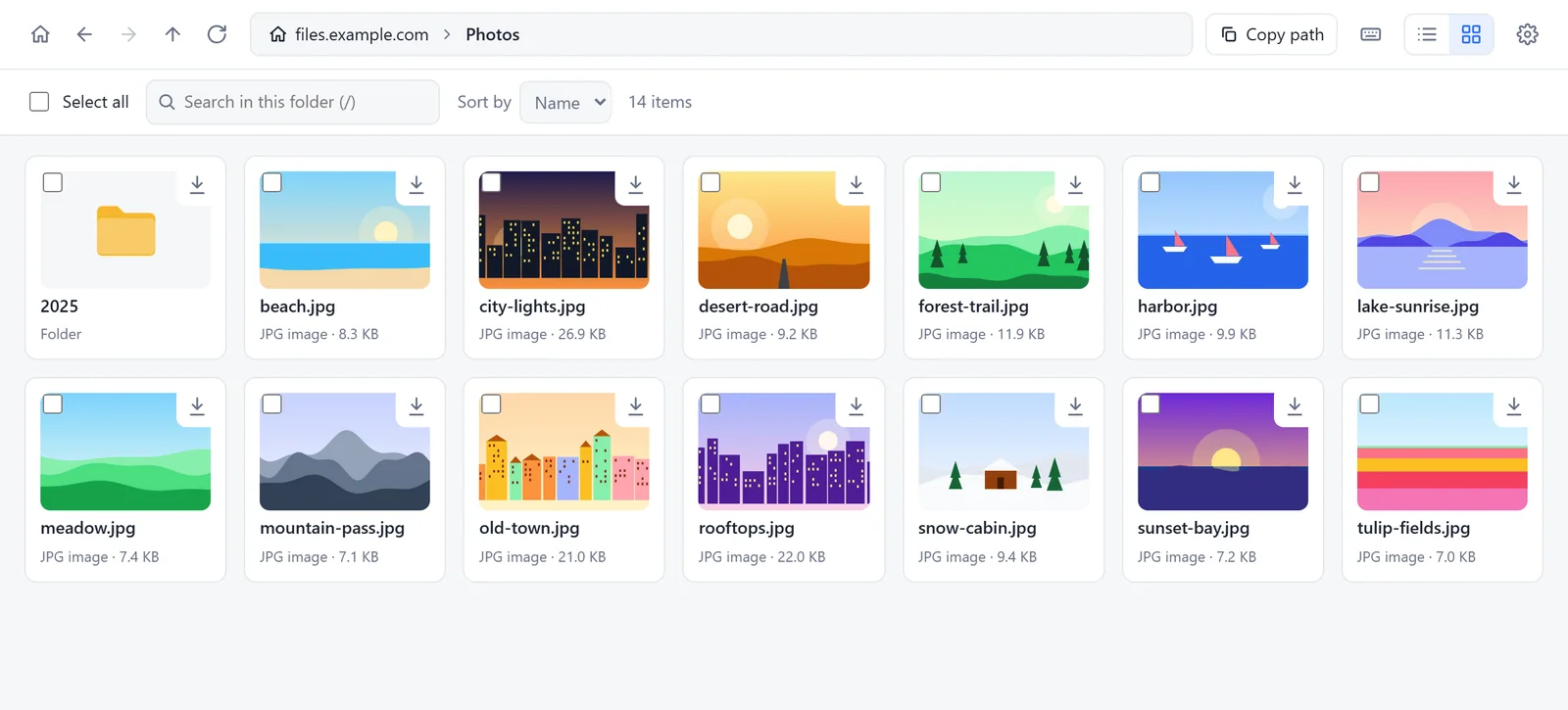
.gitignore. You can show or hide them in Settings.Press the Open icon, or double-click a file, to open it in a normal Chrome tab. Some servers show a page such as index.html instead of a list. Those files are marked Home page, have no Open button and are never opened as a web page inside the extension. They still download as the original file.
Download one file, a few files or a whole folder. Nothing starts until you press a button.
Press the download icon on its row. The file is saved with its real name, through Chrome's own download manager.
Tick the boxes, or press Space on an item, then press Download. Select all is a button, and also Ctrl+A. A counter shows how many items are selected, with a Clear button.
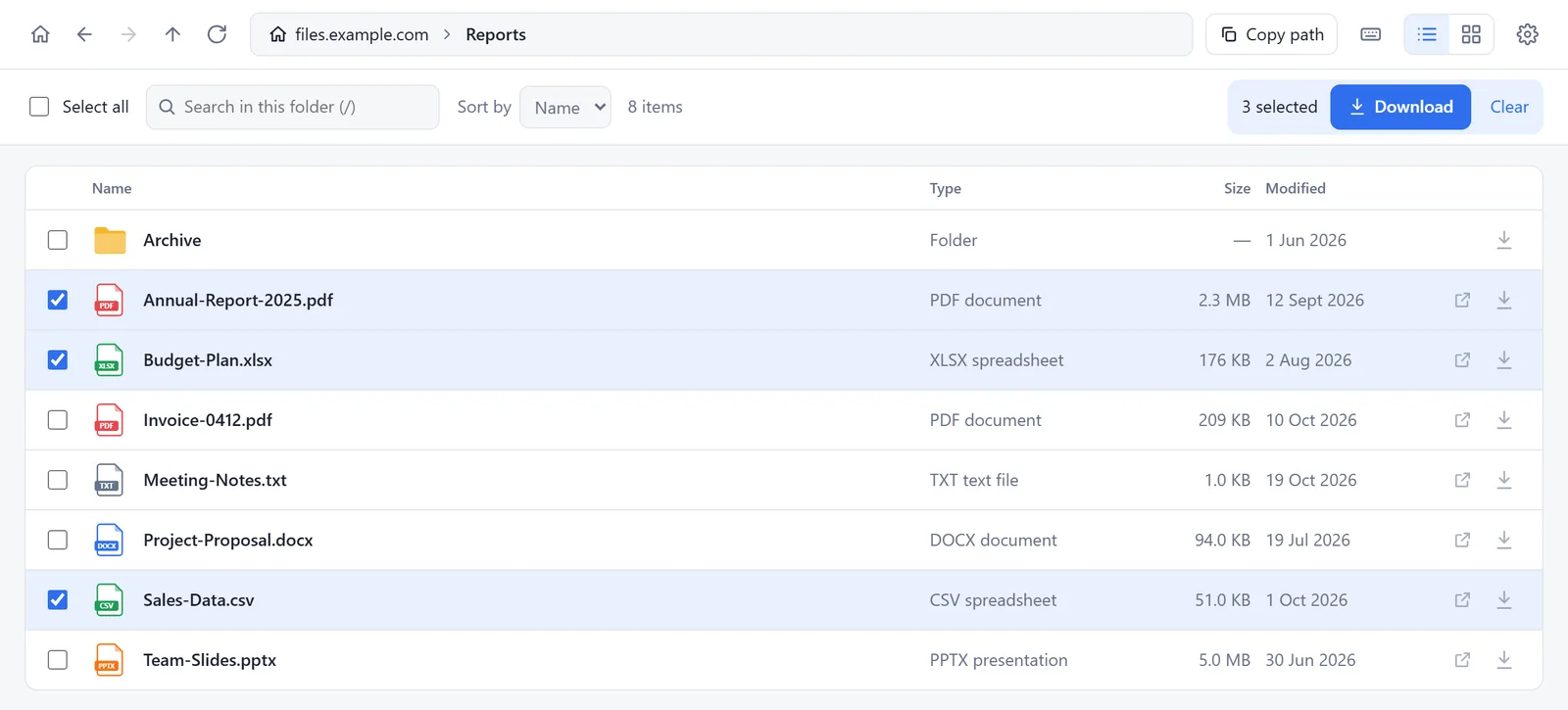
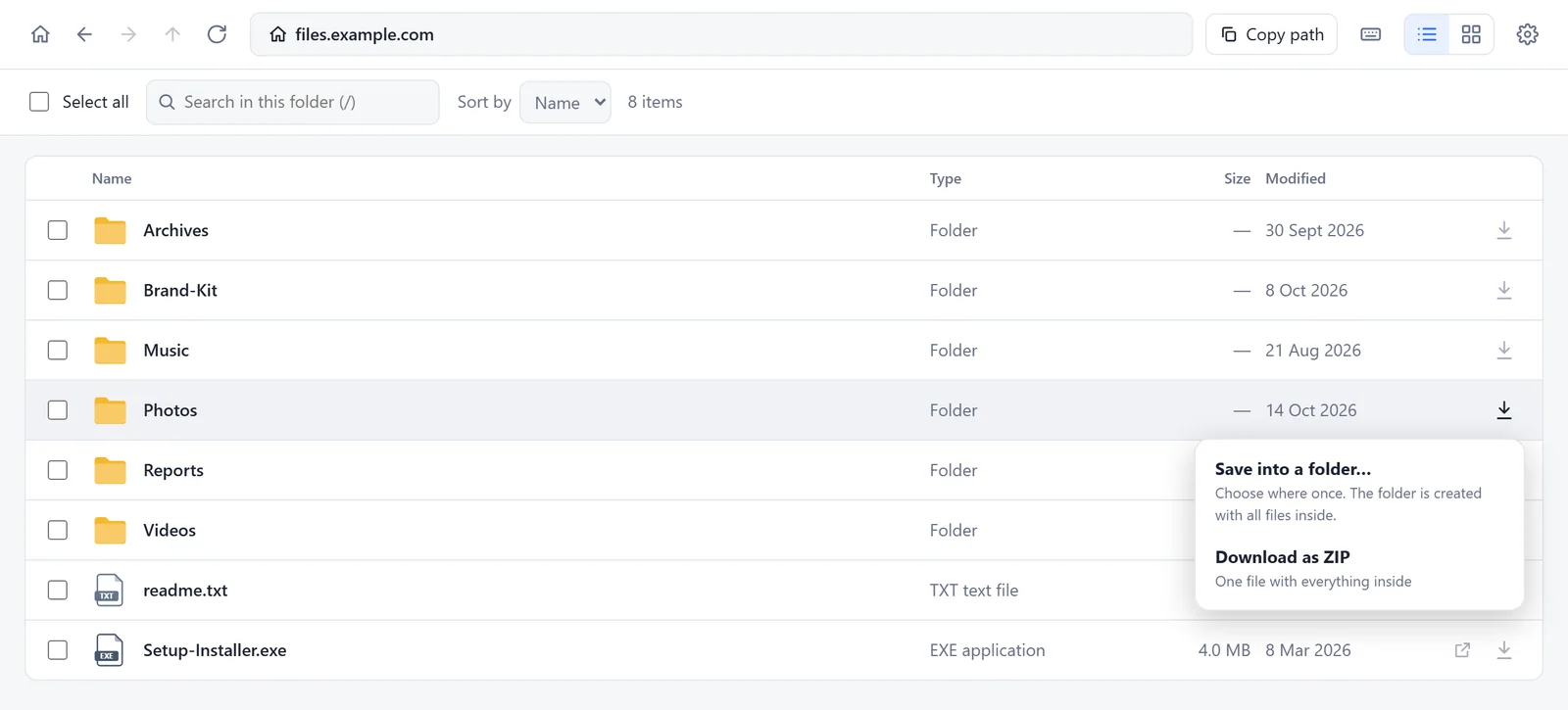
Press the download icon on a folder, or select items and press Download. Then choose one of two ways.
Choose a place once. Remote Files Browser creates the folder there, for example Photos, and puts every file and sub-folder inside it. Nothing is dropped loose on your Desktop.
Photos (2). Nothing is overwritten.One .zip file with everything inside, named after the folder. The ZIP is built in your browser and is never uploaded.
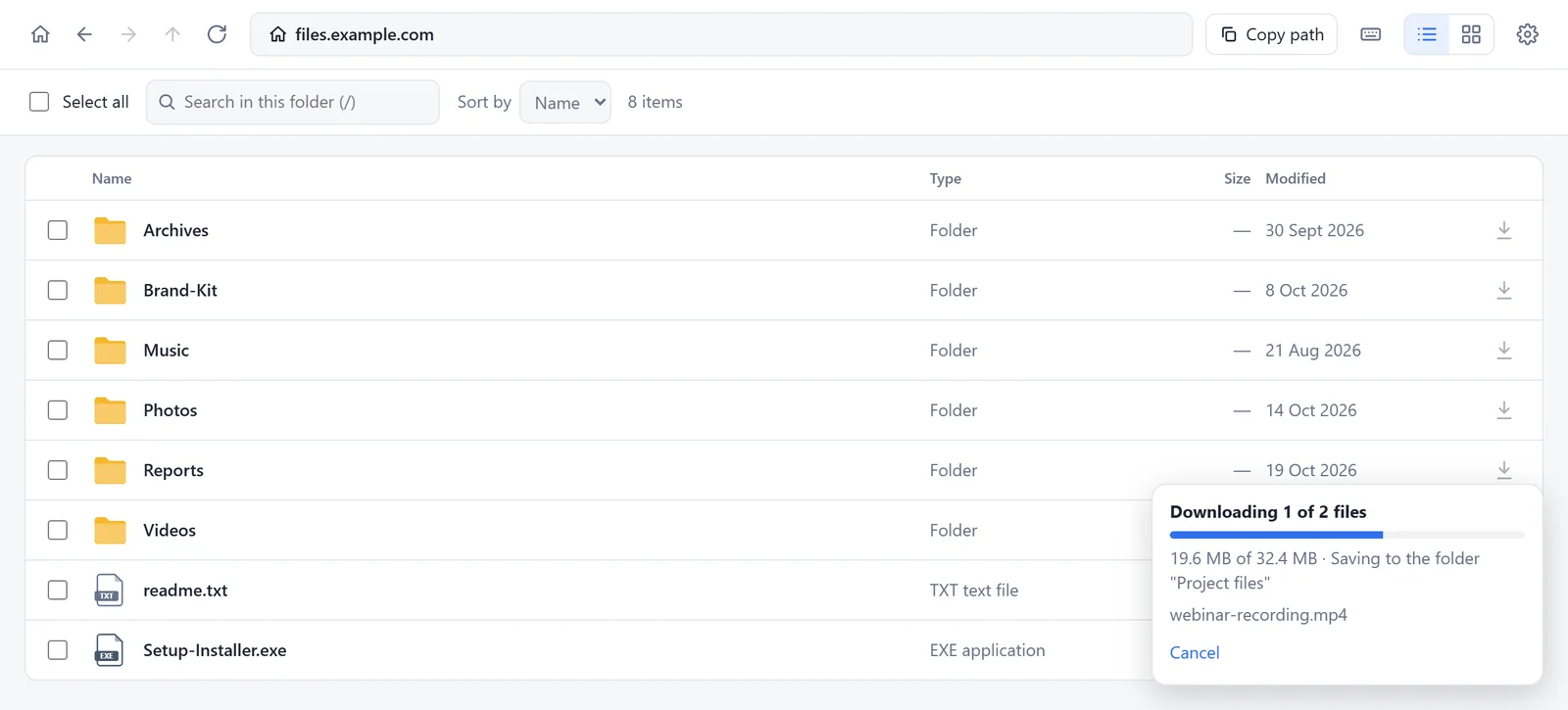
A small panel shows what is happening. First it finds the files and counts them. Then it shows how much is done, a bar, the name of the file it is saving and a Cancel button. At the end it says Done. After a single file or a ZIP is saved, Show in folder opens its place.
Three files are downloaded at a time. Chrome never asks where to save each file: you choose once.
Names are made safe for Windows, Mac and Linux. Bad characters are replaced, and long names are shortened but keep their ending, such as .pdf.
One download can hold up to 5000 files and 20 folder levels. If some files fail, the panel says how many and why.
When you look at a web page that is a folder list, a blue bar can offer to open that folder in Remote Files Browser.
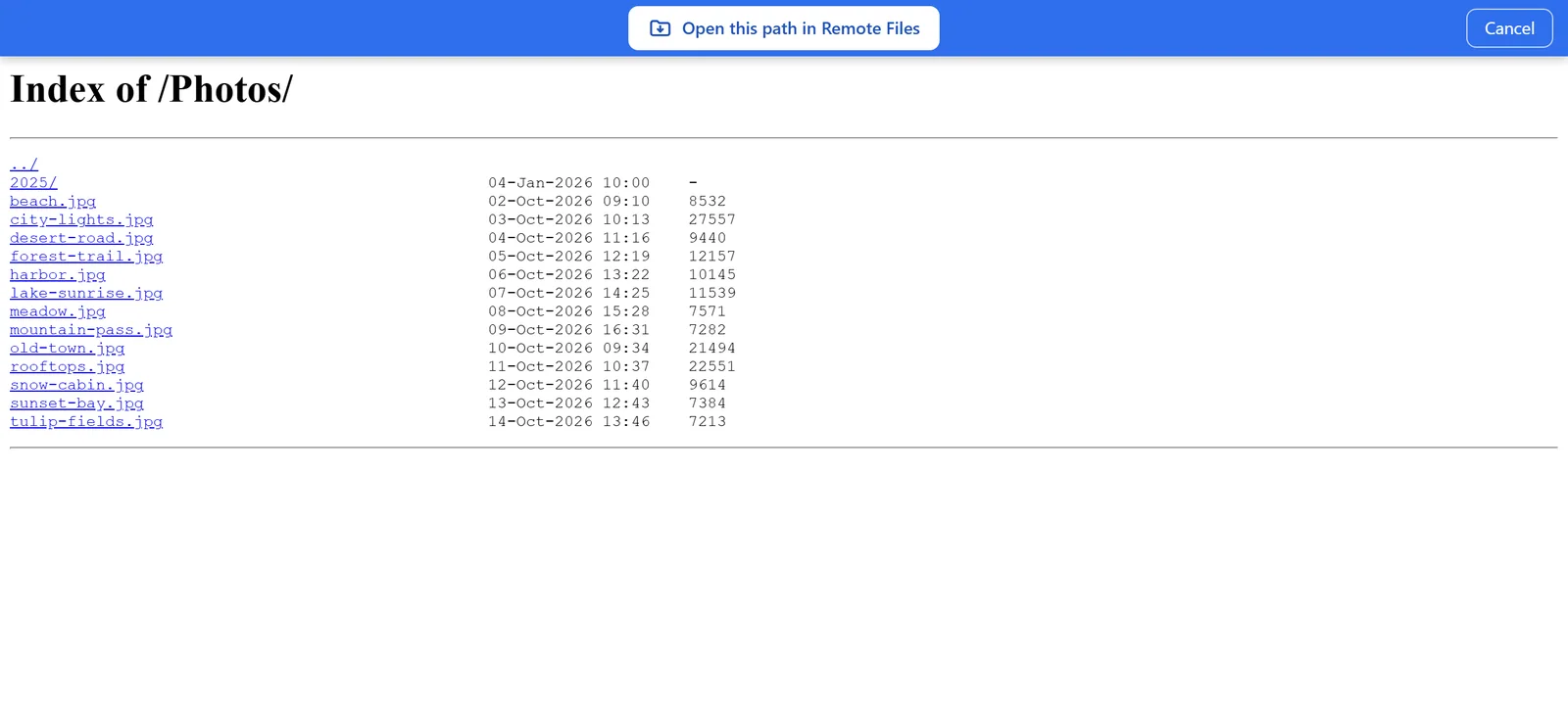
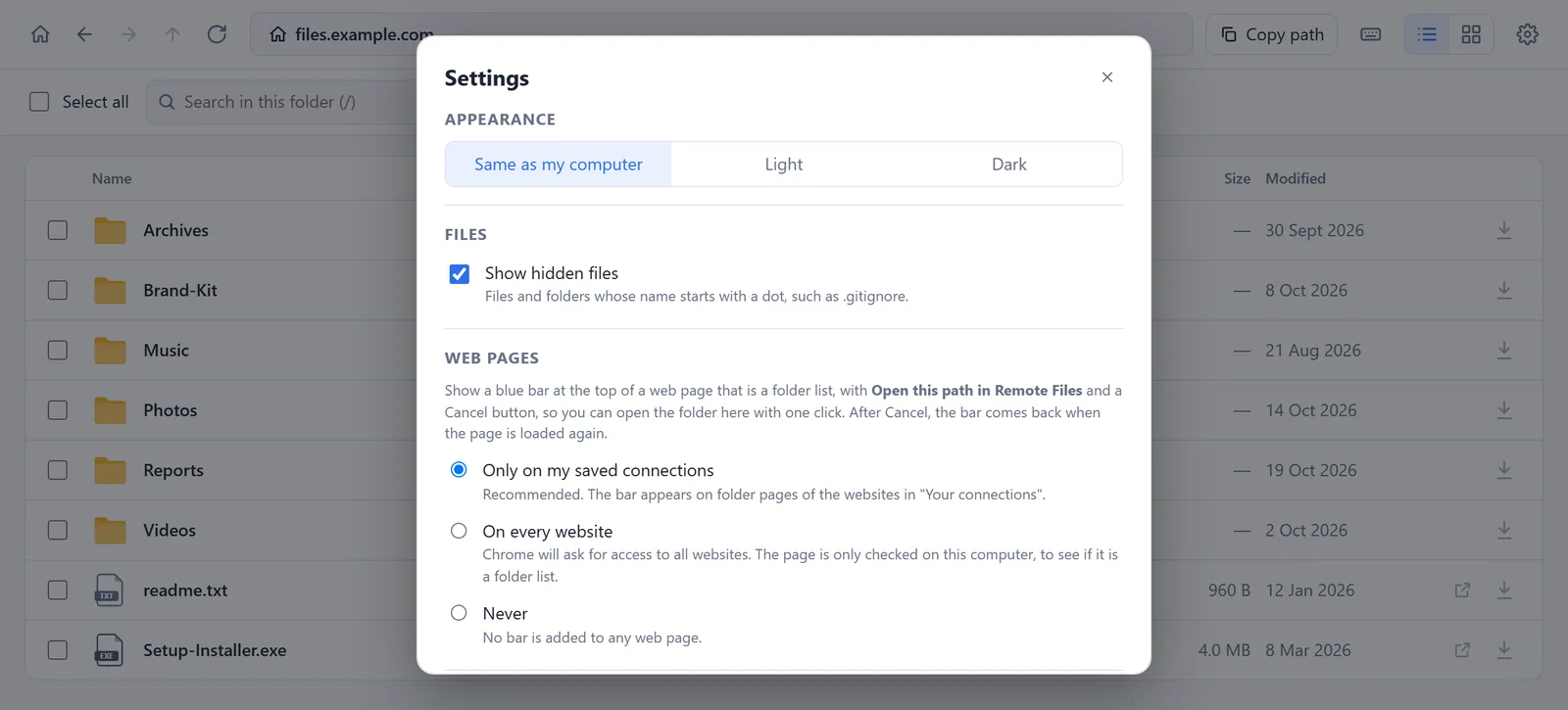
Open Settings and look at Web pages. You have three choices:
Many servers show a folder's own page instead of a file list when the folder has an index.html. Remote Files Browser still lists the folder.
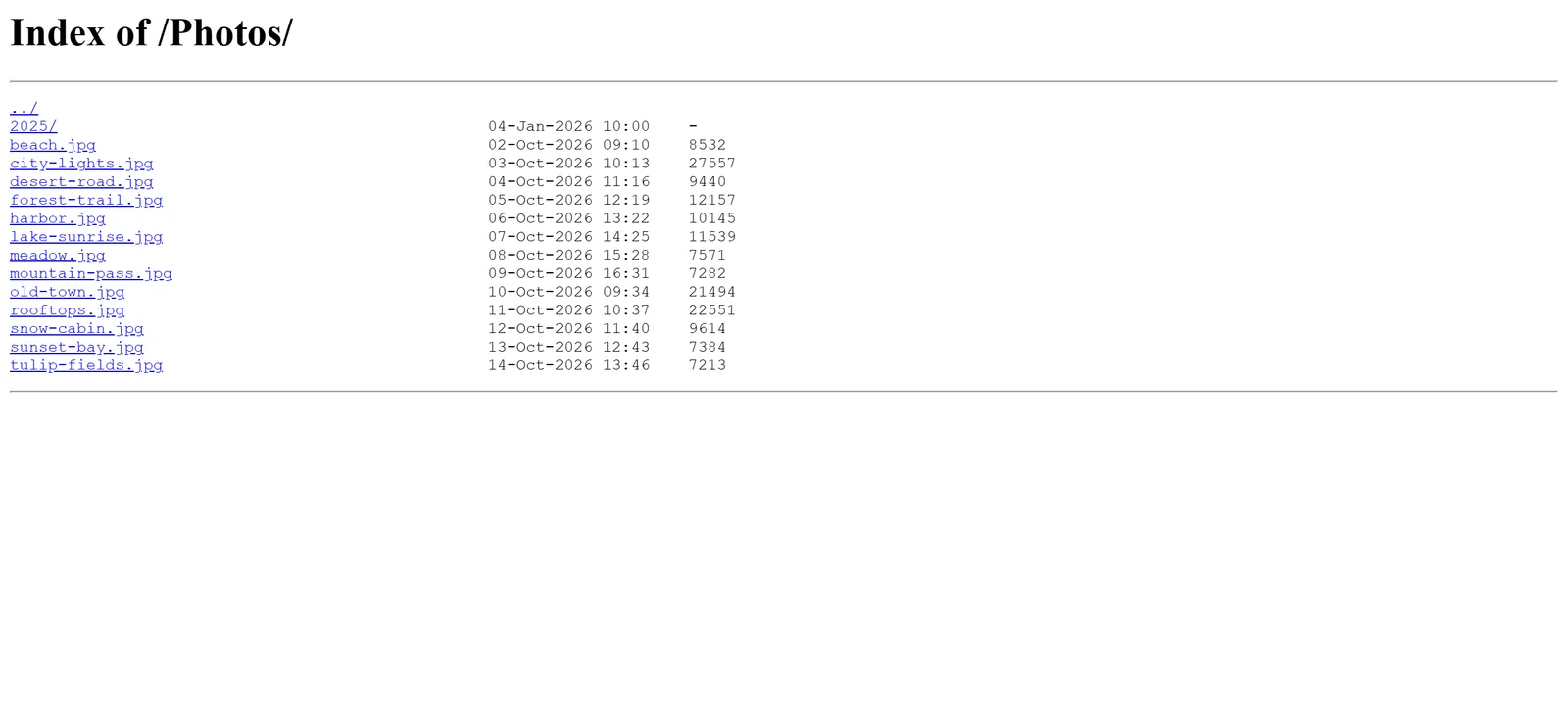
It tries the real list first, then WebDAV, which is the server's own answer to the question: what is inside?
If that does not work, it reads the page as plain text. It never shows the page and never runs it. It follows every file the page uses: links, scripts, styles and pictures.
It also checks a short list of common names, such as README.md, src and assets. Every name is checked with the server, so only things that really exist are shown. Secret files such as .env are not on the list.
If nothing is found, the extension says so, and offers Open this page in a tab.
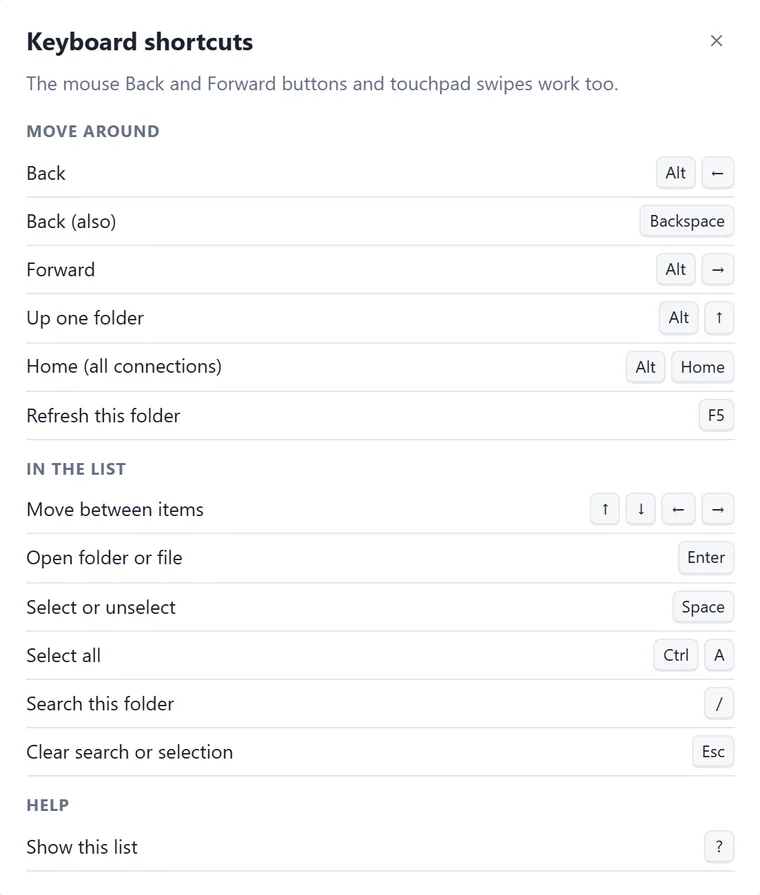
Everything can be done with the keyboard. Shortcuts do not get in the way while you type in a box. Press ? at any time to see this list inside the extension.
| What | Windows and Linux | Mac |
|---|---|---|
| Move between items | ↑ ↓ ← → | ↑ ↓ ← → |
| First or last item | Home End | Home End |
| Open a folder or file | Enter | Enter |
| Select or unselect | Space | Space |
| Select all | Ctrl+A | ⌘+A |
| Search this folder | / or Ctrl+F | / or ⌘+F |
| Clear the search or the selection | Esc | Esc |
| Back | Alt+← or Backspace | ⌘+[ or Backspace |
| Forward | Alt+→ | ⌘+] |
| Up one folder | Alt+↑ | Option+↑ |
| Home page (all connections) | Alt+Home | Option+Home |
| Refresh the folder | F5 or Ctrl+R | F5 or ⌘+R |
| Show the list of shortcuts | ? | ? |
The Back and Forward buttons of a mouse, and touchpad swipes, work too.
Open Settings with the gear icon on the home page, or at the right end of the toolbar. Changes are saved on your computer and take effect at once.
Everything happens on your computer, inside Chrome. Remote Files Browser has no server of its own, so nothing is sent to Rocuo or to anyone else.
These are the honest limits of version 1.0.0.
index.html, a file that nothing points to and that has an unusual name cannot be found. Servers do not share that.Most problems have a short fix, and we are glad to help with the rest.
Open the help and support page for quick fixes, or write to info@rocuo.com. Please tell us your Chrome version and what you saw, and do not send passwords.