
1. Rocuo
  2. VibeBoard
  3. Documentation

Learn VibeBoard
in a few minutes.

A simple guide to everything on your board. See how to start, how spaces and ready-made boards work, what each of the 38 widgets does, and every keyboard shortcut.

For version 1.9.0 Updated 3 November 2026

Getting started

VibeBoard replaces your Chrome new tab with a board you can fill. It needs no account and no setup.

  1. Add it to Chrome. Open the Chrome Web Store page and press Add to Chrome. You need Chrome 111 or newer.

    Add to Chrome

  2. Open a new tab. Your board for today is ready.

  3. Add your first widget. Press Alt+N to add a sticky note, or press Ctrl+B to open the side panel and add any widget.

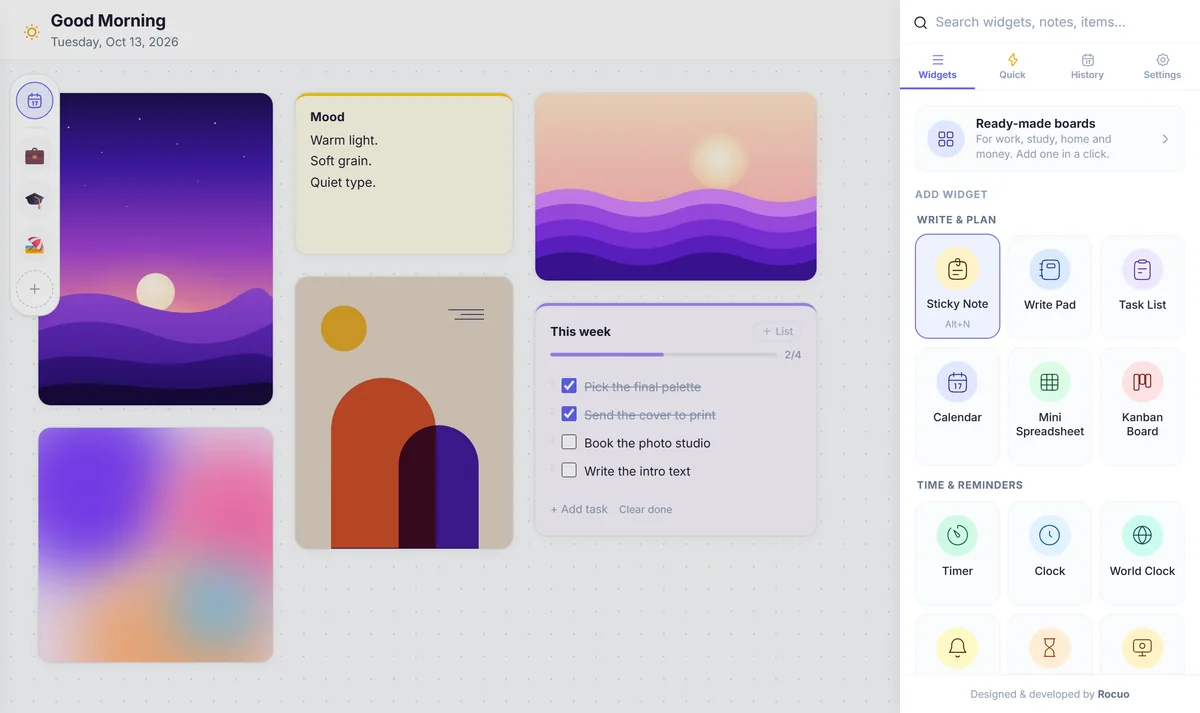
A board with the Add widget panel open on the right
The side panel is open. It lists every widget you can add.

Tip: Click the VibeBoard icon in the Chrome toolbar to open the board in its own window or tab. You choose which one in Settings.

The board

The board is a large open space. Put widgets anywhere you like.

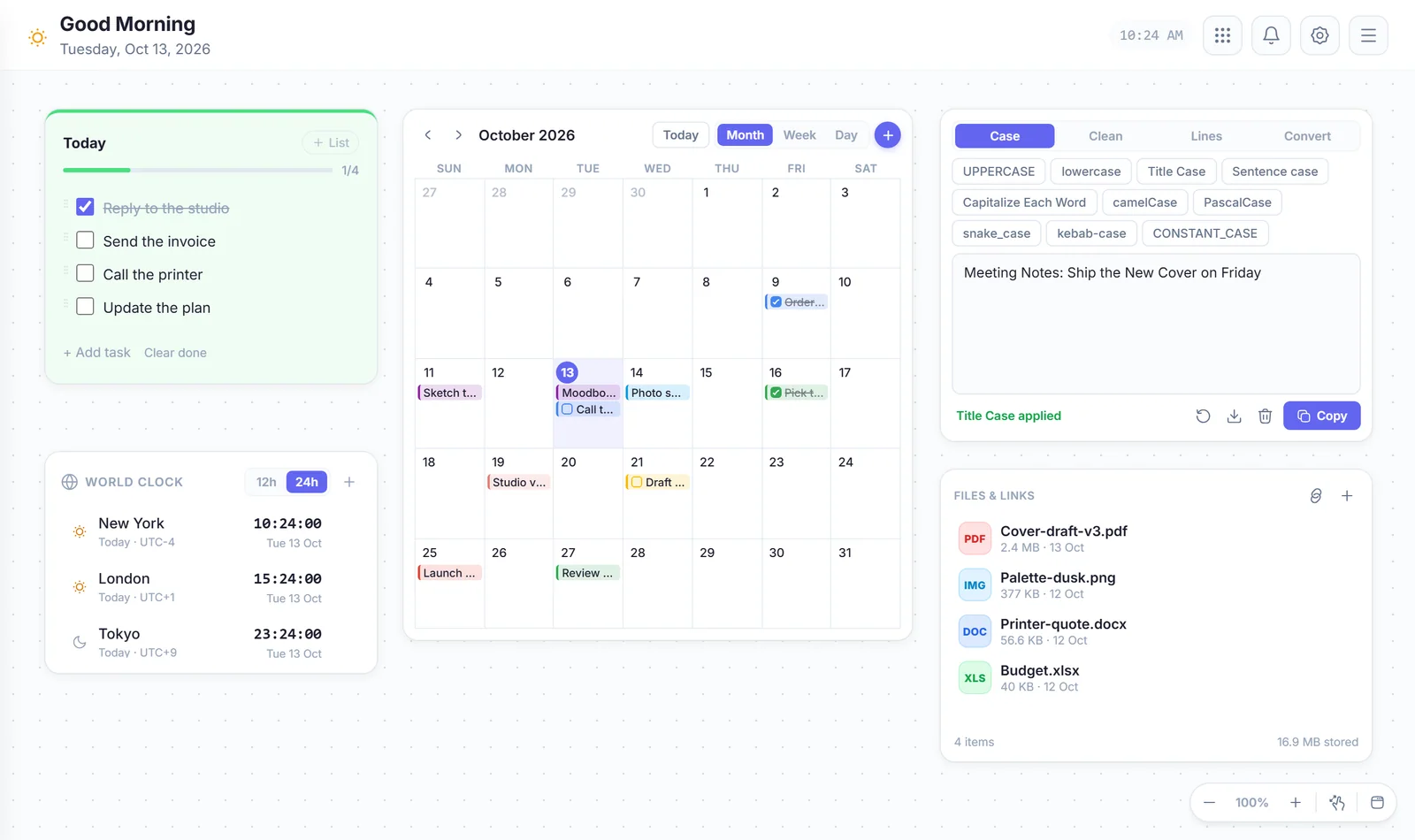
The Work board: a task list, a world clock, a month calendar, text tools and a file shelf
One day’s board. Every card is a widget you can move, resize and pin.

Move around

Pan: drag an empty spot, hold Space and drag, or use the mouse wheel.

Zoom: hold Ctrl and use the wheel, pinch on a touchpad, or use the zoom bar. Ctrl+1 fits everything on screen.
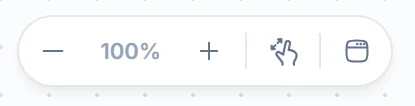
The zoom bar: minus, the zoom level, plus, a pan button and a window button

Move and resize a widget

Move: drag the grip button above the top right corner of the widget, or press on an empty spot of the widget and drag. Both work the same on every widget. Press Esc while you drag to put it back. With the grip button selected, the arrow keys move the widget too.

Resize: drag the right edge, the bottom edge or the bottom-right corner. Everything inside the widget adjusts to the new size.

Buttons and the three-dot menu

Three buttons: when you point at a widget, three buttons show above its top right corner, outside the border: the grip (move), Pin and the three dots (More options). They are in the same place on every widget, and they stay while you move the pointer to them.

Press the three dots to pin or unpin the widget, duplicate it, copy it, set a one-time reminder, download it as a .md or .txt file, bring it to the front or delete it.

A right-click opens Chrome’s own menu, as on any other page, so you can copy and paste in a note.

A new board every day

Each day starts with its own empty board, and yesterday’s board is saved for you. Open the history panel with Ctrl+H to look at earlier days. Older boards are read-only, so you cannot add widgets to them.

Pinned widgets come back on every new day, and they are listed at the top of the History tab of the side panel, so you can find them from any day. Press the Pin button, or use the three-dot menu. Reminders, Files, Kanban, Password and Sticker Maker are pinned from the start. Before version 1.8.0 there was a separate lock button. Pin now does both.

Boards of your own

Besides the board of the day, you can make spaces: boards with a name and an emoji, for Work, Study or a trip. They sit in a row at the left edge of the board and keep their widgets until you remove them.

How spaces work

Paste and search

Press Ctrl+V on the board: a copied picture becomes an Image widget, a web address becomes a Link widget, and other text becomes a Sticky Note. A widget you copied with Copy to clipboard in its three-dot menu comes back as a new copy.

Press Ctrl+K to search every board by words. Results are grouped by day or by space. Click one to jump to it.

Light and dark

VibeBoard follows your computer. When your computer is set to dark, the board is dark, and when it is set to light, the board is light. There is no switch in VibeBoard.

Spaces

A space is a board of its own, with a name and an emoji: Work, Study, a trip. Your board of the day stays as it is, and a space keeps its widgets until you remove it.
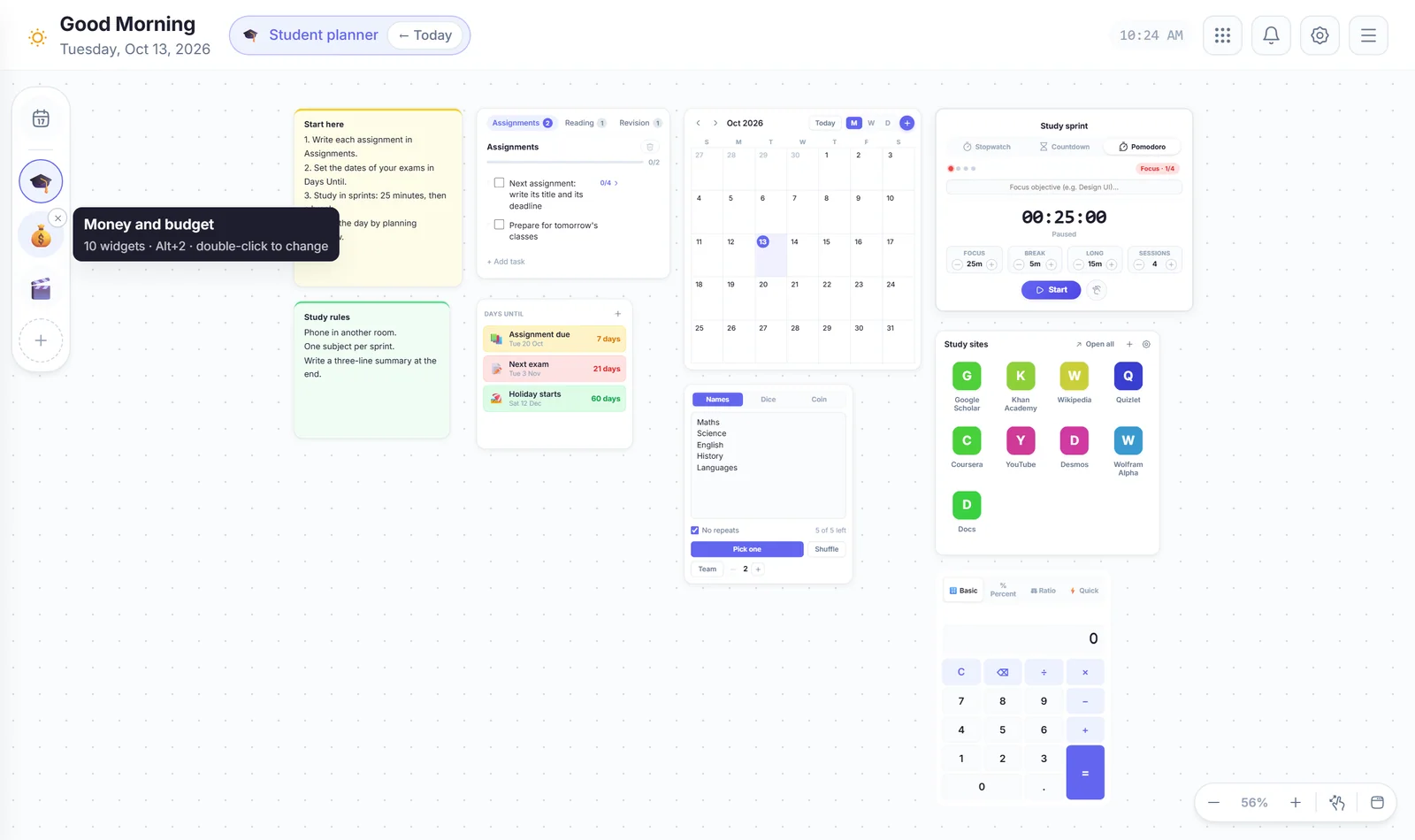
A space open on the board. The row of spaces is at the left edge: Today, three spaces with an emoji each, and a plus button. A note beside one space shows its name, how many widgets it holds and its shortcut.
The row of spaces is at the left edge. Point at a space to see its name, and press the small cross at its corner to remove it.

Make a space

Press the + button at the bottom of the row. Type a name (up to 30 letters) or pick an idea, choose an emoji or paste your own, and press Create space. The new space opens at once, so you can add its first widget.

You can have up to 30 spaces. You can also make one in Settings → Spaces, or turn a ready-made board into a space.
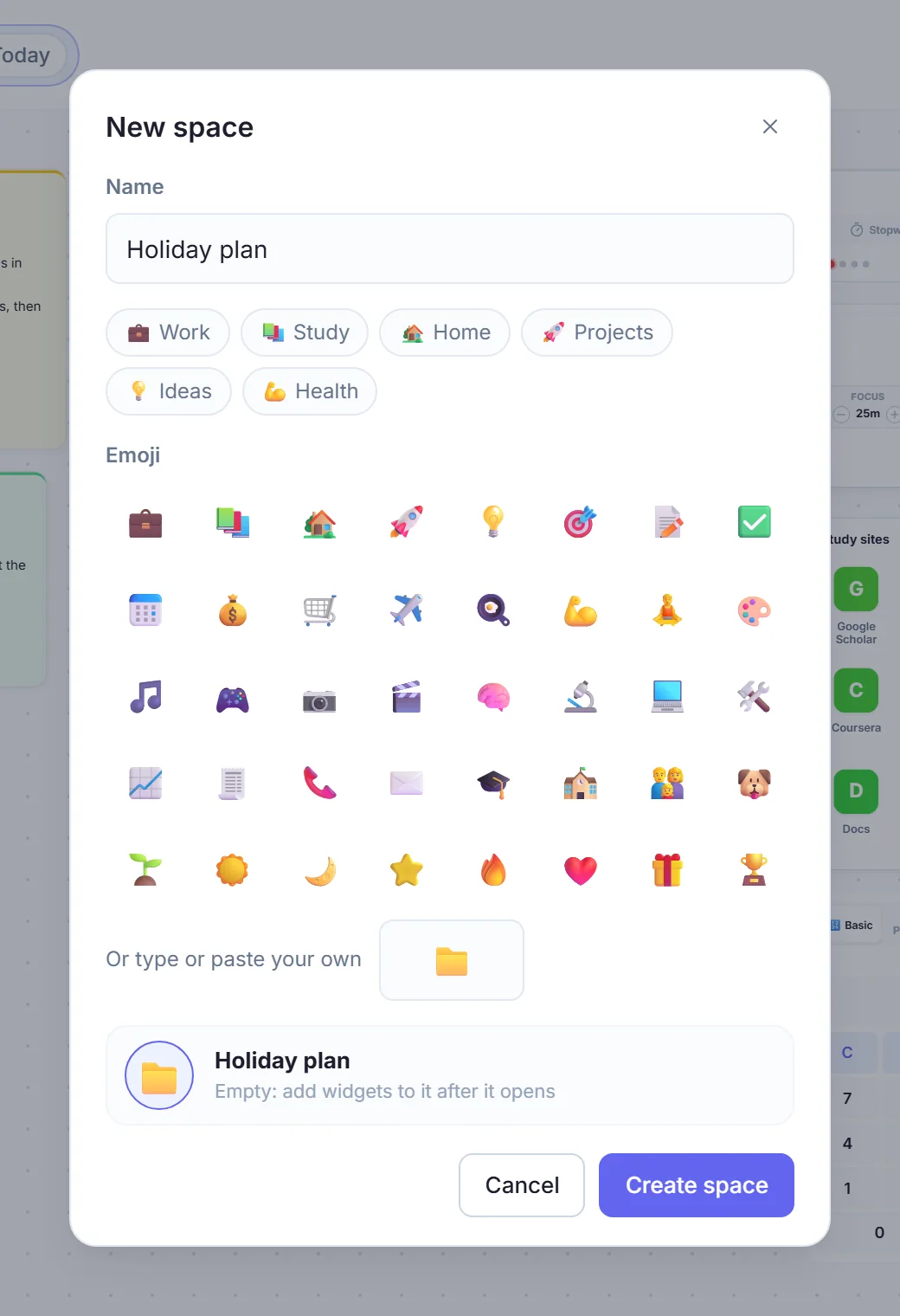
The New space window: a name box, ideas such as Work, Study and Home, a grid of emojis, a box for your own emoji and the Create space button

Switch and add

Click a space to open it. The calendar button at the top of the row, Today, takes you back to your board of the day. A chip at the top of the board names the space you are in and has a button back to Today.

Press Alt+1 to Alt+9 to open the first nine spaces, and Alt+0 for Today.

Add widgets the way you do on Today: the side panel, an Alt shortcut or paste. Any widget can go into a space, and it stays there from day to day.

A new tab always opens on Today. A tab that shows a space stays in it when you reload the page.

Change and move

Double-click a space to change its name or emoji, or to move it up or down in the row. Settings → Spaces lists all your spaces with the same buttons, and has a switch to hide the row.

Search follows the space

Once you have a space, the search of the side panel (Ctrl+K) offers two places: the space you are in, or Today and the days, and Everywhere. Results are grouped by space and by day.

Remove a space

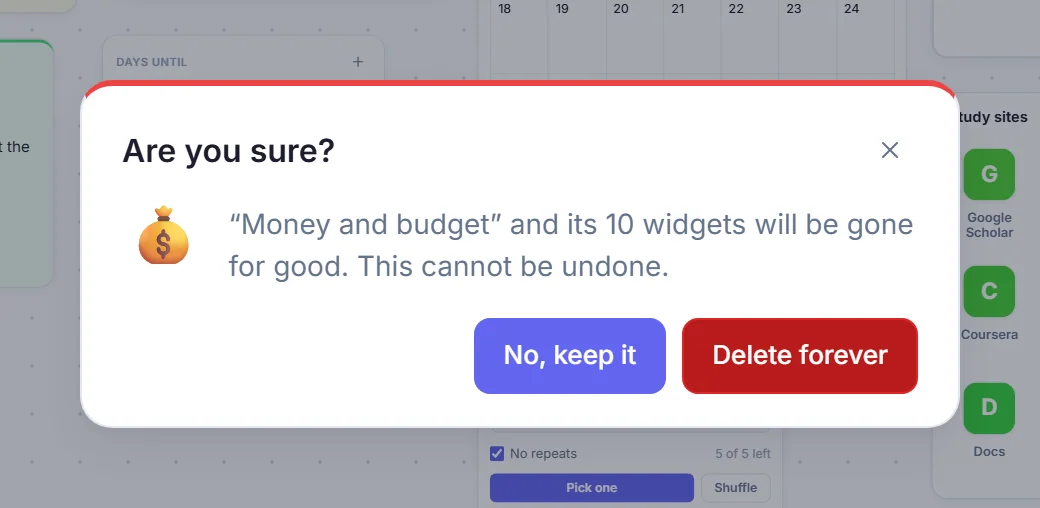
Point at a space and press the small cross at its corner, or press Delete… in the change window. VibeBoard asks twice, so one click never removes a space. The first question says what goes. The second asks again. The keyboard starts on Keep it, so a quick Enter or Esc keeps the space.
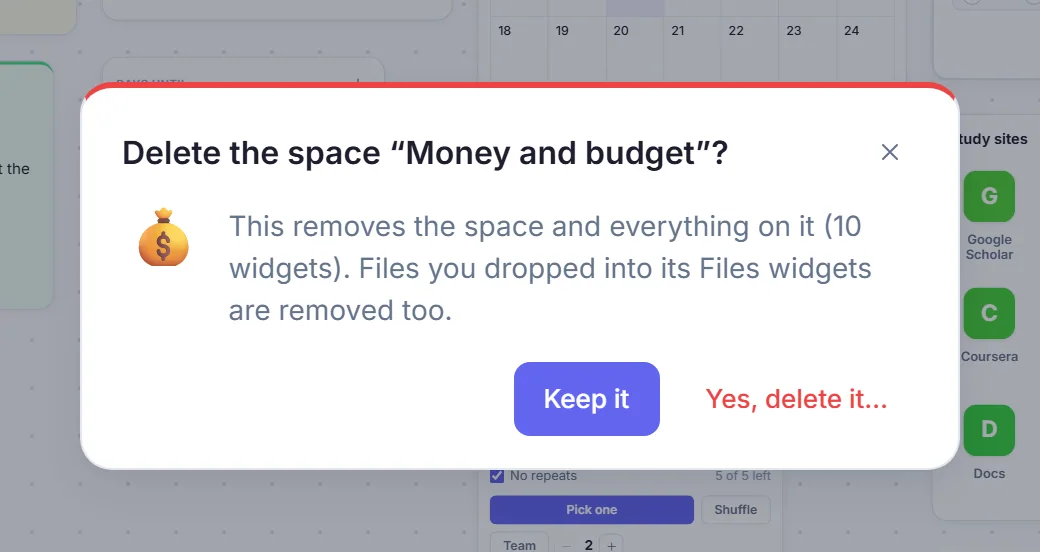
The first question: Delete the space Money and budget? It says the space and its 10 widgets are removed, with the buttons Keep it and Yes, delete it
The first question says what goes.
The second question: Are you sure? It says the space and its 10 widgets will be gone for good, with the buttons No, keep it and Delete forever
The second question asks again. Only the red button removes the space.

Removing is for good. The space, every widget on it and the files you dropped into its File Drop widgets are deleted, and there is no undo. A backup made before keeps them: see Backup and restore.

Add a widget

There are two quick ways.

  • Side panel: press Ctrl+B and click a tile in the Add widget list. A tile shows its shortcut when it has one.
  • Keyboard: press Alt and a letter, for example Alt+C for a task list. The full list is under Keyboard shortcuts.

The 38 widgets are in five groups in the panel: Write & plan, Time & reminders, Tools, Media & files, and News, links & Google. The Ready-made boards card at the top of the Widgets tab adds a whole board in one click (see Ready-made boards). Only 19 widgets have an Alt shortcut: add the others from the panel. You cannot add widgets while you look at an older day or the pinned list. In a space you add them the same ways. On a Mac, use Option instead of Alt. Shortcuts do not fire while you type in a text field.
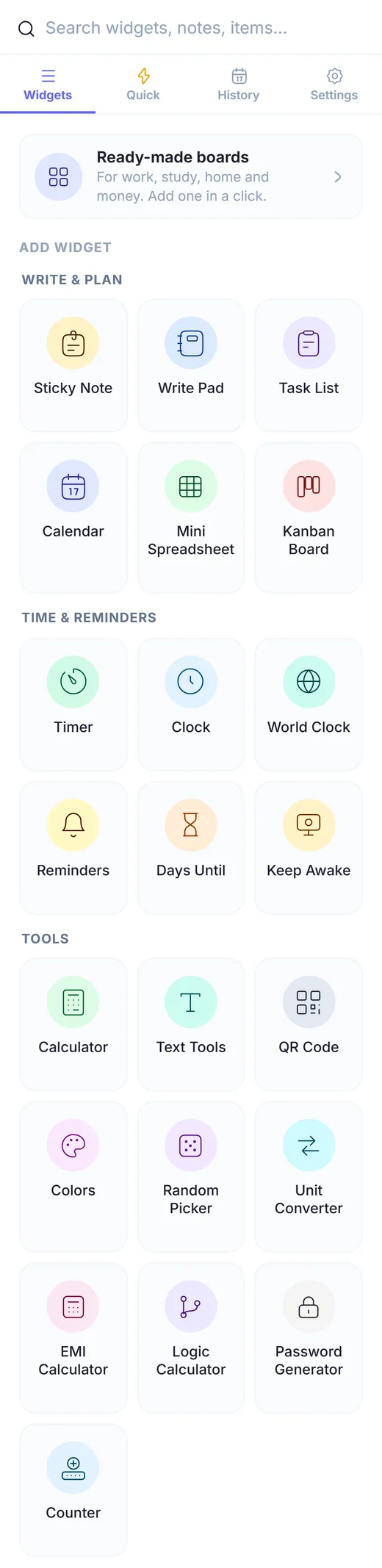
The side panel: a search box, four tabs (Widgets, Quick, History, Settings), the Ready-made boards card and the first groups of the Add widget list, each widget with a round icon
The side panel with the Add widget list. The list goes on with Media & files, and News, links & Google.

Ready-made boards

A ready-made board is a set of widgets that belong together, with starting text you can change. The boards are free, for work, study, home, money and creating.

  1. Open the boards. Press Ctrl+B and press the Ready-made boards card at the top of the Widgets tab.

  2. Allow rocuo.com, once. The boards are small files on rocuo.com, so Chrome asks first. VibeBoard only downloads: nothing from your boards or your computer is sent. Adding a board from a file does not need this.

  3. Find a board. Search for a word like exam, budget or trip, or press a shelf: Work, Study, Life, Money or Create. Each card says who the board is for. Press What’s inside to read what each widget is for.

  4. Add it. Press Add to today to put it on today’s board (Add to this space when a space is open), or Make a space to give it a place of its own. The window offers both ways for every board.

  5. Read the Start here note. Every board has a yellow note that says in a few lines where to begin. Delete it when you know the board.
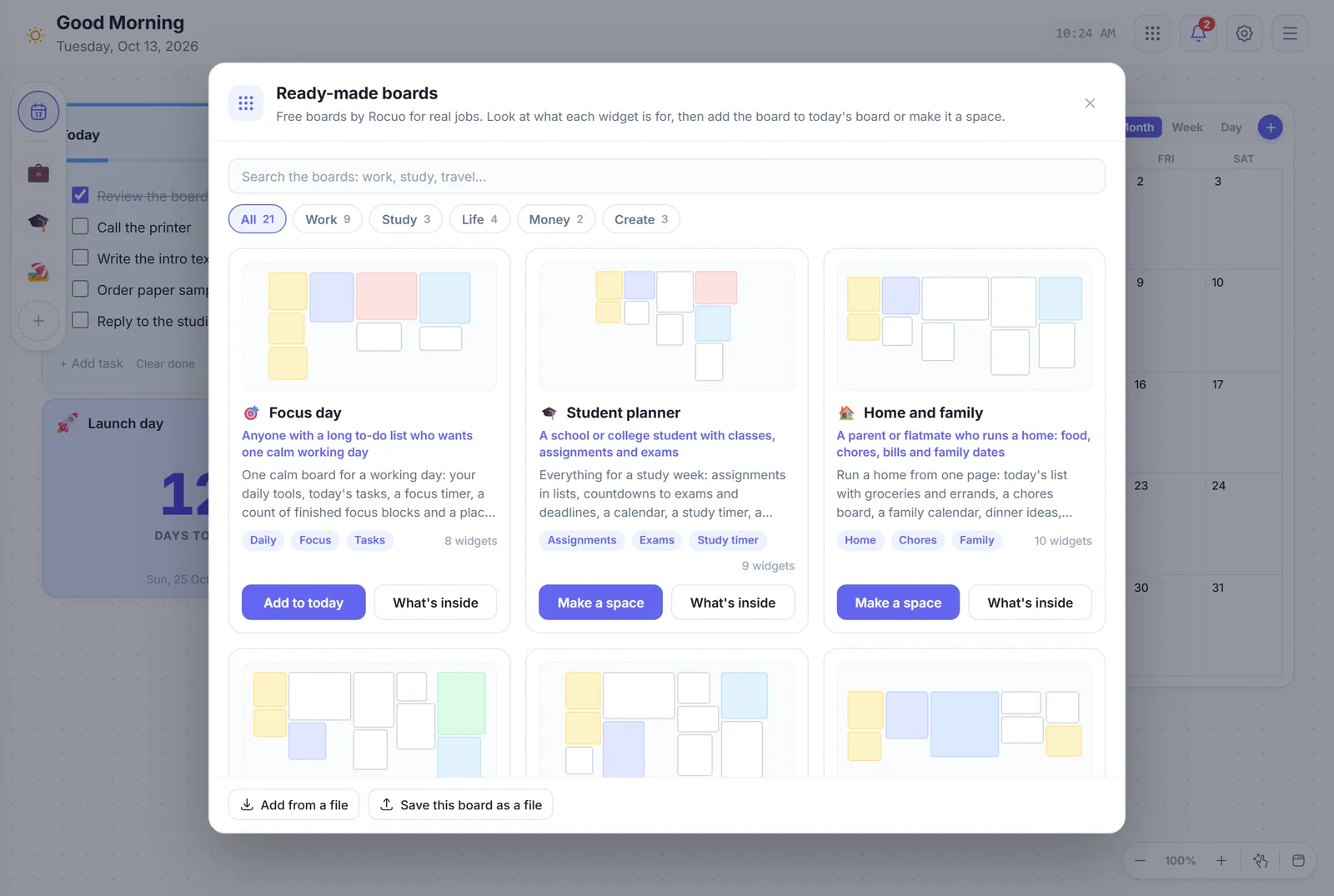
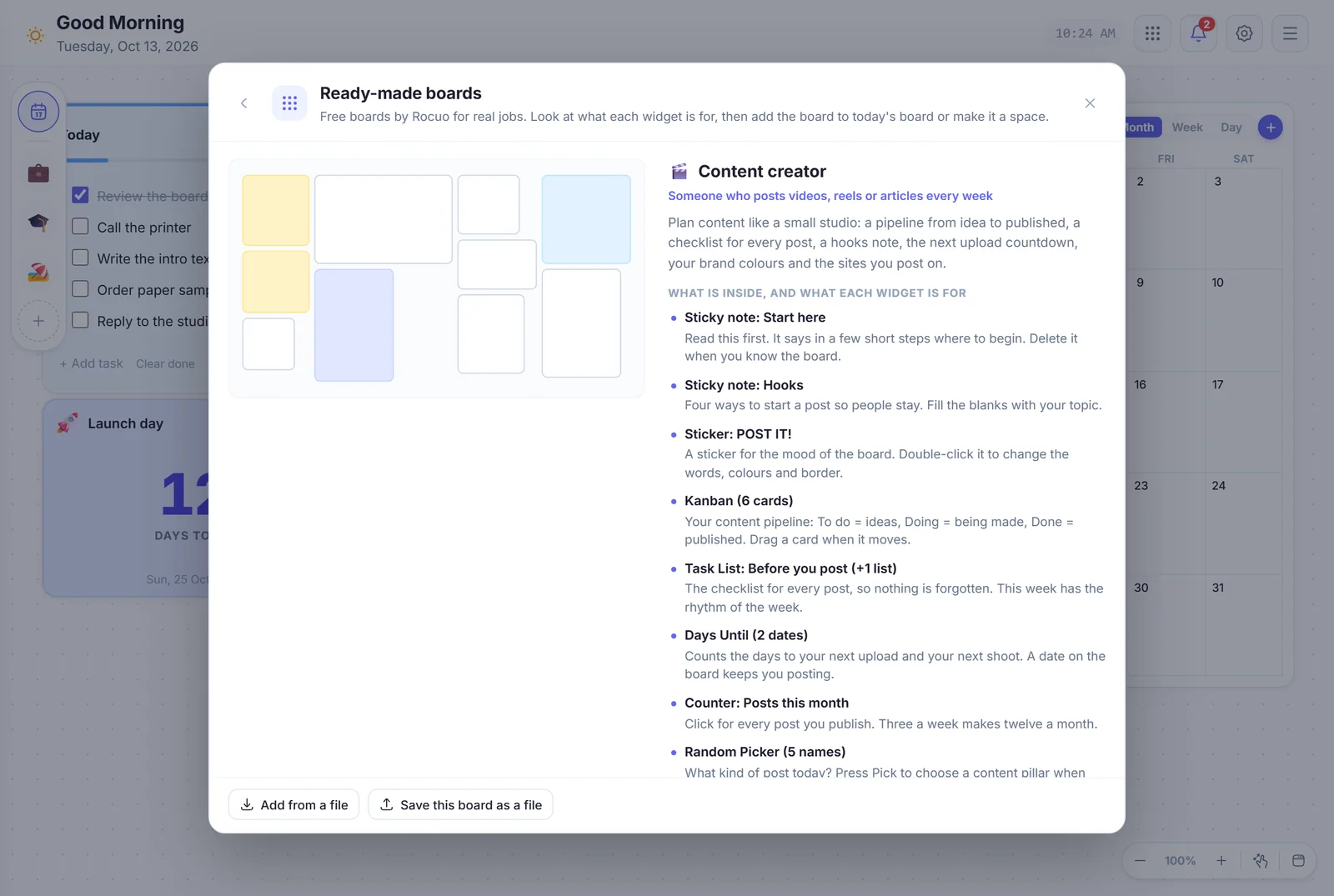
The Ready-made boards window: a search box, the shelves Work, Study, Life, Money and Create, and a card for each board with who it is for and the buttons Add to today or Make a space and What’s inside
The window lists the boards by shelf.
The Content creator board opened in the window, with a list of its widgets and one line about what each is for
“What’s inside” says what each widget is for, before you add anything.

From a file

Add from a file, at the bottom of the window, reads a board file from your computer and shows what is inside before it adds anything. It needs no permission for rocuo.com.

Every ready-made board is also on the ready-made boards page, with a button that downloads its file.

Save your own

Save this board as a file saves the board you are looking at, today’s board or the open space, as a small file. Keep it, or give it to a friend or a team, who adds it with Add from a file.

The file holds the texts of your widgets, such as tasks, notes and links, so look at it before you share it. Due dates, reminders and counts are not in it. It holds 22 kinds of widget. Others, such as Image, Files and Password, are left out, and the window says how many.

Nothing runs by itself

A board is widgets and their starting text. It sets no reminder, starts no timer and sends nothing. The Reminders widget of a board is empty until you make a reminder yourself. Nothing is covered or deleted: a board goes to the right of the widgets that are already there.

All 38 widgets

Every widget can be moved, resized, locked, pinned and deleted. Find the one you want, then open How it works.

Showing 38 of 38 widgets
Write & plan

The Sticky Note widget

Sticky Note

Alt+N

A small note for quick thoughts.

How it works
  • Give it a title and write in the body.
  • Pick one of five colors: yellow, pink, blue, green or purple.
  • Drag the edges to make it bigger or smaller.
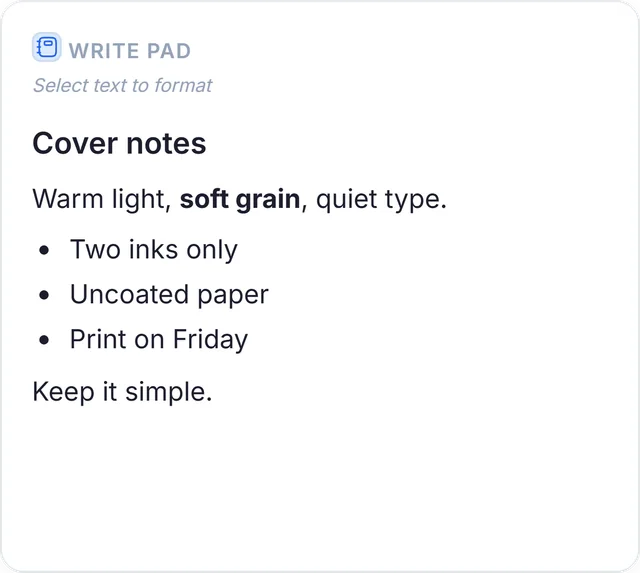
The Write Pad widget

Write Pad

Alt+P

A bigger page for longer writing.

How it works
  • Select some text and a small bar appears with bold, italic, underline, strikethrough, heading, list and quote.
  • There is no toolbar on top, so the page stays clean.
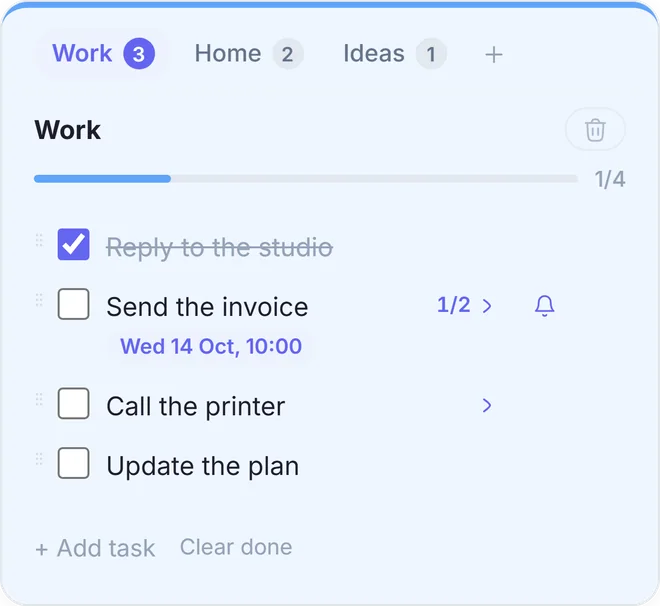
The Tasks widget with three lists as tabs, a progress bar, a task with steps, a due date and a reminder, and a grip on every task

Tasks

Alt+C

Checklists for the day, in tabs, with steps and notes.
How it works
  • Add a task, tick it off or remove it. Drag a task to put it in another place.
  • Use tabs for more than one list, such as Work, Home and Ideas. Add, rename and delete lists. Up to 12 lists.
  • Open a task to add steps (small tasks inside it) and a note.
  • Set a due date, and set a reminder with a date and time.
  • A task reminder shows an alert while a VibeBoard page is open. For alerts that work when no board is open, use the Reminders widget.
  • Each Tasks widget can have its own color.
  • Your tasks stay on this device. The widget is not connected to Google Tasks.
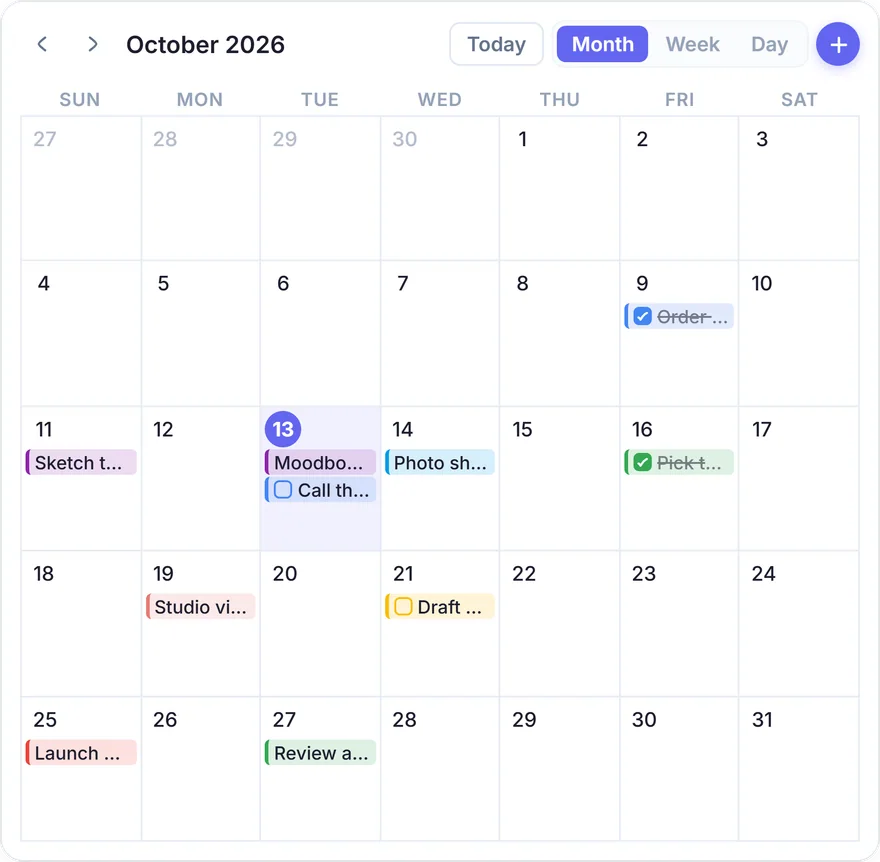
The Calendar widget

Calendar

Alt+A

A calendar with Month, Week and Day views.
How it works
  • Press + or double-click a day to add an event. An event can be a Note or a Task you can tick off.
  • Add a start and end time. Leave the time empty and it becomes an all-day event.
  • Add a reminder, a short description and one of eight colors.
  • Your events are shared. Every calendar, on every day, shows the same events.
  • Open Settings → Calendar to see all events in one list, set the first day of the week and choose a default reminder.
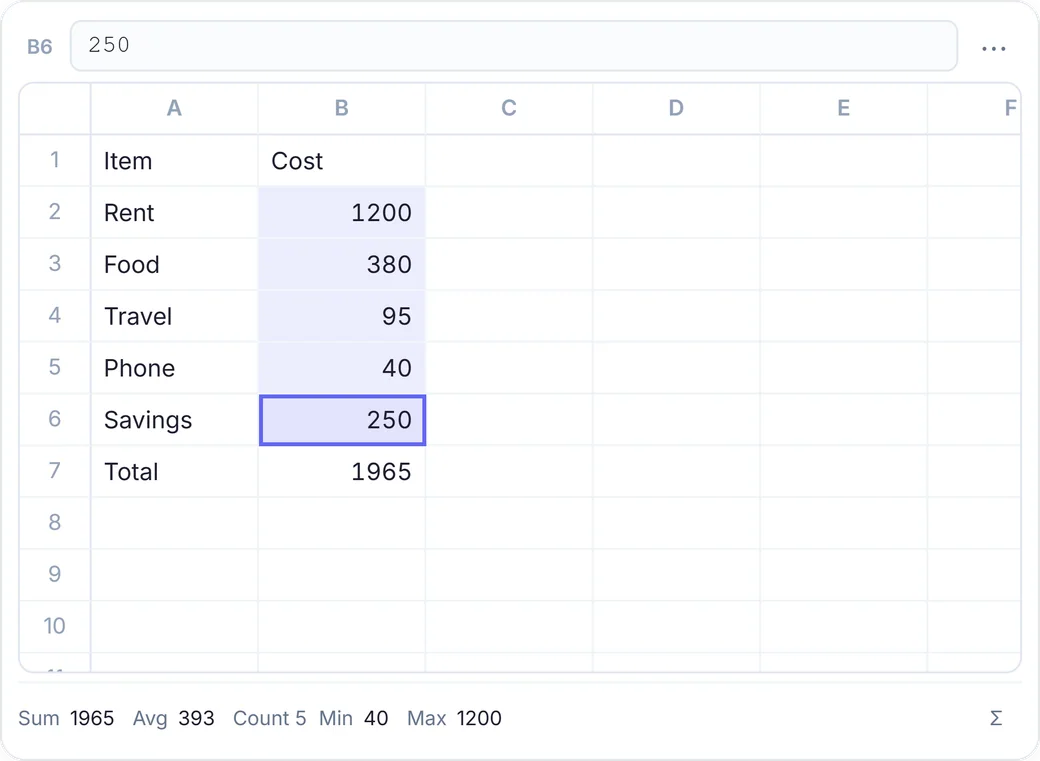
The Mini Spreadsheet widget with a small table of costs, one selected cell and a footer with sum, average, count, min and max

Mini Spreadsheet

A small spreadsheet with formulas.

How it works
  • A grid of 26 columns (A to Z) and 100 rows. Click a cell and type, or move with the arrow keys, Enter and Tab.
  • Start with = to write a formula, such as =SUM(B2:B6) or =AVERAGE(A1:A9). A mistake shows in that cell only.
  • Select cells and the footer shows their Sum, Average, Count, Min and Max. The Σ button adds a sum for you.
  • Copy and paste blocks of cells between VibeBoard and other spreadsheets. Undo and redo work for the last 50 steps.
  • The ⋯ menu downloads the sheet as a CSV file, pastes CSV text or clears the sheet.
  • Up to 2000 filled cells.
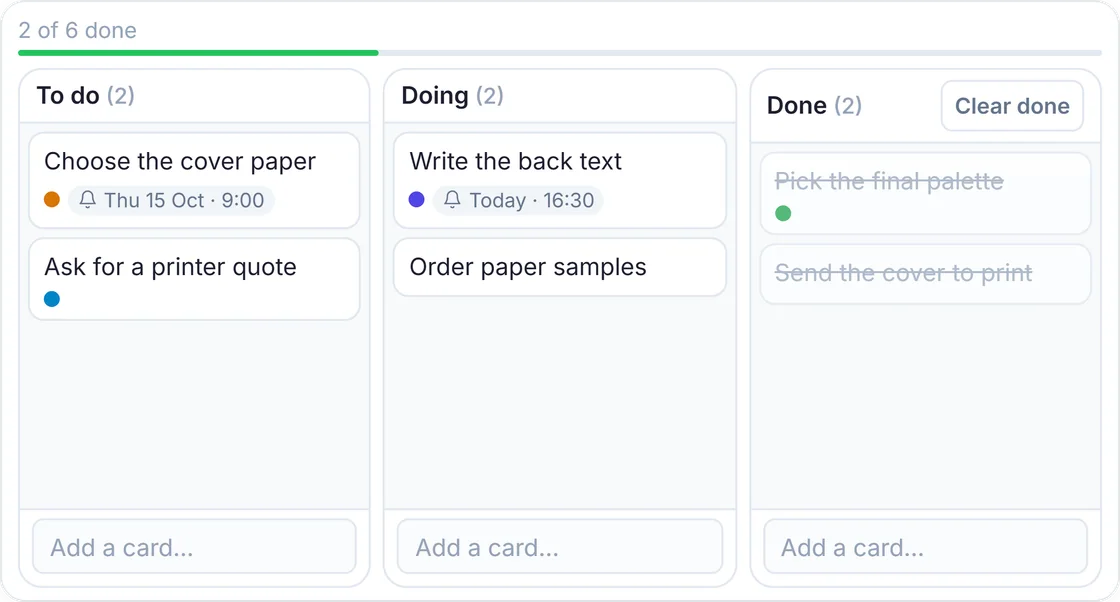
The Kanban widget with the columns To do, Doing and Done, and cards with colors and a reminder at a set day and time

Kanban

Three columns for your cards: To do, Doing and Done.
How it works
  • Type in the box at the bottom of a column and press Enter to add a card.
  • Drag a card to move it, or use Move left and Move right on the card. On a narrow widget the columns become tabs.
  • Click a card to open it. Change its text, its list and its color, duplicate it or delete it.
  • Pick a due date on the small calendar in the card, then switch on Remind me at and choose a time. The card shows a chip (Today, Tomorrow, a date or Overdue) and a bell. The reminder comes as a notification at that time, even when no board is open. A card in Done has no due date.
  • A line above the columns shows how many cards are done. Clear done empties the Done column, and Undo brings back the last delete for a few seconds.
  • Up to 300 cards. It is on every day by default.

Time & reminders

The Timer widget

Timer

Alt+T

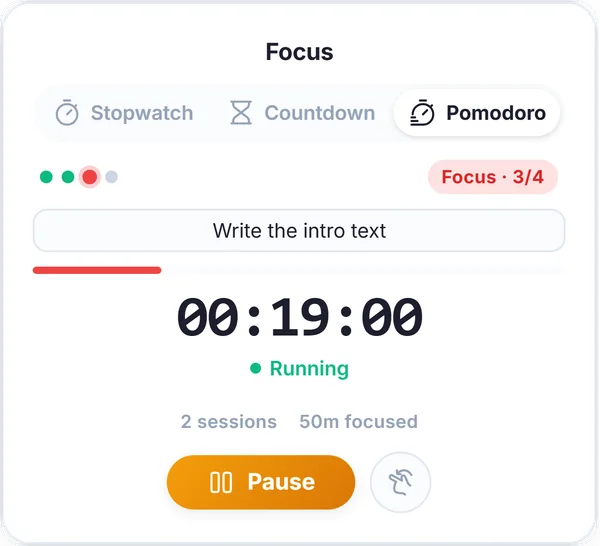
A stopwatch, a countdown and a Pomodoro timer in one widget.
How it works
  • Switch between Stopwatch, Countdown and Pomodoro. Each one keeps its own time.
  • It uses the real clock, so the time stays right after you reload the tab.
  • In Pomodoro you can set the work, break and long break lengths, and how many sessions come before a long break.
  • It counts your finished sessions and your total focus time.
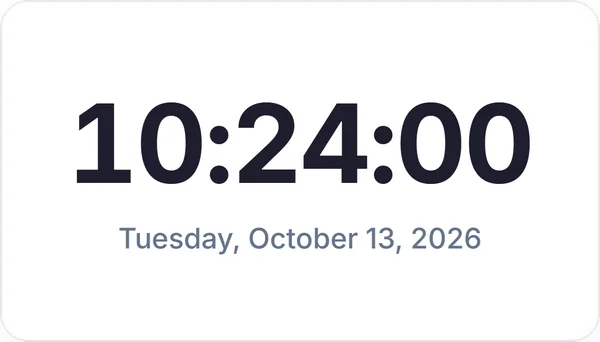
The Clock widget with a digital face: the time with seconds, and the date under it

Clock

Alt+W

A digital or analog clock, a stopwatch and a countdown.
How it works
  • Three tabs show when you point at the widget: Digital, Analog and Timer.
  • Digital shows the time with the date under it. You can add seconds and milliseconds. Analog has a round or square face with numbers, Roman numerals, ticks or none, and a ticking or smoothly moving second hand.
  • Timer is a stopwatch with laps (split and total times) or a countdown with ready times. A countdown says “Time’s up” and beeps once. The time stays right after you reload the tab.
  • The gear sets the time zone, 12 or 24 hours, the date format, the shape and six color themes. Auto follows your computer.
The World Clock widget

World Clock

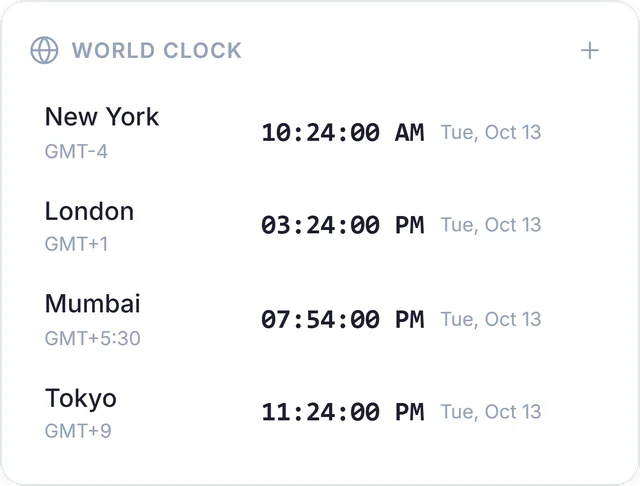
See the time in several places at once.
How it works
  • Add as many cities or time zones as you like.
  • Remove one at any time.
  • Switch between 12 and 24 hours.
  • Each place shows the date there: Today, Tomorrow or Yesterday.
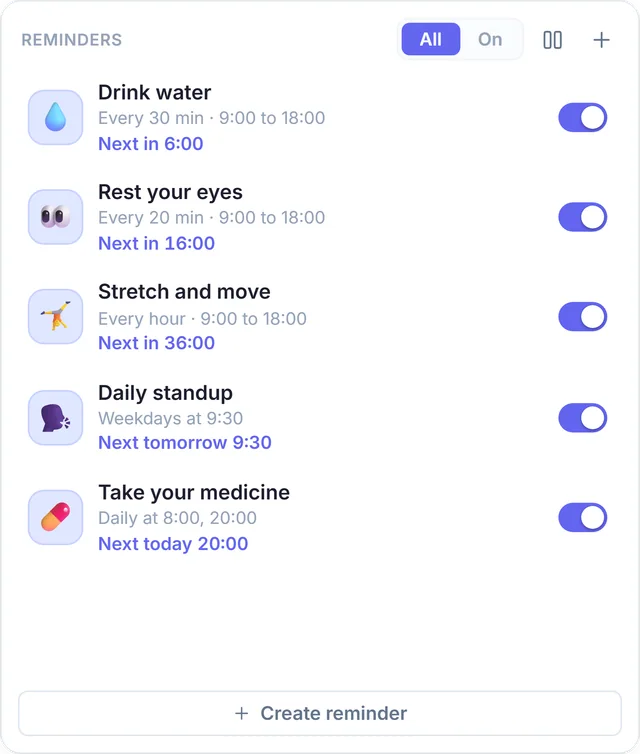
The Reminders widget with a list of repeating reminders and a Create reminder button at the bottom

Reminders

Alt+R

Repeating reminders that work even when no board is open.
How it works
  • A new widget is never blank: it shows a Create reminder button and, under it, Quick create buttons (Drink water, Posture, Eye rest, Stretch, Standup, Medicine). A quick-create button opens the form with that reminder filled in. Create reminder opens an empty one.
  • Repeat every few minutes, hours or days (from 5 minutes up to 7 days), at set times each day (up to 8), or on chosen days of the week.
  • Limit a reminder to certain hours and days, for example 9:00 to 18:00 on weekdays.
  • Each alert has Snooze 10 min and Done buttons. Click the alert to open your board.
  • Use Pause all for 30 minutes, 1 hour, 2 hours or until tomorrow.
  • Press Test notification to check that alerts can reach you.
  • The list is shared by every day. You can keep up to 50 reminders. Chrome must be running.
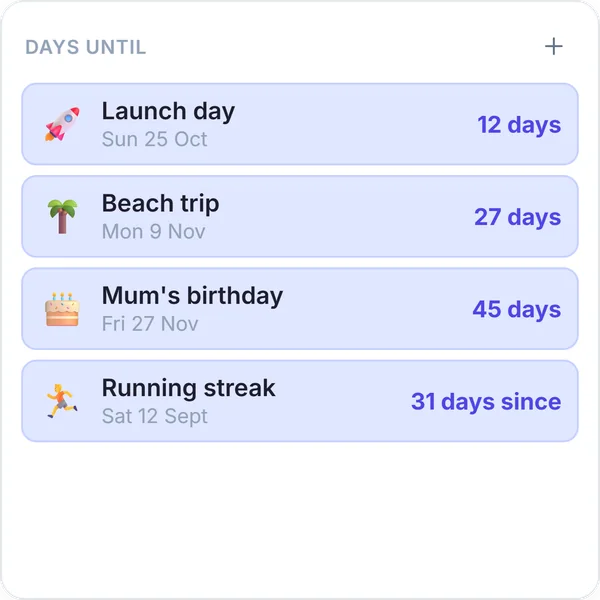
The Days Until widget

Days Until

Alt+U

Count the days to an event, or since one.
How it works
  • One event shows a big card with the number of days. Several events show a list, soonest first.
  • Turn on Count up to see how many days have passed since a date.
  • Add an emoji and pick one of six colors. You can add up to 30 events.
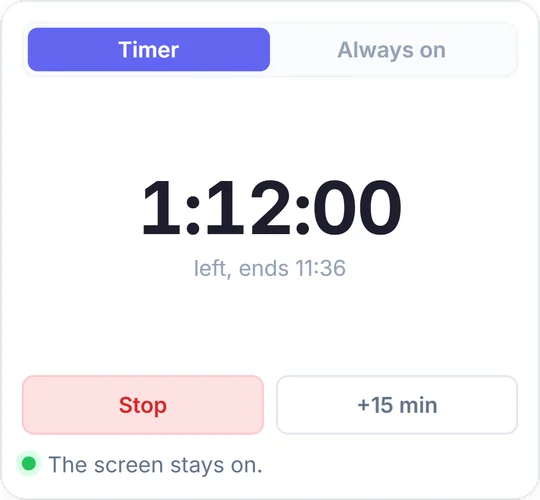
The Keep Awake widget with a countdown and the note that the screen stays on

Keep Awake

Keep the screen on, like a video that is playing.
How it works
  • Timer: pick 15, 30, 60 or 120 minutes, or type a length such as 45 or 1h30. +15 min adds more time while it runs.
  • Always on: the screen stays on until you switch it off, for 12 hours at most.
  • It uses the browser’s Screen Wake Lock. It needs no permission and sends nothing.
  • It works while the tab is open. Chrome lets go when the tab is hidden, and the widget takes it back when you return. Closing a laptop lid still puts the computer to sleep.

Tools

The Calculator widget

Calculator

Alt+Q

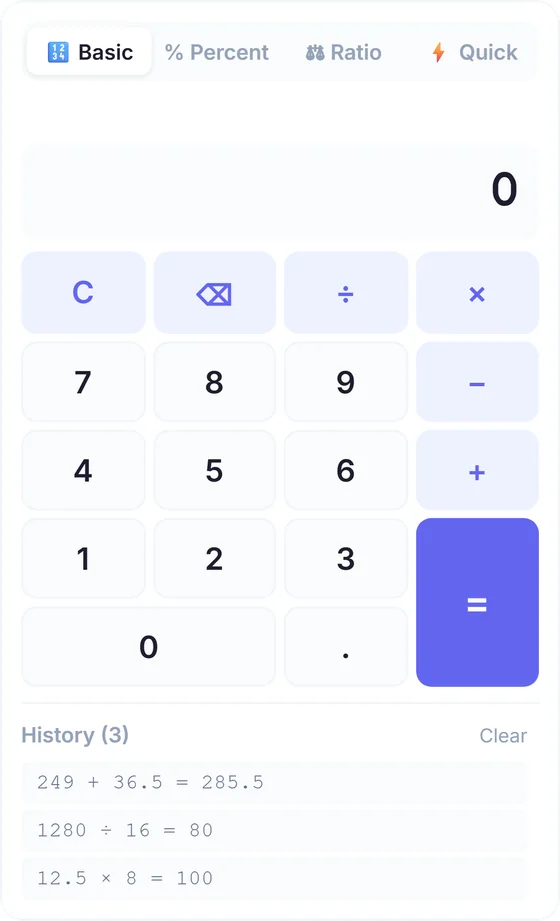
A calculator with four modes.

How it works
  • Basic for everyday sums, Percentage (for example, what is 15% of 80), Ratio for proportions and Quick for five small helpers: Tip, Discount, Markup, Split Bill and BMI.
  • Paste a number or a whole sum, such as 1,00,000 + 18% or 2^10, and the answer appears.
  • Your earlier results stay in the history.
  • Looking for units? They are in their own widget, Unit Converter.
The Text Tools widget

Text Tools

Alt+X

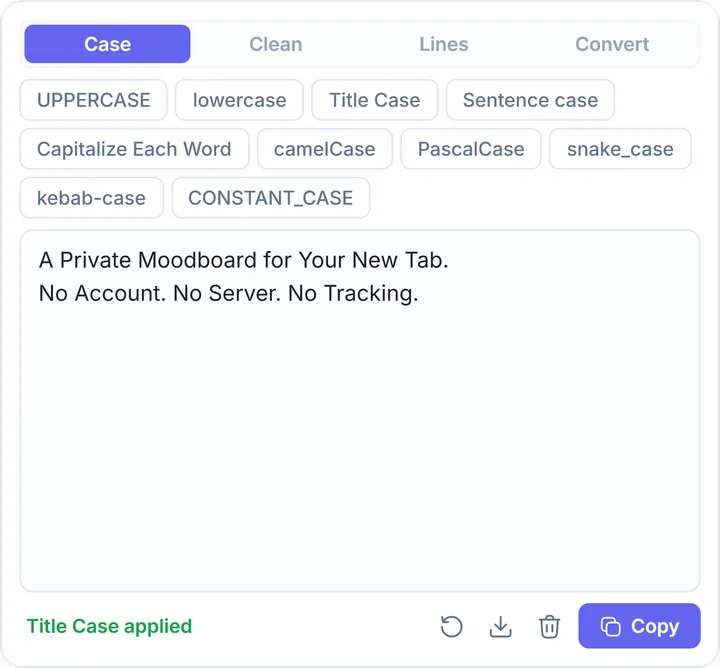
Fix, change and count text without leaving the board.
How it works
  • Four tabs: Case (UPPERCASE, Title Case, camelCase, snake_case and more), Clean (remove extra spaces, empty lines, duplicates), Lines (sort, reverse, number, bullets) and Convert (URL slug, URL and Base64 encode, find and replace).
  • Select part of the text and a tool changes only that part.
  • Undo up to 30 steps, copy the result or download it as a .txt file.
  • The footer counts words, characters and lines. Click it for more, such as reading time.
The QR Code widget

QR Code

Alt+G

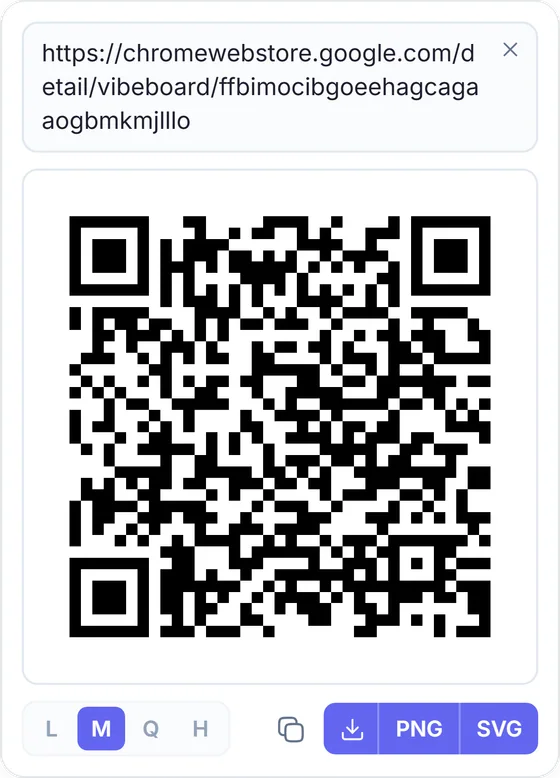
Turn a link or any text into a QR code.
How it works
  • Type or paste your text and the code appears at once.
  • Choose the error correction level: L, M, Q or H. A higher level still scans when part of the code is damaged.
  • Copy the picture, or download it as PNG or SVG.
  • The code is made on your device. The code is always black on white, so phones can read it, even in dark mode.
The Colors widget

Colors

Alt+K

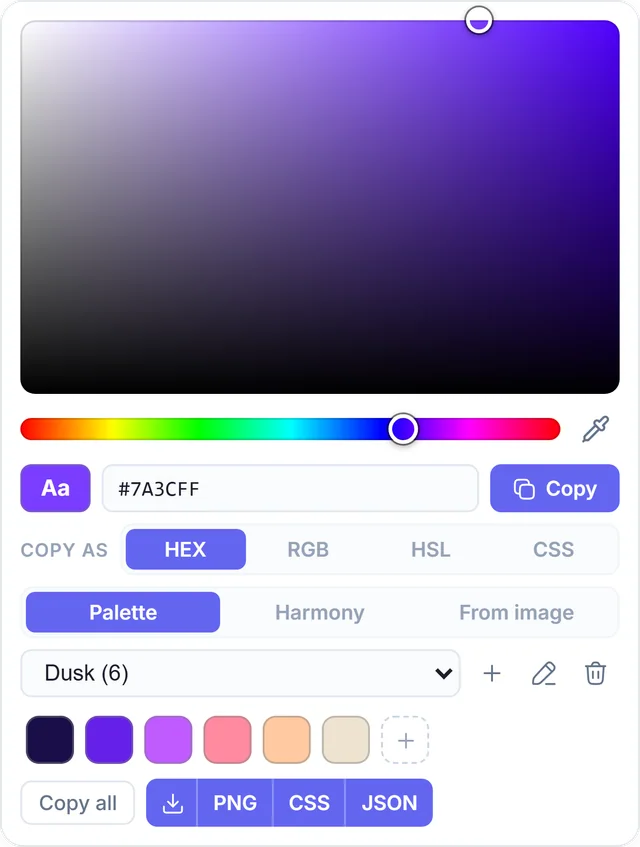
Pick colors, build palettes and copy them in any format.
How it works
  • Drag on the color pad and the hue bar. You can also type a HEX, RGB or HSL value, or a color name.
  • The eyedropper button picks any color on your screen (when your Chrome has it).
  • The format switch (HEX, RGB, HSL or CSS) decides what is copied when you click a color.
  • Palette tab: save up to 48 colors per palette, then copy them all, or export as PNG, CSS or JSON.
  • Harmony tab: matching colors such as Complement, Analogous, Triadic and Shades.
  • From image tab: drop a picture to get its main colors.
The Random Picker widget

Random Picker

Alt+S

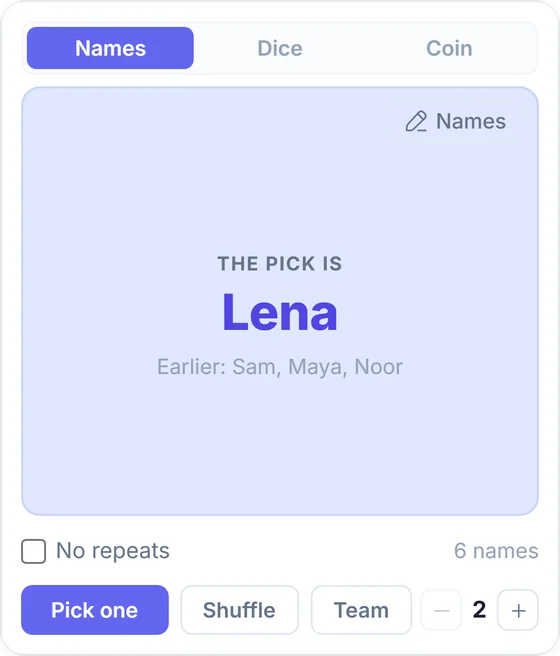
Pick a name, make teams, roll dice or flip a coin.
How it works
  • Names tab: type one name per line. Press Pick, turn on No repeat, Shuffle the list or split it into 2 to 8 Teams.
  • Dice tab: roll 1 to 10 dice with 4, 6, 8, 10, 12, 20 or 100 sides.
  • Coin tab: heads or tails.
  • Every result is equally likely. Nothing is rigged.
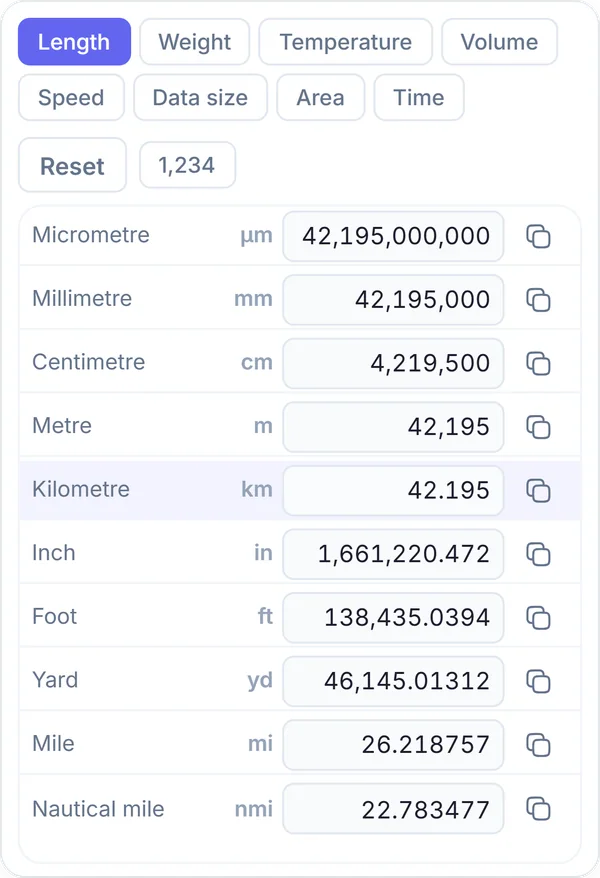
The Unit Converter widget showing one length in many units at once

Unit Converter

Convert length, weight, temperature and more.
How it works
  • Eight kinds: length, weight, temperature, volume, speed, data size, area and time.
  • Type a number in any row and every other row shows the converted value at once. Each row has a Copy button.
  • One button switches the digit grouping between plain, 1,234,567 and the Indian 12,34,567. For data size you can count 1024 or 1000 bytes in a KB.
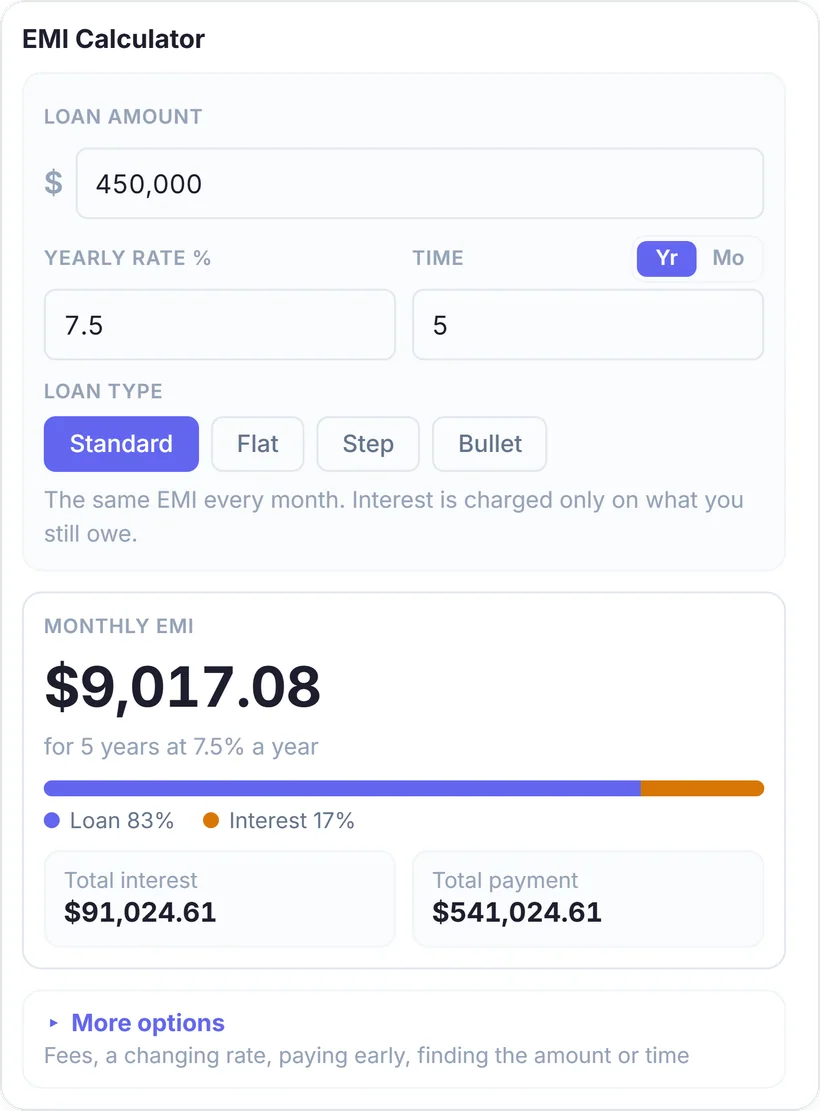
The EMI Calculator widget with a loan amount, yearly rate and time, the monthly payment, the total interest and the total payment

EMI Calculator

Work out a loan payment and see every month.
How it works
  • Enter the loan amount, the yearly rate and the time in years or months. Choose Standard (a normal bank loan), Flat, Step or Bullet.
  • See the EMI, the total interest and the total payment, then a yearly schedule that opens into months.
  • The cards sit one under the other at every size: Loan details, Result, More options and Payment schedule. A bigger widget gives them more room, and a long number never hides the result.
  • More options add a processing fee, a pause with interest only (moratorium), paying the EMI in advance, a balloon amount at the end and a start date.
  • Add a prepayment (once, or every month or year) and see the time and interest you save, or add a change of rate from a month on.
  • Work backwards: find the loan amount, the time, the rate, or the loan that fits a share of your income.
  • Copy summary copies the numbers, and Download CSV saves the schedule.
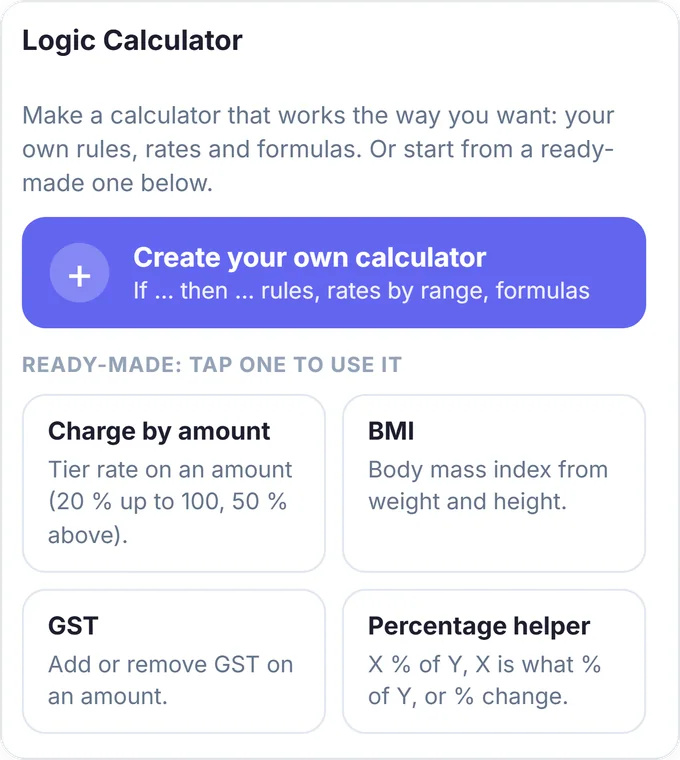
The Logic Calculator start screen with a Create your own calculator button and ready-made calculators such as Charge by amount, BMI, GST and Percentage helper

Logic Calculator

Build your own calculator, or start from a ready-made one.
How it works
  • One screen at a time, with no tabs. Home shows Create your own calculator, Your calculators and the Ready-made ones.
  • There are 15 ready-made calculators, such as BMI, GST, discount, tip and split, simple and compound interest, EMI, profit margin and fuel cost. Tap one and it is copied into Your calculators and opens, ready to use.
  • Create your own calculator asks what you want to build (work something out, a different answer in different cases, a rate that depends on the amount, or start from nothing) and opens the builder with a small working calculator in it.
  • In the builder, step 1 is what the person types in (a number, a choice list or yes or no). Step 2 is how the answer is worked out: a calculation (a formula), If … then … rules (if the amount is more than 100, charge 50%, otherwise 20%) or a rate by range (slabs, like tax or delivery bands). A Try it bar shows the answer while you build.
  • Copy as text and Paste a calculator move a calculator between widgets. Up to 12 calculators. The tax-slab calculator uses example rates, not advice.
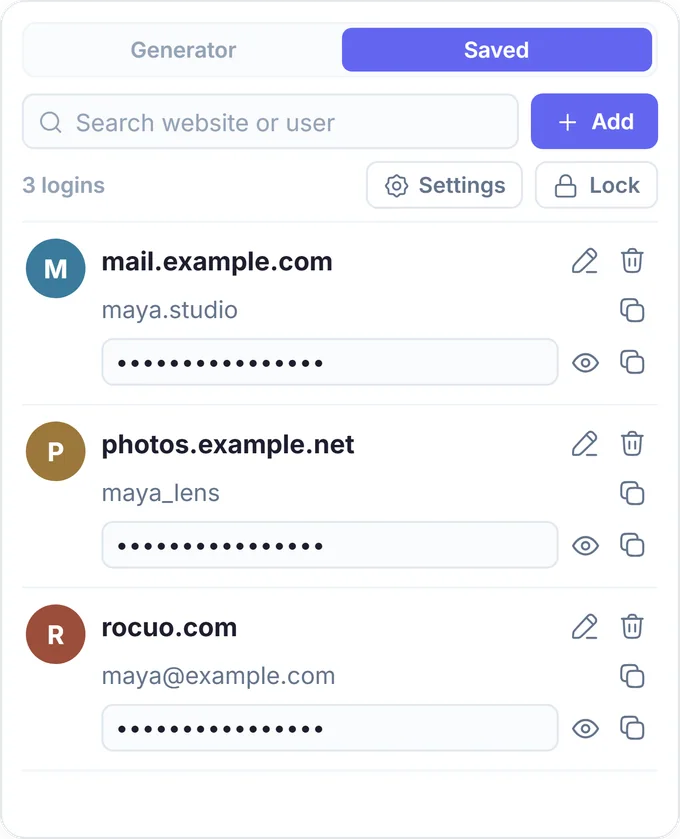
The Password widget on its Saved tab with three logins, each with a hidden password, a show button and copy buttons

Password

Make strong passwords and keep your logins in an encrypted vault.
How it works
  • Generator tab: choose a length from 6 to 64, then lowercase, uppercase, digits and symbols. You can avoid look-alike characters (0 O 1 l I). A strength line tells you how strong the password is. Styles: Strong, Easy and PIN.
  • Saved tab: keep the website, user id, password and a note. The password stays hidden until you press the eye button, and hides again after 10 seconds. Copy the user id or the password with one click.
  • The first time, you choose how the vault opens: a 6-digit PIN or a password of at least 8 characters. Every saved login is encrypted on your device with it, and the PIN or password itself is never saved. If you forget it, the logins cannot be recovered, so download a backup from Vault settings now and then.
  • A PIN is quick to type but has only a million possibilities. Very common PINs such as 123456 are refused and the vault makes you wait after a few wrong tries, but someone who could copy your browser’s files could try every PIN on their own computer. Use a password for the logins that matter.
  • The vault locks itself after 5 minutes without use, or 5 minutes with the tab hidden. In Vault settings you can choose 1, 5, 15 or 30 minutes, change the PIN or password, or switch between the two. A password you copy is cleared from the clipboard after 45 seconds (or 15 seconds, 2 minutes or never, as you choose), while the tab is open and in front. Anything else you copy in that time is cleared too.
  • Saved logins are not in board backups and never leave your device. It is not a full password manager: it does not sync between computers, and anyone who can use your computer while the vault is open can read the logins.
  • It is on every day by default.
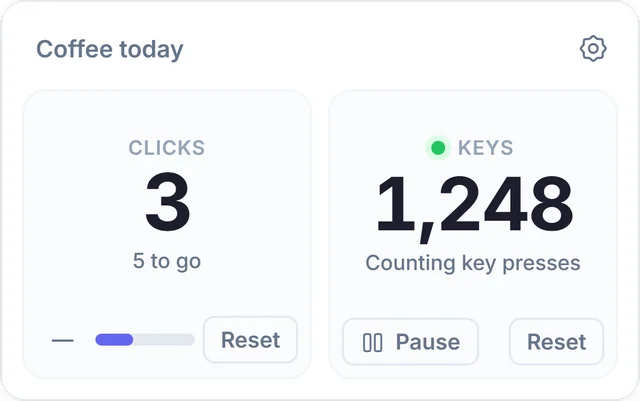
The Counter widget with a Clicks tile and a Keys tile

Counter

Count clicks and key presses in one widget.
How it works
  • Clicks: click the big number to add one, or the step you choose. The minus button takes one away. The gear sets the step, a goal and the number.
  • With a goal, the widget shows how many are left and fills a bar.
  • Keys: counts the keys pressed on VibeBoard, and only how many. It never records which keys. Keys typed in another tab or on another website are not counted.
  • Pause or start the key count at any time. Reset asks you to tap twice, so a number is not lost by accident.
  • Only today’s board counts keys.

Media & files

The Image widget

Image

Alt+I

Pin a picture to your board.

How it works
  • Choose a picture, or copy one and press Ctrl+V on the board.
  • The whole picture is always shown. It is never cropped or stretched, and it keeps its shape when you resize it.
  • Hover to see the Fit and Download buttons, and to edit the name and description.
The Drawing widget

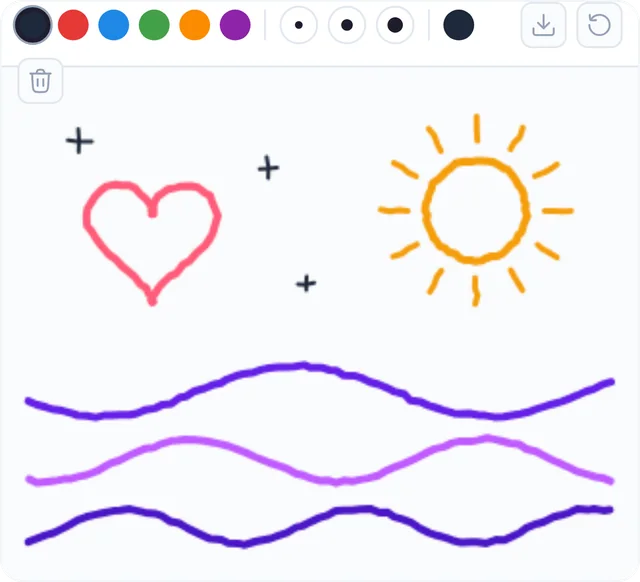
Drawing

Alt+D

A small canvas to sketch on.

How it works
  • Draw freely with a pen. Pick a color and one of three widths.
  • Undo a stroke, clear everything, or export your drawing as a PNG.
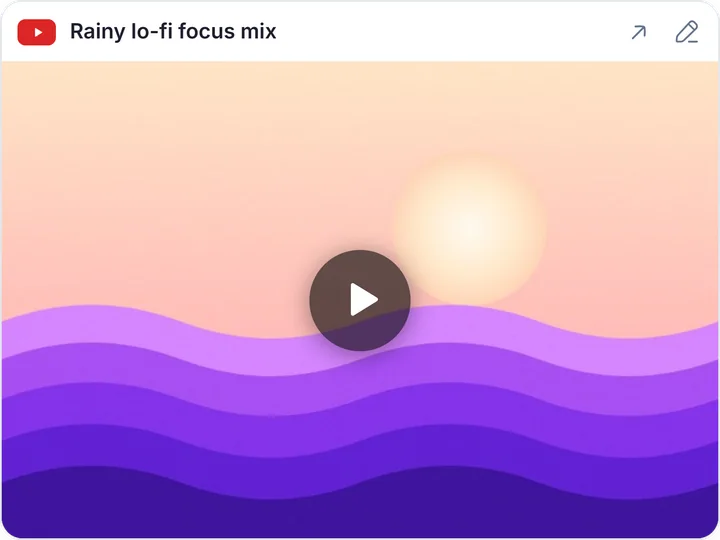
The Media widget

Media

Alt+V

Play a YouTube video on your board.

How it works
  • Paste a YouTube link (normal, short, live or playlist links work).
  • The widget shows the video picture first. Nothing loads from YouTube until you press Play.
  • Use Open on YouTube if a video will not play inside the extension, and Change to use another link.
  • Needs an internet connection. Only YouTube works for now.
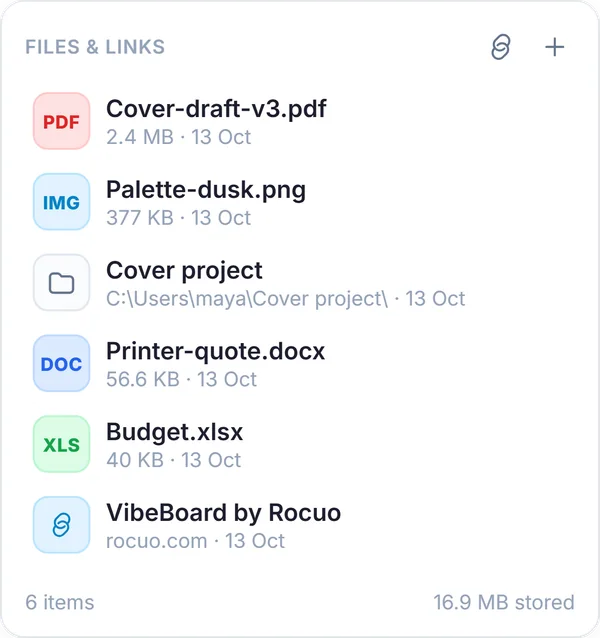
The Files widget with files, a shortcut to a folder and a link to a web page

Files

Alt+O

A shelf for files and links.

How it works
  • Drop files on it, press Add files, or paste a link.
  • A link can be a web address, or the path of a file or a folder on your computer, for example C:\Users\you\Documents or /Users/you/Documents. Each such row has a Copy path button.
  • Up to 100 items, and up to 50 MB for each file.
  • A click opens a file in a new tab. Pictures, PDFs, sounds, videos and text or code files show right in Chrome. A web page or an SVG is shown safely, as a picture, with its scripts switched off. A file Chrome cannot show, such as a Word or Excel file, gets a page with a Download button. Every file also has a Download a copy button, and you can rename or remove it.
  • A link to a folder opens Chrome’s own list of that folder in a new tab. Chrome does not let an extension open Explorer or Finder. A folder you drop on the widget is not kept: paste its path as a link, or drop the files in it.
  • It is on every day by default, so your shelf is always there.
  • Backups keep the names and links, but not the file contents.
The Magnet widget

Magnet

Alt+M

A small tile for a favorite website.

How it works
  • Double-click to set the address. The name is filled in for you, for example github.com becomes GitHub.
  • Choose small, medium or large.
  • Pick any background color: a ready color, the color picker, a hex code or the eyedropper (where your Chrome has it). The name stays easy to read on every color.
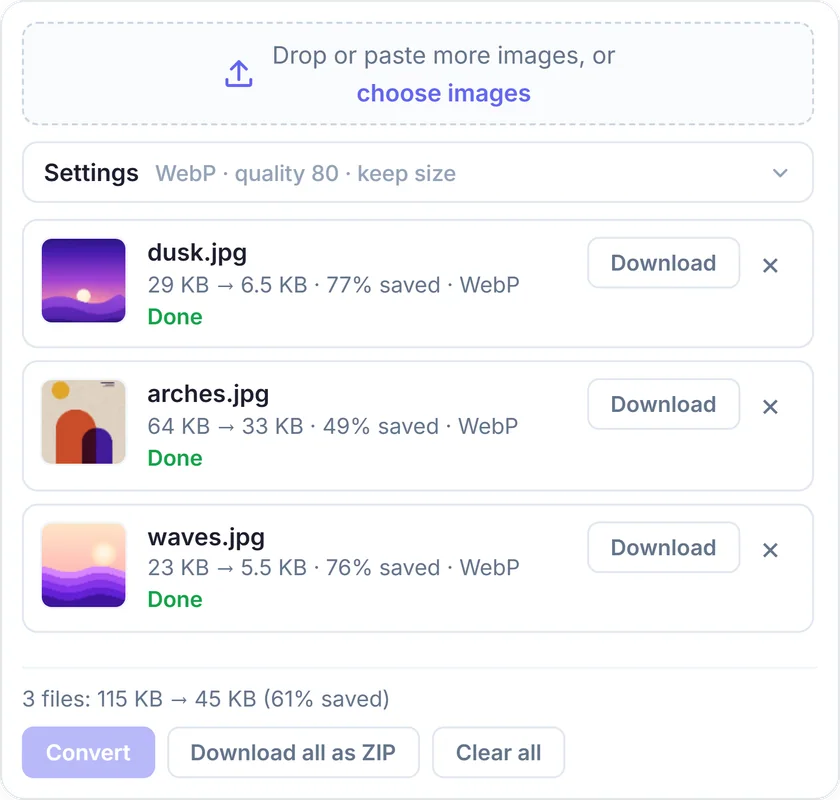
The Image Converter widget with three converted pictures and the size each one saved

Image Converter

Convert, resize and compress pictures.
How it works
  • Drop or paste pictures, or choose them. Up to 50 at a time.
  • Choose the output: JPEG, PNG, WebP, AVIF, GIF, BMP, ICO or PDF, or let each picture keep its own type. The quality slider makes files smaller. AVIF is offered only where your browser can write it.
  • Size: keep it, fit inside a width and height, a percent of the original, or an exact width. The shape of a picture is always kept.
  • Set a file size limit (for example under 200 KB) and the widget looks for the best quality that fits. This works for JPEG, WebP, AVIF and PDF.
  • Press Convert, then download one file or all of them as a ZIP. Location data (EXIF) is removed.
  • Everything happens in your browser. Nothing is uploaded, and the pictures are not saved with your board.
The Sticker Maker widget showing a finished sticker with a party popper and the word Yay!

Sticker Maker

Make a sticker with text, emoji and pictures.
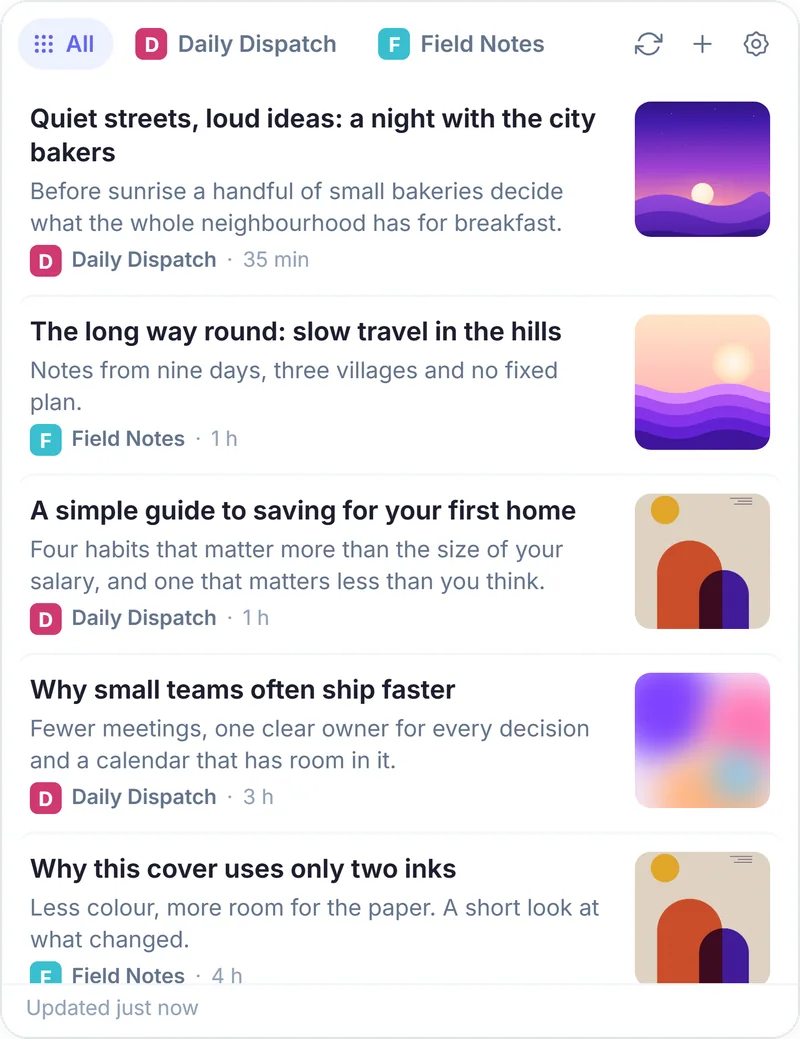
How it works
  • On the board a sticker is a finished picture with no frame. A new sticker stays on every day, and a locked sticker has no green line around it. Drag the round knob at its corner to turn it. Press Edit, or double-click, to open the editor again with all the layers as you left them.
  • In the editor, add text, emoji and pictures as layers. Move, resize, hide, lock or duplicate each layer. You can start from a ready sticker.
  • Text can have several lines, 15 fonts, any color, bold, italic, an outline and a soft shadow.
  • The Border tab draws a white border around all layers together. Choose its shape (tight, smooth or round), width, an outer line, the paper color and a shadow.
  • Save as PNG, WebP or JPEG at 256 to 2048 pixels, or copy the image.
  • It is made on your device. The fonts are inside the extension.

News, links & Google

The News widget with a list of headlines from two channels, each with a small picture and a few lines of text

News & RSS

Headlines from the channels you choose.
How it works
  • A new widget asks which channels you want. Pick from 82 free channels, in tabs such as Top news, World, India, Business, Tech, Science and Sports, or search by name. Tick several and add them with one button.
  • To follow something else, type the address of a website or of its feed. VibeBoard looks for the feed on the page.
  • Chrome asks once about the websites of the channels you pick. You can say no. The websites are listed in Settings → Website access, where you can remove them.
  • Read the headlines as a list or as cards. One tab shows All, and each channel has its own tab. Press a headline to read the article inside the widget. A button opens the whole article on its website.
  • The gear sets pictures, short summaries, how many articles each channel shows, hiding articles you have read, and how often VibeBoard looks for new ones: every 15 seconds, 30 seconds, every minute, 5, 15 or 30 minutes, every hour, every 3 hours, or only when you press Refresh, which looks at once.
  • Posts that arrive while the widget is watching are marked New in light purple, with a banner that says how many, until you open them or press Mark as read. Switch on Tell me when a new post comes to get a notification and a line in the bell menu. See Reminders and alerts.
  • Nothing goes to Rocuo. VibeBoard looks for news only while a VibeBoard tab with that board is open. A very short time asks a website again and again, so pick a longer time if a website starts to refuse.
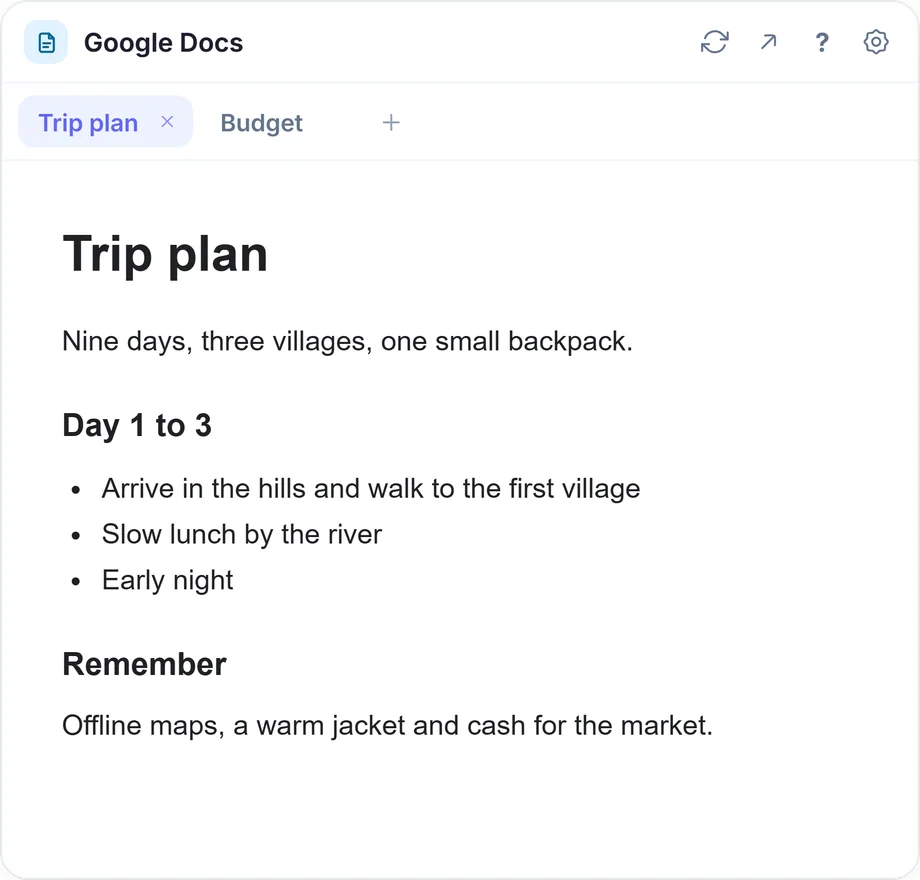
The Google Docs widget with two tabs, Trip plan and Budget, and the first document open

Google Docs

Show a Google Doc on your board, a tab for each one.
How it works
  • Paste the link of a document, or its id. It shows at once when you are signed in to Google in the same Chrome. A document published to the web shows to anyone.
  • Press + to add another document as a new tab (up to 12). Double-click a tab to rename it, and press × to close it.
  • The buttons at the top refresh the page, open it in a tab of its own and show help. The gear sets the name and the link.
  • The widget shows Google’s preview of the document. To change the document, open it in a tab of its own.
  • VibeBoard never signs in to Google and cannot read what the widget shows.
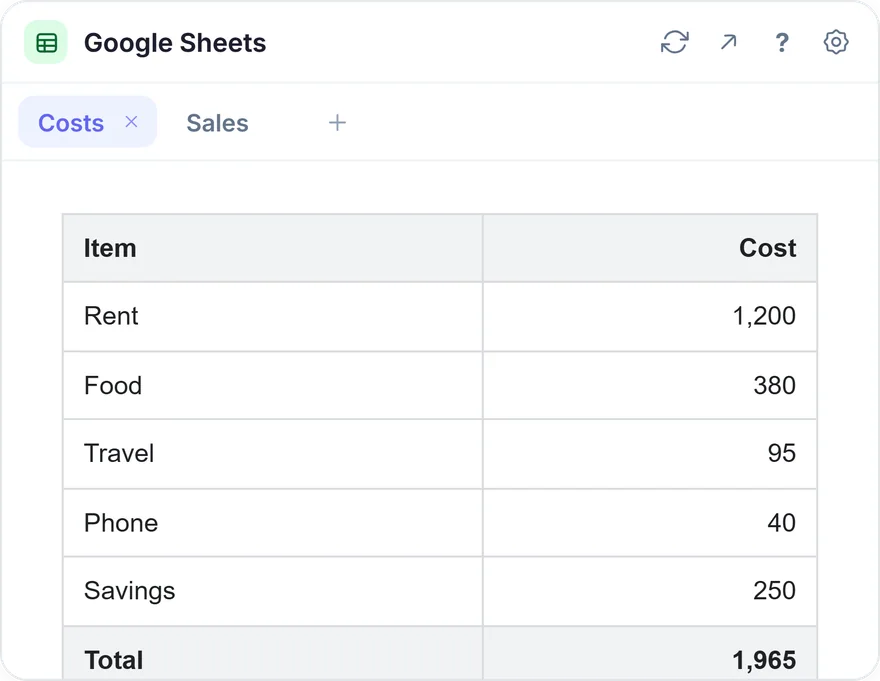
The Google Sheets widget with two tabs, Costs and Sales, and a small table of costs

Google Sheets

Show a Google Sheet on your board, a tab for each one.
How it works
  • Paste the link of a spreadsheet, or its id. It shows at once when you are signed in to Google in the same Chrome. A sheet published to the web shows to anyone.
  • Press + to add another sheet as a new tab (up to 12). Double-click a tab to rename it, and press × to close it.
  • The widget shows Google’s preview of the sheet. To change it, press the arrow button to open it in a tab of its own.
  • VibeBoard never signs in to Google and cannot read what the widget shows.
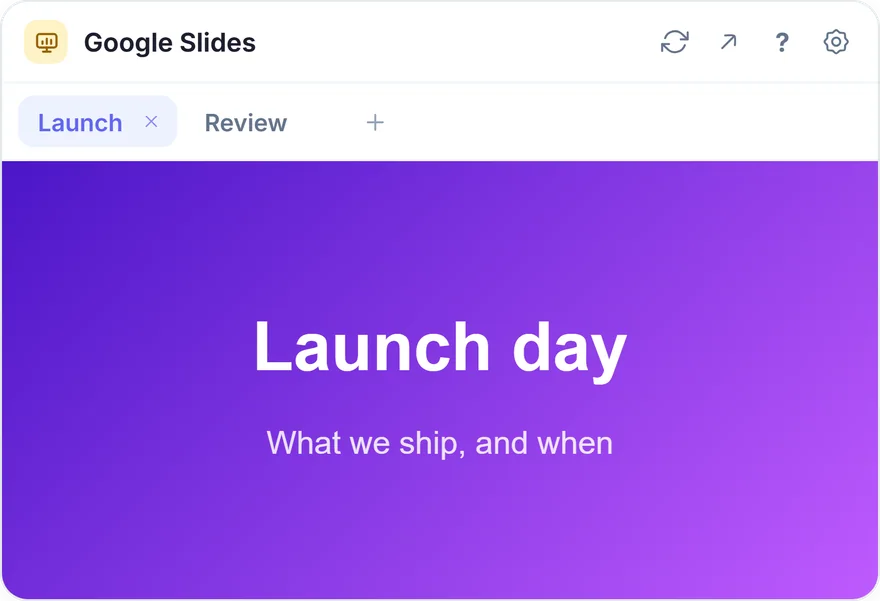
The Google Slides widget with two tabs, Launch and Review, and the first slide

Google Slides

Show a Google Slides deck on your board, a tab for each one.
How it works
  • Paste the link of a presentation, or its id. It shows at once when you are signed in to Google in the same Chrome. A deck published to the web shows to anyone.
  • Press + to add another deck as a new tab (up to 12). Double-click a tab to rename it, and press × to close it.
  • The widget shows the presentation as Google embeds it. To change it, press the arrow button to open it in a tab of its own.
  • VibeBoard never signs in to Google and cannot read what the widget shows.
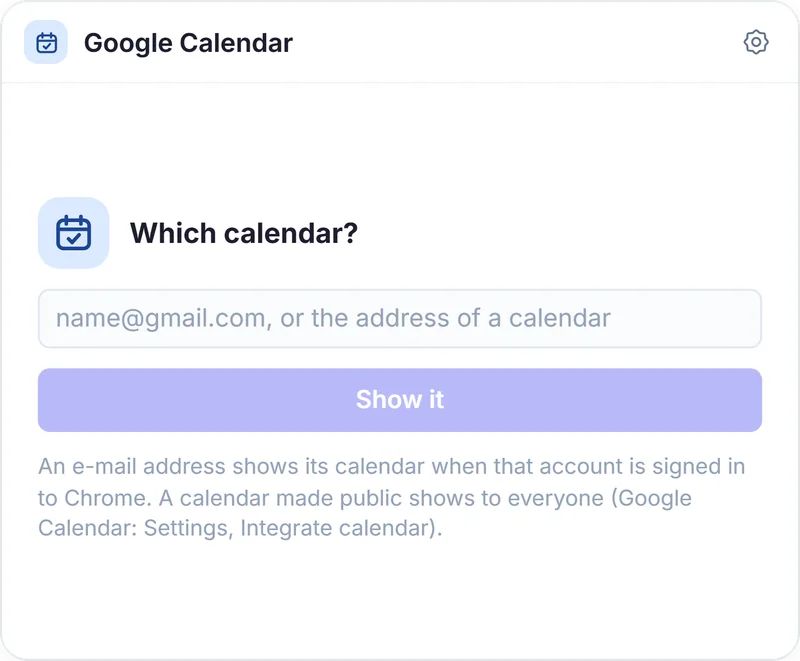
The Google Calendar widget asking which calendar to show, with a box for an e-mail address or a calendar address

Google Calendar

Show your Google Calendar next to your tasks.
How it works
  • Type the e-mail address of the account, or the address of a calendar. It shows that calendar when the account is signed in to Chrome. A calendar made public shows to everyone.
  • Choose Week, Month or Agenda, the first day of the week, and whether to show the name, the arrows, the tabs and the list of calendars. Up to six calendars show at once.
  • New event is a small page for the title, day, time and notes. It opens Google’s own new event page in a tab with those filled in, and you press Save there.
  • VibeBoard cannot create, change or delete events by itself. That needs a Google sign-in that VibeBoard does not have.
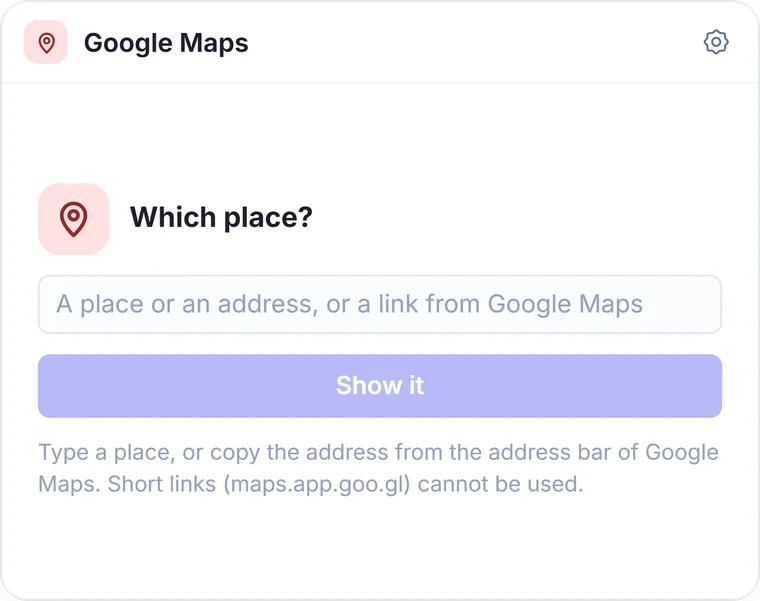
The Google Maps widget asking which place to show, with a box for a place, an address or a link

Google Maps

Show a place on Google Maps.

How it works
  • Type a place or an address, or paste a link from the address bar of Google Maps. Short links (maps.app.goo.gl) cannot be used.
  • Choose map or satellite view, and the zoom from 3 to 21.
  • The widget shows Google’s own map page. VibeBoard cannot read what it shows.
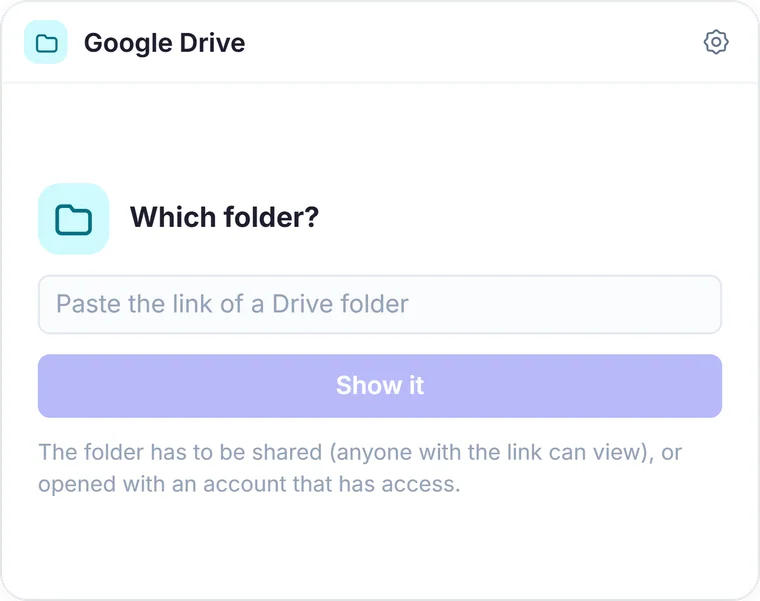
The Google Drive widget asking which folder to show, with a box for the link of a folder

Google Drive

Show a shared Drive folder on your board.

How it works
  • Paste the link of a folder. The folder has to be shared (anyone with the link can view), or opened with an account that has access.
  • Show the folder as a list or a grid. The search box opens Drive’s own search.
  • Press + to add more folders as tabs.
  • VibeBoard cannot upload to Drive or manage it. The widget shows Google’s own page.

No widget matches that. Try another word, like timer, note or color.

Quick Items and Quick Access

Two small helpers that are not widgets.

Quick Items

Save text you type again and again, such as an address or a standard reply. Add tags if you like.

  • Press Alt+\ to open the Quick Items window. Search, then click an item to copy it. Press Esc to close it.
  • In any text box on the board, type @@ to get a list of matching items. Use the arrow keys and Enter to insert one.
  • An item tagged pw, pass, password, secret, secure or encrypted is stored scrambled on your device. It shows as dots until you reveal or copy it.

Good to know: Quick Items work on the VibeBoard page only, not on other websites. VibeBoard cannot read other websites. Also, the scrambling helps against a casual look at your stored data. VibeBoard is not a password manager.

Quick Access

A panel of shortcuts to your favorite websites. Open it with the grid button in the top bar. It works like a Link Group: each tile shows the website icon and name, or a colored tile with its first letter when no icon can load.

  • Drag a tile onto another to change the order.
  • Point at a tile and press the pencil to change its name or address, or to remove it.
  • Add shortcuts takes one address, or many pasted at once. Each one gets a name made from its address.
  • Open all opens every shortcut in a tab of its own. More than 8 asks you first.
  • At the bottom are two plain links, Switch account and Manage Google account. They open Google’s own pages in a new tab. VibeBoard keeps no list of your Google accounts.

You can also change your shortcuts in Settings → Quick Access.
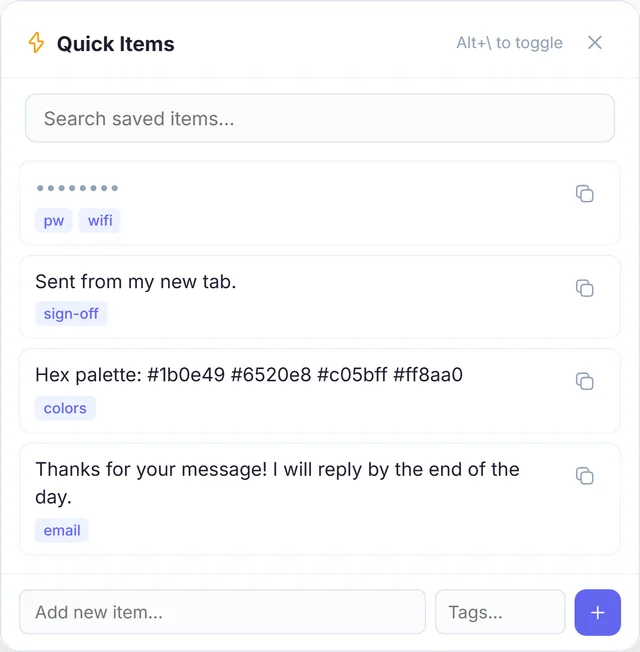
The Quick Items window with a search box, four saved items, tags and an add box
Quick Items. The first item is tagged pw, so it shows as dots.

Reminders and alerts

VibeBoard has four kinds of reminders. Pick the one that fits.

KindWhereWorks when no board is open?
Repeating remindersReminders widgetYes, while Chrome is running
Kanban card remindersKanban widget, open a card → Remind me atYes, while Chrome is running
Task and one-time remindersTasks widget, three-dot menu → Set reminderNo, only while a VibeBoard page is open
Calendar remindersCalendar widgetNo, only while a VibeBoard page is open
The Reminders widget with five repeating reminders, a switch for each one and a Create reminder button
The Reminders widget. Each one has a switch.
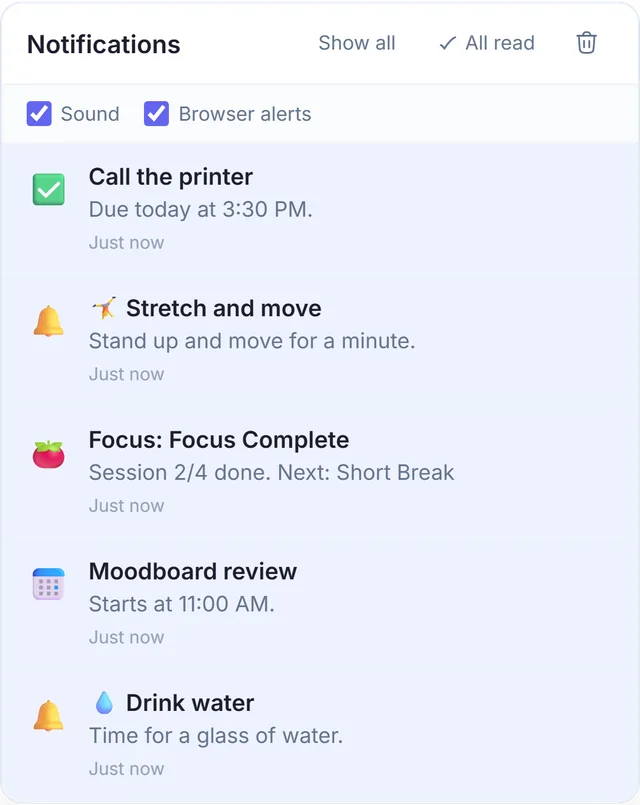
The notification list: a task that is due, a stretch reminder, a finished Pomodoro session, a calendar event and a drink water reminder
Every alert is also saved in the bell menu.

Alerts from the Reminders widget appear as system notifications with Snooze 10 min and Done. All alerts are also saved in the bell menu and in Settings → Notifications, where you can turn the sound and system notifications on or off.

How long an alert stays

You choose how long a notification stays on the screen, once, for all of them. Open Settings → Notifications and pick How long a notification stays: 5 seconds (the system’s own time), 10 seconds, 30 seconds, 1 minute, 5 minutes, or until you close it. It starts at 30 seconds. The choice counts for reminders, timers, the Pomodoro, calendar and tasks, and new posts of a news feed. Some systems (macOS and a few Linux desktops) decide this themselves and may hide an alert sooner.
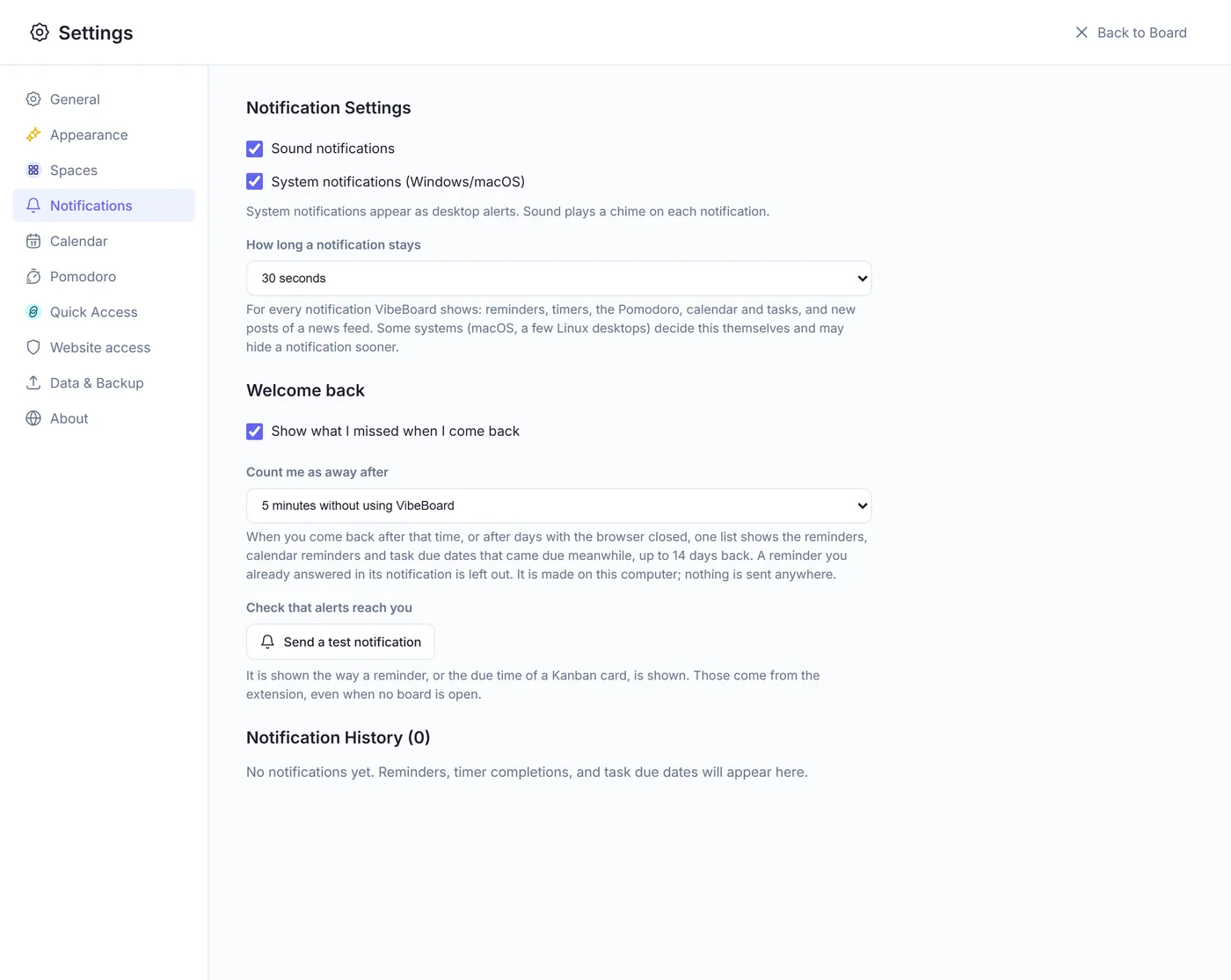
Settings, Notifications page: switches for sound and system notifications, the choice How long a notification stays, and the Welcome back settings
Settings → Notifications. The time of an alert and the welcome-back list are set here.

Welcome back: what you missed

A reminder can come due while you are away, for example an invitation on Monday that you only see on Thursday. When you come back to VibeBoard, one list inside the board shows what came due meanwhile: reminders, calendar reminders and the due dates of tasks. A row with a Show button takes you to its widget. Got it closes the list.

You count as away after 5 minutes without using VibeBoard (you can choose 10, 15, 30 or 60 minutes instead), or after days with the browser closed. The list goes back up to 14 days and shows the newest 30 things. A reminder you already answered in its notification is left out. The list is made on your computer, and nothing is sent anywhere. Switch it off under Settings → Notifications → Welcome back.
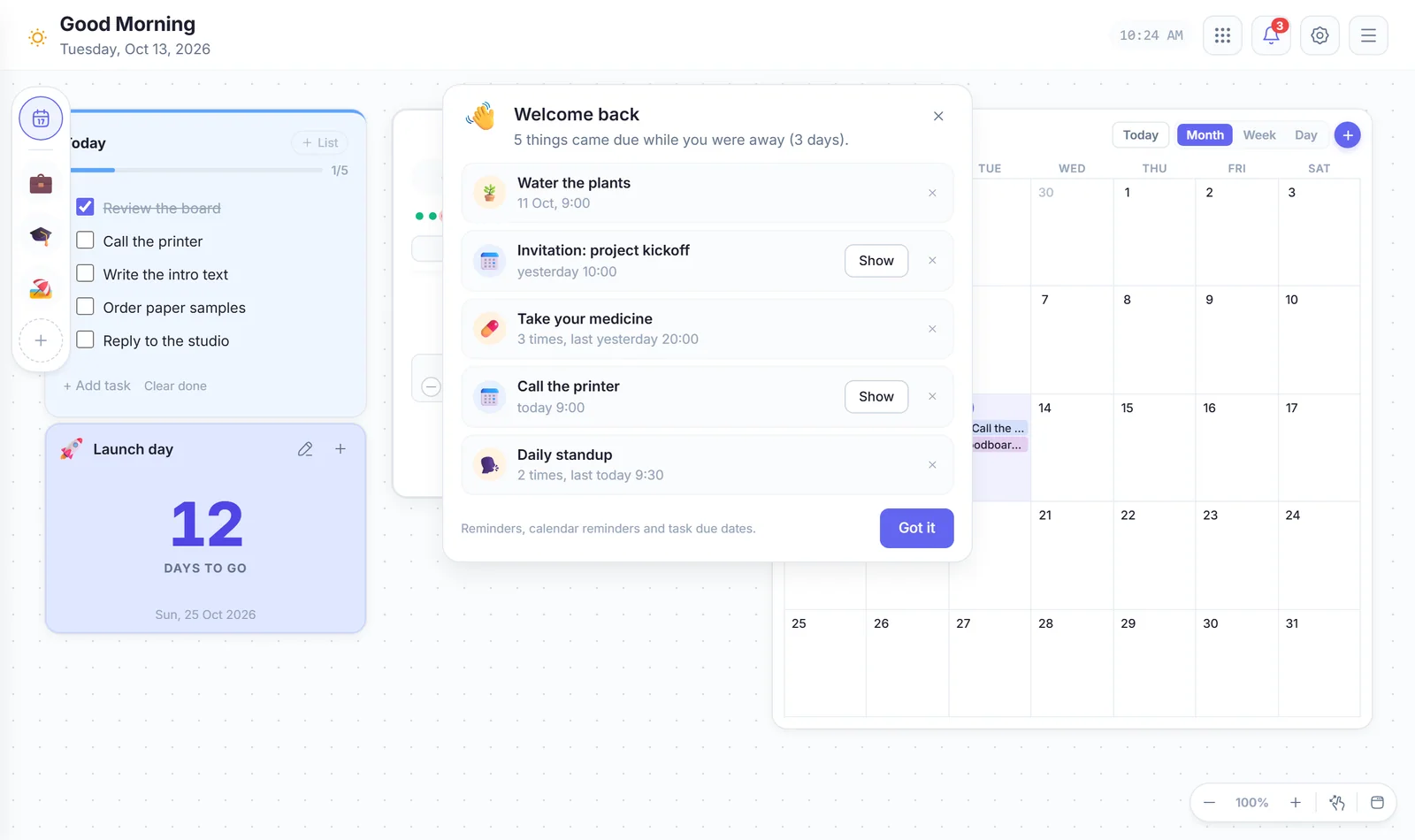
The Welcome back list on the board: five things came due while you were away for three days, such as an invitation and a medicine reminder, each with the time it came due
The Welcome back list after three days away.

New posts in a News widget

A News widget can look for new posts by itself. Open its gear and pick Look for new articles: every 15 seconds, 30 seconds, every minute, 5, 15 or 30 minutes, every hour, every 3 hours, or only when you press Refresh.

Posts that arrive while the widget is watching are marked New in light purple, and a banner says how many. A mark goes away when you open the post or press Mark as read, and a post you have seen is not marked again.

Switch on Tell me when a new post comes to get a notification and a line in the bell menu, for as long as you chose above.

VibeBoard looks while a VibeBoard tab with that board is open. In a tab you are not looking at, Chrome lets the page look about once a minute, and only when this switch is on. A very short time asks the website again and again, so pick a longer time if a website starts to refuse.
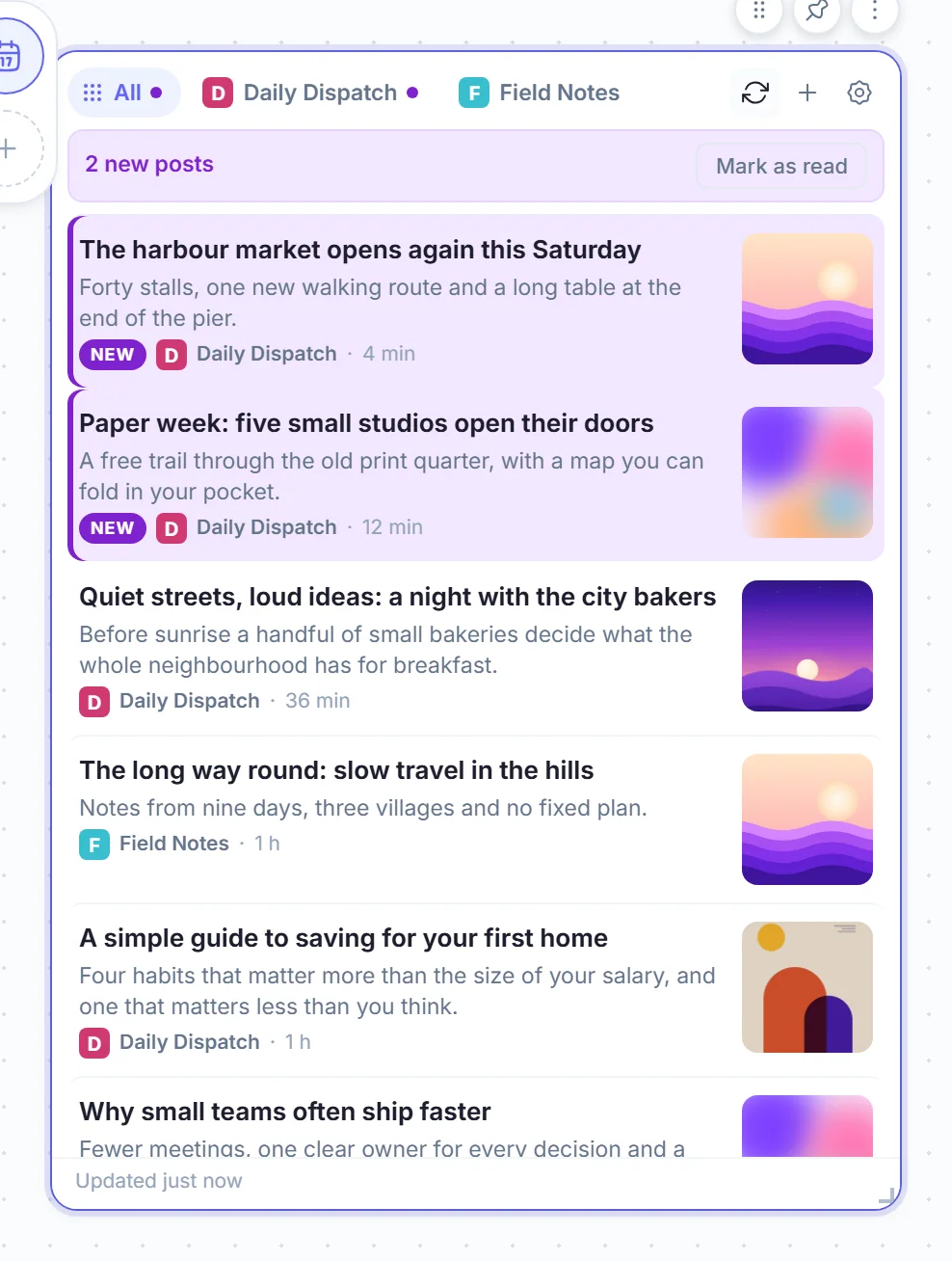
A News widget with a banner that says 2 new posts and a Mark as read button, and two new posts in light purple with a New tag
Two new posts, marked in light purple.

If an alert does not show: make sure Chrome is running, turn off Do Not Disturb or Focus Assist on your computer, and press Test notification in the Reminders widget. A reminder that was too late to fire (for example, your computer was asleep) is skipped instead of piling up. More help is on the support page.

Keyboard shortcuts

Alt shortcuts do not work while you type in a text field. On a Mac, use Option for Alt.

Keys for

Showing 30 of 30 shortcuts

Add a widget

New Sticky NoteAlt+N
New Write PadAlt+P
New Tasks listAlt+C
New CalendarAlt+A
New TimerAlt+T
New ClockAlt+W
New Reminders listAlt+R
New Days UntilAlt+U
New CalculatorAlt+Q
New Text ToolsAlt+X
New QR CodeAlt+G
New ColorsAlt+K
New Random PickerAlt+S
New ImageAlt+I
New DrawingAlt+D
New MediaAlt+V
New Files shelfAlt+O
New LinkAlt+L
New MagnetAlt+M

Around the board

Open Quick Items, to search and copy saved textAlt+\
Search everything on your boardsCtrl+K
Show or hide the side panelCtrl+B
Open the history panelCtrl+H
Open one of the first nine spacesAlt+1 to Alt+9
Go back to TodayAlt+0
Zoom in / zoom outCtrl+= / Ctrl+-
Reset the viewCtrl+0
Fit all widgets on screenCtrl+1
Move around the boardSpace+drag
Paste a picture, a link, text or a copied widget onto the boardCtrl+V

No shortcut matches that. Try another word, like zoom, search or note.

Settings

Press the gear icon (or the Settings tab in the side panel) to open Settings. It has ten pages.

General

Choose New Tab Dashboard (opens on every new tab) or Separate Application (its own window, and new tabs go to a page you choose). Choose whether the toolbar icon opens a window or a tab. Set your time zone. A button starts the quick tour of the board.

Appearance

Light and dark follow your computer, so there is no switch here. Pick a board color for the space behind your widgets: a ready color, any color from the color picker or a hex code, one for light mode and one for dark mode. Reset goes back to the standard color.

Spaces

Make a space, change its name or emoji, or remove it, with the same questions as the row at the left edge of the board. A switch hides the row. See Spaces.

Notifications

Turn sound and system notifications on or off. Choose How long a notification stays, from 5 seconds to until you close it, and set the Welcome back list. Press Send a test notification to see a real alert. See and clear the alert history.

Calendar

See your events and totals, set the first day of the week, turn calendar reminders on or off and pick a default reminder.

Pomodoro

See your finished sessions and total focus time.

Quick Access

Add, edit, remove and re-order your website shortcuts.

Website access

The websites VibeBoard may read because you allowed them: the websites of your news channels, the websites in your Link Groups, and rocuo.com for the ready-made boards. A line says what each one is used for, and Remove takes it back. VibeBoard cannot read a website you removed.

Data & Backup

See how much you saved. Export or import a backup: the answer is written under the buttons, and a card says what a backup holds and what it does not.

About

Version number, why each permission is needed and a link to the privacy policy. An Updates card shows Update now while Chrome is holding a new version back, and a Check for updates button when it is not.

Backup and restore

Your data lives only in your browser, so a backup is the best way to keep it safe or move it to another computer.

Make a backup

  1. Open Settings → Data & Backup.

  2. Press Export Backup. A file named vibeboard-backup- and the date is saved.

Restore a backup

  1. Open VibeBoard in the other browser and go to the same page.

  2. Press Import Backup and choose the file.

A backup holds your boards, your spaces with their widgets, Quick Items, calendar events and reminders. Importing never makes duplicates, and a space that is already there is kept. It does not hold the contents of files in the Files widget (only their names and links), or the snooze state of a reminder. The saved logins of the Password widget are not in it: that widget has its own encrypted backup, under Vault settings. Backups made by earlier builds, when the extension was called Mood Board, still import.

Remember: removing the extension or clearing its data deletes your boards for good. Rocuo has no copy, so export a backup first.

Privacy and permissions

VibeBoard asks for three permissions, and for website access only when you ask.

Storage
Keeps your settings and reminders on your device.
Alarms
Wakes the extension at the time of each reminder.
Notifications
Shows your reminders as system notifications.
Website access (optional)
Not asked when you install. Asked one website at a time, only when you add a news channel or a website to a Link Group, or open the ready-made boards. Chrome shows its own question and you can say no. Take any back in Settings → Website access.

No account, no Rocuo server, no ads and no tracking. Your boards never leave your device. It cannot read the pages you visit, your open tabs or your history.

It goes online only when you ask it to: for website icons (Google’s icon service is told the website address, nothing else), for YouTube videos you play, for the news channels you add, for the icon of a website you put in a Link Group, for the list of ready-made boards (from rocuo.com), and to show the Google page you choose in a Google widget. For news, a Link Group website or the ready-made boards, Chrome asks you first, one website at a time. Everything else, including the calculators, the Image Converter, the Password widget and the Sticker Maker, works on your device and sends nothing. Read the full details in the privacy policy.
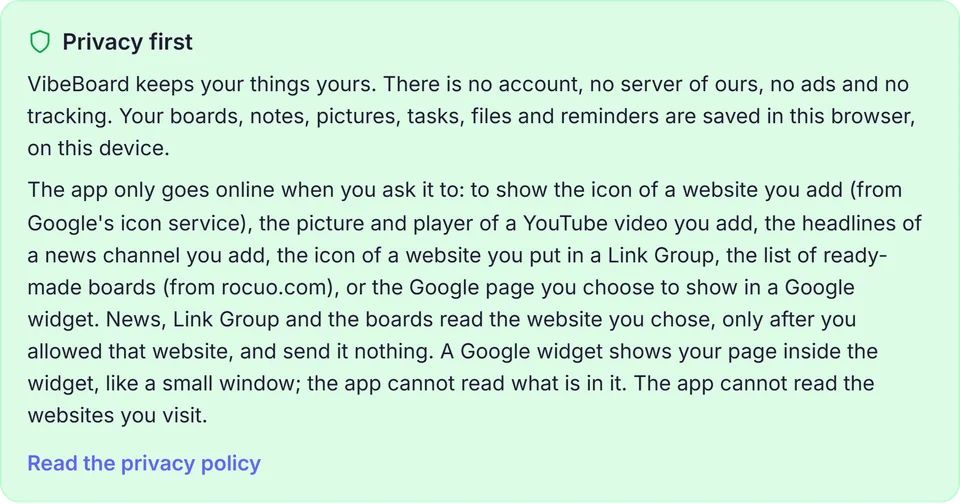
The Privacy first notice. It says there is no account, no server of ours, no ads and no tracking, that everything is saved in this browser, and when the app goes online or reads a website.
The same promise, shown inside the extension under Settings → About.

Need help?