1. Rocuo
  2. VibeBoard
  3. Ready-made boards

Ready-made boards
for real days.

21 free boards for work, study, home, money and creating. Each one has a note that says where to start, and every widget says what it is for.

For version 1.9.0 Updated 3 November 2026

Add a board

A ready-made board is a set of widgets that belong together, with starting text you can change. Add one from VibeBoard, or from a file you download here.

  1. Open the boards. Press Ctrl+B to open the side panel, then press the Ready-made boards card at the top of the Widgets tab.

  2. Allow rocuo.com, once. The boards are small files on this website, so Chrome asks if VibeBoard may read it. VibeBoard only downloads. Nothing from your boards or your computer is sent. You can take the permission back in Settings, under Website access.

  3. Choose a board. Press What’s inside to read what each widget is for. Then press Add to today, or Make a space.

  4. Read the Start here note. Every board has a yellow note that says in a few lines where to begin. Delete it when you know the board.

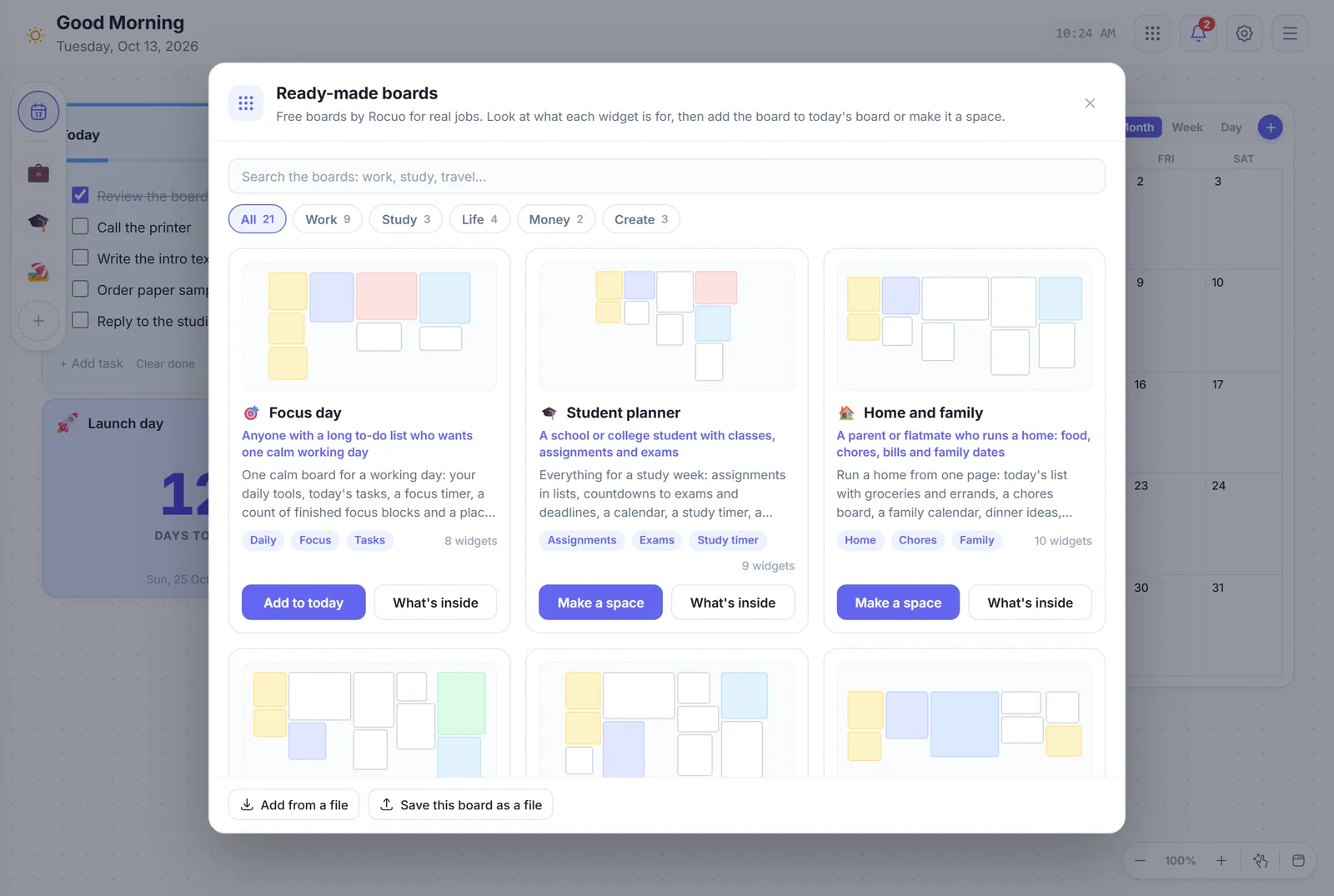
The Ready-made boards window: a search box, the shelves Work, Study, Life, Money and Create, and a card for each board with who it is for
The window lists every board by shelf. Search, or pick a shelf.
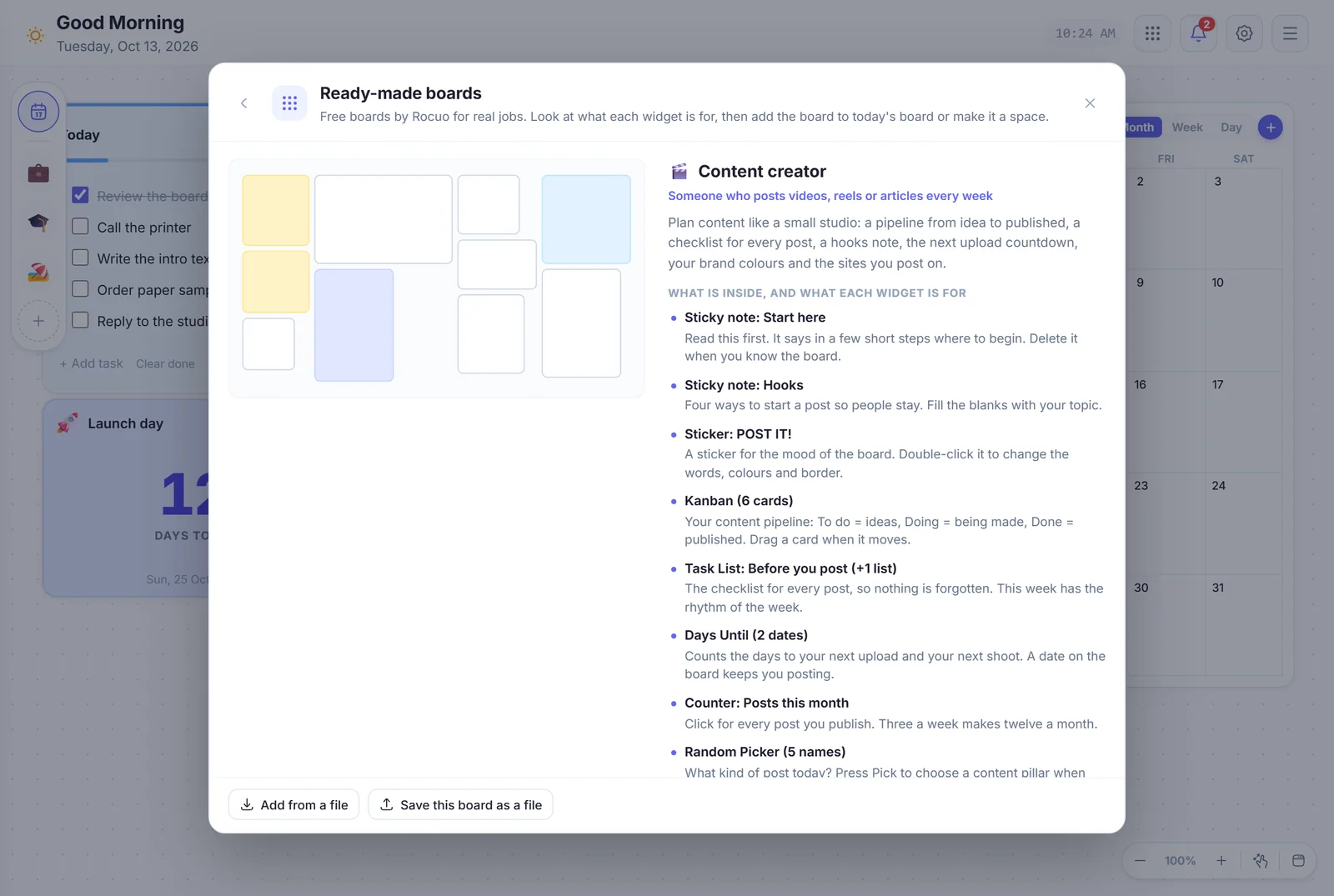
The Content creator board opened in the window, with a list of its widgets and one line about what each is for
“What’s inside” says what each widget is for, before you add anything.

From a file

Every board below has a Download board file button. Save the file, open the Ready-made boards window and press Add from a file at the bottom. VibeBoard shows what is inside, then adds it.

This way of adding needs no permission for this website: VibeBoard reads only the file you choose.

Today or a space

A board made for one day is added to today’s board. A board for a longer job is made a space: a place of its own in the row at the left edge, with its own name and emoji. Every board can go both ways, and the window offers the other one too.

How spaces work

Nothing runs by itself

A board is widgets and their starting text. It sets no reminder, starts no timer and sends nothing. The Reminders widget of a board is empty until you make a reminder yourself.

Change it, make it bigger, or delete what you do not need. It is your board once it is added.

All 21 boards

21 boards with 199 widgets in all. Pick a shelf, or search for a word like exam, budget, trip or sprint. The pictures are the real boards, with example headlines in the news.

Showing 21 of 21 boards

Work

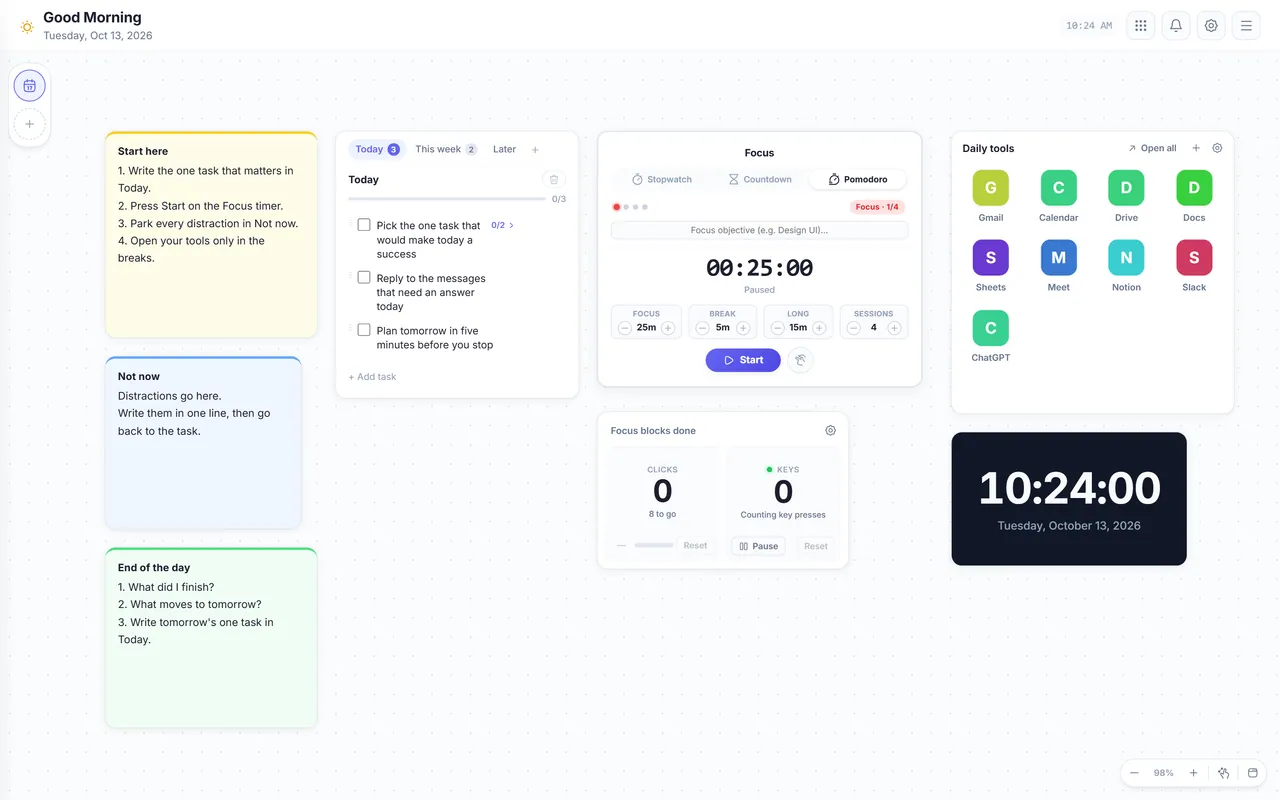
The Focus day board in VibeBoard, with 8 widgets: Sticky note, Task List, Timer, Counter and more

Focus day

8 widgets

For: Anyone with a long to-do list who wants one calm working day

One calm board for a working day: your daily tools, today’s tasks, a focus timer, a count of finished focus blocks and a place to park distractions.

Inside: Sticky note (3), Task List, Timer, Counter, Link Group, Clock

What each widget is for
  • Sticky note: Start hereRead this first. It says in a few short steps where to begin. Delete it when you know the board.
  • Sticky note: Not nowA place for the thoughts that pull you away. Write one line and go back to work.
  • Sticky note: End of the dayA five-minute shutdown: look at what you finished and write tomorrow’s first task, so tomorrow starts fast.
  • Task List: Today (+2 lists)Your tasks for today. Put the one that matters most first. This week and Later are tabs for the rest.
  • Timer (focus and break)A focus timer: 25 minutes of work and 5 minutes of rest, again and again. Press Start and work on one task.
  • Counter: Focus blocks doneClick the number after each finished focus block. Eight blocks is a very good day.
  • Link Group: Daily tools (9 websites)One click to the sites you open every day. Change them with the edit button.
  • ClockThe time and the date, always in view.
Download board file In VibeBoard: Adds to today’s board
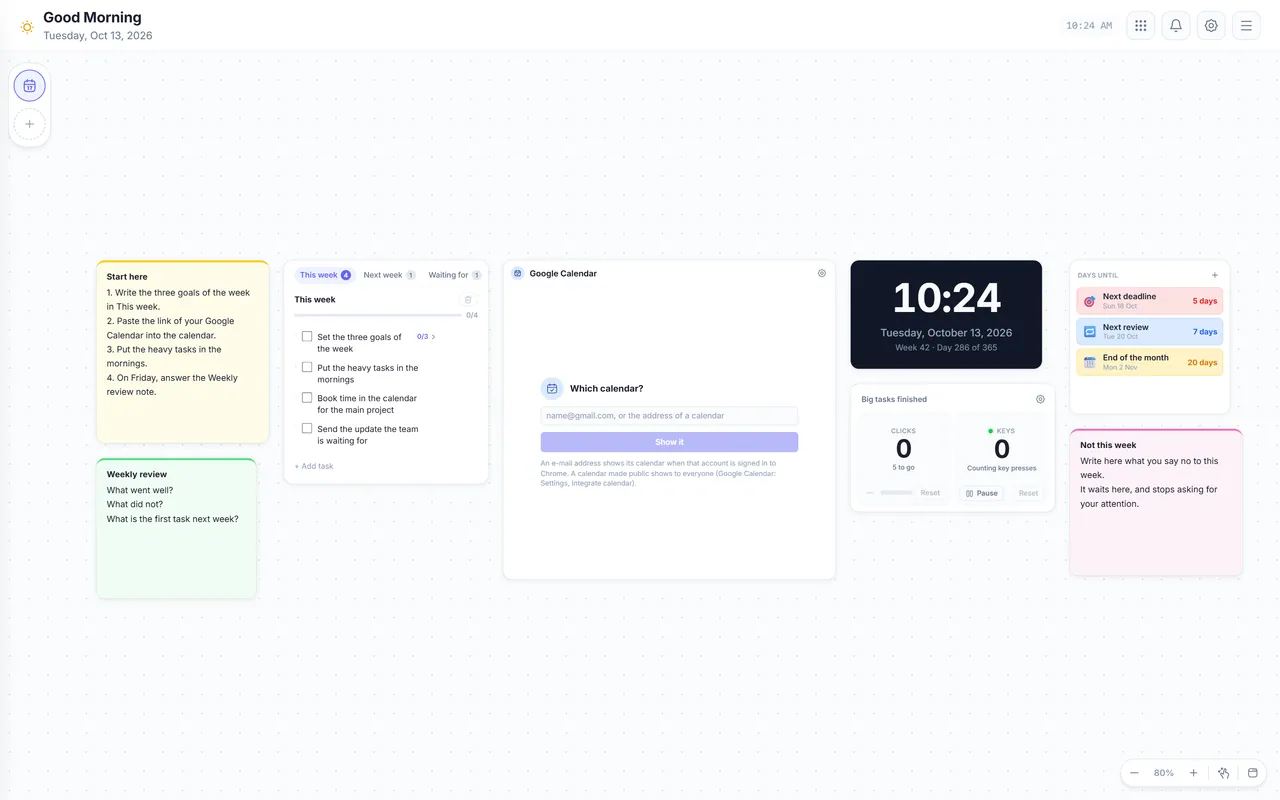
The Weekly planning board in VibeBoard, with 8 widgets: Sticky note, Task List, Google, Clock and more

Weekly planning

8 widgets

For: Anyone who plans the week on Sunday evening or Monday morning

Plan the week on one page: three goals, the week’s tasks in lists, your Google Calendar next to them, a count of finished big tasks and a short weekly review.

Inside: Sticky note (3), Task List, Google, Clock, Counter, Days Until

What each widget is for
  • Sticky note: Start hereRead this first. It says in a few short steps where to begin. Delete it when you know the board.
  • Sticky note: Weekly reviewFive minutes on Friday: look back, then write the first task for Monday.
  • Task List: This week (+3 lists)The week’s tasks. The first task holds your three goals as steps. Next week, Waiting for and Ideas are tabs.
  • GoogleYour Google Calendar for the week. Paste the link of your calendar into it once; the board never sees your account.
  • ClockThe date with the week number, so you always know which week it is.
  • Counter: Big tasks finishedClick for every big task you finish. Five big tasks is a strong week.
  • Days Until (3 dates)Counts the days to your next deadlines. The dates start a few days from now: press Edit and set the real ones.
  • Sticky note: Not this weekA parking place for what you decided to postpone. Moving it here is a decision, not forgetting.
Download board file In VibeBoard: Adds to today’s board
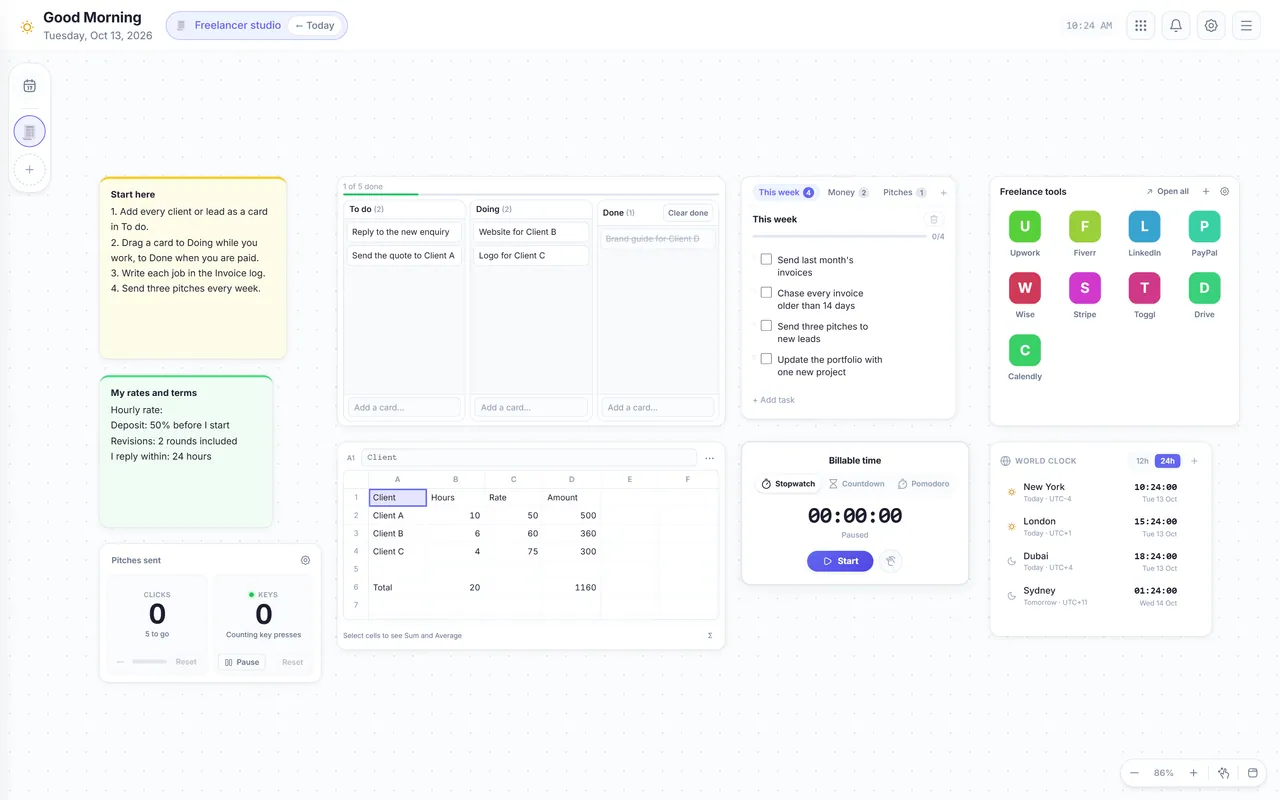
The Freelancer studio board in VibeBoard, with 9 widgets: Sticky note, Counter, Kanban, Sheet and more

Freelancer studio

9 widgets

For: A freelancer or consultant with several clients

Run a one-person business: a client pipeline, an invoice log that adds itself up, a stopwatch for billable time, the time at your clients and a note with your rates and terms.

Inside: Sticky note (2), Counter, Kanban, Sheet, Task List, Timer, Link Group, World Clock

What each widget is for
  • Sticky note: Start hereRead this first. It says in a few short steps where to begin. Delete it when you know the board.
  • Sticky note: My rates and termsYour rates and terms in one place, ready to copy into a quote. Fill in your own numbers.
  • Counter: Pitches sentClick after every pitch you send. Five a week keeps the pipeline full.
  • Kanban (5 cards)Your clients and leads from first contact to paid. Drag a card when the state changes.
  • SheetEvery job with its hours and rate. The amounts and the total add themselves up. Type over the samples.
  • Task List: This week (+2 lists)Your week as a freelancer. Money and Pitches are tabs for the two things that keep a business alive.
  • TimerA stopwatch for work you bill by the hour. Start it with the work, stop it when you stop.
  • Link Group: Freelance tools (9 websites)The sites of a freelance day: jobs, payments and time tracking. Change them with the edit button.
  • World ClockThe time where your clients are. Change the cities to yours.
Download board file In VibeBoard: Makes a space
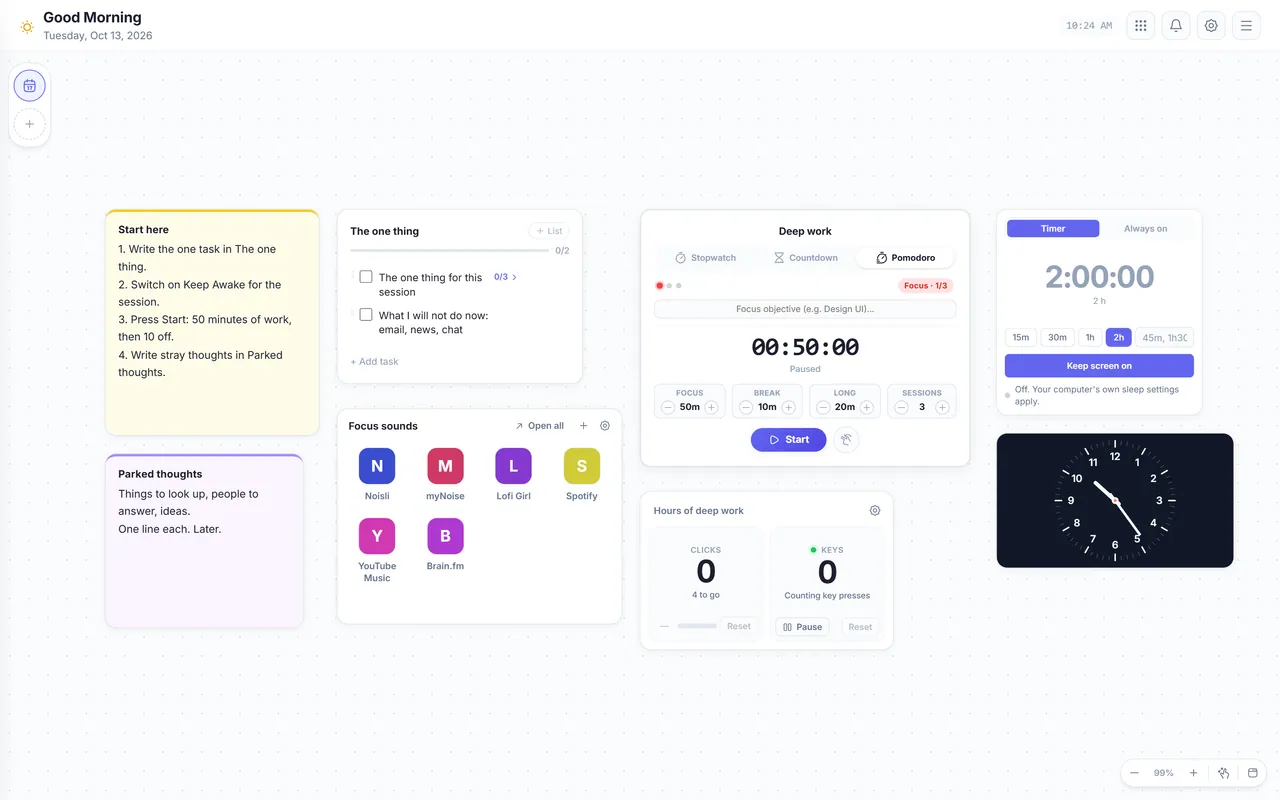
The Deep work board in VibeBoard, with 8 widgets: Sticky note, Task List, Link Group, Timer and more

Deep work

8 widgets

For: Writers, programmers and students who need two quiet hours

A quiet board for long, focused work: one task, a 50-minute focus timer, a count of hours, a screen that stays awake and a note for the thoughts that try to pull you away.

Inside: Sticky note (2), Task List, Link Group, Timer, Counter, Keep Awake, Clock

What each widget is for
  • Sticky note: Start hereRead this first. It says in a few short steps where to begin. Delete it when you know the board.
  • Sticky note: Parked thoughtsA place for the thoughts that try to pull you away. Write one line, then back to work.
  • Task List: The one thingOne task for the whole session, cut into small steps. If it needs more than two hours, cut it in half.
  • Link Group: Focus sounds (6 websites)Sounds that help you focus: rain, lo-fi, noise. Open one, put on headphones, then press Start.
  • Timer (focus and break)A long focus timer: 50 minutes of work and 10 minutes off. Press Start and work on the one thing.
  • Counter: Hours of deep workClick once for every finished hour. Four hours of deep work is a very good day.
  • Keep AwakeKeeps the screen on while you read or write, so it never goes dark. It switches off by itself after 2 hours.
  • ClockA calm round clock: you see time pass without a number counting at you.
Download board file In VibeBoard: Adds to today’s board
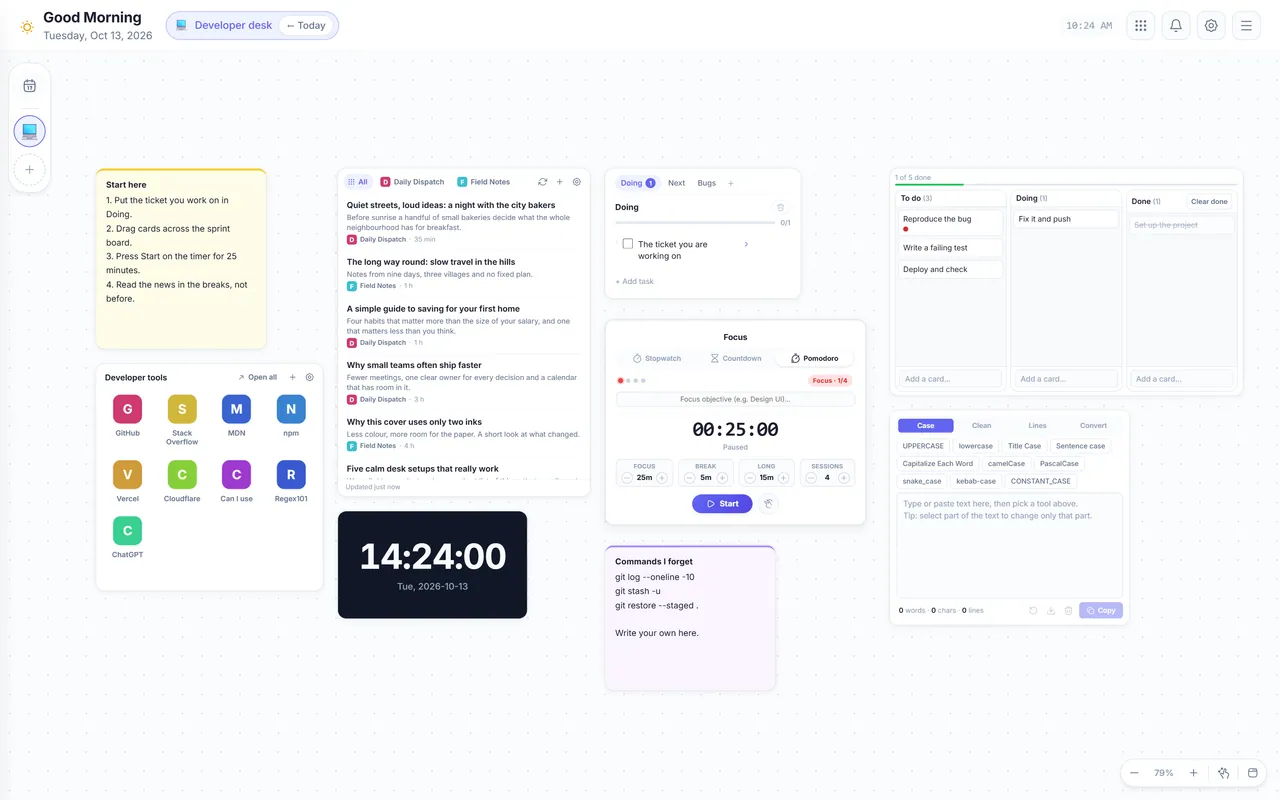
The Developer desk board in VibeBoard, with 9 widgets: Sticky note, Link Group, News, Clock and more

Developer desk

9 widgets

For: A developer who works on tickets, reads tech news and keeps a sprint board

The sites a developer opens every day, the main developer news, a task list for tickets, a small sprint board, a focus timer and a text tool.

Inside: Sticky note (2), Link Group, News, Clock, Task List, Timer, Kanban, Text tools

What each widget is for
  • Sticky note: Start hereRead this first. It says in a few short steps where to begin. Delete it when you know the board.
  • Link Group: Developer tools (9 websites)The sites a developer opens every day. Change them with the edit button.
  • News (5 channels)The main developer news. New posts are marked in purple, and you can switch on a notification for them.
  • ClockThe time in UTC, the time of servers and logs.
  • Task List: Doing (+2 lists)Your tickets. Doing holds what you work on now; Next and Bugs are tabs for the rest.
  • Timer (focus and break)A focus timer: 25 minutes of code, 5 minutes away from the screen.
  • Sticky note: Commands I forgetA sticky note for the commands you keep forgetting. Write your own; they stay next to your work.
  • Kanban (5 cards)A small sprint board. Drag a card from To do to Doing to Done. Change the cards to your own work.
  • Text toolsPaste text to change its case, clean spaces and empty lines, sort lines, encode and decode.
Download board file In VibeBoard: Makes a space
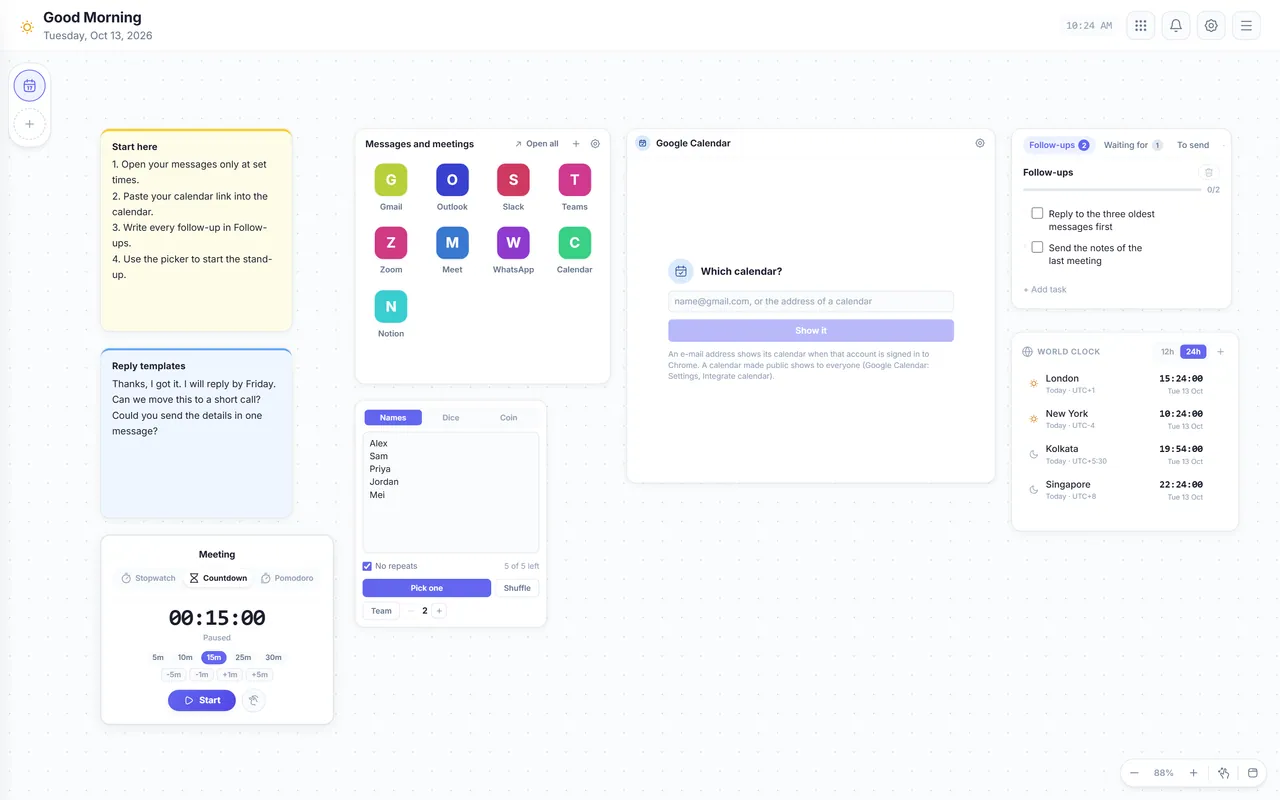
The Inbox and meetings board in VibeBoard, with 8 widgets: Sticky note, Timer, Link Group, Random Picker and more

Inbox and meetings

8 widgets

For: Someone whose day is mostly mail, chat and meetings

Mail, chat and meetings in one place: your messaging sites, the agenda of your Google Calendar, follow-ups, a way to choose who speaks first and the time in the cities you work with.

Inside: Sticky note (2), Timer, Link Group, Random Picker, Google, Task List, World Clock

What each widget is for
  • Sticky note: Start hereRead this first. It says in a few short steps where to begin. Delete it when you know the board.
  • Sticky note: Reply templatesThree short answers you can copy, so a reply takes seconds. Write your own.
  • TimerTime-box a stand-up or a call: it counts down from 15 minutes, so the meeting ends on time. Change the length with the edit button.
  • Link Group: Messages and meetings (9 websites)Your mail, chat and meeting sites in one click. Change them with the edit button.
  • Random Picker (5 names)Who speaks first? Type your team’s names and press Pick. With No repeat, everybody gets a turn.
  • GoogleThe agenda of your Google Calendar. Paste the link of your calendar into it once.
  • Task List: Follow-ups (+2 lists)Everything you promised to send or wait for. Add a task the moment you promise it.
  • World ClockThe time in the cities of the people you meet, so you never call at night. Change the cities to yours.
Download board file In VibeBoard: Adds to today’s board
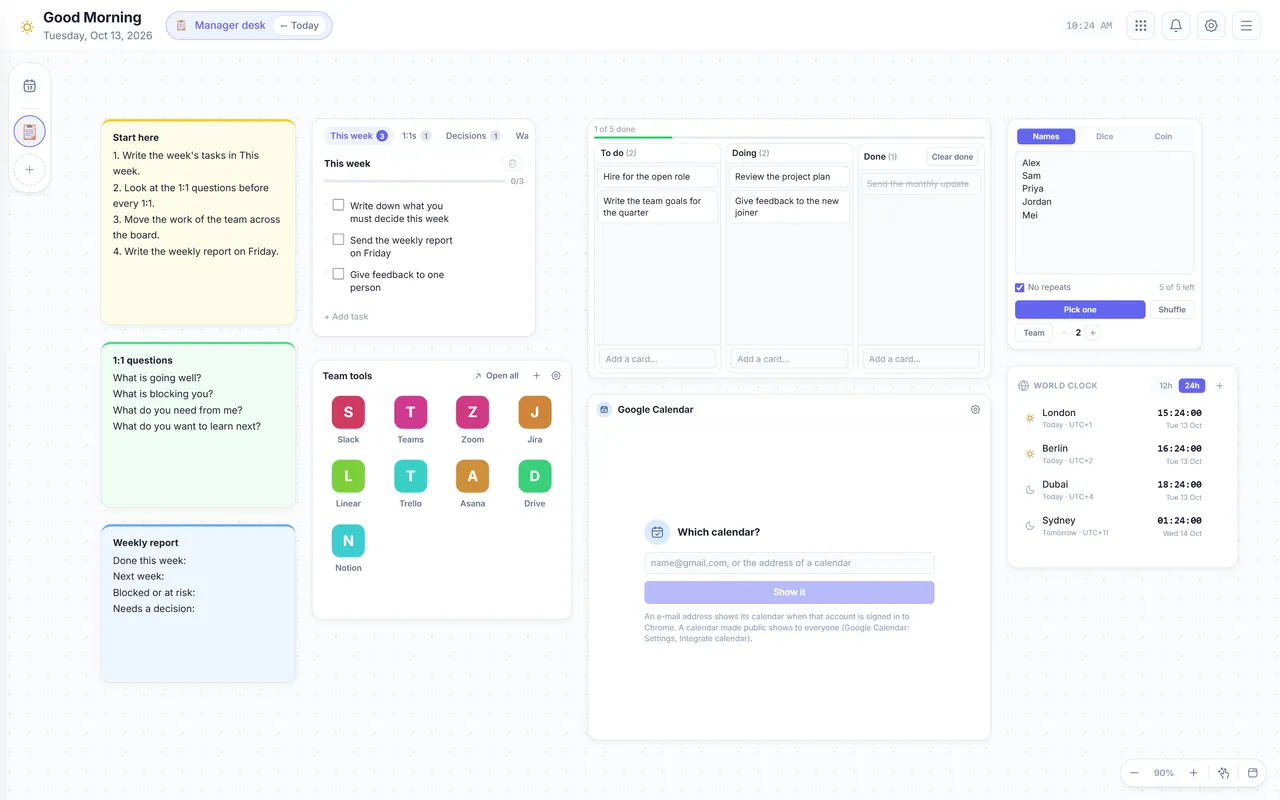
The Manager desk board in VibeBoard, with 9 widgets: Sticky note, Task List, Link Group, Kanban and more

Manager desk

9 widgets

For: A team lead with 1:1s, stand-ups and weekly reports

Run a team from one page: this week’s tasks, 1:1 questions, a way to choose who speaks first, a team board, the time where your people are and a short weekly report.

Inside: Sticky note (3), Task List, Link Group, Kanban, Google, Random Picker, World Clock

What each widget is for
  • Sticky note: Start hereRead this first. It says in a few short steps where to begin. Delete it when you know the board.
  • Sticky note: 1:1 questionsFour questions that start a good 1:1. Keep them in view during the call.
  • Sticky note: Weekly reportA fixed shape for the weekly update, so writing it takes five minutes.
  • Task List: This week (+3 lists)Your tasks for the week. 1:1s, Decisions and Waiting for are tabs, so nothing is lost in one long list.
  • Link Group: Team tools (9 websites)The tools of your team in one click. Change them with the edit button.
  • Kanban (5 cards)The work of your team: To do, Doing, Done. Drag a card when its state changes.
  • GoogleYour Google Calendar for the week. Paste the link of your calendar into it once.
  • Random Picker (5 names)Who speaks first in the stand-up? Type your team’s names and press Pick. Teams splits them into groups.
  • World ClockThe time where your team members are. Change the cities to yours.
Download board file In VibeBoard: Makes a space
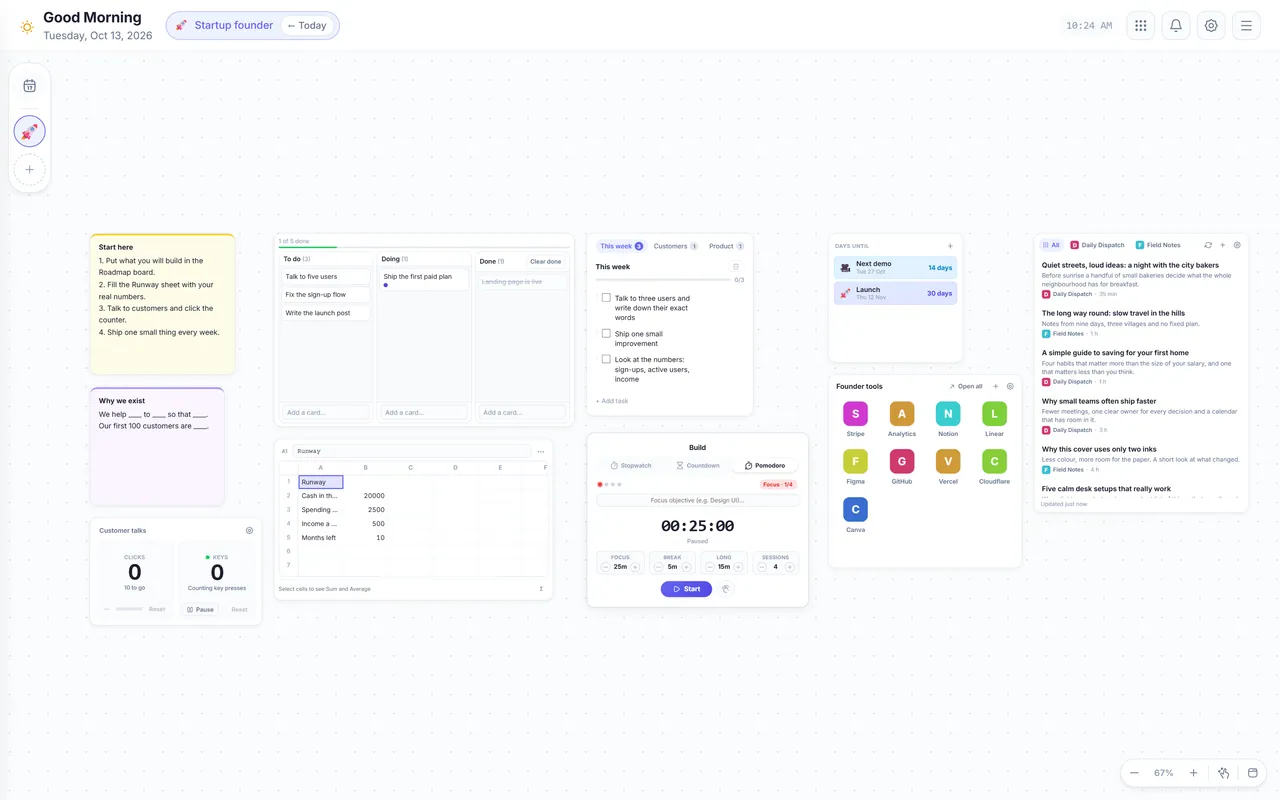
The Startup founder board in VibeBoard, with 10 widgets: Sticky note, Counter, Kanban, Sheet and more

Startup founder

10 widgets

For: A founder or solo maker who ships a product and talks to customers

Keep a young product moving: a roadmap board, the weekly tasks, a runway sheet, a launch countdown, startup news, founder tools and a count of customer conversations.

Inside: Sticky note (2), Counter, Kanban, Sheet, Task List, Timer, Days Until, Link Group, News

What each widget is for
  • Sticky note: Start hereRead this first. It says in a few short steps where to begin. Delete it when you know the board.
  • Sticky note: Why we existOne sentence about why the product exists and who it is for. Read it when you doubt a decision.
  • Counter: Customer talksClick after every real conversation with a user or customer. Ten talks teach more than a month of building.
  • Kanban (5 cards)The roadmap: To do = next, Doing = this week, Done = shipped. Drag a card when it moves.
  • SheetHow many months the money lasts. Type your cash, spending and income; Months left works itself out.
  • Task List: This week (+3 lists)The week of a founder in three tabs: customers, product and money. Keep each tab short.
  • Timer (focus and break)A focus timer for building: 25 minutes of work, 5 minutes off.
  • Days Until (2 dates)Counts the days to your launch and your next demo. Change the titles and the dates.
  • Link Group: Founder tools (9 websites)The tools of a small product company. Change them with the edit button.
  • News (3 channels)Startup and product news. New posts are marked in purple, and you can switch on a notification for them.
Download board file In VibeBoard: Makes a space

Study

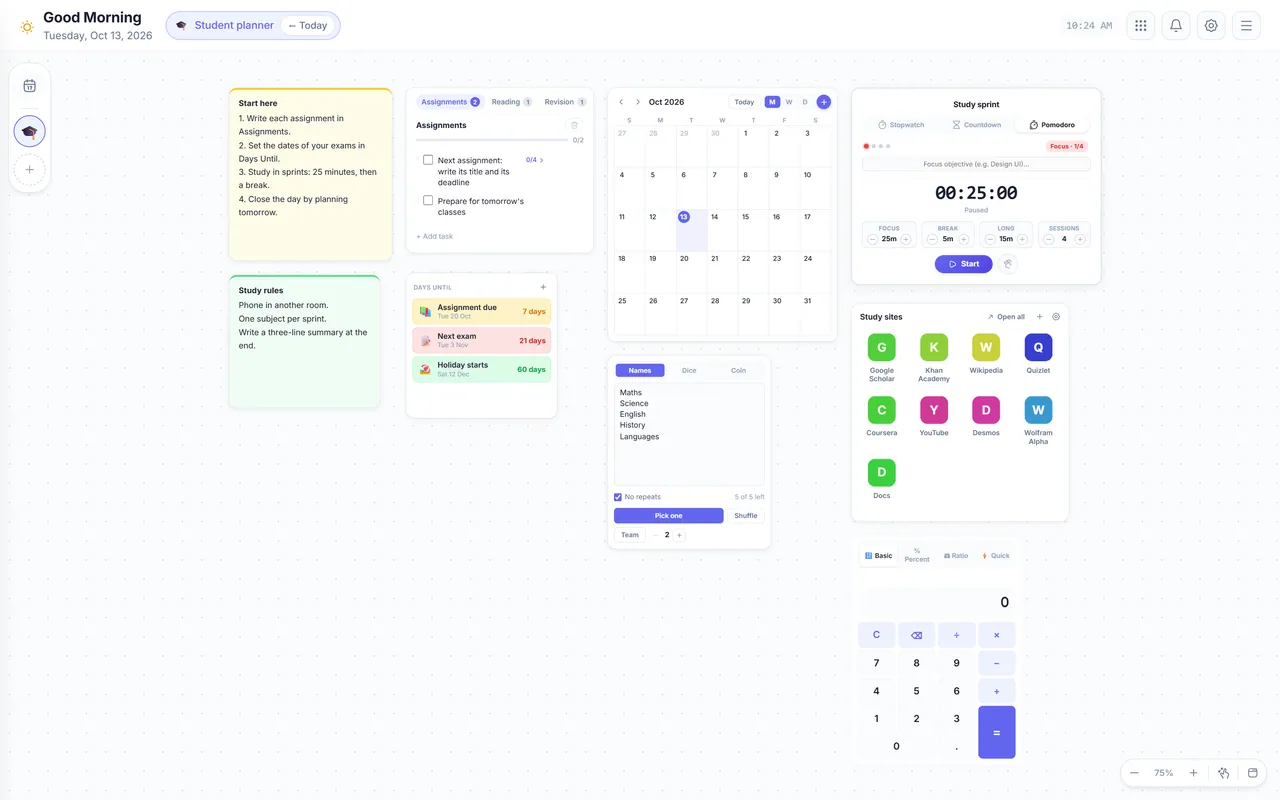
The Student planner board in VibeBoard, with 9 widgets: Sticky note, Task List, Days Until, Calendar and more

Student planner

9 widgets

For: A school or college student with classes, assignments and exams

Everything for a study week: assignments in lists, countdowns to exams and deadlines, a calendar, a study timer, a pick-the-subject helper and the sites students use most.

Inside: Sticky note (2), Task List, Days Until, Calendar, Random Picker, Timer, Link Group, Calculator

What each widget is for
  • Sticky note: Start hereRead this first. It says in a few short steps where to begin. Delete it when you know the board.
  • Sticky note: Study rulesThree rules for studying well. Change them to what works for you.
  • Task List: Assignments (+2 lists)Your assignments, each cut into steps. Reading and Revision are tabs for the rest of your study.
  • Days Until (3 dates)Counts the days to your exam, your deadline and your holiday. Change the titles and the dates.
  • CalendarPut classes, deadlines and exams here. It works without the internet.
  • Random Picker (5 names)Cannot decide what to study first? Type your subjects and press Pick.
  • Timer (focus and break)Study for 25 minutes, then rest for 5. After four sprints take a longer break.
  • Link Group: Study sites (9 websites)The sites students open most. Change them with the edit button.
  • CalculatorFor maths and marks: a basic calculator, with a percentage mode for grades.
Download board file In VibeBoard: Makes a space
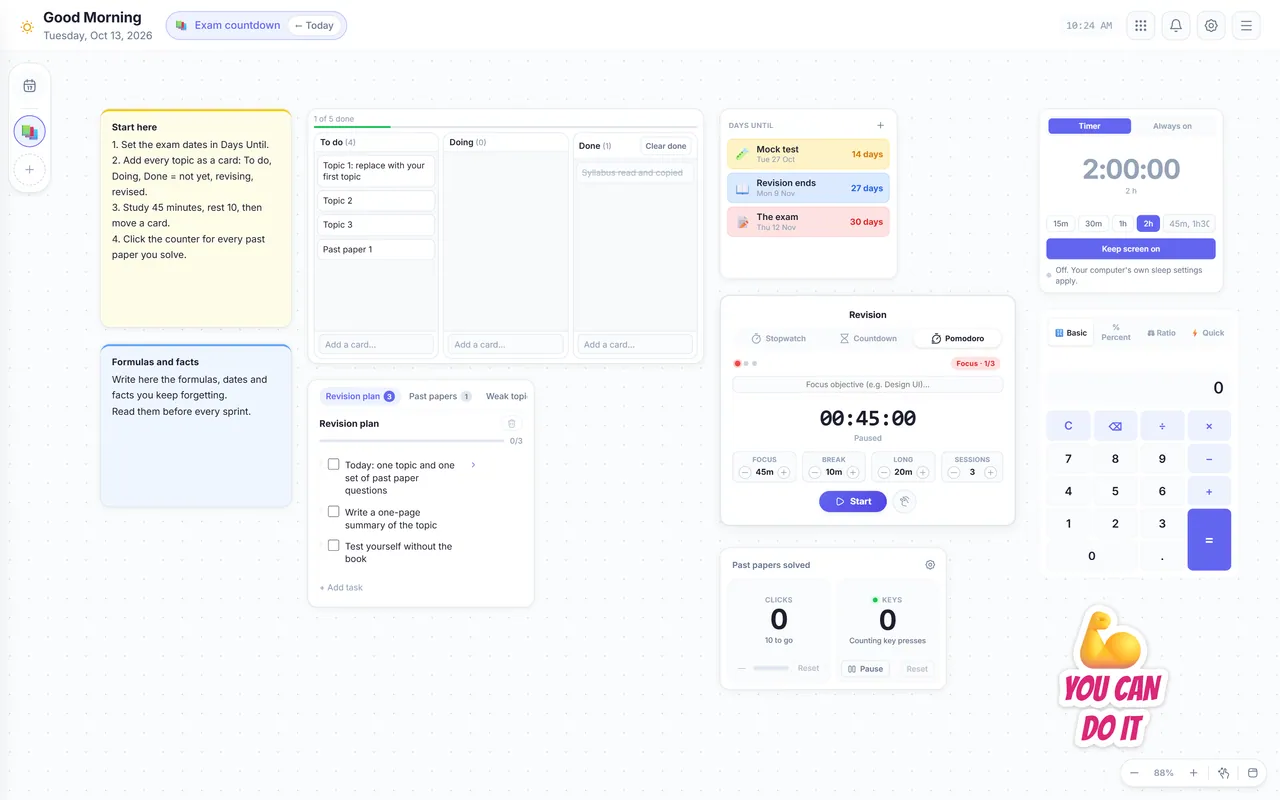
The Exam countdown board in VibeBoard, with 10 widgets: Sticky note, Kanban, Task List, Days Until and more

Exam countdown

10 widgets

For: Anyone preparing for one big exam in the next weeks

Prepare for one big exam: a countdown, a topic board, a revision plan, past papers counted, a long study timer and a screen that stays on during mock tests.

Inside: Sticky note (2), Kanban, Task List, Days Until, Timer, Counter, Keep Awake, Calculator, Sticker

What each widget is for
  • Sticky note: Start hereRead this first. It says in a few short steps where to begin. Delete it when you know the board.
  • Sticky note: Formulas and factsThe facts you keep forgetting, in one place. Add one after every mistake.
  • Kanban (5 cards)One card for every topic of the exam. Drag it from To do to Doing to Done as you revise it.
  • Task List: Revision plan (+2 lists)Your revision plan. Past papers and Weak topics are tabs, so the hard parts do not hide.
  • Days Until (3 dates)Counts the days to the exam, a mock test and the end of revision. Change the titles and the dates.
  • Timer (focus and break)A long study timer: 45 minutes of revision and 10 minutes of rest.
  • Counter: Past papers solvedClick for every past paper you solve. Ten past papers is a strong preparation.
  • Keep AwakeKeeps the screen on during a long revision session or an online mock test. It switches off by itself.
  • CalculatorFor the numbers of your subject: a basic calculator with a percentage mode.
  • Sticker: YOU CANA little encouragement on the board. Double-click it to change the words, colours and border.
Download board file In VibeBoard: Makes a space
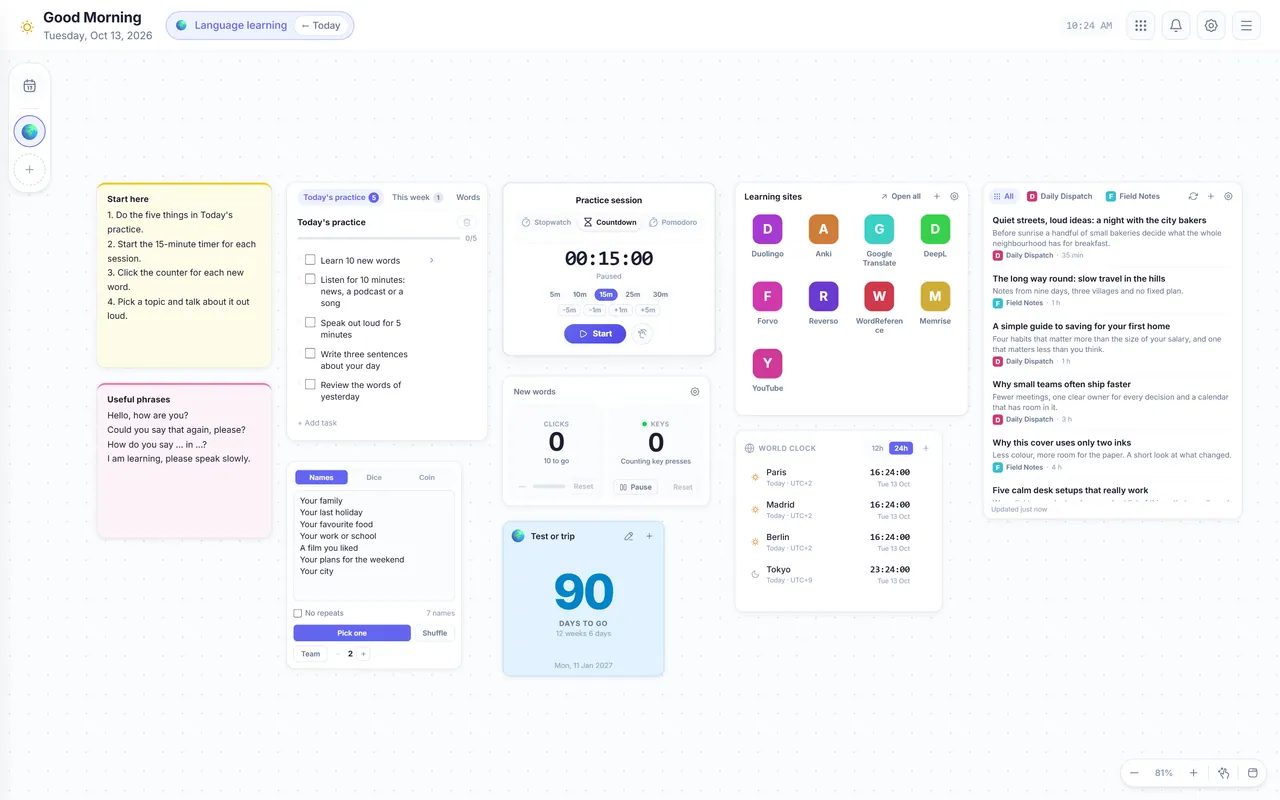
The Language learning board in VibeBoard, with 10 widgets: Sticky note, Task List, Random Picker, Timer and more

Language learning

10 widgets

For: Someone who learns a language with 15 to 30 minutes of practice a day

A daily routine for learning a language: a practice list, a 15-minute timer, new words counted, a topic to talk about, the time where the language is spoken, news to read and learning sites.

Inside: Sticky note (2), Task List, Random Picker, Timer, Counter, Days Until, Link Group, World Clock, News

What each widget is for
  • Sticky note: Start hereRead this first. It says in a few short steps where to begin. Delete it when you know the board.
  • Sticky note: Useful phrasesFour phrases that keep a conversation going. Write them in the language you learn.
  • Task List: Today’s practice (+2 lists)Five small things to do every day. This week and Words I forget are tabs for the rest.
  • Random Picker (7 names)What to talk about today? Press Pick and speak for two minutes about it.
  • TimerA 15-minute practice session. Short and daily works better than one long session a week.
  • Counter: New wordsClick for every new word you learn today. Ten words a day is a good goal.
  • Days Until (1 date)Counts the days to your test or your trip. A date makes you practise. Change the title and the date.
  • Link Group: Learning sites (9 websites)The best free sites for learning a language. Change them with the edit button.
  • World ClockThe time where your language is spoken, a good moment to call a friend there. Change the cities to yours.
  • News (3 channels)News in English for reading practice: read one short article a day. For another language, add a feed of your own in the News settings.
Download board file In VibeBoard: Makes a space

Life

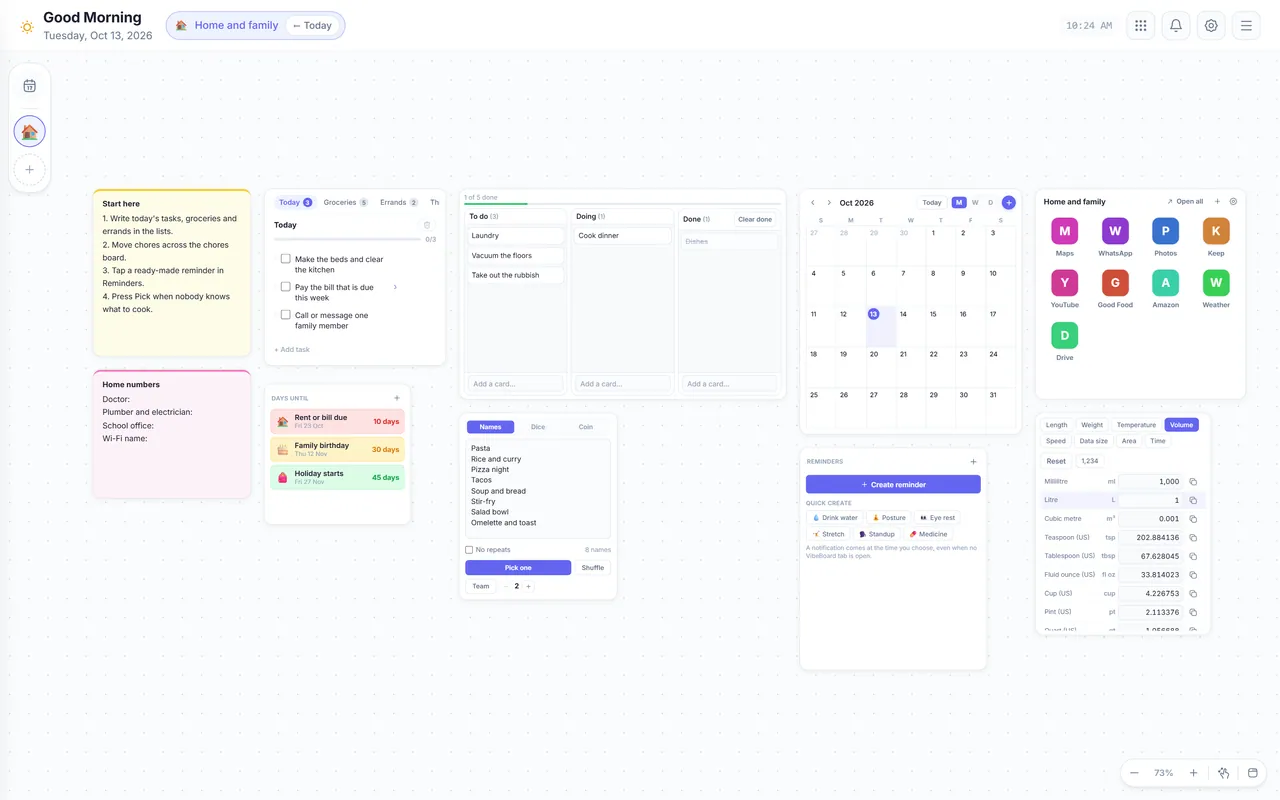
The Home and family board in VibeBoard, with 10 widgets: Sticky note, Task List, Days Until, Kanban and more

Home and family

10 widgets

For: A parent or flatmate who runs a home: food, chores, bills and family dates

Run a home from one page: today’s list with groceries and errands, a chores board, a family calendar, dinner ideas, dates that matter, reminders and a note with the numbers you always look for.

Inside: Sticky note (2), Task List, Days Until, Kanban, Random Picker, Calendar, Reminders, Link Group, Units

What each widget is for
  • Sticky note: Start hereRead this first. It says in a few short steps where to begin. Delete it when you know the board.
  • Sticky note: Home numbersThe phone numbers you always search for. Fill them in once and keep them in view.
  • Task List: Today (+3 lists)Today at home. Groceries, Errands and This week are tabs, so the shopping list is always one click away.
  • Days Until (3 dates)Counts the days to the dates that matter. Change the titles and the dates.
  • Kanban (5 cards)The chores of the house: To do, Doing, Done. Drag a card when it is finished.
  • Random Picker (8 names)Nobody knows what to cook? Edit the dinners and press Pick.
  • CalendarA family calendar for birthdays, school events and appointments. It works without the internet.
  • RemindersRepeating reminders such as Drink water or Take a break. Tap a ready-made one or make your own.
  • Link Group: Home and family (9 websites)The sites of a busy home. Change them with the edit button.
  • UnitsCup, spoon, litre or ounce? Type the amount of a recipe and read it in the unit you have.

Download board file In VibeBoard: Makes a space
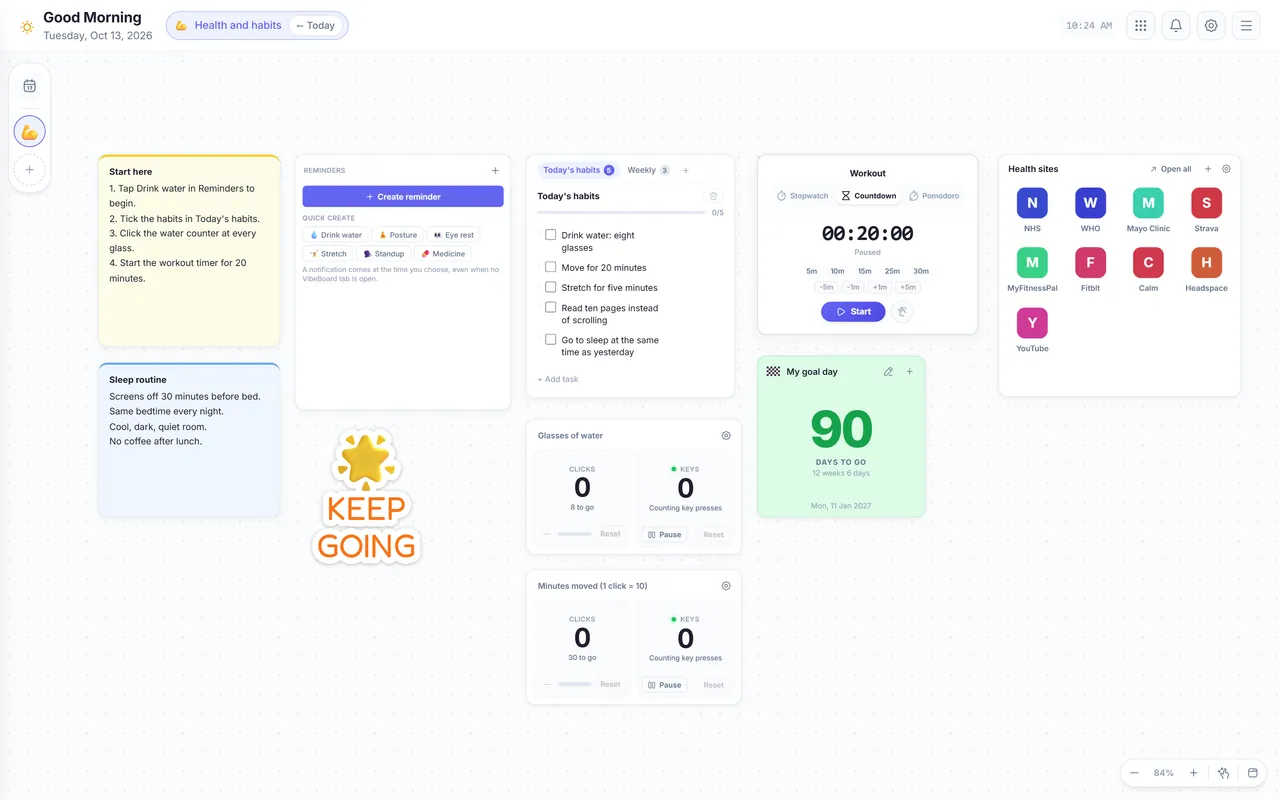
The Health and habits board in VibeBoard, with 10 widgets: Sticky note, Reminders, Sticker, Task List and more

Health and habits

10 widgets

For: Someone who builds daily habits: water, movement, sleep and breaks

Build small daily habits: ready-made reminders for water and posture, a habit list, counters for water and exercise, a workout timer, a goal date and a sleep routine.

Inside: Sticky note (2), Reminders, Sticker, Task List, Counter (2), Timer, Days Until, Link Group

What each widget is for
  • Sticky note: Start hereRead this first. It says in a few short steps where to begin. Delete it when you know the board.
  • Sticky note: Sleep routineA short routine for better sleep. Change it to what works for you.
  • RemindersTap a ready-made reminder (Drink water, Posture, Eye rest) to start it. A board never sets a reminder for you.
  • Sticker: KEEPA little encouragement on the board. Double-click it to change the words, colours and border.
  • Task List: Today’s habits (+1 list)Five small habits for every day. Weekly is a tab for the things that happen once a week.
  • Counter: Glasses of waterClick for every glass of water you drink. The goal is eight.
  • Counter: Minutes moved (1 click = 10)Click once for every 10 minutes you move. Three clicks make 30 minutes.
  • TimerA 20-minute workout timer. Press Start and move until the time is over.
  • Days Until (1 date)Counts the days to a goal, like a race or a check-up. Change the title and the date.
  • Link Group: Health sites (9 websites)Sites for health, movement and calm. Change them with the edit button.
Download board file In VibeBoard: Makes a space
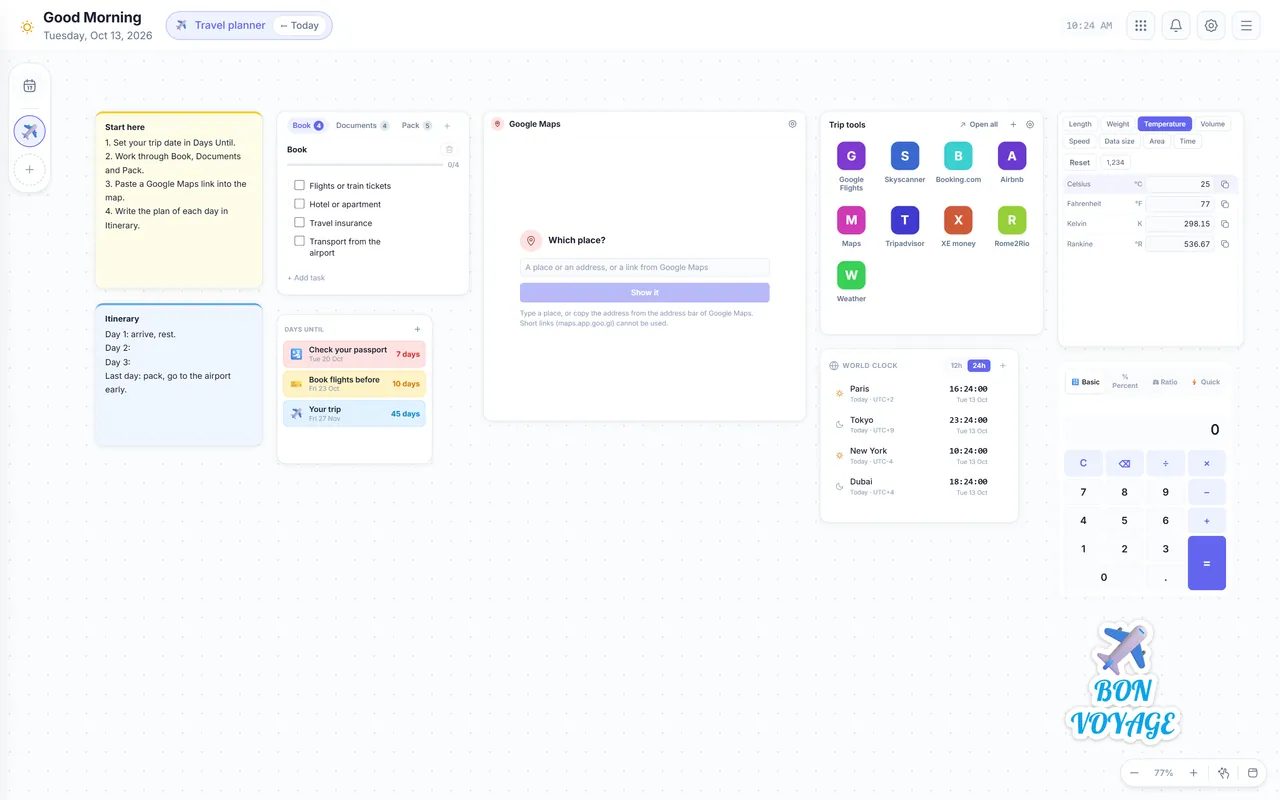
The Travel planner board in VibeBoard, with 10 widgets: Sticky note, Task List, Days Until, Google and more

Travel planner

10 widgets

For: Someone who plans a trip: dates, bookings, packing and time zones

Plan a trip from the first idea to the plane: countdowns, a before-you-go list, a map, the time at your destination, a temperature converter and a note for the plan of each day.

Inside: Sticky note (2), Task List, Days Until, Google, Link Group, World Clock, Units, Calculator, Sticker

What each widget is for
  • Sticky note: Start hereRead this first. It says in a few short steps where to begin. Delete it when you know the board.
  • Sticky note: ItineraryThe plan of each day, one line each. Keep one free day for what you did not plan.
  • Task List: Book (+2 lists)Everything to do before you go, in three tabs: Book, Documents and Pack. Tick each thing as it is done.
  • Days Until (3 dates)Counts the days to your trip and to the things you must do before. Change the titles and the dates.
  • GoogleA Google Map for the plan. Paste the link of a place or a route that you copied from Google Maps.
  • Link Group: Trip tools (9 websites)The sites of trip planning. Change them with the edit button.
  • World ClockThe time at your destination, so you know when to call home. Change the cities to yours.
  • UnitsIs 25 degrees warm? Convert Celsius and Fahrenheit for the place you go.
  • CalculatorQuick sums for the budget of the trip: tickets, rooms and food.
  • Sticker: BONA little send-off on the board. Double-click it to change the words, colours and border.
Download board file In VibeBoard: Makes a space
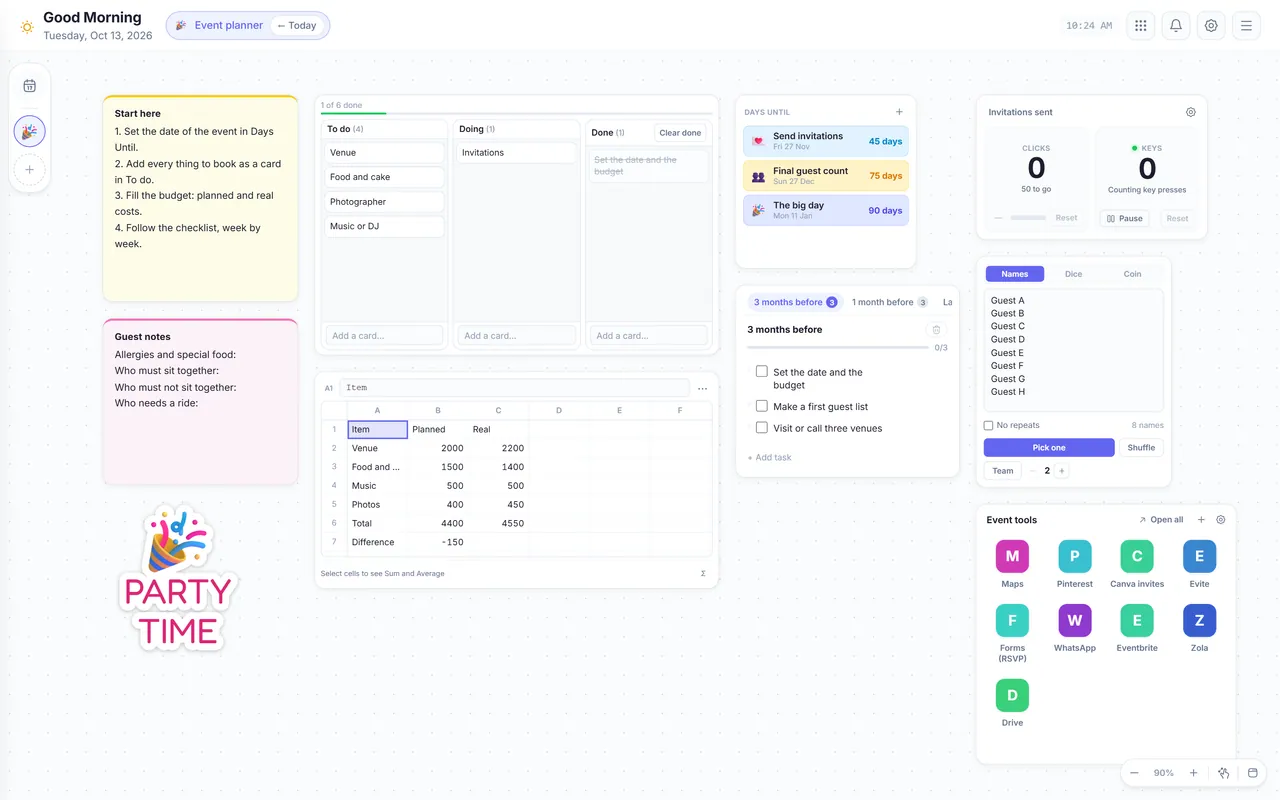
The Event planner board in VibeBoard, with 10 widgets: Sticky note, Sticker, Kanban, Sheet and more

Event planner

10 widgets

For: Someone who plans a wedding, a party or a family event

Plan one big day: a countdown, a booking board, a checklist by weeks before, a budget sheet that adds itself up, a seating helper, guest notes and the sites for invitations.

Inside: Sticky note (2), Sticker, Kanban, Sheet, Days Until, Task List, Counter, Random Picker, Link Group

What each widget is for
  • Sticky note: Start hereRead this first. It says in a few short steps where to begin. Delete it when you know the board.
  • Sticky note: Guest notesWhat you must remember about your guests, in one place. Write it as you hear it.
  • Sticker: PARTYA little fun on the board. Double-click it to change the words, colours and border.
  • Kanban (6 cards)Everything to book: To do = to book, Doing = in talks, Done = booked. Drag a card when it moves.
  • SheetThe budget: planned and real costs. The totals and the difference add themselves up. Type over the samples.
  • Days Until (3 dates)Counts the days to the big day and to the dates before it. Change the titles and the dates.
  • Task List: 3 months before (+2 lists)A checklist in three tabs: the three months before, the last month and the last week.
  • Counter: Invitations sentClick after every invitation you send, so you know who is still missing.
  • Random Picker (8 names)Seating helper: type your guests, choose the number of tables and press Teams to split them.
  • Link Group: Event tools (9 websites)The sites for places, ideas and invitations. Change them with the edit button.
Download board file In VibeBoard: Makes a space

Money

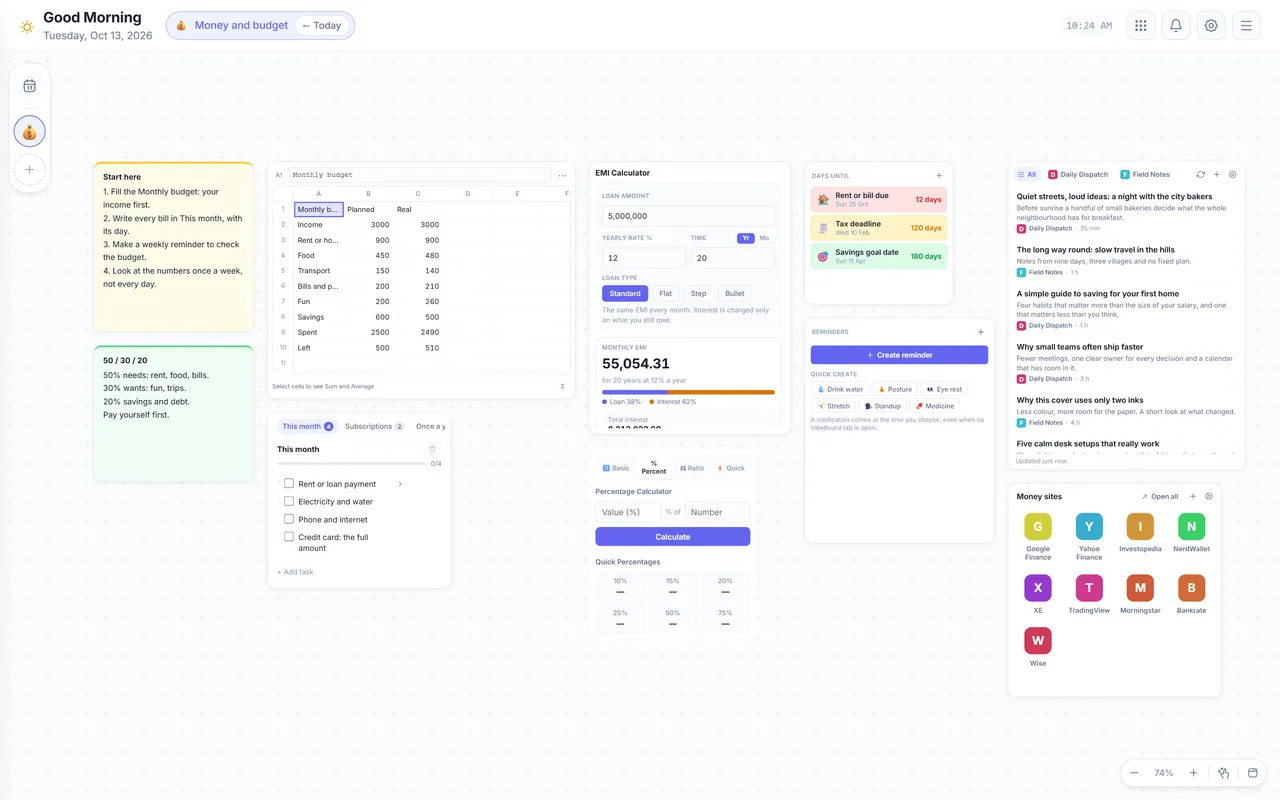
The Money and budget board in VibeBoard, with 10 widgets: Sticky note, Sheet, Task List, EMI and more

Money and budget

10 widgets

For: A person who wants to see where the money goes each month

See where the money goes: a monthly budget sheet that adds itself up, bills to pay, a loan check, a percentage calculator, key dates, a reminder for the weekly money check and money news.

Inside: Sticky note (2), Sheet, Task List, EMI, Calculator, Days Until, Reminders, News, Link Group

What each widget is for
  • Sticky note: Start hereRead this first. It says in a few short steps where to begin. Delete it when you know the board.
  • Sticky note: 50 / 30 / 20A simple rule for dividing income. Compare it with the Planned column of your budget.
  • SheetYour month in numbers. Spent and Left add themselves up. Type your own income and costs over the samples.
  • Task List: This month (+2 lists)The bills of the month. Subscriptions and Once a year are tabs, so nothing renews without you seeing it.
  • EMILoan check: change the amount, the interest and the years to see the monthly payment (EMI) and the schedule.
  • CalculatorPercentages for discounts, tips, interest and tax. Open the percentage mode and type the numbers.
  • Days Until (3 dates)Counts the days to the dates that cost money if you miss them. Change the titles and the dates.
  • RemindersMake a repeating reminder, for example Check the budget every Sunday evening. It works even when the board is closed.
  • News (3 channels)Money and market news. Read it once a day, not all day. New posts are marked in purple.
  • Link Group: Money sites (9 websites)Sites for money, markets and learning. Change them with the edit button.
Download board file In VibeBoard: Makes a space
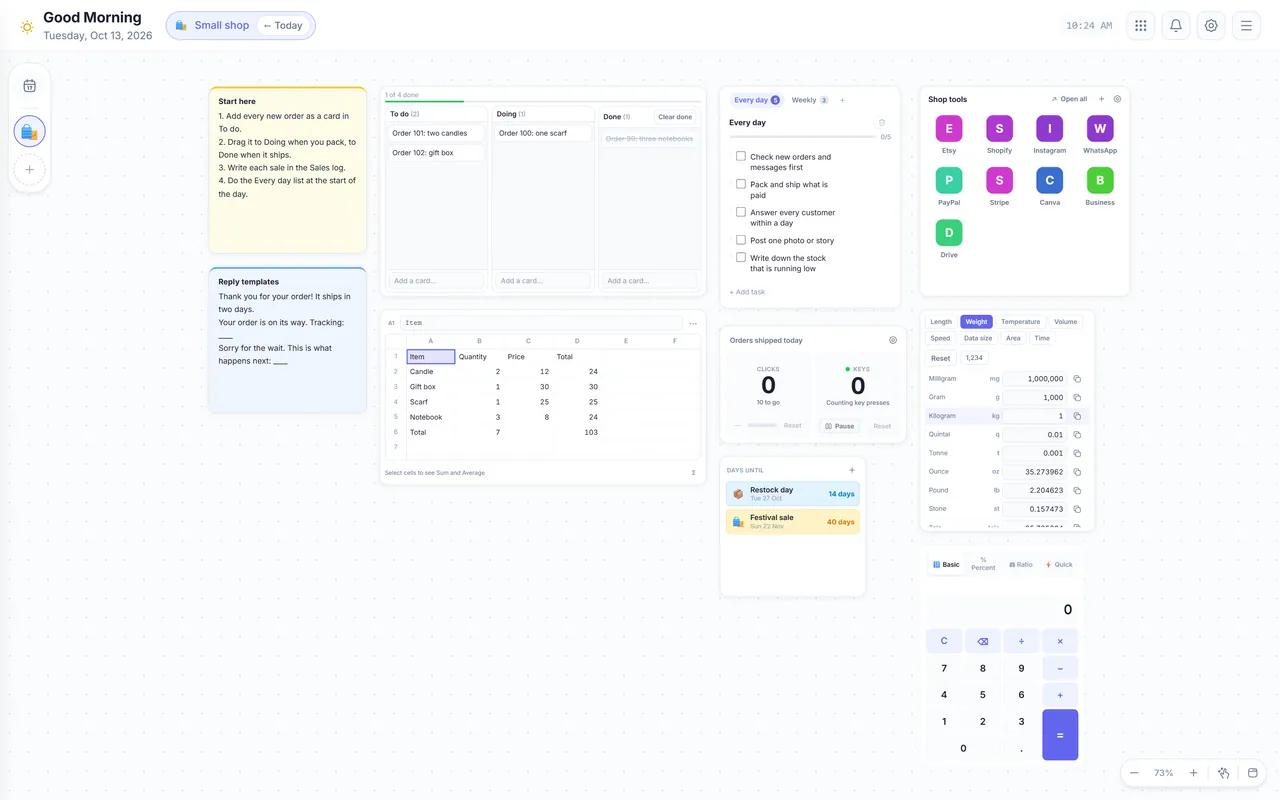
The Small shop board in VibeBoard, with 10 widgets: Sticky note, Kanban, Sheet, Task List and more

Small shop

10 widgets

For: A seller on Etsy, Instagram or a local shop with orders, stock and customers

Run a small shop from one page: an orders board from new to shipped, a sales log that adds itself up, a daily routine, reply templates, shipping weights, a profit calculator and your shop sites.

Inside: Sticky note (2), Kanban, Sheet, Task List, Counter, Days Until, Link Group, Units, Calculator

What each widget is for
  • Sticky note: Start hereRead this first. It says in a few short steps where to begin. Delete it when you know the board.
  • Sticky note: Reply templatesThree replies you can copy, so answering takes seconds. Write your own.
  • Kanban (4 cards)Your orders: To do = new, Doing = packing, Done = shipped. Drag a card when the order moves on.
  • SheetEvery sale with its quantity and price. The totals add themselves up. Type over the samples.
  • Task List: Every day (+1 list)The routine of a shop day. Weekly is a tab for restocking, photos and checking payments.
  • Counter: Orders shipped todayClick for every order you ship today. Ten a day is a good day.
  • Days Until (2 dates)Counts the days to your next big sale and your restock day. Change the titles and the dates.
  • Link Group: Shop tools (9 websites)The sites of an online shop. Change them with the edit button.
  • UnitsShipping prices depend on weight. Convert grams, kilograms, ounces and pounds.
  • CalculatorProfit and margin: price minus cost, and a percentage mode for discounts.
Download board file In VibeBoard: Makes a space

Create

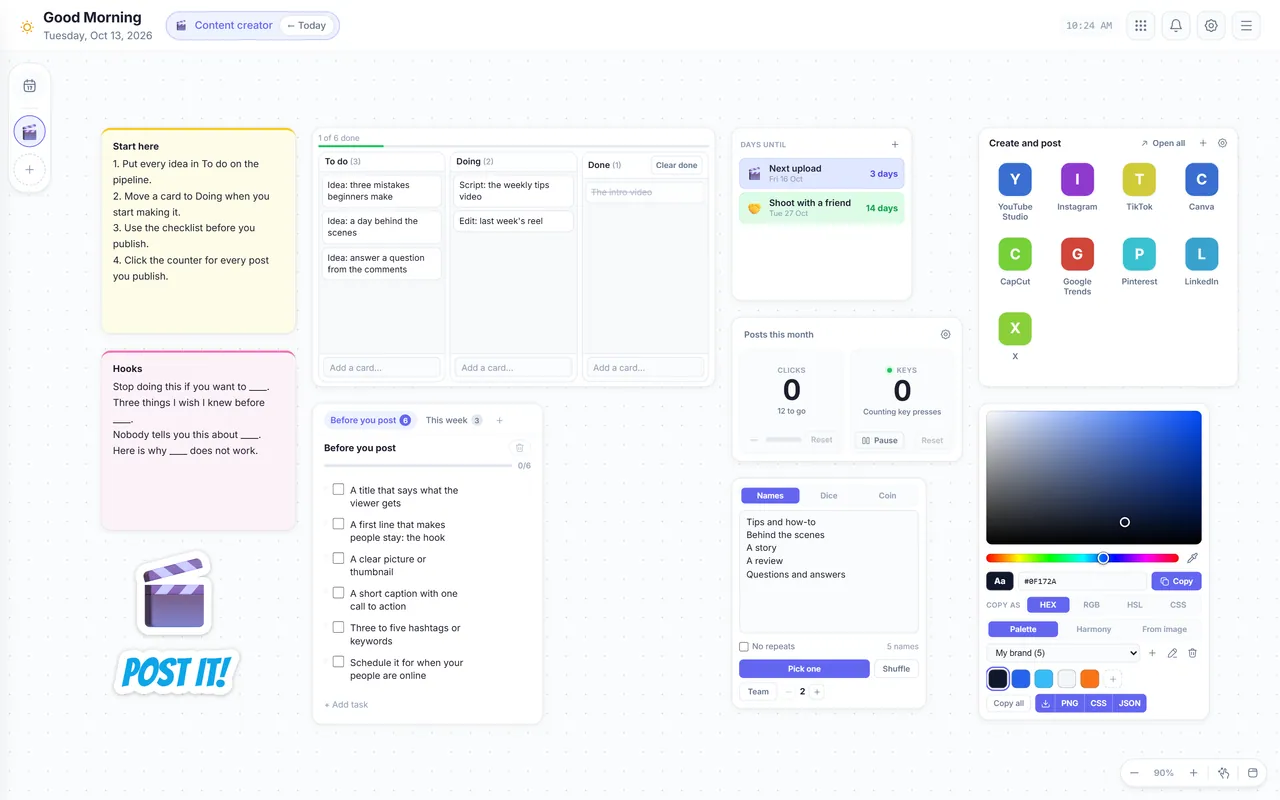
The Content creator board in VibeBoard, with 10 widgets: Sticky note, Sticker, Kanban, Task List and more

Content creator

10 widgets

For: Someone who posts videos, reels or articles every week

Plan content like a small studio: a pipeline from idea to published, a checklist for every post, a hooks note, the next upload countdown, your brand colours and the sites you post on.

Inside: Sticky note (2), Sticker, Kanban, Task List, Days Until, Counter, Random Picker, Link Group, Colors

What each widget is for
  • Sticky note: Start hereRead this first. It says in a few short steps where to begin. Delete it when you know the board.
  • Sticky note: HooksFour ways to start a post so people stay. Fill the blanks with your topic.
  • Sticker: POST IT!A sticker for the mood of the board. Double-click it to change the words, colours and border.
  • Kanban (6 cards)Your content pipeline: To do = ideas, Doing = being made, Done = published. Drag a card when it moves.
  • Task List: Before you post (+1 list)The checklist for every post, so nothing is forgotten. This week has the rhythm of the week.
  • Days Until (2 dates)Counts the days to your next upload and your next shoot. A date on the board keeps you posting.
  • Counter: Posts this monthClick for every post you publish. Three a week makes twelve a month.
  • Random Picker (5 names)What kind of post today? Press Pick to choose a content pillar when you are stuck.
  • Link Group: Create and post (9 websites)The sites where you make and post. Change them with the edit button.
  • Colors (2 palettes)Your brand colours in one place. Click a colour to copy its code for Canva or your editor. Replace the samples with yours.
Download board file In VibeBoard: Makes a space
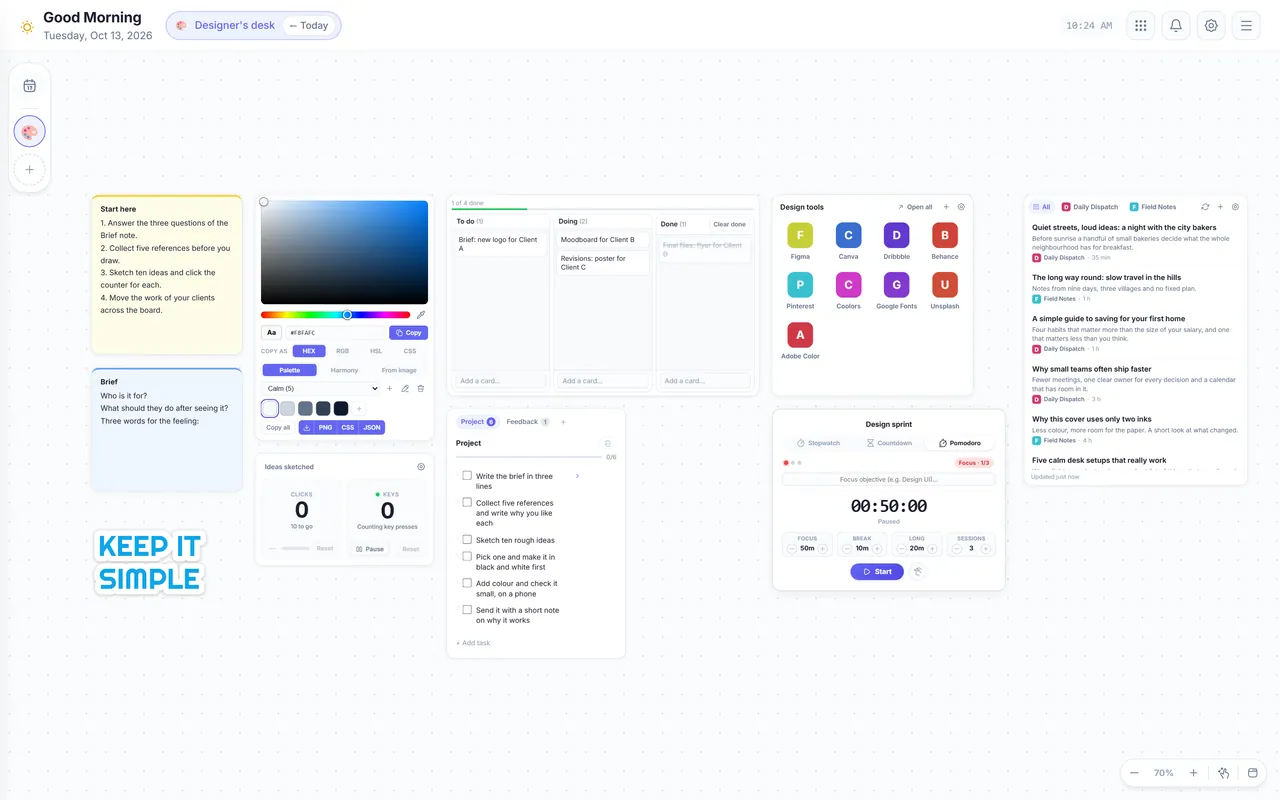
The Designer’s desk board in VibeBoard, with 10 widgets: Sticky note, Sticker, Colors, Counter and more

Designer’s desk

10 widgets

For: A designer, illustrator or maker who needs colours, references and a clear brief

A calm desk for design work: palettes you can copy, a brief note, a client board, a project list, design news and sites, and a sprint timer.

Inside: Sticky note (2), Sticker, Colors, Counter, Kanban, Task List, Link Group, Timer, News

What each widget is for
  • Sticky note: Start hereRead this first. It says in a few short steps where to begin. Delete it when you know the board.
  • Sticky note: BriefThe three questions of a good brief. Answer them before you open any design tool.
  • Sticker: KEEP ITA reminder on the board. Double-click it to change the words, colours and border.
  • Colors (3 palettes)Three ready palettes to start from. Click a colour to copy its code; add your own colours to any palette.
  • Counter: Ideas sketchedClick for every idea you sketch. Draw ten before you choose one: the first idea is rarely the best.
  • Kanban (4 cards)The work of your clients: To do, Doing, Done. Drag a card when its state changes.
  • Task List: Project (+1 list)The steps of one design project, from brief to delivery. Feedback is a tab for the comments of the client.
  • Link Group: Design tools (9 websites)The sites a designer opens every day. Change them with the edit button.
  • Timer (focus and break)A design sprint: 50 minutes of work and 10 minutes away from the screen.
  • News (3 channels)Design and web news to read in your breaks. New posts are marked in purple.
Download board file In VibeBoard: Makes a space
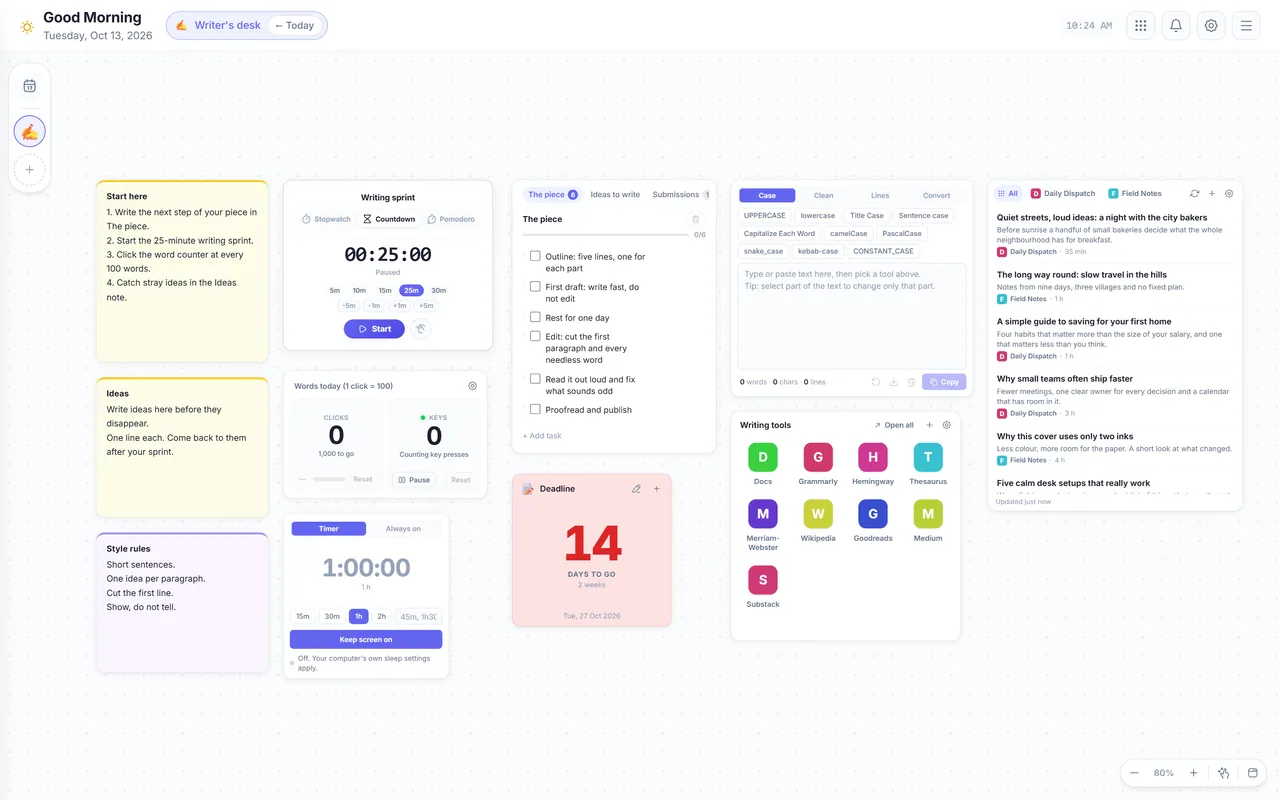
The Writer’s desk board in VibeBoard, with 11 widgets: Sticky note, Timer, Counter, Keep Awake and more

Writer’s desk

11 widgets

For: A blogger, author or student who writes long texts

A quiet desk for writing: a writing sprint timer, a word counter, the steps from outline to publish, an ideas note, your style rules, a text cleaner and writing sites.

Inside: Sticky note (3), Timer, Counter, Keep Awake, Task List, Days Until, Text tools, Link Group, News

What each widget is for
  • Sticky note: Start hereRead this first. It says in a few short steps where to begin. Delete it when you know the board.
  • Sticky note: IdeasCatch an idea without leaving the page you write. Come back to it later.
  • Sticky note: Style rulesYour own rules for good writing, always in view. Change them to yours.
  • TimerA 25-minute writing sprint. Write without stopping and without editing until the time is over.
  • Counter: Words today (1 click = 100)Click once for every 100 words you write. The goal is 1,000 words a day.
  • Keep AwakeKeeps the screen on while you read or think. It switches off by itself after one hour.
  • Task List: The piece (+2 lists)The steps of one piece, from outline to publish. Ideas to write and Submissions are tabs.
  • Days Until (1 date)Counts the days to your deadline. Change the title and the date.
  • Text toolsPaste text to change its case, clean double spaces and empty lines, sort lines and more.
  • Link Group: Writing tools (9 websites)The sites a writer opens every day. Change them with the edit button.
  • News (3 channels)Ideas and good writing to read when you are stuck. Short posts; new ones are marked in purple.
Download board file In VibeBoard: Makes a space

No board fits that word. Try another word, or press All.

Make your own board

Save a board you built as a file. Keep it, move it to another computer, or give it to a friend or a team.

  1. Open the board you want to save. It can be today’s board or one of your spaces.

  2. Open the Ready-made boards window. Press Ctrl+B, then the Ready-made boards card.

  3. Press Save this board as a file. The button is at the bottom of the window. A small file that ends in .json is downloaded.

  4. Add it again, or give it away. Whoever has the file presses Add from a file in the same window, reads what is inside and adds it.

Look at the file before you share it. It holds the texts of your widgets, such as tasks, notes and links. Due dates, reminders and counts are not in it. A board file holds 22 kinds of widget. Others, such as Image, Files and Password, are left out, and the window says how many.

Questions

Are the boards free?

Yes. All 21 boards are free. You need no account and no payment.

Does a board change what I already have?

No. A board is added to the right of the widgets that are already there, and nothing is covered or deleted. A space is a new place of its own, so your board of today is not touched.

Can I change a board after I add it?

Yes. Once it is added, every widget is a normal widget of yours. Rename it, resize it, write your own text and delete what you do not need. The file on this website does not change.

Does a board set reminders or send anything?

No. A board holds widgets and their starting text, nothing that runs. The Reminders widget of a board starts empty, and a timer waits until you start it.

To read the list, VibeBoard only downloads from this website. Nothing from your boards or your computer is sent.

Some widgets were left out. Why?

Your VibeBoard is older than 1.9.0. Version 1.9.0 and newer add every board in full. An older version adds the widgets it knows and says how many it left out.

Chrome updates extensions by itself, usually within a day. To do it now, open chrome://extensions, turn on Developer mode and press Update.

Can I use a board without allowing rocuo.com?

Yes. Download the board file on this page and press Add from a file in the Ready-made boards window. VibeBoard then reads only that file from your computer.

Why does a News widget ask me to allow a website?

Each news channel is a website, and VibeBoard asks Chrome before it reads one. Press Allow in the News widget. Until then the widget says that it waits. You can take the permission back in Settings, under Website access.

How do I give my own board to somebody?

Save it as a file and send the file. The steps are in Make your own board. There is no account to share it through.

Need help?

Start with one board,
then make it yours.

All 21 boards are free. Add VibeBoard to Chrome, open Ready-made boards and pick the one that fits your week.

Free · No account · No ads